Triggers Explained | Copilot Studio Day 13
A detailed guide to Copilot Studio triggers: topic trigger phrases, event triggers, trigger payloads, topic matching, best practices, mistakes, testing, billing, and governance.
- Published
- Updated
- Reading time
- 12 min read
Week 2 · Day 13 of 365 in 365 Days of Copilot Studio — view the full series
Before you start
Is this guide for you?
- Best entry point
- 365 Days of Copilot Studio
- Time investment
- 12 min read
In this article
- What is a trigger?
- Topic triggers vs event triggers
- How event triggers work
- How to add an event trigger
- Trigger payloads and instructions
On this page (22 sections)
In Microsoft Copilot Studio, every useful conversation needs a starting point. A user asks a question, types a request, or speaks a phrase. Copilot Studio then decides which topic should handle that message. The thing that helps Copilot Studio make that decision is the trigger.
A trigger tells your copilot when to start a topic. It listens for user input, compares that input with the trigger phrases configured for your topics, and starts the topic that best matches the user's intent. For example, when a user says I want to apply leave, the copilot can start a Leave Request topic.
This article expands the Day 13 concept into a practical builder guide: what triggers are, how trigger phrases work, how event triggers work, how matching happens, how to write better triggers, what mistakes to avoid, and how to test that the right topic or action runs.
Microsoft Learn separates event triggers from topic triggers. Topic triggers are used to activate topics or actions based on phrases entered by users. Event triggers let an agent act autonomously when a defined external event occurs, such as a SharePoint item being created, a OneDrive file being created, a Planner task being completed, or a recurrence schedule firing. See the official Microsoft Learn article: Event trigger overview.
What is a trigger?
A trigger is the condition that starts a topic in Copilot Studio. For most custom topics, the trigger is based on what the user says. You define example phrases that represent the intent, and Copilot Studio uses those examples to decide when that topic should run.
Think of a trigger as the doorway into a topic. The topic contains the conversation logic: questions, messages, conditions, actions, Power Automate calls, Dataverse updates, escalation steps, and confirmation messages. The trigger decides whether the user should enter that doorway.
Without clear triggers, users may experience one of three problems: no topic starts, the wrong topic starts, or a generic fallback response appears. Good triggers reduce all three issues.
Topic triggers vs event triggers
Copilot Studio has two important trigger patterns to understand:
- Topic triggers: these start a topic or action based on what a user says. They rely on trigger phrases, user intent, and topic matching.
- Event triggers: these start agent behavior when something happens outside the chat. The event sends a payload to the agent through a connector, and the agent follows the instructions provided by the author and the trigger payload.
Use topic triggers when the user initiates the conversation. Use event triggers when a system event should initiate the work. For example, a user saying I need leave is a topic trigger scenario. A new Dataverse row being added, a SharePoint item being created, or a recurrence schedule firing is an event trigger scenario.
How event triggers work
Event triggers are designed for autonomous agent behavior. Microsoft Learn explains that an event trigger starts with a chosen event. That event generates a trigger payload and sends it to the agent through a connector. The payload contains information about the event and can include variables for event-specific data.
The event trigger workflow has three main parts:
- The event occurs. For example, an item is created in SharePoint, a file is created in OneDrive, a task is completed in Planner, or a recurrence interval passes.
- The trigger sends a payload. The payload can be JSON or plain text and can include event data, variables, and instructions.
- The agent chooses an action or topic. Based on the payload and instructions, the agent calls one or more predefined actions or topics.
Event triggers require generative orchestration to be turned on. Available triggers can also depend on organizational data policies configured by administrators in Power Automate.
How to add an event trigger
Microsoft Learn describes the authoring flow from the agent's Overview page. Use this process when you want the agent to react automatically to an external event:
- Open the agent and go to the Overview page.
- Find the Triggers section.
- Select Add trigger.
- Choose the trigger that matches your event.
- Provide authentication details if the connector requires them.
- Select Next.
- Configure the event parameters that activate the trigger.
- Review the default trigger payload and add your own content or instructions if needed.
The agent also needs actions or topics it can call in response. The trigger does not create those actions or topics for you. Build the target action or topic first, then use instructions and payload data to help the agent choose the correct response.
See the official Microsoft Learn article: Add an event trigger.
Trigger payloads and instructions
A trigger payload is the message sent to the agent when an event trigger fires. It can contain the event data and additional instructions for the agent. Payload instructions are useful when one agent has multiple triggers or when each trigger needs specific guidance.
For example, a Dataverse trigger might send details from a new or modified row and include an instruction such as summarize the change and notify the account owner. A SharePoint trigger might send item metadata and instruct the agent to classify the request, create a task, or start an approval topic.
Keep agent instructions and payload instructions aligned. Conflicting instructions can create errors or unexpected behavior. If the event is complex, place event-specific guidance in the trigger payload instead of overloading the agent's general instructions.
How to test an event trigger
Always test the trigger and the agent's reaction before publishing. Before the agent is published with the new trigger, it does not react automatically. You manually activate the agent by selecting a trigger payload to send into the test experience.
- Run the triggering event once. For example, if the trigger is a Planner task assignment, assign a test task so a recent payload exists.
- Use the Test trigger icon. On the agent Overview page, select the test icon beside the trigger.
- Choose a recent event instance. Select the payload instance you want to test.
- Start testing. Confirm that the agent calls the expected action or topic and uses the payload data correctly.
Use the activity map during testing to inspect how the agent reacted to the trigger payload. This helps you spot missing inputs, wrong action selection, or instructions that are too vague.
How to modify an event trigger
After a trigger is created, you can change its event parameters and payload through Power Automate:
- Go to the agent Overview page.
- Locate the trigger.
- Select the three-dot menu, then choose Edit in Power Automate.
- Select the trigger and use the Parameters and Code tabs to make changes.
- Save the changes and retest the trigger before publishing.
Billing, governance, and security for event triggers
Event triggers can affect usage and billing. Microsoft Learn states that event trigger activity counts toward units of consumption because payloads sent from event triggers are counted as messages. A recurrence trigger that fires every 10 minutes, for example, sends a payload every 10 minutes.
Before enabling event triggers, review these areas:
- Frequency: avoid very frequent or indefinite recurrence triggers unless the business value justifies the usage.
- Data policies: administrators can control whether certain triggers are available in an environment.
- Maker credentials: event triggers currently use the agent maker's credentials for authentication, so review what data and systems the agent can access.
- Payload data: event payloads can contain sensitive information. Test what is included and where the agent may output it.
- Publishing: once published, the agent can react automatically each time the trigger activates, so test thoroughly before publishing.
When you publish an agent with event triggers, Copilot Studio warns that the agent uses the author's credentials for trigger authentication. After publishing, the agent reacts automatically whenever the trigger activates. Use the Activity page to review the step-by-step record of triggers and reactions.
When to use each trigger type
Use the right trigger type for the job:
- Use topic triggers for user-led scenarios such as HR requests, IT support, policy questions, benefits questions, order status, and service desk triage.
- Use event triggers for system-led scenarios such as new SharePoint items, new files, completed Planner tasks, Dataverse row changes, scheduled reminders, onboarding events, and follow-up automation.
- Use Power Automate actions when a connector is difficult for the agent to call directly or when you need deterministic process logic around approvals, updates, notifications, or integration steps.
What are trigger phrases?
Trigger phrases are example sentences users might type or say when they want a specific outcome. They do not need to be perfect scripts. They should represent the natural language patterns your users are likely to use.
For a leave request topic, useful trigger phrases might include:
- Apply leave
- Request vacation
- Book time off
- I need leave
- Can I take leave tomorrow?
- Submit annual leave request
These phrases all point to the same intent: the user wants to start a leave-related process. The wording is different, but the goal is similar. That is exactly what trigger phrases should capture.
More relevant trigger phrases lead to better topic matching. The goal is not to add hundreds of phrases. The goal is to cover the most realistic ways users ask.
How trigger matching works
Trigger matching is not simple keyword matching. Users do not need to type the exact phrase you entered. Copilot Studio evaluates the user's message and tries to understand which topic best matches the user's intent.
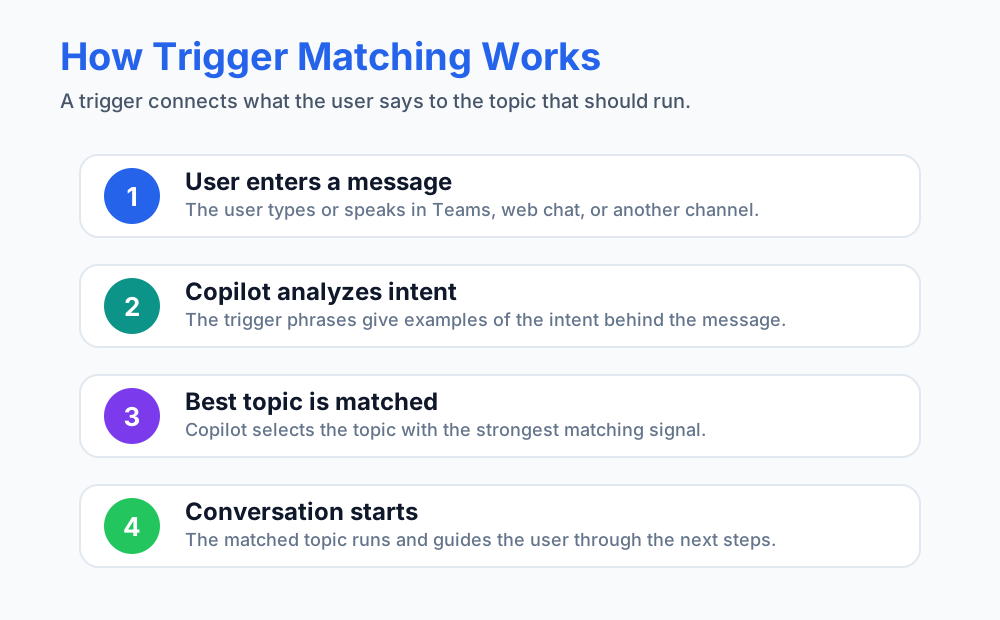
The typical flow looks like this:
- User enters a message. The user types or speaks in a channel such as Microsoft Teams, web chat, or another published channel.
- Copilot analyzes intent. Copilot Studio compares the message against the trigger phrases and topic signals it has available.
- Best topic is selected. The most relevant trigger match wins. If the signals are weak or conflicting, the copilot may ask for clarification or fall back.
- Conversation starts. The matched topic begins and runs the designed conversation steps.
This is why trigger design matters. If two topics use very similar phrases, they can compete. If a topic has too few realistic examples, Copilot Studio may not recognize the user's request. If the phrases are too long or unnatural, matching can become less reliable.
Best practices for trigger phrases
Good trigger phrases are short, natural, varied, and specific. They should sound like something a real user would type, not like system documentation.
Add multiple trigger phrases
One phrase is rarely enough. Users do not all speak the same way. Add several examples that cover different ways to ask for the same outcome. For a leave topic, use a mix of words like leave, vacation, time off, annual leave, and holiday if those terms are common in your organization.
Use natural language
Write phrases like your users speak. I need leave tomorrow is more useful than Initiate employee absence management transaction. Trigger phrases should reflect real conversation, not internal process names.
Include common variations
Include synonyms and related wording. A user might say request vacation, take time off, apply leave, or book annual leave. All can map to the same topic if that is the intended process.
Keep phrases short
Short phrases usually make the intent clearer. Very long phrases can introduce extra meaning that distracts from the topic. Use a few complete user-style questions, but keep most phrases concise.
Test different user inputs
Do not assume triggers are correct after writing them. Test direct requests, partial phrases, synonyms, spelling variations, and longer questions. The right topic should start consistently.
Mistakes to avoid
Most trigger problems come from unclear boundaries between topics. If users ask one thing and Copilot Studio starts another topic, look at the trigger phrases first.
- Too few trigger phrases: limited examples create missed opportunities and weak matching.
- Duplicate phrases across topics: the same or very similar phrases can confuse topic selection.
- Long complicated sentences: extra details can make the intended signal harder to identify.
- Similar topics competing: split topics carefully so one user request does not fit multiple triggers equally well.
- Ignoring user wording: use real support tickets, chat logs, HR questions, or service desk phrases to learn how users actually ask.
Real example: HR Leave Assistant
Imagine an HR Leave Assistant copilot. The user says, Can I take leave tomorrow? A well-designed trigger should match that message to the Leave Request topic.
Once the topic starts, the conversation can continue like this:
- Trigger matches: Copilot Studio starts the Leave Request topic.
- Collect leave details: the copilot asks for leave type, start date, end date, reason, and any manager approval details.
- Submit request: the copilot sends the request using Power Automate, Dataverse, SharePoint, or an HR system connector.
- Confirm submission: the copilot confirms that the leave request was submitted and explains what happens next.
A good trigger creates a better conversation experience because the user does not need to navigate menus or know the exact topic name. They simply ask in their own words.
How to test triggers
Use the Test Copilot panel while building. Testing should include the exact phrases you entered, but it should also include realistic variations that users may type.
For the Leave Request topic, test inputs such as:
- I need vacation
- Leave request
- Time off tomorrow
- Apply annual leave
- Can I take PTO next Friday?
- I want to request sick leave
After each test, verify that the correct topic starts. If a different topic starts, compare trigger phrases between both topics. If no topic starts, add clearer phrases for the missing wording pattern. If multiple topics are too similar, merge them or make their triggers more specific.
Trigger phrase checklist
Before publishing a topic, review this checklist:
- Does the topic have multiple realistic trigger phrases?
- Do the phrases use natural user language?
- Are common synonyms and variations covered?
- Are phrases short enough to keep the intent clear?
- Are similar phrases avoided across competing topics?
- Have you tested direct, indirect, short, and long user inputs?
- Does the topic still work after adding new topics to the copilot?
Key takeaways
Triggers start every topic-based conversation in Copilot Studio. Trigger phrases help identify user intent. Natural language and common variations improve matching. Regular testing keeps the experience accurate as your copilot grows.
Better triggers create better user experiences. When the right topic starts at the right time, the conversation feels simple, fast, and useful.
Tagged
Triggers · Topics · Conversation Design · AI Agents
Frequently asked questions
What is a trigger in Microsoft Copilot Studio?
A trigger tells Copilot Studio when a topic should start. It uses example phrases and user intent signals to match a user message to the most relevant topic.
What are trigger phrases?
Trigger phrases are example sentences that represent how users might ask for something, such as apply leave, request vacation, book time off, or I need leave.
Does a user need to type the exact trigger phrase?
No. Trigger matching is intent-based. Good trigger phrases help Copilot Studio understand the topic, but users do not need to type the exact same words.
How many trigger phrases should I add?
Add enough natural examples to cover common ways users ask. Do not add near-duplicates just to increase the count. Quality and coverage matter more than volume.
Why is my wrong topic starting?
Common reasons include duplicate phrases across topics, similar topics competing, vague trigger phrases, overly broad wording, or missing examples for the intended topic.
How should I test triggers?
Use the Test Copilot panel and try different real user questions. Confirm the correct topic starts for direct wording, synonyms, short phrases, long questions, and edge cases.
What is an event trigger in Copilot Studio?
An event trigger lets an agent act when something happens outside the conversation, such as a SharePoint item being created, a OneDrive file being created, a Planner task being completed, or a recurring schedule firing.
Are event triggers the same as topic triggers?
No. Topic triggers usually depend on user input and trigger phrases. Event triggers activate from external events and send a payload to the agent.
Do event triggers affect billing?
Yes. Microsoft Learn states that event trigger activity counts toward usage and billing because payloads sent to agents from event triggers are counted as messages.
What should I watch for before publishing event triggers?
Test thoroughly, review trigger frequency, understand payload data, check connector authentication, and confirm that maker credentials and data policies are appropriate for the environment.
How do I add an event trigger in Copilot Studio?
Open the agent Overview page, go to Triggers, select Add trigger, choose the trigger, authenticate if needed, configure event parameters, and define or adjust the trigger payload.
Can I edit an event trigger after creating it?
Yes. Microsoft Learn says you can locate the trigger on the Overview page, open the menu, select Edit in Power Automate, and update parameters or payload code there.
Sources
- Microsoft Learn: Authoring Create Edit Topics, Microsoft
- Microsoft Learn: Microsoft Copilot Studio, Microsoft
Have a Microsoft 365 topic idea?
Share article suggestions, community session ideas, corrections, or real-world scenarios for future nextM365 learning notes.
Keep learning Microsoft 365
Explore more practical guides for SharePoint, Power Platform, Copilot Studio, migration, automation, governance, and security.
Continue learning
Related tutorials
Related questions
Related comparisons
Next action