Discover
One workspace directory
Discover Microsoft Teams and SharePoint workspaces from a central directory.
Teams & SharePoint workspace directory
Find your workspace. Know who to ask.
Discover Teams and SharePoint workspaces, find owners, save favorites, and request access. One central directory, built for your Microsoft 365 environment.
The problem
As Microsoft 365 environments grow, work spreads across more Teams and SharePoint sites. Finding the right workspace becomes harder, and employees may not know who owns it or where to ask for access.
M365 Sites Center brings discovery and available ownership information into one directory, giving employees a clear starting point for finding and joining the workspaces they need.
Why M365 Sites Center?
When employees search old messages, ask colleagues for workspace links, or contact IT to find an owner, routine navigation becomes a recurring cost. M365 Sites Center gives them a central place to find a workspace, understand who manages it, and take the next step.
A new employee can find a department workspace, check the available owner information, and submit an access request through the configured process, all from one directory.
The potential savings come from employee time and reduced support effort. Actual value depends on adoption and the manual work replaced; tenant setup, backend hosting, and maintenance should be included when assessing the business case.
Features
Find a workspace, understand its context, and take the next step.
DiscoverOrganizeConnect
Discover Microsoft Teams and SharePoint workspaces from a central directory.
Switch between All sites, My sites, and Favorites to find the workspaces you need.
Search by title, owner, or creation date, and use visibility filters to narrow the directory.
Browse workspace cards or switch to a list. Sort by name or creation date.
Review available owner and member information to understand who manages a workspace.
Follow workspace links to continue working in Microsoft Teams or SharePoint.
Submit access requests through the configured backend, with optional Power Automate approval routing.
Save favorites in your current browser. Favorites are browser-local and do not sync across devices.
Inside the application
Explore the real application. Start with the directory, find your workspaces, and see who manages them.
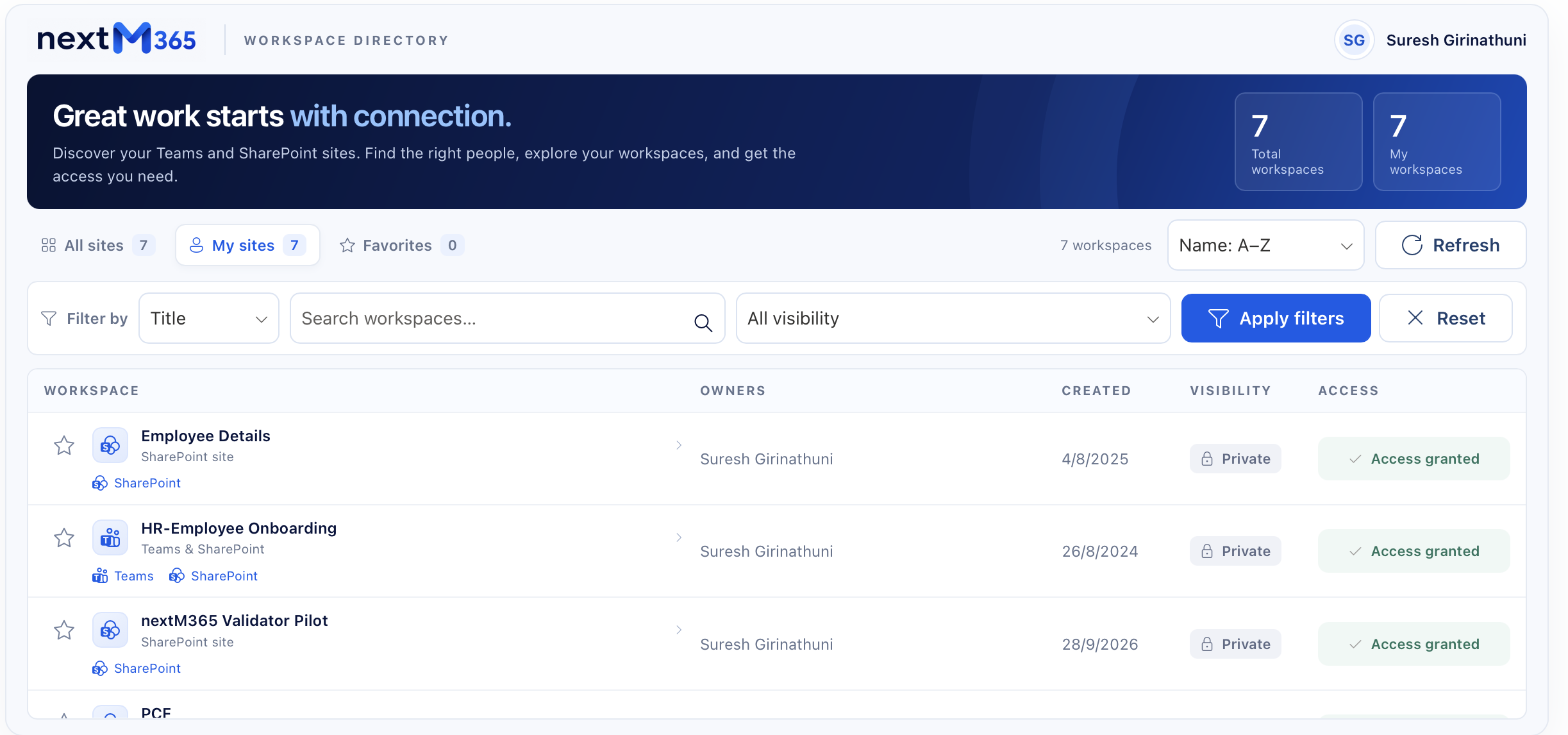
01Discover your workspaces
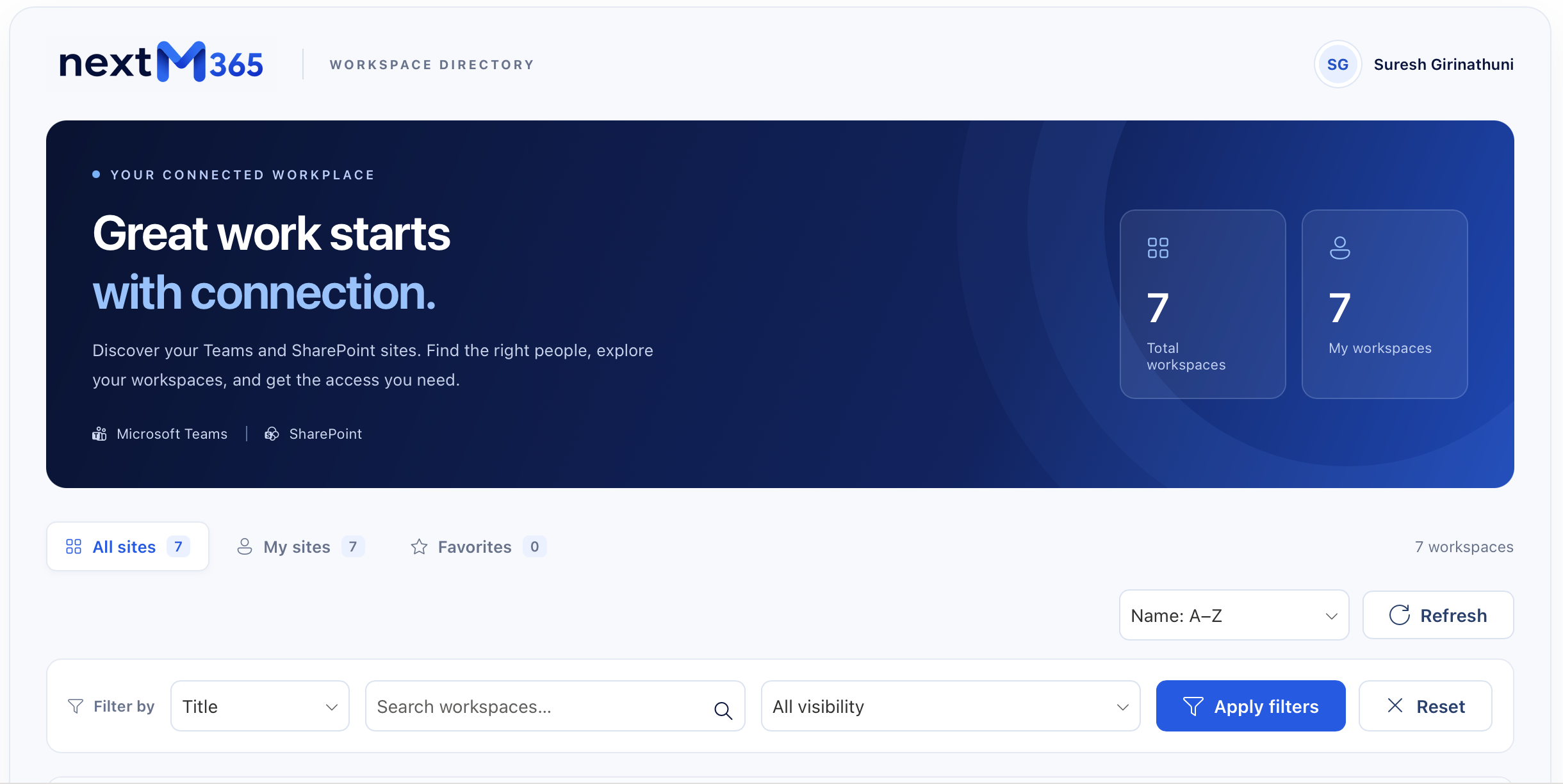
A central starting point for Teams and SharePoint discovery, with workspace views, sorting, and search filters.
02Find a workspace
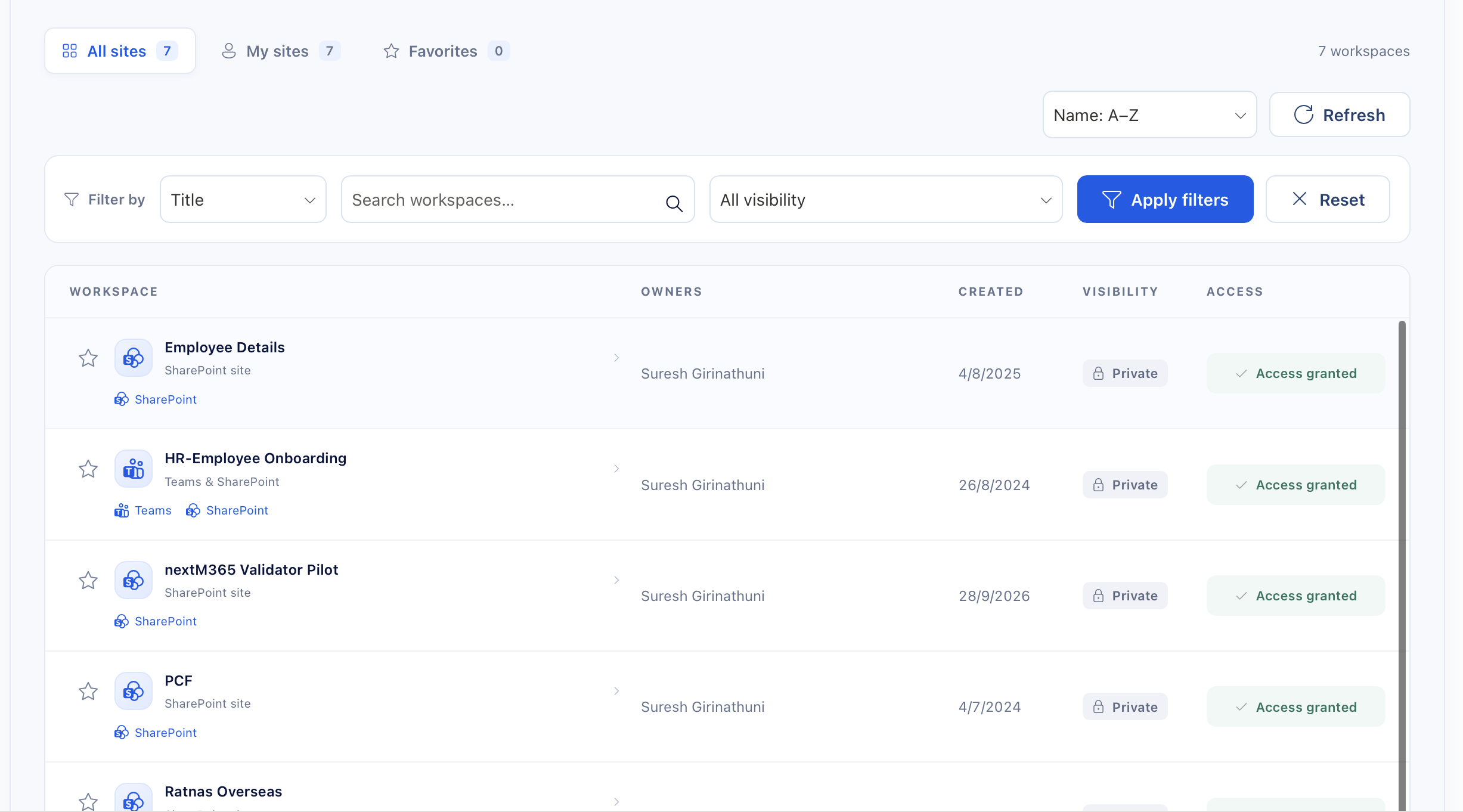
All sites brings workspace details into a scannable list, with links to open Teams and SharePoint.
03Make it personal
My sites brings workspace discovery, search, owner information, access status, and Teams and SharePoint links together in one view.
04Know who to ask
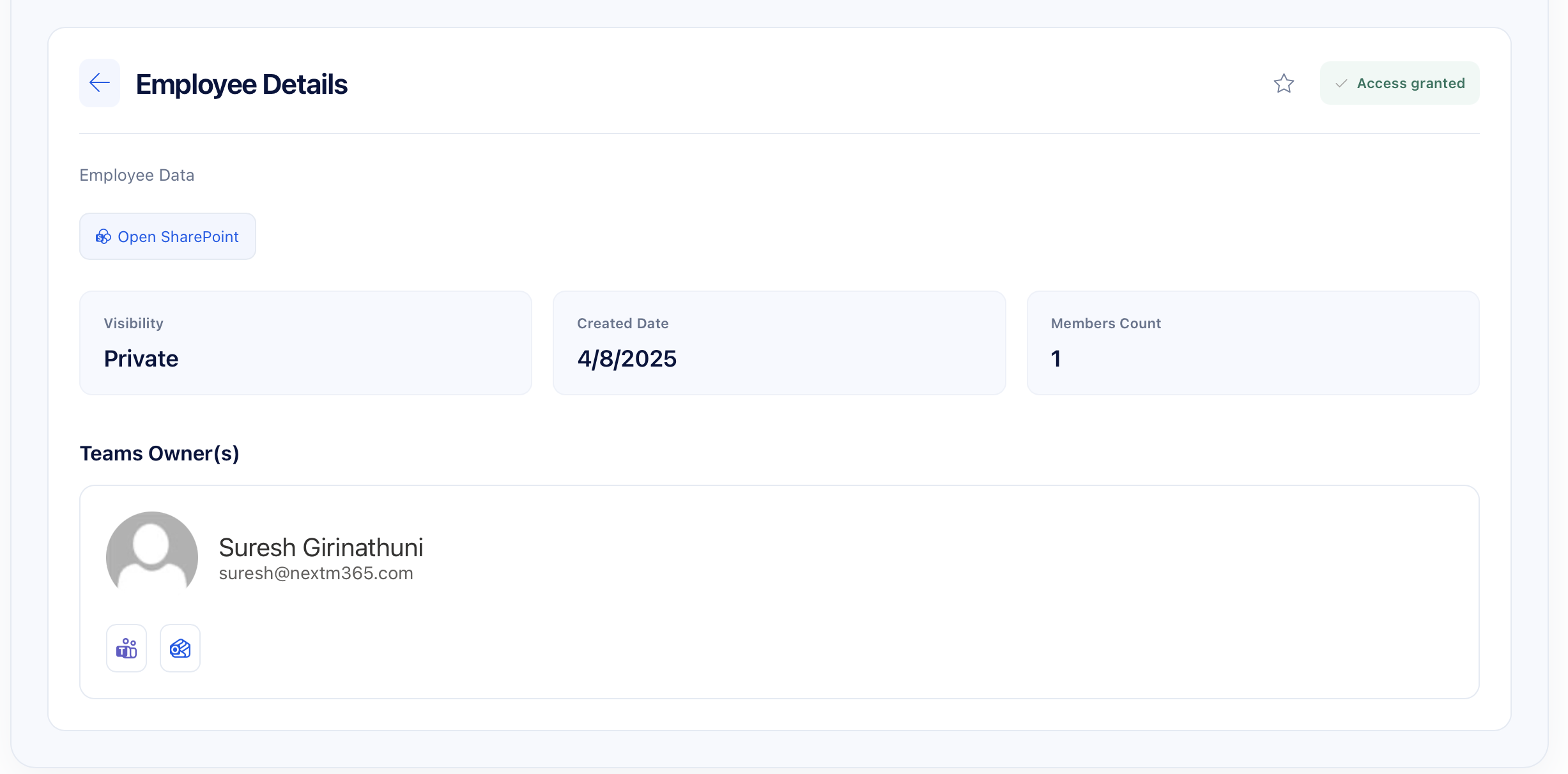
Workspace details surface available ownership and membership information alongside workspace and contact actions.
Technology stack
The application runs within Microsoft 365. Deployment requires tenant configuration, backend setup, and appropriate permissions for Microsoft Graph and the configured services.
Access requests use the configured backend. Power Automate approval routing is optional and must be set up for the tenant’s process.
Planning for your organization
M365 Sites Center is for organizations where employees need a clearer way to discover Teams and SharePoint workspaces, identify owners, and request access. It is especially relevant when workspace links and ownership information are spread across messages or support enquiries.
The directory sends access requests through the configured backend. Approval routing can optionally use Power Automate. Submitting a request does not itself guarantee access; the outcome depends on the configured process and appropriate permissions.
Favorites are saved in the user’s current browser. They do not sync across devices or browsers.
The application runs within Microsoft 365 and requires tenant configuration, backend setup, and appropriate permissions. A project enquiry can help clarify your workspace discovery needs, access-request process, and deployment requirements.
Let’s talk about your workspaces
Discuss M365 Sites Center, your tenant requirements, or a custom Teams and SharePoint discovery experience.
Discuss your project