Replacing Expensive Document Management Systems (DMS) with SharePoint & Power Automate (2026 ROI & Architecture Blueprint)
A 2026 ROI and architecture blueprint for replacing expensive DMS platforms with SharePoint, Power Automate, AI document processing, and Microsoft Purview governance.
- Published
- Reading time
- 13 min read
Before you start
Is this guide for you?
- Best entry point
- SharePoint
- Time investment
- 13 min read
In this article
- The Modern DMS Consolidation Thesis
- The 5 Core Capabilities of an Enterprise DMS in Microsoft 365
- End-to-End Blueprint: Custom Contract Lifecycle Management System
- Financial ROI and 3-Year Savings Model
- Common Gotchas and When Not to Replace a Dedicated DMS
On this page (22 sections)
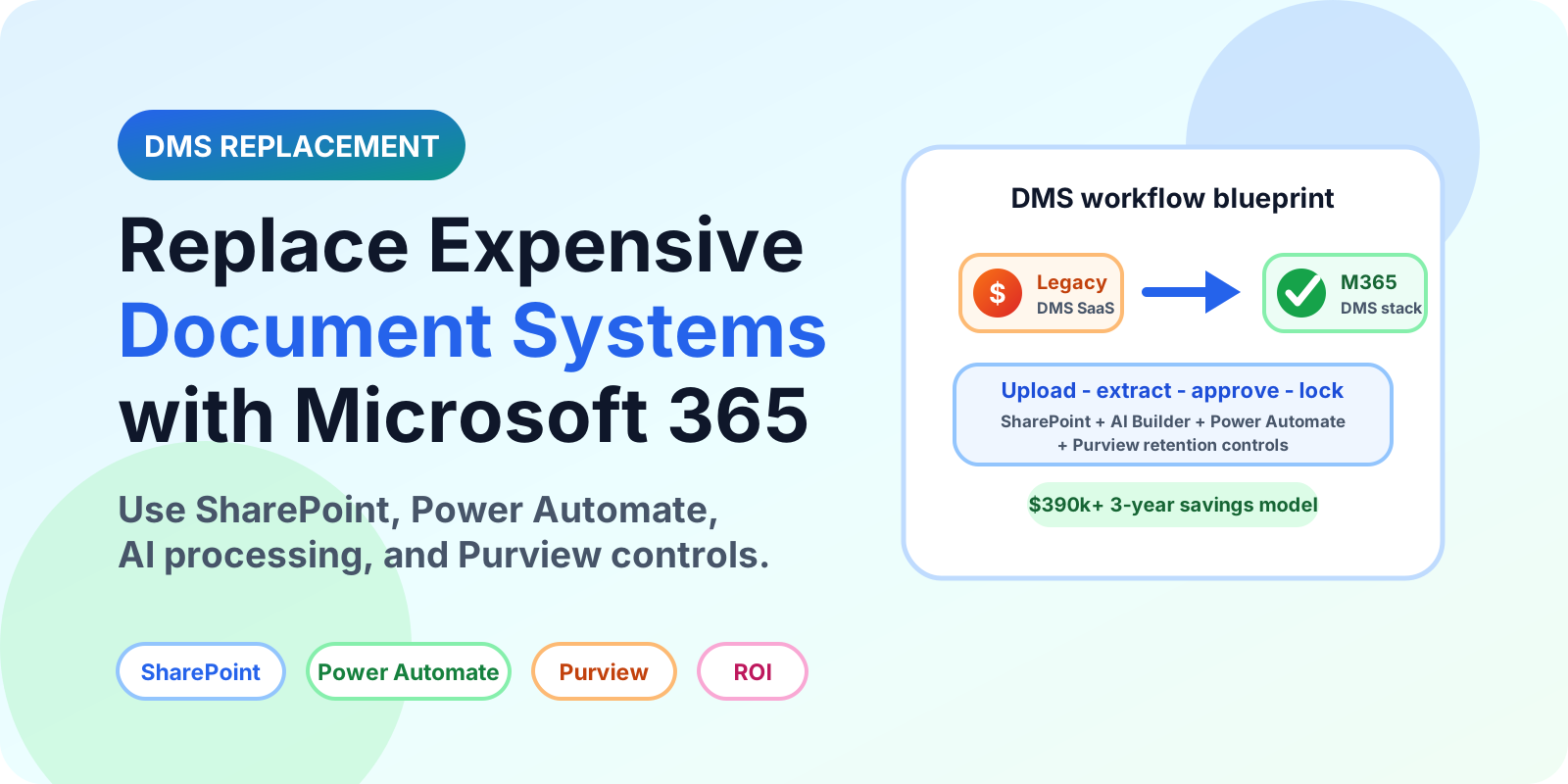
Replace DMS with SharePoint is a serious board-level cost conversation in 2026. Many organizations are paying for DocuWare, M-Files, Laserfiche, OpenText, legacy ECM platforms, departmental document portals, and niche workflow tools while already owning Microsoft 365 Business Premium, E3, or E5. The duplicate spend is not always obvious because it sits across procurement, legal, HR, finance, operations, and IT budgets. But once the CFO sees $50,000 to $200,000 in annual license overhead for document storage and routing that Microsoft 365 can often handle, the consolidation case becomes difficult to ignore.
This guide is written for CFOs, IT Directors, Operations Heads, Procurement Managers, Legal Leaders, and HR Leaders who want an architecture-first path to replacing expensive document management systems with SharePoint + Power Automate. It is not an argument that SharePoint should replace every specialized DMS. It is a practical blueprint for deciding where Microsoft 365 is enough, where SharePoint Premium or AI Builder adds value, where Dataverse is a better process database, and where a dedicated industry system should remain in place.
The Modern DMS Consolidation Thesis
The SaaS sprawl problem is simple: organizations are paying $15 to $50 per user per month for third-party document management capabilities while Microsoft 365 already provides document libraries, metadata, versioning, co-authoring, sharing controls, search, workflow automation, compliance retention, eDiscovery, audit, and identity integration. The business may still need a dedicated DMS for specialized regulated workflows, but many contract, invoice, HR policy, procurement, quality, and operations document processes can be rebuilt inside Microsoft 365 with lower licensing overhead and better user adoption.
The architectural shift is from siloed ECM repositories into Microsoft 365-native document services:
- SharePoint document libraries become the controlled repository.
- Content types and metadata define document classes and lifecycle attributes.
- Power Automate handles routing, approvals, escalations, Teams notifications, and state changes.
- AI Builder or SharePoint document processing extracts metadata such as vendor, invoice ID, contract dates, counterparty, and amounts.
- Microsoft Purview applies retention labels, audit, eDiscovery, and compliance controls.
- Microsoft Search and SharePoint views provide discovery and operational dashboards.
That model reduces tool switching. Users work where they already work: Teams, SharePoint, Outlook, OneDrive, and Microsoft 365 apps. The value is not just software savings. It is fewer repositories, fewer integrations, fewer shadow IT workflows, and a stronger compliance boundary.
| Capability | Dedicated 3rd-Party DMS | Native SharePoint + Power Automate Stack |
|---|---|---|
| Licensing cost | Often $15 to $50 per user/month plus storage, workflow, OCR, or connector modules | Often no incremental base repository cost when M365 is already licensed; AI/document processing may be pay-as-you-go or separately licensed |
| User adoption | Separate portal, separate mobile app, separate training model | Works inside SharePoint, Teams, Outlook, and Microsoft 365 user habits |
| Security and DLP | Vendor-specific security model and external compliance boundary | Microsoft Entra ID, Purview, sensitivity labels, retention, audit, and DLP alignment |
| Workflow customization | Strong packaged workflow in mature DMS platforms; customization may require vendor specialists | Power Automate flows, approvals, Teams cards, connectors, child flows, and custom APIs |
| Metadata and classification | Usually strong metadata, document classes, and scanning models | SharePoint columns, content types, managed metadata, AI Builder, SharePoint Premium document processing |
| Mobile access | Vendor mobile app or web portal | Teams mobile, SharePoint mobile, OneDrive mobile, Approvals in Teams |
| Exit flexibility | Export and migration can be expensive depending on vendor data model | Documents and metadata remain in Microsoft 365 repositories |
Note: Microsoft 365 is not automatically free. SharePoint, Power Automate, AI Builder, SharePoint Premium, premium connectors, Dataverse, and Purview capabilities depend on licensing and usage. The business case should compare true three-year cost, not only visible DMS subscription lines.
The 5 Core Capabilities of an Enterprise DMS in Microsoft 365
Capability 1: Automated metadata extraction and ingestion
Manual metadata entry is the graveyard of DMS projects. If users must type ten fields for every invoice, contract, policy, or HR document, adoption drops and data quality becomes unreliable. Microsoft 365 gives several options for extraction and ingestion:
- AI Builder invoice processing: extracts common invoice fields such as invoice ID, invoice date, vendor, amount due, line items, and confidence scores.
- AI Builder document processing: trains models for structured, semi-structured, and freeform documents such as contracts, statements of work, purchase orders, and letters.
- SharePoint document processing / SharePoint Premium scenarios: applies document processing models to SharePoint libraries and can write extracted results into columns.
- Email ingestion: Power Automate monitors a shared mailbox and saves attachments into an intake library.
- Scanner ingestion: network scanners drop PDFs into OneDrive, SharePoint, or a monitored folder for processing.
A practical invoice intake pattern is:
Trigger: When a new email arrives in AP Invoices mailbox
Condition: Has attachments = true
Action: Create file in SharePoint /Finance/AP Intake
Action: Process documents using AI Builder invoice model
Action: Update file properties:
  Vendor Name
  Invoice Number
  Invoice Date
  Total Amount
  Confidence Score
Action: If Confidence Score < 0.80, route to AP review queue
Action: If Confidence Score >= 0.80, start approval workflow
Capability 2: Multi-stage approval routing and dynamic approvers
A real DMS needs approvals that change based on document type, value, department, country, and risk. Power Automate can build sequential and parallel approvals tied to Microsoft Entra ID managers, SharePoint lookup matrices, Dataverse tables, or finance approval rules.
Approval routing examples:
- Contracts under $25,000 go to Department Lead.
- Contracts between $25,000 and $100,000 go to Department Lead and Finance Controller.
- Contracts over $100,000 go to Department Lead, Finance Controller, Legal, and CFO.
- HR policies go to HR Director and Legal.
- Vendor onboarding documents go to Procurement, Security, and Finance in parallel.
Approvals can be surfaced in Microsoft Teams using the Approvals app or adaptive cards. Teams-based action is important because many executives will not open a separate DMS portal just to click approve.
Capability 3: Document state and lifecycle control
Document lifecycle is the difference between a file repository and a governed DMS. In SharePoint, lifecycle is implemented through content types, status columns, views, permissions, versioning, and Power Automate state transitions.
Draft
  -> In Review
  -> Approved
  -> Active
  -> Archived
Example lifecycle actions:
- When a document enters In Review, notify approvers and prevent casual edits by non-owners.
- When approved, set Approval Status = Approved, move it to an Approved view, update effective dates, and notify requestor.
- When active, apply standard read permissions and start renewal reminders.
- When archived, apply retention label, move to archive library, and remove edit permissions.
Capability 4: Audit trails and compliance records
Auditability is a core DMS requirement. SharePoint provides version history, modified by, created by, check-in/check-out, metadata history, and audit events in Microsoft 365. Microsoft Purview provides retention policies, retention labels, eDiscovery, audit, and records management capabilities depending on licensing and configuration.
For signatures, choose deliberately:
- Native approvals: good for business sign-off, internal review, and operational approval evidence.
- Adobe Acrobat Sign or DocuSign connectors: better when legally binding e-signature routing is required.
- Purview retention labels: better for lifecycle governance than folder naming rules.
- Immutable records: use only where the business has formal recordkeeping requirements and the tenant is licensed/configured appropriately.
Capability 5: Advanced search and dynamic dashboards
DMS users need to find documents by business attributes, not just file name. SharePoint can support this with indexed metadata, custom views, hub search, Microsoft Search, managed metadata, and Power BI dashboards over SharePoint lists or Dataverse tables.
Recommended views:
- Active contracts by counterparty
- Contracts expiring in 90 days
- Invoices pending manager approval
- Documents waiting for Legal review
- Archived records by fiscal year
- Low-confidence AI extraction queue
Tip: If the workflow has high transaction volume and reporting requirements, store the process state in a SharePoint list or Dataverse table, not only in document library columns. That gives you cleaner dashboards, easier escalation logic, and better operational reporting.
End-to-End Blueprint: Custom Contract Lifecycle Management System
The most common DMS replacement candidate is contract lifecycle management for small and mid-sized enterprise teams. Many organizations use an expensive DMS for contracts when the true process is intake, metadata capture, approval, signature routing, retention, reminders, and searchable storage. Microsoft 365 can often cover that pattern.
Architecture diagram
Upload Document
  |
  v
AI Builder / SharePoint Document Processing
  |
  | Extract: Counterparty, Effective Date, Expiration Date, Value
  v
SharePoint Contract Library
  |
  | Metadata + content type + versioning
  v
Power Automate Approval Gate
  |
  | Dynamic approvers from Entra ID manager or approval matrix
  v
PDF Watermark / Read-Only Lock / E-Signature Route
  |
  v
Purview Retention Label + Renewal Reminder + Audit Record
SharePoint library schema
| Column Name | Type | Required | Default / Example | Index? |
|---|---|---|---|---|
| Contract Title | Single line of text | Yes | Contoso Services Agreement 2026 | No |
| Counterparty | Single line, Lookup, or Managed Metadata | Yes | Contoso Ltd | Yes |
| Effective Date | Date | Yes | 2026-08-01 | Yes |
| Expiration Date | Date | No | 2027-07-31 | Yes |
| Contract Value | Currency | No | 75000 | Yes |
| Approval Status | Choice | Yes | Draft, In Review, Approved, Rejected, Active, Archived | Yes |
| Department Lead | Person | Yes | Approving manager | No |
| Legal Reviewer | Person | No | Assigned legal owner | No |
| Retention Category | Choice | Yes | Commercial Contract, Vendor Agreement, NDA | Yes |
| AI Confidence Score | Number | No | 0.92 | No |
Power Automate flow logic
Use this as a copy-paste planning specification for a cloud flow:
Flow name:
  Contract Lifecycle - Intake and Approval

Trigger:
  SharePoint - When a file is created or modified (properties only)
  Site Address: Legal or Contracts site
  Library Name: Contracts

Trigger conditions:
  Approval Status is equal to Draft
  Content Type is equal to Contract

Step 1 - Get file content:
  Use SharePoint Get file content using identifier.

Step 2 - Extract metadata:
  Use AI Builder Process documents action or SharePoint document processing output.
  Extract Counterparty, Effective Date, Expiration Date, Contract Value.

Step 3 - Validate required metadata:
  If Counterparty is empty OR Effective Date is empty:
    Set Approval Status = Metadata Required
    Post Teams adaptive card to requestor
    Stop flow

Step 4 - Determine approvers:
  If Contract Value < 25000:
    Approvers = Department Lead
  Else if Contract Value <= 100000:
    Approvers = Department Lead + Finance Controller
  Else:
    Approvers = Department Lead + Finance Controller + Legal Reviewer + CFO

Step 5 - Start approval:
  Use Start and wait for an approval.
  Approval type: Approve/Reject - Everyone must approve.
  Details: Contract Title, Counterparty, Contract Value, Expiration Date, SharePoint link.

Step 6 - Teams notification:
  Post adaptive card to approvers with document link and key metadata.

Step 7 - If approved:
  Set Approval Status = Approved
  Apply retention label based on Retention Category
  Move or copy PDF to Approved Contracts library if required
  Notify requestor and contract owner

Step 8 - If rejected:
  Set Approval Status = Rejected
  Write rejection comments to Approval Comments column
  Notify requestor

Step 9 - Escalation:
  If approval is not completed in 3 business days:
    Send reminder to approver
  If not completed in 7 business days:
    Escalate to Department Lead manager
Dataverse vs SharePoint lists
| Requirement | Use SharePoint List | Use Dataverse |
|---|---|---|
| Approval matrix | Good for department/value lookup tables | Better for complex multi-entity approval rules |
| Process tracking | Good for lightweight status dashboards | Better for transactional process apps and role-based security |
| Security model | Site/list permissions; item-level exceptions should be limited | Richer row-level security, business units, roles, and solution governance |
| ALM and environments | Manual or scripted provisioning | Solution-aware deployment across dev/test/prod |
| Cost and simplicity | Lower complexity and often enough for department workflows | More consistent under load, but licensing and admin overhead must be planned |
Financial ROI and 3-Year Savings Model
For a 500-user organization, assume the current DMS costs $25 per user per month. That is a middle-of-the-road planning figure for a paid DMS platform, not a universal vendor quote. The subscription alone becomes:
500 users x $25/user/month x 36 months = $450,000That $450,000 excludes implementation, storage overages, OCR modules, premium connectors, support contracts, vendor professional services, training, and periodic workflow changes. The three-year cost can easily move higher for complex platforms.
| Cost Category | 3rd-Party DMS | SharePoint + Power Automate Replacement |
|---|---|---|
| Software subscription | $450,000 over 3 years at $25 PEPM for 500 users | $0 incremental base repository cost if Microsoft 365 is already owned |
| Implementation | $50,000 to $150,000 depending on scope | $30,000 to $60,000 for focused architecture, workflow, migration, and governance setup |
| Support and enhancements | $30,000 to $90,000 over 3 years | $15,000 to $45,000 depending on workflow change rate |
| AI/OCR/document processing | Often module-based or usage-based | AI Builder, SharePoint Premium, or pay-as-you-go document processing should be estimated by volume |
| 3-year planning total | $530,000 to $690,000+ | $30,000 to $60,000 core replacement, plus processing/licensing where needed |
| Net 3-year savings | Approximately $390,000+ in avoidable DMS cost for suitable workloads | |
Warning: Do not promise savings until you classify workloads. A simple invoice approval process may be an easy Microsoft 365 replacement. A validated regulated records system may not be.
Common Gotchas and When Not to Replace a Dedicated DMS
Gotcha 1: SharePoint list view threshold
SharePoint libraries can store very large numbers of files, but views and queries must be designed around the 5,000-item List View Threshold. Use indexed columns, filtered views, folders where appropriate, and annual archive libraries for high-volume DMS patterns. For example:
Contracts - Active
Contracts - Archive 2024
Contracts - Archive 2025
Contracts - Archive 2026
Index columns such as Approval Status, Counterparty, Expiration Date, Department, Fiscal Year, and Retention Category before the library becomes large.
Gotcha 2: Premium connector and licensing assumptions
Some Power Automate connectors, Dataverse usage, AI Builder processing, and SharePoint Premium capabilities require additional licensing or pay-as-you-go capacity. Model this before presenting ROI to the CFO.
Gotcha 3: Item-level permissions
A DMS replacement should not create thousands of file-level permission exceptions. Use site-level, library-level, and group-based security. Split repositories when access boundaries are truly different.
When not to replace the DMS
Do not replace a dedicated DMS without specialist review when the workload requires:
- FDA 21 CFR Part 11 electronic validation and validated audit controls
- Complex engineering or construction CAD repositories with specialized viewer, version, and reference behavior
- High-volume production scanning with barcode separation and advanced batch capture
- Industry-specific records management workflows already certified in a dedicated platform
- Complex legal matter management with court-specific filing and hold processes
- Regulated archive immutability that Microsoft 365 licensing and configuration cannot satisfy as implemented
Document Management Requirements Template
A Document Management Architecture & Workflow Requirements Template in Excel format can help structure this work. Use it to inventory existing DMS workloads, document classes, metadata, approval rules, retention needs, integrations, licensing costs, and replacement complexity.
The template helps separate workloads that are good SharePoint + Power Automate candidates from workloads that should remain in a specialized DMS.
Implementation Roadmap
- Cost inventory: collect DMS subscriptions, support contracts, storage, OCR modules, and professional services spend.
- Workload classification: group documents by process: contracts, invoices, HR records, procurement, policies, quality, legal, projects.
- Risk review: identify regulated, validated, industry-specific, or high-complexity workloads.
- Target architecture: design SharePoint sites, libraries, content types, metadata, retention labels, and Power Automate flows.
- Pilot: rebuild one process such as contract approval or invoice intake.
- Migration: move approved historical content with metadata mapping and validation.
- Go-live: freeze legacy intake, redirect users, and monitor flow run history.
- Retire: cancel redundant DMS licenses only after validation, retention, and business sign-off.
Summary
Replacing an expensive DMS with SharePoint and Power Automate can produce major savings when the workload is a good fit. A 500-user organization paying $25 per user per month can spend $450,000 in subscription fees over three years before implementation and support. For many contract, invoice, HR, procurement, and policy workflows, Microsoft 365 can deliver the core DMS capabilities with SharePoint libraries, AI extraction, Power Automate approvals, Purview retention, and Microsoft Search.
The right approach is not blind replacement. Classify workloads, prove ROI, design governance, pilot one process, validate compliance, and retire legacy licenses only after business sign-off. That is how a DMS consolidation project becomes a controlled Microsoft 365 modernization program rather than a risky file migration.
Keep learning on nextM365
Compare options in SharePoint vs Document Management System, plan the move with the SharePoint migration assessment checklist.
Tagged
Document Libraries · Workflow Automation · Governance · Security · Permissions
Frequently asked questions
Can SharePoint replace a document management system?
SharePoint can replace many general-purpose DMS workloads when paired with Power Automate, Microsoft Purview, metadata, content types, approvals, version history, document processing, and governance. It should not replace highly specialized regulated systems without a formal validation review.
What DMS capabilities can Power Automate provide?
Power Automate can route approvals, send Teams notifications, escalate overdue tasks, update document metadata, move files between lifecycle states, call e-signature connectors, and write audit records to SharePoint lists or Dataverse.
When should I use Dataverse instead of SharePoint lists?
Use SharePoint lists for lightweight metadata, routing matrices, and simple operational tracking. Use Dataverse when the process needs relational data, stronger business rules, complex security roles, solution lifecycle management, or integration with model-driven Power Apps.
How much can an organization save by replacing a DMS with Microsoft 365?
A 500-user organization paying $25 per user per month for a third-party DMS can spend $450,000 in subscriptions over three years before implementation and support. A focused SharePoint and Power Automate replacement may cost $30,000 to $60,000 for implementation and governance, depending on complexity.
What is the biggest risk when replacing a DMS with SharePoint?
The biggest risk is under-designing governance. Without metadata standards, indexed views, retention labels, permission groups, lifecycle workflows, and ownership, SharePoint can become a cheaper but messier file repository.
Sources
- Microsoft Learn: Introduction, Microsoft
- Microsoft Learn: Migrate To Sharepoint Online, Microsoft
Have a Microsoft 365 topic idea?
Share article suggestions, community session ideas, corrections, or real-world scenarios for future nextM365 learning notes.
Keep learning Microsoft 365
Explore more practical guides for SharePoint, Power Platform, Copilot Studio, migration, automation, governance, and security.
Continue learning
Related tutorials
Next action