Power Automate Expressions Deep Dive: Complete Guide
A detailed guide to Power Automate expressions: syntax, functions, dynamic content, conditions, dates, arrays, JSON, null checks, examples, and best practices.
- Published
- Reading time
- 10 min read
What you’ll learn
- What are expressions in Power Automate?
- Types of functions in Power Automate expressions
- Why expressions matter
- Expression syntax basics
- Dynamic content vs expressions
On this page (30 sections)
Power Automate expressions let you write formulas inside cloud flows. They help you combine text, format dates, compare values, check empty fields, work with arrays, read JSON, and build smarter automation logic.
If you are comfortable adding triggers and actions but get stuck when dynamic content is not enough, expressions are the next skill to learn. They turn Power Automate from a click-based workflow builder into a more flexible automation tool.
This guide explains expressions in a practical way, with examples you can use in real flows. It builds on Power Automate Cloud Flows Explained, Variables in Power Automate Explained, and Condition vs Switch in Power Automate.
What are expressions in Power Automate?
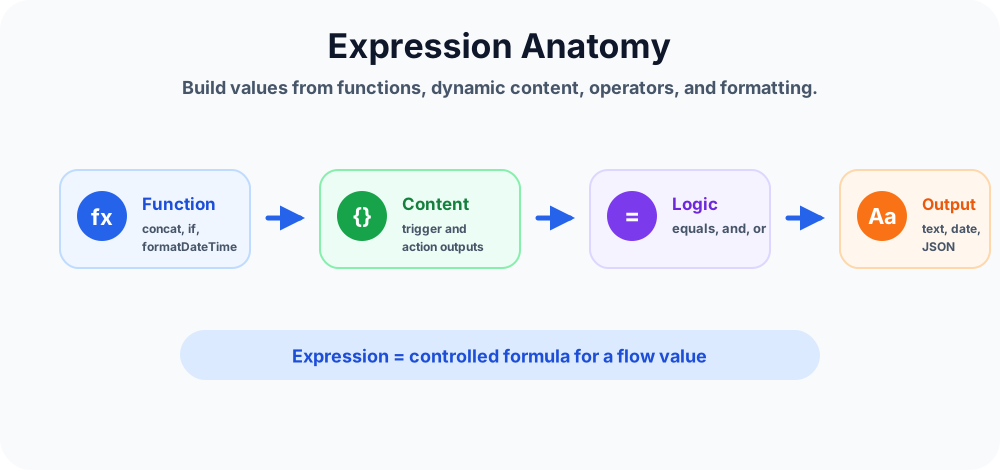
An expression is a formula that Power Automate evaluates when a cloud flow runs. Expressions can use functions, action outputs, variables, constants, operators, and literal values to produce a final result.
For example, dynamic content can insert a user's first name. An expression can combine that first name with other text, convert it to uppercase, provide a fallback if it is blank, or compare it with another value.
concat('Hello ', triggerBody()?['FirstName'])In simple words: dynamic content gives you a value. Expressions let you control what happens to that value.
Types of functions in Power Automate expressions
Expression functions are grouped by the type of work they do. Knowing these groups makes it easier to pick the right function instead of searching through a long list every time.
| Function type | Use it for | Beginner examples |
|---|---|---|
| String functions | Work with text values. | concat(), replace(), substring(), toLower() |
| Collection functions | Work with arrays, lists, and grouped values. | length(), first(), last(), join() |
| Logical comparison functions | Compare values and decide whether logic is true or false. | equals(), and(), or(), greater() |
| Conversion functions | Convert one data type into another. | int(), float(), string(), json() |
| Math functions | Calculate numbers in a flow. | add(), sub(), mul(), div() |
| Date and time functions | Format dates, add days, and calculate reminders. | utcNow(), formatDateTime(), addDays() |
| Workflow functions | Read trigger, action, and flow run details. | triggerBody(), outputs(), workflow() |
| URI parsing functions | Encode or decode URL values. | uriComponent(), decodeUriComponent() |
| JSON and XML functions | Read or shape structured data. | json(), xml(), optional property paths |
For beginners, start with string, date and time, logical comparison, collection, and conversion functions. Those five groups solve most common cloud flow problems: building messages, checking conditions, formatting dates, counting records, and converting form values into the correct data type.
Why expressions matter
Beginner flows often start with simple dynamic content. That works until the process needs formatting, decisions, cleanup, or safer handling of missing data. Expressions help you solve those problems without creating unnecessary actions.
- Cleaner emails: build readable email subjects and bodies.
- Better conditions: compare multiple values with
and(),or(),equals(),greater(), andless(). - Date control: format dates, add days, calculate reminders, and compare due dates.
- Array handling: count items, join values, read the first item, or check whether a list is empty.
- JSON handling: read nested properties from trigger outputs, API responses, Dataverse, SharePoint, or parsed JSON.
- Error reduction: use null checks and fallback values before sending data to another system.
Expression syntax basics
Most Power Automate expression functions follow this pattern:
functionName(argument1, argument2)Examples:
concat('Ticket ', triggerBody()?['ID'])
equals(variables('varStatus'), 'Approved')
formatDateTime(utcNow(), 'yyyy-MM-dd')
length(variables('arrApprovers'))
The function name tells Power Automate what to do. The arguments are the values passed into the function. Some functions take one argument, some take two, and some can take many.
Dynamic content vs expressions
Dynamic content is the field picker in the Power Automate designer. It shows outputs from triggers and previous actions. Expressions are formulas that can use those outputs and change them.
| Need | Use | Example |
|---|---|---|
| Insert a field exactly as returned | Dynamic content | Email subject |
| Combine multiple fields | Expression | concat() |
| Format a date | Expression | formatDateTime() |
| Check if a value is blank | Expression | empty() |
| Return a fallback value | Expression | coalesce() |
Where to use expressions
You can use expressions in many places in a cloud flow:
- Compose: calculate a value and inspect the output during testing.
- Condition: compare values and route the flow.
- Trigger conditions: prevent a flow from starting unless a rule is true.
- Variables: set, append, increment, or format stored values.
- Send an email: build subjects, body text, and formatted values.
- Update item: write calculated values into SharePoint, Dataverse, SQL, or other systems.
- Filter array: filter records using custom logic.
- Select: shape arrays into cleaner objects.
Common expression use cases
Most real flows use expressions for a small set of repeated tasks. Learn these patterns first.
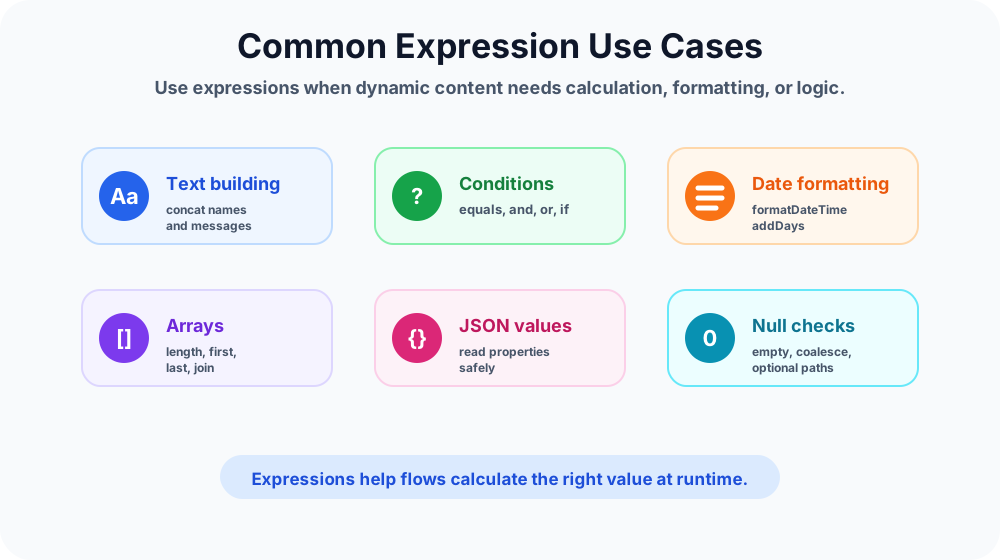
1. Combine text with concat
Use concat() when you need to build a sentence, email subject, log message, or label from multiple values.
concat('Leave request submitted by ', triggerBody()?['EmployeeName'])Real example: build an Outlook email subject for a new SharePoint leave request.
concat('Leave request - ', triggerBody()?['EmployeeName'], ' - ', triggerBody()?['StartDate'])2. Return different text with if
Use if() when one expression should return one value for true and another value for false.
if(equals(variables('varStatus'), 'Approved'), 'Request approved', 'Request not approved')This is useful in email bodies, Teams messages, update actions, or Compose actions where you need a readable output.
3. Compare values with equals
Use equals() when two values must match exactly.
equals(triggerBody()?['Status'], 'Approved')For text comparisons, make sure casing and spaces are consistent. If users type values manually, normalize the text first.
equals(toLower(triggerBody()?['Department']), 'finance')4. Combine rules with and and or
Use and() when all rules must be true. Use or() when any rule can be true.
and(
  equals(triggerBody()?['Status'], 'Submitted'),
  greater(triggerBody()?['Amount'], 1000)
)
or(
equals(triggerBody()?['Priority'], 'High'),
equals(triggerBody()?['Priority'], 'Critical')
)These functions are helpful when the basic Condition action becomes hard to read or when you need multiple checks in one rule.
5. Check blank values with empty
Use empty() to check whether a string, array, or object has no usable value.
empty(triggerBody()?['ApproverEmail'])Real example: if a SharePoint approver field is empty, send the request to a default team mailbox instead of failing the flow.
6. Provide fallback values with coalesce
Use coalesce() when the first value might be null and you want a fallback.
coalesce(triggerBody()?['ApproverEmail'], 'helpdesk@contoso.com')This keeps notifications and updates safer when optional fields are missing.
7. Format dates with formatDateTime
Use formatDateTime() when a raw date needs to be shown in a readable format.
formatDateTime(utcNow(), 'yyyy-MM-dd')Example: show a leave start date in an email as a short date.
formatDateTime(triggerBody()?['StartDate'], 'dd MMM yyyy')Date formatting is one of the most common expression needs in business flows.
8. Add or subtract days
Use addDays() to calculate due dates, reminder dates, and expiry dates.
addDays(utcNow(), 7)Example: set a follow-up date seven days after a request is submitted.
formatDateTime(addDays(utcNow(), 7), 'yyyy-MM-dd')9. Count items with length
Use length() to count characters in text or items in an array.
length(body('Filter_array'))Real example: filter all overdue tasks, then use length() to decide whether to send an email. If there are zero overdue tasks, skip the message.
10. Read the first or last item
Use first() and last() when you only need one item from an array.
first(body('Get_items')?['value'])last(variables('arrApprovers'))Before using these functions, check whether the array is empty. Otherwise the flow can fail when no records are returned.
Reading JSON safely
Power Automate stores many trigger and action outputs as JSON. You can read properties using optional path syntax. The question mark helps avoid errors when a property is missing.
triggerBody()?['Title']
outputs('Get_item')?['body/Department']
body('Parse_JSON')?['employee']?['managerEmail']
Use this pattern when reading data from SharePoint, Dataverse, HTTP actions, custom connectors, and Parse JSON outputs.
Expressions in conditions
The Condition action is easy for one comparison. Expressions become useful when you need multiple values, nested checks, or clearer logic.
Example: approve automatically only when the amount is under 500 and the department is IT.
and(
  less(triggerBody()?['Amount'], 500),
  equals(triggerBody()?['Department'], 'IT')
)
Example: route a ticket when priority is high or category is security.
or(
  equals(triggerBody()?['Priority'], 'High'),
  equals(triggerBody()?['Category'], 'Security')
)
Expressions in trigger conditions
A trigger condition decides whether the flow should start. This is useful because it can reduce unnecessary flow runs.
Trigger condition expressions normally start with @.
@equals(triggerBody()?['Status'], 'Submitted')Example: a SharePoint flow should run only when the item status is Submitted, not every time the item is edited.
@and(
  equals(triggerBody()?['Status'], 'Submitted'),
  not(empty(triggerBody()?['ApproverEmail']))
)
Expressions with variables
Variables and expressions work together. Variables store values during a run, and expressions calculate or format those values.
variables('varApprovalStatus')
concat('Current status: ', variables('varApprovalStatus'))
if(equals(variables('boolIsApproved'), true), 'Approved', 'Rejected')
length(variables('arrApprovedItems'))
Use variables when the value changes during the run. Use Compose when the value only needs to be calculated once.
Expressions with arrays
Arrays appear in flows when you use actions such as Get items, List rows, Filter array, Select, and Parse JSON. Expressions help you count, transform, or read array data.
length(body('Get_items')?['value'])
first(body('Get_items')?['value'])
join(variables('arrRecipients'), ';')
Common array pattern:
- Get records from SharePoint or Dataverse.
- Filter the array to the records you need.
- Check
length()before sending a message. - Use Select or Create HTML table for readable output.
Expressions with numbers
Power Automate sometimes treats values as text even when they look like numbers. Use int() or float() when you need numeric comparison or calculation.
int(triggerBody()?['Quantity'])
float(triggerBody()?['TotalAmount'])
greater(float(triggerBody()?['TotalAmount']), 1000)
This is especially useful when values come from forms, Excel, SharePoint text columns, or APIs.
Real-world example: leave request flow
Imagine a SharePoint list named Leave Requests. Employees submit leave details, and the flow decides whether to send the request for manager approval.
- Trigger: when a SharePoint item is created.
- Use
empty()to check whether the manager email exists. - Use
int()to convert leave days into a number. - Use
greater()to check whether leave days are more than two. - Use
formatDateTime()to format the start date in the approval email. - Use
concat()to build a readable email subject. - Use
if()to create the final status message.
and(
  greater(int(triggerBody()?['LeaveDays']), 2),
  not(empty(triggerBody()?['ManagerEmail']))
)
This expression checks whether the request needs manager approval and whether a manager email is available.
Useful expression examples
| Scenario | Expression |
|---|---|
| Current date | formatDateTime(utcNow(), 'yyyy-MM-dd') |
| Due date in 7 days | formatDateTime(addDays(utcNow(), 7), 'yyyy-MM-dd') |
| Blank check | empty(triggerBody()?['Comments']) |
| Fallback value | coalesce(triggerBody()?['OwnerEmail'], 'admin@contoso.com') |
| Count records | length(body('Get_items')?['value']) |
| Approved text | if(equals(variables('varStatus'), 'Approved'), 'Yes', 'No') |
| Lowercase email | toLower(triggerBody()?['Email']) |
| Contains text | contains(toLower(triggerBody()?['Title']), 'urgent') |
Best practices for Power Automate expressions
- Start with Compose when learning a new expression so you can inspect the output.
- Keep expressions small. If one expression becomes too long, split it into Compose actions.
- Use clear variable and action names so expressions are readable.
- Use optional property access with
?when a JSON property might be missing. - Use
empty()orcoalesce()before depending on optional data. - Convert text to numbers before numeric comparisons.
- Normalize text with
toLower()when comparing values from user input. - Format dates close to where users will see them.
- Test expressions with normal data, empty data, and unexpected data.
- Do not hide complex business rules inside one unreadable expression.
Common mistakes to avoid
- Using dynamic content when formatting is needed: raw dates and JSON values can look messy to users.
- Forgetting null checks: missing optional fields can break a flow.
- Comparing text as numbers: convert values before numeric checks.
- Ignoring case sensitivity: normalize text before comparing user-entered values.
- Building one giant expression: large formulas are hard to troubleshoot.
- Using the wrong action name: renamed actions can change expression references.
- Not testing empty arrays:
first()andlast()need data to read. - Putting secrets in expressions: do not hard-code passwords, keys, or tokens.
How to troubleshoot expressions
When an expression fails, do not guess. Use run history and Compose actions to inspect each value.
- Open the failed flow run.
- Find the action that failed.
- Check the inputs and outputs.
- Add Compose actions to test smaller parts of the expression.
- Confirm whether the value is text, number, boolean, object, or array.
- Add
empty(),coalesce(),int(), orfloat()where needed.
Helpful Microsoft resources
For official documentation and more examples, review the Power Automate expression cookbook, use expressions in conditions, workflow expression functions reference, and trigger condition guidance.
Key takeaways
- Expressions calculate values when the flow runs.
- Use expressions when dynamic content needs formatting, comparison, cleanup, or fallback logic.
- Start with common functions:
concat,if,equals,and,or,empty,coalesce,formatDateTime,addDays, andlength. - Use Compose to test expression outputs before using them in important actions.
- Keep expressions readable, tested, and safe for empty or unexpected values.
Power Automate expressions are the formula layer that makes cloud flows cleaner, safer, and more flexible.
Related resources
Topics covered
Expressions · Cloud Flows · Conditions · Workflow Automation
Frequently asked questions
What are expressions in Power Automate?
Expressions are formulas used in Power Automate cloud flows to calculate values, format text or dates, compare data, read JSON properties, and control flow logic at runtime.
When should I use an expression instead of dynamic content?
Use dynamic content when you only need a field value as-is. Use an expression when you need to transform, compare, combine, format, or safely handle that value.
Where can I use Power Automate expressions?
You can use expressions in Compose actions, conditions, trigger conditions, variable values, email bodies, update actions, array filters, Select actions, and many connector fields.
What is the difference between Compose and an expression?
Compose is an action that can hold the result of an expression. The expression is the formula; Compose is one place where you can calculate and inspect that formula output.
How do I check for blank values in Power Automate?
Use empty() to test whether a string, array, or object has no value. Use coalesce() when you want a fallback value if the first value is null.
What are the main types of Power Automate functions?
Power Automate expression functions are commonly grouped by purpose, including string, collection, logical comparison, conversion, math, date and time, workflow, URI parsing, and JSON or XML manipulation functions.
What are common Power Automate expression functions?
Common functions include concat, if, equals, and, or, empty, coalesce, formatDateTime, addDays, length, first, last, join, split, contains, int, float, and json.
Sources
- Microsoft Learn: Get Started With Cloud Flows, Microsoft
- Microsoft Learn: Power Automate, Microsoft
Have a Microsoft 365 topic idea?
Share article suggestions, community session ideas, corrections, or real-world scenarios for future nextM365 learning notes.
Keep learning Microsoft 365
Explore more practical tutorials for SharePoint, Power Platform, Copilot Studio, migration, automation, governance, and security.
Continue learning
Related tutorials
Related questions
Related comparisons