Core flow patterns
Most useful flows combine a trigger, data lookup, decision logic, one or more actions, and clear error handling. Understanding this pattern makes complex flows easier to reason about.

Trigger → Logic → Approval → Action
Power Automate workflow tutorials for Microsoft 365
Build readable cloud flows with practical trigger, condition, approval, SharePoint, Teams, and Microsoft 365 automation patterns.
Trigger → Logic → Approval → Action
Power Automate workflow tutorials for Microsoft 365
Build readable, maintainable Power Automate cloud flows — conditions, variables, approvals, SharePoint automation, and workflow design.
Power Automate helps Microsoft 365 teams turn repeated manual work into reliable workflows. A good flow can route approvals, synchronize SharePoint data, notify teams, create tasks, process forms, call APIs, or connect business applications without building a full custom app. The challenge is that flows can become difficult to maintain when conditions, variables, retries, permissions, and error handling are not planned from the beginning.
This page brings together nextM365 guidance for designing Power Automate flows that are readable, testable, and practical. The articles focus on everyday workflow patterns: choosing the right flow type, using variables correctly, deciding between Condition and Switch, integrating with SharePoint and Microsoft 365, and understanding how a small automation should grow into a managed business process.
Use this pillar when you are learning Power Automate from scratch or when you need sharper patterns for production flows. Start with cloud flow basics, then study control logic, variables, data operations, connector behavior, and troubleshooting. When a flow becomes business-critical, add naming conventions, owner review, environment strategy, and error notifications so the automation remains supportable.
Most useful flows combine a trigger, data lookup, decision logic, one or more actions, and clear error handling. Understanding this pattern makes complex flows easier to reason about.
Power Automate works especially well with SharePoint, Outlook, Teams, Planner, Forms, Dataverse, and Copilot Studio actions. The strongest designs keep the source of truth explicit.
Use meaningful names, scope related actions, document assumptions, avoid unnecessary loops, and handle empty values. These small habits make troubleshooting much easier later.
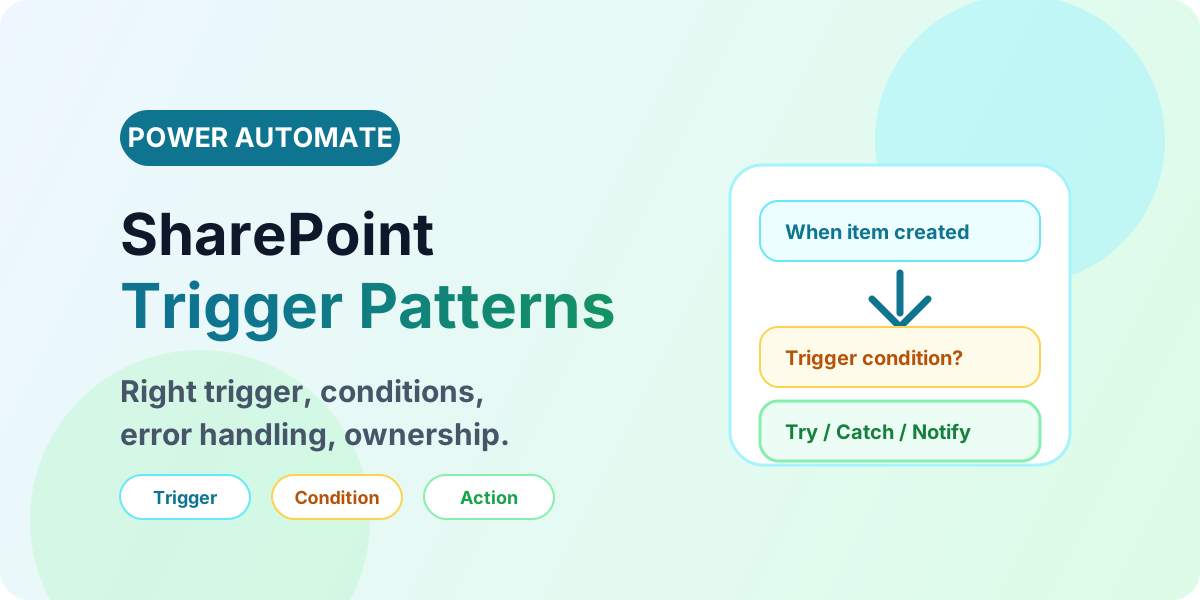
Build reliable SharePoint flows with the right triggers, trigger conditions, error handling, and production ownership patterns.
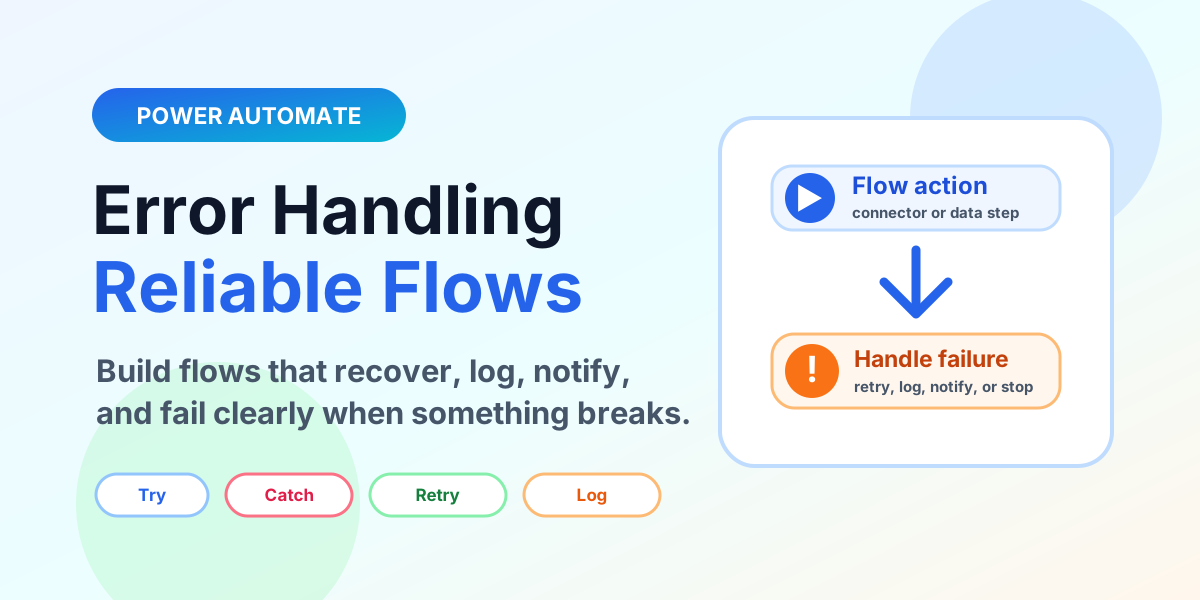
Learn how to build reliable Power Automate cloud flows with run after settings, Try Catch Finally scopes, retry policies, error logging, notifications, validation, and monitoring.
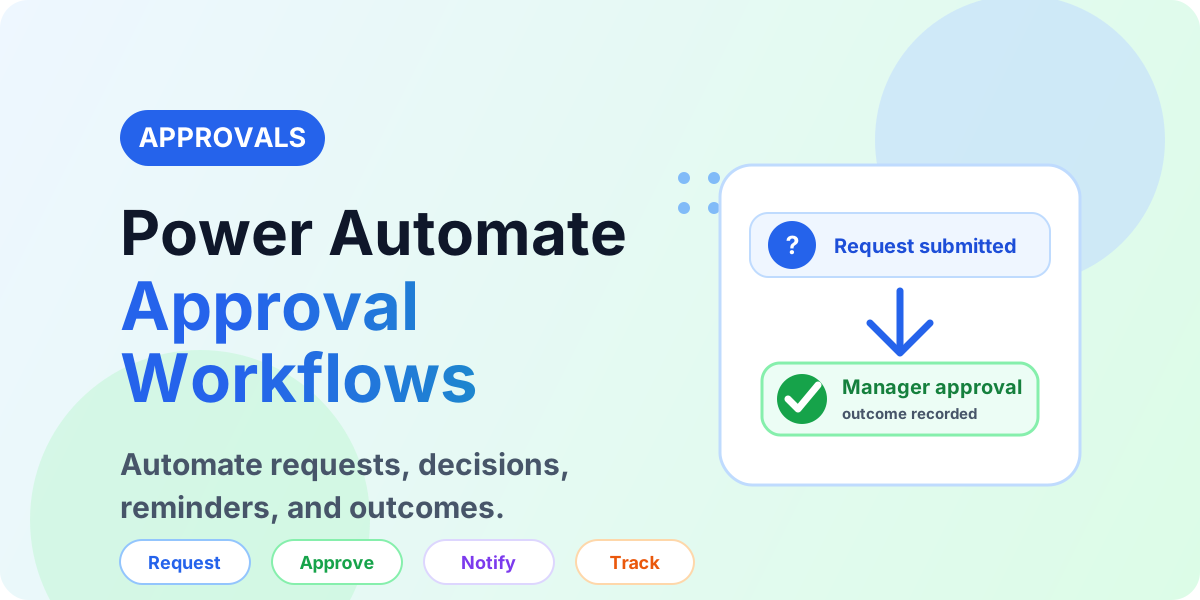
Learn how Power Automate approval workflows work, including approval types, manager decisions, reminders, SharePoint records, Teams alerts, and best practices.
A detailed guide to Power Automate expressions: syntax, functions, dynamic content, conditions, dates, arrays, JSON, null checks, examples, and best practices.
Learn the basics of Power Automate cloud flows, including automated, instant, scheduled, and business process flow examples for beginners.
A practical beginner-to-intermediate guide to choosing between Condition and Switch actions in Power Automate, with examples, expressions, performance notes, best practices, mistakes, FAQ, and schema.
A practical guide to variables in Power Automate: variable types, initialize vs set, append string and array variables, counters, object variables, expressions, loops, concurrency, examples, and best practices.
A beginner-friendly guide to Power Automate: the three flow types (cloud, desktop and generative actions), the three ways cloud flows trigger (automated, instant, scheduled), and a step-by-step walkthrough to build, test and run your first scheduled cloud flow — a monthly newsletter — without Copilot.
3 Power Automate Error-Handling Patterns You Must Know Posted by - Matthew Devaney on - October 30, 2022 25 Comments It is important to include error-handlin...
It is best for automating repeatable business processes, notifications, approvals, data movement, and Microsoft 365 workflows that do not require a full custom application.
Use Condition for simple true or false decisions. Use Switch when one value can lead to several distinct paths.
Use clear action names, initialize variables intentionally, group steps with scopes, add error paths, and document the business rule each flow implements.