Power Automate Error Handling: Build Reliable Flows
Learn how to build reliable Power Automate cloud flows with run after settings, Try Catch Finally scopes, retry policies, error logging, notifications, validation, and monitoring.
- Published
- Reading time
- 9 min read
Before you start
Is this guide for you?
- Best entry point
- Power Automate
- Time investment
- 9 min read
In this article
- Why error handling matters
- What happens by default?
- Start with Configure run after
- Use a simple failure path first
- Use Try, Catch, and Finally scopes
On this page (22 sections)
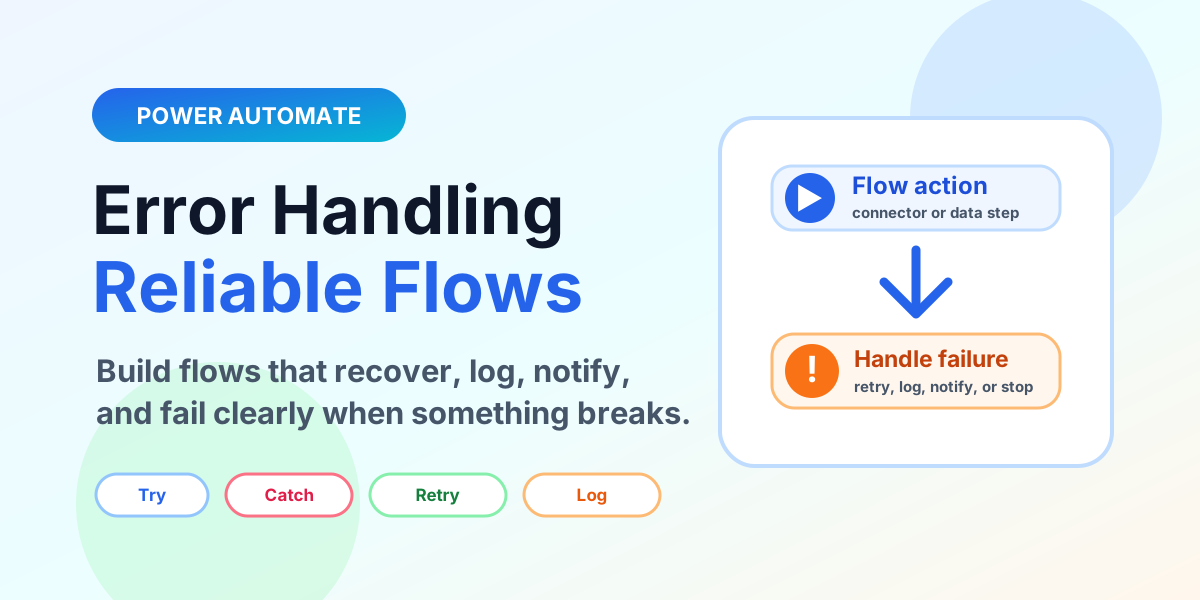
Power Automate error handling is what turns a fragile cloud flow into a reliable business process. A flow should not simply stop when one action fails. It should explain what happened, retry when appropriate, log useful details, notify the right person, and close with a clear status.
The PDF deck for this blog is image-based, so this article converts the visual lesson into a practical guide. The main message is simple: build every important flow with a planned failure path before production users depend on it.
Why error handling matters
Power Automate flows often connect SharePoint, Outlook, Teams, Dataverse, approvals, HTTP APIs, Excel, SQL, and third-party services. Any one of those steps can fail because of invalid input, missing records, permissions, connector limits, throttling, expired connections, or service downtime.
- Saves time: makers and support teams can see where the flow failed.
- Improves reliability: temporary failures can retry without manual work.
- Supports users: failed business processes get a clear next step.
- Prevents bigger failures: bad data does not silently move into another system.
What happens by default?
By default, a Power Automate cloud flow runs action by action. If one important action fails, the remaining actions may not run. That means approvals may not be sent, emails may not go out, records may not update, and support teams may only discover the issue after a user complains.
Default behavior is not enough for production flows. You need to decide what should happen when an action succeeds, fails, times out, or is skipped.
Start with Configure run after
Configure run after is the first step to smart error handling. It lets you choose when the next action should run based on the status of the previous action.
- Is successful: run when the previous action completes successfully.
- Has failed: run when the previous action fails.
- Has timed out: run when the previous action does not complete in time.
- Is skipped: run when the previous action was skipped by flow logic.
You can select multiple statuses. For example, a notification action can run after a failed or timed-out SharePoint update.
Use a simple failure path first
For smaller flows, start with a basic pattern: run the main action, catch the failure, and send a useful notification. The notification should include the flow name, failed step, record or item reference, timestamp, and a link to the flow run when possible.
This is better than a silent failure, but it is still only the beginning. Larger production flows need a more structured pattern.
Use Try, Catch, and Finally scopes
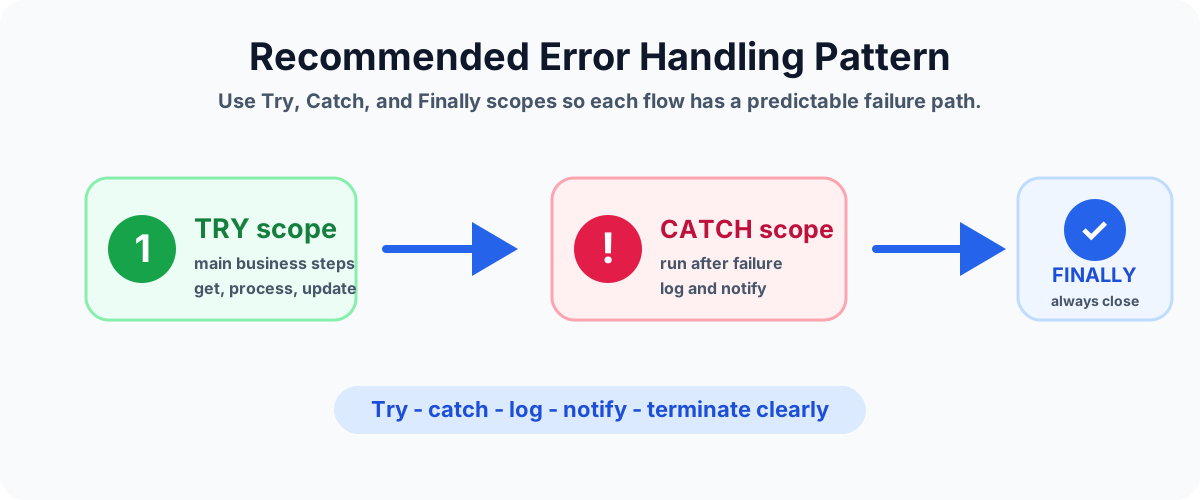
The most useful pattern from the deck is the Try, Catch, Finally structure. It makes the flow easier to read and easier to support.
- Try scope: put the main business logic here, such as get data, process data, create approval, update SharePoint, or call an API.
- Catch scope: configure this scope to run when Try fails or times out. Use it to capture the error, write a log, notify the owner, and decide whether to terminate.
- Finally scope: run cleanup or final status updates. This can close a tracking record, write a final log entry, or send a completion message.
This structure also makes the flow easier for another maker to understand. Instead of hunting through many actions, they can see the normal path, the failure path, and the cleanup path.
What should go inside Catch?
The Catch scope is where the flow handles exceptions and creates useful evidence. A good Catch scope should not only say that something failed. It should explain enough for a support person to act.
- Capture the failed action name and error message.
- Capture the flow run link and timestamp.
- Store the business reference, such as ticket ID, item ID, request ID, or customer ID.
- Notify the right owner or support channel.
- Update the source record with a clear failed status if the business process needs it.
- Use Terminate when the flow should end with a controlled failure result.
Log errors in a central place
Error logging is one of the biggest differences between a demo flow and a supportable production flow. A log can be a SharePoint list, Dataverse table, SQL table, Application Insights, or another approved monitoring location.
For many Microsoft 365 business flows, a SharePoint list is enough to start. Use columns such as Flow Name, Run URL, Failed Action, Error Type, Error Message, Record ID, User, Timestamp, Retry Count, Owner, and Status.
Do not log secrets, access tokens, passwords, sensitive personal data, or full payloads unless there is a documented security reason and proper protection.
Notify the right people
Not every failure should notify everyone. Alert fatigue makes people ignore real issues. Decide who needs to know based on business impact.
- Flow owner: technical failures and configuration problems.
- Support team: failures that affect users or tickets.
- Business owner: approvals, finance, HR, or customer-impacting failures.
- Requester: only when the user can take a useful next step.
A good notification says what failed, what was affected, what action is needed, and where to check the log.
Handle API and connector failures
Connectors and APIs can fail even when your flow logic is correct. Common causes include throttling, timeout, expired connection references, permissions, bad requests, locked files, missing records, or unavailable services.
For HTTP and connector-heavy flows, handle common response patterns:
- 400 or bad request: validate inputs before calling the API.
- 401 or 403: check permissions, connection references, and app registration access.
- 404: handle missing records or deleted files gracefully.
- 408 or timeout: use retry or queue-based processing where appropriate.
- 429: respect throttling and use backoff instead of hammering the service.
- 500-level errors: retry temporary failures, then log and escalate if they continue.
Use retry policy carefully
Retry is useful for temporary problems such as throttling, short service interruptions, or transient network issues. It is not useful for bad input, missing permissions, invalid IDs, or broken business rules.
Use retry for failures that may succeed later. Do not retry failures that need a data fix or owner action. Endless retries can make the problem harder to understand and may increase connector usage.
Retry versus error handling
Retry and error handling are not the same thing. Retry tries the same action again. Error handling decides what should happen after the action still cannot complete.
A reliable flow often uses both: retry for temporary connector issues, then Catch for logging, notification, and controlled termination if retries do not solve the problem.
Use Terminate for clear final status
The Terminate action is useful when the flow should end with a deliberate status. It can mark a run as Failed, Cancelled, or Succeeded depending on the pattern.
Use Terminate when you want the flow history to clearly show that the process did not complete successfully. This is especially useful after the Catch scope logs the error and sends notification.
Validate before processing
Many errors can be prevented before the main flow starts. Validate required data early so the flow does not fail halfway through the business process.
- Check required fields such as email, request type, amount, due date, approver, and item ID.
- Confirm referenced records exist before updating them.
- Check permissions or ownership before sending an approval.
- Use conditions to stop invalid requests with a clear message.
- Log validation failures separately from system failures.
Handle missing data gracefully
Missing data should not create confusing failures. If a SharePoint item is missing a manager email, an API returns no records, or a required field is empty, handle that case explicitly.
Good options include asking for correction, routing to a support queue, assigning a default owner, writing a validation log, or stopping with a clear business message.
Avoid silent failures
A silent failure is one of the most dangerous flow problems. The flow fails, but no one knows until the business process is already delayed. Avoid silent failures by making every important failure visible and actionable.
- Do not swallow errors without logging.
- Do not mark a flow as successful if a critical downstream update failed.
- Do not send generic messages like "something went wrong" without context.
- Do not rely only on manual flow history checks for production processes.
Create a global error pattern
If your team builds many flows, create a reusable error handling pattern. Standard patterns make support easier and reduce the time needed to build new flows.
- Use consistent Try, Catch, and Finally scope names.
- Use a standard error log schema.
- Use reusable notification message formats.
- Define when to retry, when to terminate, and when to escalate.
- Document the pattern so every maker follows the same approach.
Include context in every error
A good error message includes context. Without context, the support team may know that the flow failed but not what business process was affected.
Include the flow name, run link, failed action, error message, timestamp, environment, source item, requester, correlation ID if available, and current business status. This turns a vague failure into a supportable incident.
Monitor flow runs
Error handling does not end when the flow is published. Review run history, failure counts, retry patterns, slow actions, skipped actions, and repeated failures. A weekly review can reveal connector throttling, missing input data, or business process changes.
For business-critical flows, define an owner and review rhythm. A flow without an owner eventually becomes a hidden risk.
Common mistakes
- No run-after setup: the flow stops without a useful recovery path.
- Generic failure messages: support teams cannot identify the failed action or business record.
- Overusing retry: retrying invalid data wastes time and connector calls.
- Hiding errors: the flow appears successful even though a critical step failed.
- No logging: troubleshooting depends on manual flow history review.
- No owner: failures are visible but no one is responsible for them.
Production checklist
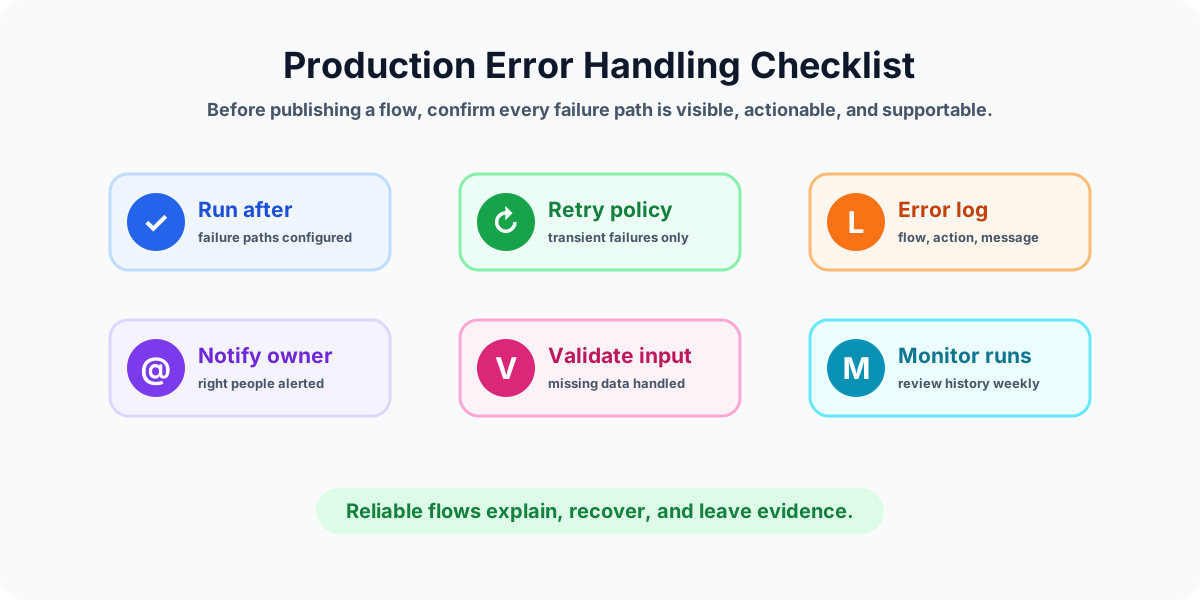
- Important actions are grouped into clear scopes.
- Run-after settings are configured for failed and timed-out paths.
- Retry policy is used only for transient failures.
- Error logs capture enough context to troubleshoot.
- Notifications go to the right owner or support team.
- Inputs are validated before processing starts.
- Missing data has a planned path.
- Terminate action is used when the flow should fail clearly.
- Flow run history is monitored after publishing.
- The support process is documented.
Key takeaways
- Good error handling makes flows reliable, visible, and supportable.
- Configure run after is the foundation of failure paths.
- Try, Catch, and Finally scopes keep production flows readable.
- Retry helps temporary failures, but logging and notification handle real exceptions.
- Every important flow needs an owner, log, alert path, and monitoring rhythm.
Summary
Power Automate error handling is not optional for production flows. Build for success, failure, timeout, skipped steps, missing data, retries, logging, notification, termination, and monitoring from the beginning.
Next, review Power Automate Cloud Flows Explained, Power Automate Expressions Deep Dive, and Condition vs Switch in Power Automate to strengthen the logic around your error paths.
Tagged
Cloud Flows · Workflow Automation · Connectors · Conditions · Automation
Frequently asked questions
What is error handling in Power Automate?
Error handling in Power Automate means planning what a cloud flow should do when an action fails, times out, is skipped, returns missing data, or receives an unexpected connector response.
What is Configure run after in Power Automate?
Configure run after controls when an action should run based on the previous action status, including successful, failed, timed out, and skipped. It is the foundation for catch and cleanup paths.
How do I create Try Catch Finally in Power Automate?
Create separate Scope actions for Try, Catch, and Finally. Put normal business steps in Try, configure Catch to run after Try fails or times out, and configure Finally to run after both success and failure paths as needed.
Should every failed flow send an email?
No. Notify the right owner when the failure needs attention. For expected or recoverable issues, logging, retry, or a controlled user message may be better than noisy email alerts.
What should I log when a Power Automate flow fails?
Log the flow name, run URL, failed action, error message, timestamp, input reference, business key, retry count, owner, and current status. Avoid storing sensitive data unless it is required and protected.
Sources
- Microsoft Learn: Welcome Power Automate, Microsoft
- Microsoft Learn: Power Automate, Microsoft
Have a Microsoft 365 topic idea?
Share article suggestions, community session ideas, corrections, or real-world scenarios for future nextM365 learning notes.
Keep learning Microsoft 365
Explore more practical guides for SharePoint, Power Platform, Copilot Studio, migration, automation, governance, and security.
Continue learning
Related tutorials
Related questions
Related comparisons
Next action