Power Automate Cloud Flows Explained: Complete Beginner Guide
Learn the basics of Power Automate cloud flows, including automated, instant, scheduled, and business process flow examples for beginners.
- Published
- Reading time
- 6 min read
What you’ll learn
- What is a cloud flow?
- Why use cloud flows?
- Main types of cloud flows
- Basic flow structure
- Real example: daily sales report
On this page (13 sections)
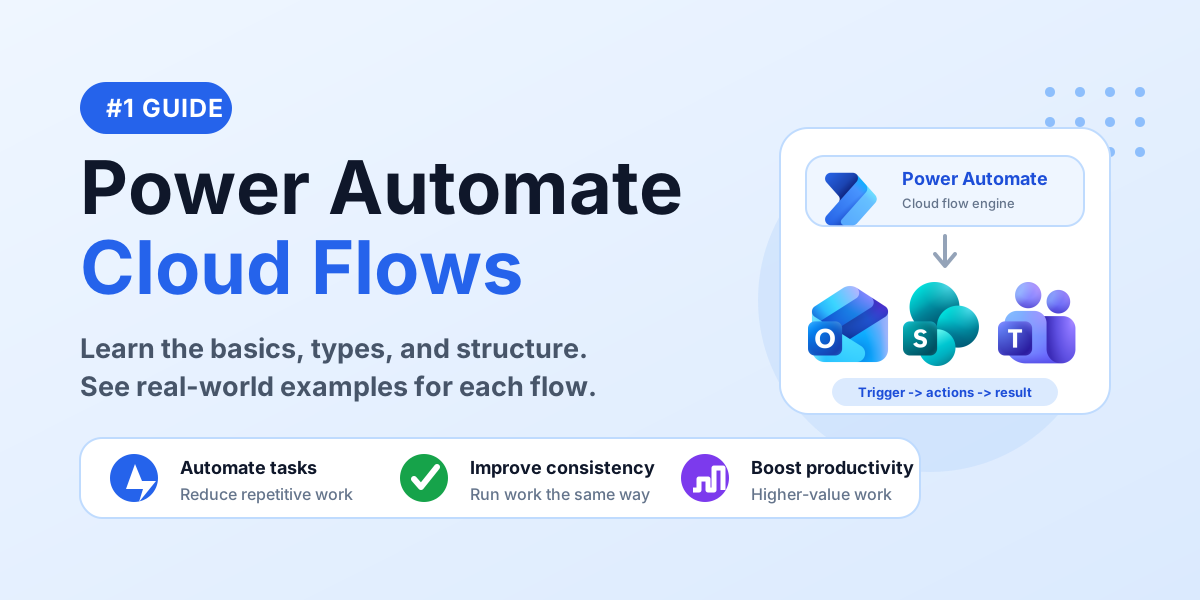
Power Automate cloud flows help you automate repetitive work across Microsoft 365, Power Platform, Azure, and many third-party services. A cloud flow runs online, connects apps together, and performs tasks without you manually repeating the same steps every day.
This beginner guide explains what cloud flows are, why they matter, the main flow types, the basic structure, and a real scheduled flow example you can understand before building your own automation.
What is a cloud flow?
A cloud flow is an automated workflow that runs in the cloud to perform tasks across your apps and services. You do not manage servers or infrastructure. You define the trigger, add actions, connect services, and Power Automate runs the process.
For example, a cloud flow can send an email when a SharePoint item is created, create an Excel report on a schedule, post a Teams message when a file is added, or notify someone when an approval is completed.
One flow can connect many services.
Why use cloud flows?
Cloud flows are useful because they remove repeated manual steps from everyday work. Instead of remembering to copy data, send reminders, create reports, or notify teams, you let the flow handle the process.
- Save time: automate repetitive tasks and focus on more valuable work.
- Reduce manual work: minimize copy-paste steps, missed updates, and boring repeated activity.
- Improve consistency: run the same process the same way every time.
- Boost productivity: get more done with fewer manual handoffs.
Main types of cloud flows
Cloud flows come in different types so you can choose the right automation pattern for the business need.
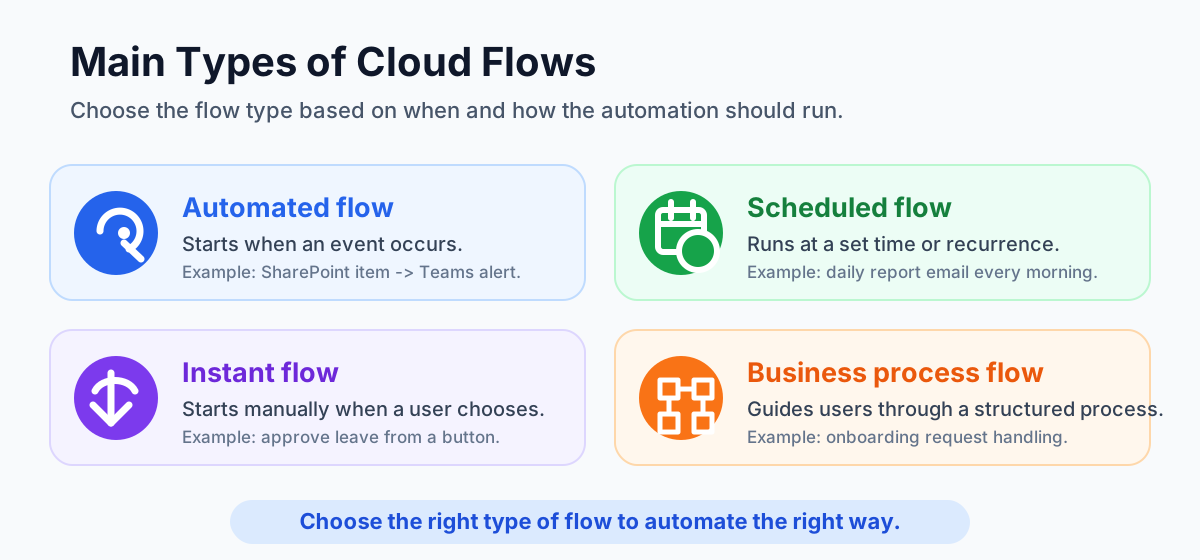
Automated flow
An automated flow starts when something happens. You configure it once, and it runs automatically in the background.
Example: when a new item is created in SharePoint, the flow sends a notification to Microsoft Teams.
Automated flow examples
- SharePoint to Teams: when a new support request is created in a SharePoint list, post a message in the IT Helpdesk Teams channel.
- Outlook to Planner: when an email arrives with the subject New task, create a Planner task and assign it to the correct owner.
- Forms to Excel: when a Microsoft Forms response is submitted, save the response into an Excel table and notify the team.
- OneDrive file alert: when a file is added to a folder, send an approval request or notify a reviewer.
Use an automated flow when the trigger is an event from another app or service and the user should not need to start the flow manually.
Instant flow
An instant flow is triggered manually by a user when needed. It can start from the Power Automate mobile app, a button, Power Apps, SharePoint, or another supported entry point.
Example: a manager selects an Approve Leave button, the flow updates the SharePoint item, sends a confirmation email, and completes the request.
Instant flow examples
- Approve leave: a manager clicks a button to mark a leave request as approved and send a confirmation email.
- Send reminder: a user selects a SharePoint item and runs a flow that sends a reminder to the assigned person.
- Create a quick report: a team member clicks a button to collect current data and email a summary.
- Escalate an issue: a support user runs a flow from a ticket to notify a manager and update priority.
Use an instant flow when a person should decide exactly when the automation runs.
Scheduled flow
A scheduled flow runs automatically at a set time or repeating schedule. This is useful for reports, reminders, syncs, cleanup jobs, and maintenance tasks.
Example: every morning at 9 AM, the flow gets data from SharePoint, creates an Excel report, and sends the report by Outlook email.
Scheduled flow examples
- Daily sales report: every weekday at 9 AM, collect sales data, create a report, and email the sales team.
- Weekly task reminder: every Monday morning, find overdue Planner or SharePoint tasks and send reminders.
- Monthly cleanup: once a month, find old temporary files or records and notify the owner for review.
- Daily health check: every morning, check a list or system status and send a summary to operations.
Use a scheduled flow when the process must run on time even if nobody remembers to start it.
Business process flow
A business process flow guides users through a structured process step by step. It is different from a normal trigger-action cloud flow, but beginners often see it in the Power Platform automation conversation.
Example: onboarding a new employee with guided stages, required information, and consistent process steps.
Business process flow examples
- Employee onboarding: guide HR through candidate details, equipment request, account creation, training, and final confirmation.
- Sales opportunity: guide sellers through qualification, proposal, negotiation, approval, and close stages.
- Service request intake: guide support users through request details, priority, assignment, resolution, and closure.
- Procurement request: guide requesters through vendor details, budget approval, purchase approval, and order completion.
Use a business process flow when people need a guided, consistent process with visible stages and required information.
Basic flow structure
Every cloud flow is easier to understand when you break it into three parts: trigger, actions, and outcome.
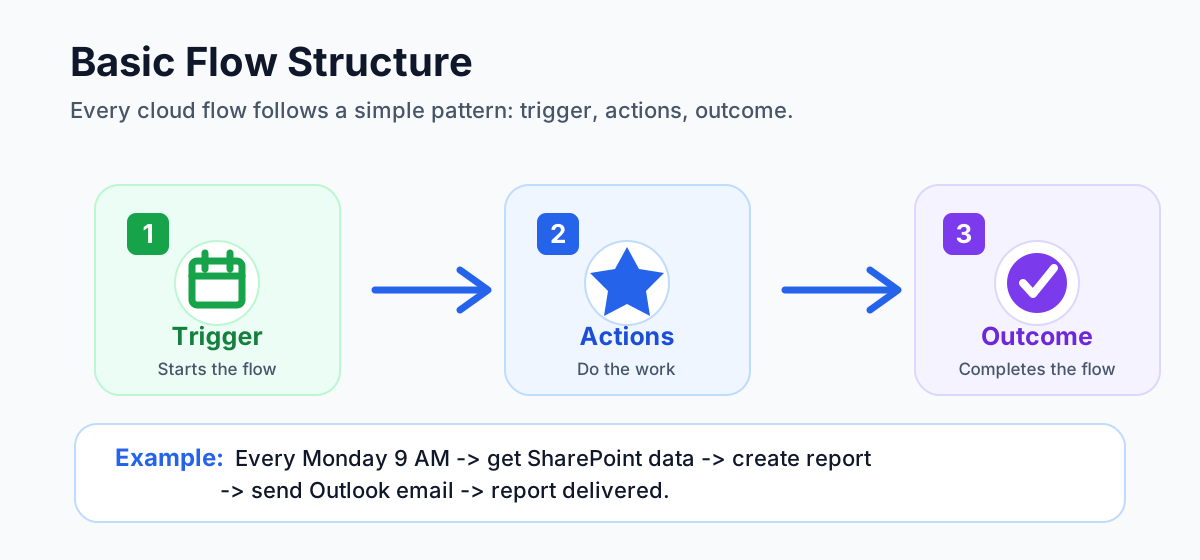
- Trigger: starts the flow. It can be an event, manual button, or schedule.
- Actions: do the work. Actions can get data, update records, send emails, post messages, create files, call approvals, and more.
- Outcome: completes the process and delivers the expected result.
For beginners, this structure is the most important mental model. Do not start by adding too many branches. Start with one trigger, one or two actions, and one clear outcome.
Real example: daily sales report
Imagine your sales team needs a daily report every morning at 9 AM. Without automation, someone must open the data source, create the report, attach it to an email, and send it every day.
A scheduled cloud flow can automate the whole process:
- Trigger: Recurrence runs every day at 9:00 AM.
- Get data: the flow reads sales data from a SharePoint list.
- Create report: the flow creates or updates an Excel report.
- Send email: Outlook sends the report to the sales team.
- Outcome: the team receives the report automatically.
This is useful because the flow runs automatically, stays on time, avoids missed reports, and keeps the process consistent.
Beginner checklist
- Decide what business problem you want to automate.
- Choose the right flow type: automated, instant, or scheduled.
- Define the trigger clearly before adding actions.
- Start with a small flow and test it.
- Check connections for Outlook, SharePoint, Teams, Excel, or other services.
- Review run history to confirm success and troubleshoot failures.
- Improve the flow gradually instead of building a complex flow on day one.
Common mistakes to avoid
- Choosing the wrong trigger: the flow starts at the wrong time or too often.
- Adding too many actions too early: the flow becomes hard to test and maintain.
- No error checking: failures are missed until users complain.
- Weak naming: unclear flow and action names make troubleshooting difficult.
- No owner: nobody knows who supports the flow after it is built.
Key takeaways
- Cloud flows run in the cloud and connect apps and services.
- Automated flows start from events.
- Instant flows start manually when a user needs them.
- Scheduled flows run on a time-based recurrence.
- Every flow has a structure: trigger, actions, outcome.
- Start small, then scale as you learn more.
Cloud flows make automation simple, powerful, and time-saving. Small automations today can create a big impact tomorrow.
Keep learning on nextM365
Next, master Power Automate SharePoint trigger patterns and make flows production-ready with Power Automate error handling.
Related resources
Topics covered
Cloud Flows · Triggers · Actions · Workflow Automation
Frequently asked questions
What is a cloud flow in Power Automate?
A cloud flow is an automated workflow that runs in the cloud and connects apps and services such as SharePoint, Outlook, Teams, Excel, OneDrive, and many third-party systems.
What are the main types of cloud flows?
The common beginner types are automated flows, instant flows, and scheduled flows. Automated flows start from an event, instant flows start manually, and scheduled flows run on a recurring schedule.
What is the structure of a cloud flow?
A cloud flow usually has three parts: a trigger that starts the flow, one or more actions that do the work, and an outcome that completes the process.
When should I use an automated flow?
Use an automated flow when something should happen after an event, such as a new SharePoint item, a new email, a file upload, or an approval update.
When should I use a scheduled flow?
Use a scheduled flow for recurring tasks such as daily reports, weekly reminders, cleanup jobs, sync processes, and maintenance tasks.
When should I use an instant flow?
Use an instant flow when a person should start the automation manually from a button, app, SharePoint item, mobile app, or menu.
Sources
- Microsoft Learn: Get Started With Cloud Flows, Microsoft
- Microsoft Learn: Flow Types, Microsoft
Have a Microsoft 365 topic idea?
Share article suggestions, community session ideas, corrections, or real-world scenarios for future nextM365 learning notes.
Keep learning Microsoft 365
Explore more practical tutorials for SharePoint, Power Platform, Copilot Studio, migration, automation, governance, and security.
Continue learning
Related tutorials
Related questions
Related comparisons