Message Node Explained | Copilot Studio Day 15
Learn what a Message node is in Microsoft Copilot Studio, what it can display, when to use it, best practices, mistakes to avoid, and a simple leave request example.
- Published
- Updated
- Reading time
- 4 min read
Week 3 · Day 15 of 365 in 365 Days of Copilot Studio — view the full series
What you’ll learn
- What is a Message node?
- What can a Message node show?
- Where is a Message node used?
- Best practices for Message nodes
- Mistakes to avoid
On this page (9 sections)
A Message node in Microsoft Copilot Studio displays information to the user. It is one of the simplest nodes in a topic, but it has a big effect on how clear and helpful the conversation feels.
Day 15 of the 365 Days of Microsoft Copilot Studio series focuses on Message nodes: what they do, what they can show, when to use them, and how to write better messages for real business conversations.
What is a Message node?
A Message node is a step inside a Copilot Studio topic that sends information to the user. It does not collect an answer by itself and it does not run an action by itself. Its job is to communicate clearly.
For example, a Message node can say Hello, how can I help you today?, Your request has been submitted, or I could not find that policy. Try asking about leave, travel, or expenses.
Message nodes are small, but they shape the user experience.
What can a Message node show?
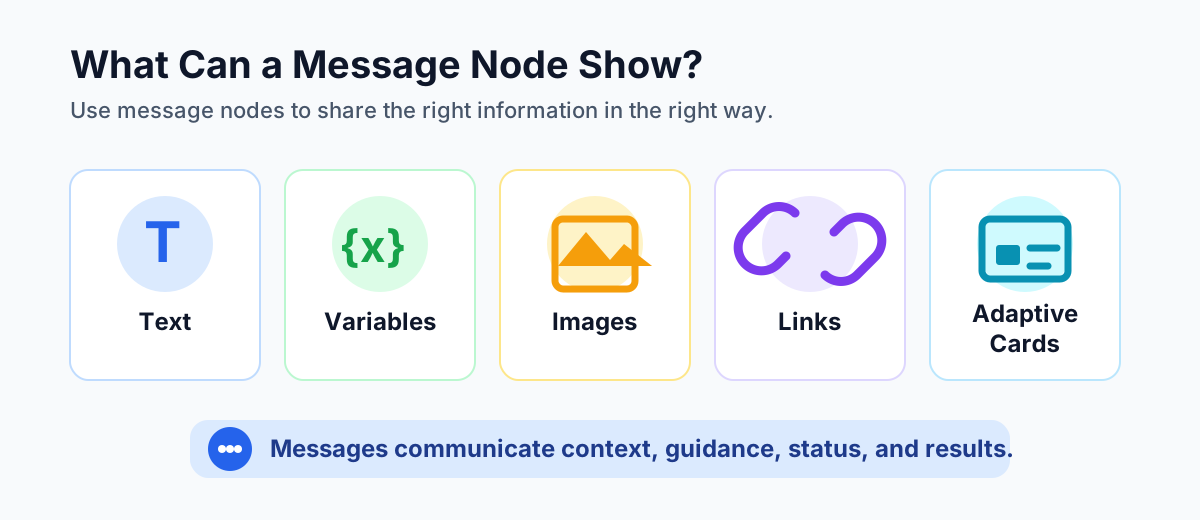
A Message node can show different types of content depending on what the user needs at that point in the conversation:
- Text: simple instructions, explanations, greetings, status updates, and results.
- Variables: dynamic values such as a name, date, ticket number, approval status, or selected option.
- Images: visual help, screenshots, diagrams, or supporting illustrations.
- Links: references to policies, forms, SharePoint pages, knowledge articles, or external systems.
- Adaptive cards: structured content when the user needs a richer layout or clearer presentation.
The goal is not to use every format. The goal is to choose the format that makes the message easiest to understand.
Where is a Message node used?
You will use Message nodes throughout a topic. They are useful whenever the copilot needs to explain, confirm, warn, or guide.
- Welcome messages: greet the user and set the context for the conversation.
- Instructions: tell the user what to provide or what will happen next.
- Confirmations: confirm that a request, form, or workflow step completed successfully.
- Error messages: explain what went wrong and how the user can continue.
- Success messages: show the final result and close the loop clearly.
Message nodes help your copilot communicate clearly at every step instead of leaving users guessing.
Best practices for Message nodes
Good messages create better conversations. Use these rules when writing Message nodes:
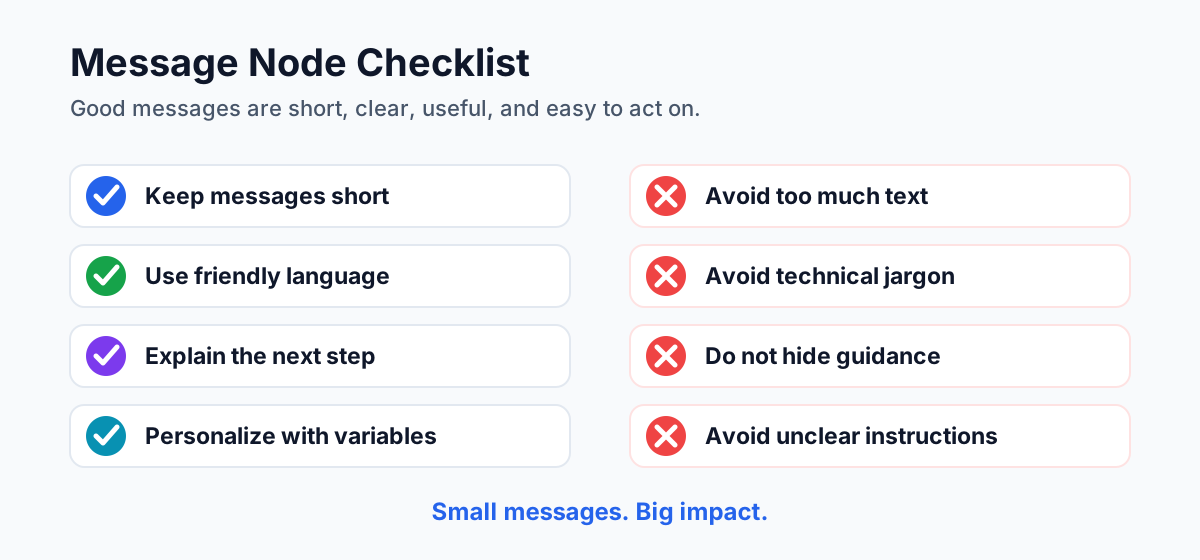
- Keep messages short. Users scan chatbot messages quickly, so avoid long paragraphs.
- Use friendly language. Write like a helpful assistant, not like a system log.
- Explain the next step. Tell the user what to do, what will happen, or what the copilot is doing.
- Personalize with variables. Use available context such as the user name, request type, or selected date.
- Keep it clear and simple. Prefer plain language over internal terms and technical wording.
Mistakes to avoid
A Message node can make a conversation confusing if it is overloaded or vague. Watch for these common mistakes:
- Too much text: long blocks are hard to read inside a chat window.
- Technical jargon: users may not understand internal system names or process terms.
- Missing guidance: the message says what happened but does not explain what to do next.
- No personalization: the copilot ignores information it already collected.
- Unclear instructions: users cannot tell what input is expected.
Every message should reduce confusion. If a message creates a new question, rewrite it.
Make messages better
Small improvements make Message nodes feel more natural:
- Use emojis sparingly. They can make a message friendlier, but too many can feel unprofessional.
- Break long text. Split complex guidance into shorter messages or bullet-style wording.
- Show variables. Confirm the details the user provided, such as dates, location, or request type.
- Add links when needed. Link to the exact policy, form, or article instead of asking users to search.
- Keep the conversation natural. Write messages that sound like part of a guided conversation.
Real example: leave request copilot
In a leave request copilot, Message nodes can keep the user informed from start to finish:
- User: Apply leave.
- Copilot message: Welcome, Suresh. I can help you submit a leave request.
- User: From 20 May to 22 May.
- Copilot message: Thank you. Your leave request for 20 May to 22 May has been submitted.
This example works because the messages are short, personalized, and clear. The user understands what happened and does not need to ask whether the request was submitted.
Beginner checklist
- Use Message nodes to communicate with users.
- Keep each message simple and short.
- Personalize messages with variables when useful.
- Guide users with clear instructions.
- Use links, images, and cards only when they improve understanding.
- Test messages in a real chat flow, not only on the topic canvas.
Key takeaways
- Message nodes communicate. They display information to the user.
- Simple messages work best. Keep the content clear and focused.
- Variables improve context. Personalization makes the copilot feel smarter.
- Clear instructions reduce confusion. Users should always know the next step.
- Better messages lead to better conversations. Small wording improvements can improve the full user experience.
Message nodes may look simple, but they are the voice of your copilot. If the message is clear, the conversation feels clear.
Next in the series: Day 16.
Related resources
Topics covered
Topics · Conversation Design · Variables · AI Agents
Frequently asked questions
What is a Message node in Microsoft Copilot Studio?
A Message node is a topic step that displays information to the user. It is commonly used for greetings, instructions, status updates, confirmations, errors, and final results.
What can a Message node display?
A Message node can display plain text, dynamic values from variables, images, links, and richer content such as adaptive cards depending on the conversation design.
When should I use a Message node?
Use a Message node when the copilot needs to explain something, guide the user, confirm what happened, show an error, or provide a result after an action.
Can Message nodes use variables?
Yes. Message nodes can include variable values to personalize the response, such as showing a user name, request number, status, date, or selected option.
What mistakes should I avoid with Message nodes?
Avoid long blocks of text, technical jargon, unclear instructions, missing guidance, and generic messages that do not use available context.
How do Message nodes improve conversations?
Clear Message nodes help users understand what happened, what information is needed, and what they should do next.
Sources
- Microsoft Learn: Authoring Create Edit Topics, Microsoft
- Microsoft Learn: Microsoft Copilot Studio, Microsoft
Have a Microsoft 365 topic idea?
Share article suggestions, community session ideas, corrections, or real-world scenarios for future nextM365 learning notes.
Keep learning Microsoft 365
Explore more practical tutorials for SharePoint, Power Platform, Copilot Studio, migration, automation, governance, and security.
Continue learning
Related tutorials
Related questions
Related comparisons