Fixing the 'SharePoint Document Dump': How to Structure Libraries for Growing Teams (2026 Blueprint)
A tactical SharePoint document library architecture blueprint for fixing messy folder dumps with scalable sites, libraries, metadata, views, permissions, and governance.
- Published
- Reading time
- 16 min read
Before you start
Is this guide for you?
- Best entry point
- SharePoint
- Time investment
- 16 min read
In this article
- Anatomy of the SharePoint Document Dump
- The 5,000-Item View Threshold: Myths vs Modern Reality
- The 4-Pillar Modern SharePoint Information Architecture Blueprint
- Step-by-Step Implementation: Standard Scalable Library
- Permissions and Governance: Keeping It Clean Long-Term
On this page (28 sections)
SharePoint document library best practices become urgent when a growing company realizes its modern workplace has quietly turned into a second network drive. Teams migrate a file share, Dropbox folder, or Google Drive structure into SharePoint Online, keep the same ten-level folders, give everyone edit access, and hope Microsoft Search will solve the rest. It usually does not.
The symptoms are familiar: users cannot find the latest version, finance files appear in search results for the wrong people, managers ask why OneDrive is "stuck processing changes", project teams create duplicate folders because they cannot understand the existing structure, and administrators are afraid to change permissions because inheritance is already broken in too many places.
This guide is a tactical blueprint for operations directors, IT managers, HR and finance leads, and SharePoint administrators who need to fix SharePoint folder mess without disrupting the business. The goal is not a theoretical information architecture document that nobody follows. The goal is a scalable library structure that works for 50 users today and can still work when the organization has 1,000 users, multiple departments, external partners, retention obligations, and audit requirements.
Anatomy of the SharePoint Document Dump
A document dump happens when organizations copy old storage habits into SharePoint without redesign. Network drives, Dropbox Business folders, and Google Drive shared folders are usually built around location: a folder for every department, client, project, year, and document type. SharePoint Online can store folders, but modern SharePoint is not just a folder tree. It is a platform for sites, libraries, metadata, permissions, compliance, search, workflow, and Microsoft 365 collaboration.
The root cause is rarely technology alone. It is usually a combination of speed pressure and ownership ambiguity. A company wants to move quickly, so it creates one giant "Company Documents" library. Every department puts content into it. Every team invents its own naming rules. Someone breaks inheritance for a sensitive folder. Someone syncs the entire library to a laptop. Five years later, no one knows which files are authoritative.
Business cost of the document dump
Messy libraries create direct business cost:
- Wasted search time: employees spend minutes per document deciding which folder contains the right version.
- Security exposure: inherited access and casual sharing expose HR, finance, legal, or client files to the wrong audience.
- Broken syncing: deeply nested libraries and very large sync scopes create OneDrive performance problems.
- Slow onboarding: new employees cannot understand the knowledge structure without tribal guidance.
- Compliance risk: retention, labeling, audit, and records decisions become hard when files are classified only by folder name.
- Operational drag: every reorganization becomes a permissions and folder cleanup project.
Technical breakdown
The document dump breaks down in predictable ways:
- URL length errors: deep folder paths collide with SharePoint and OneDrive path limits, especially after sync to Windows devices.
- Mobile unfriendliness: ten-level folder trees are miserable on phones and tablets.
- Sluggish syncing: broad library sync causes OneDrive to process thousands of changes that a user does not need locally.
- Accidental oversharing: item-level exceptions and broken inheritance multiply until administrators cannot explain access reliably.
- Weak search: files without meaningful metadata depend on inconsistent file names and folder names.
| Design Area | Traditional Deep Folder Structure | Modern Flat Architecture + Metadata |
|---|---|---|
| Pros | Familiar to users; easy to explain at first; quick to copy from file shares | Scales better for search, views, automation, retention, filtering, and reporting |
| Cons | Long paths, duplicated folder names, weak search, hard mobile use, sync pain | Requires upfront design, column governance, user training, and view ownership |
| Scalability | Degrades as folders, exceptions, and files grow | Scales through sites, libraries, indexed columns, content types, and targeted views |
| Search experience | Search depends heavily on file names and folder names | Search benefits from title, metadata, content type, managed properties, and filters |
| Permissions | Often becomes folder-by-folder unique permissions | Designed around sites, libraries, groups, and deliberate exceptions |
Warning: Do not restructure SharePoint by simply moving folders around in production. First document ownership, permissions, retention needs, links, automations, and sync behavior. A rushed cleanup can break access, workflows, and user trust.
The 5,000-Item View Threshold: Myths vs Modern Reality
The 5,000-item threshold is one of the most misunderstood SharePoint concepts. The myth says: "A SharePoint library can only hold 5,000 files." That is false. Microsoft documents that a SharePoint list or library can store up to 30 million items. The 5,000 number is the List View Threshold, which affects how many items a database operation or view query can process at one time.
The practical rule is this: SharePoint can store a very large library, but users and views must not ask SharePoint to retrieve a massive unfiltered result set. A library with 200,000 files can work if information architecture, indexing, views, and navigation are designed properly. A library with 12,000 files can feel broken if every user opens "All Documents" and filters on non-indexed columns.
List View Threshold vs total storage limit
| Concept | What it means | Design response |
|---|---|---|
| 30 million item capacity | Maximum supported item count in a SharePoint list or library | Do not use this as a target. Split by business ownership long before this point. |
| 5,000 List View Threshold | Query processing threshold for list or library operations | Create indexed columns and filtered views that return smaller result sets. |
| OneDrive sync guidance | Large sync scopes can cause long processing times and poor endpoint experience | Sync only what users need. Prefer Files On-Demand and shortcuts for targeted access. |
| Unique permissions | Many broken inheritance points make libraries hard to query, govern, and support | Design security boundaries at site or library level, not file-by-file. |
How folder nesting can still trigger performance problems
Folders can help keep individual views under 5,000 items, but they also hide structural risk. Deep folders encourage users to navigate instead of search, increase path length, create duplicate names, and make permissions harder to understand. A folder can become a performance and governance workaround rather than an architecture.
Modern SharePoint works best when you use folders only where they have a clear job:
- Security boundaries that map to a real business audience
- Short-term working areas where users need familiar drop zones
- Document Sets or project packages where files belong together
- Archival partitions by year where users rarely browse manually
Indexed columns and filtered views
Indexed columns help SharePoint filter large libraries efficiently. For growing teams, create indexed columns before the library becomes large. Focus on columns used in default views, operational views, Power Automate triggers, and admin reports.
Common indexed columns include:
- Department: HR, Finance, Operations, Sales, Legal
- Document Type: Contract, Invoice, Policy, Report, Procedure
- Review Status: Draft, Under Review, Approved, Archived
- Fiscal Year: 2024, 2025, 2026
- Client: customer or account name, usually lookup or managed metadata for larger environments
- Expiration Date: important for contracts, certificates, policies, and compliance documents
A good default view should not show everything. It should answer a business question: "What active documents do I need this week?" or "Which contracts are expiring this quarter?"
Tip: Create indexed columns while the library is still small. Waiting until a library has tens of thousands of files makes cleanup harder and can block some admin operations during business hours.
The 4-Pillar Modern SharePoint Information Architecture Blueprint
Pillar 1: Flat site architecture over massive single libraries
Growing organizations should resist the urge to build one giant company-wide library. SharePoint is designed around sites. Sites create ownership, navigation, search scope, permissions, templates, retention settings, and lifecycle boundaries. Hub sites connect those sites into a coherent intranet or operational model.
A scalable model looks like this:
Corporate Hub
  Finance Site
    Contracts Library
    Invoices Library
    Audit Evidence Library
  HR Site
    Policies Library
    Employee Templates Library
    Recruitment Library
  Operations Site
    SOP Library
    Vendor Documents Library
  Client Delivery Hub
    Client A Team Site
    Client B Team Site
    Client C Team Site
This structure gives each department ownership without isolating the organization. The hub provides navigation, rollups, and consistent branding. Each site can have its own members, owners, document libraries, retention rules, and lifecycle.
Pillar 2: Hybrid folder + metadata strategy
Pure metadata architectures often fail because real users still need visible containers. A finance user wants to drag an invoice into a client or fiscal year location. A project manager wants a workspace that resembles a project package. The answer is not "no folders ever." The answer is to use folders for simple navigation and security boundaries while using metadata for classification, views, automation, and search.
Good hybrid pattern:
- Use short, shallow folders for business-friendly drop zones.
- Apply default metadata based on folder location where possible.
- Use columns for status, department, year, document type, owner, and review date.
- Create views that ignore folder hierarchy when users need cross-folder reporting.
- Keep folders to two or three levels unless there is a documented reason.
Bad hybrid pattern:
- Folders mirror every old file share path.
- Metadata columns exist but are optional and empty.
- Views show all documents without filtering.
- Permissions are broken at random folders because someone needed a quick exception.
Pillar 3: Content Types and Document Sets
Content types define reusable document classes. Instead of every library having random columns, you can define content types such as Contract, Policy, Invoice, Procedure, Statement of Work, and Audit Evidence. Each content type can carry its own columns, templates, retention behavior, and lifecycle expectations.
Document Sets are especially useful when a business object contains several related files that should share metadata. Examples include:
- Client onboarding: master services agreement, statement of work, security questionnaire, kickoff notes, approval record
- Project portfolio: project charter, RAID log, budget, design notes, closure report
- Vendor contract: agreement, renewal terms, data processing addendum, insurance certificate, approval email
- HR case: request form, evidence, approval notes, final decision, retention record
Document Sets give users a familiar package while allowing shared metadata propagation across contained documents. They are a strong replacement for folders when the folder represents a real business object rather than a navigation habit.
Pillar 4: Automated tagging and default values
Metadata fails when users must manually fill ten columns for every file. Use automation and default values wherever possible. SharePoint's Column Default Value Settings can assign default metadata by folder location, helping users drag and drop files into a known area without manually tagging every document.
Examples:
- Files dropped into
/Finance/Contracts/2026get Department = Finance and Fiscal Year = 2026. - Files dropped into
/HR/Policiesget Department = HR and Document Type = Policy. - Files dropped into a client Document Set inherit Client, Contract Type, and Account Owner.
- Power Automate sets Review Status = Under Review when a document is submitted for approval.
The architecture rule is simple: make the correct behavior easier than the incorrect behavior.
Step-by-Step Implementation: Standard Scalable Library
Use this scenario: a growing organization has a Finance team that stores client contracts, renewal documents, approvals, and archived agreements. The old structure is a ten-level folder tree:
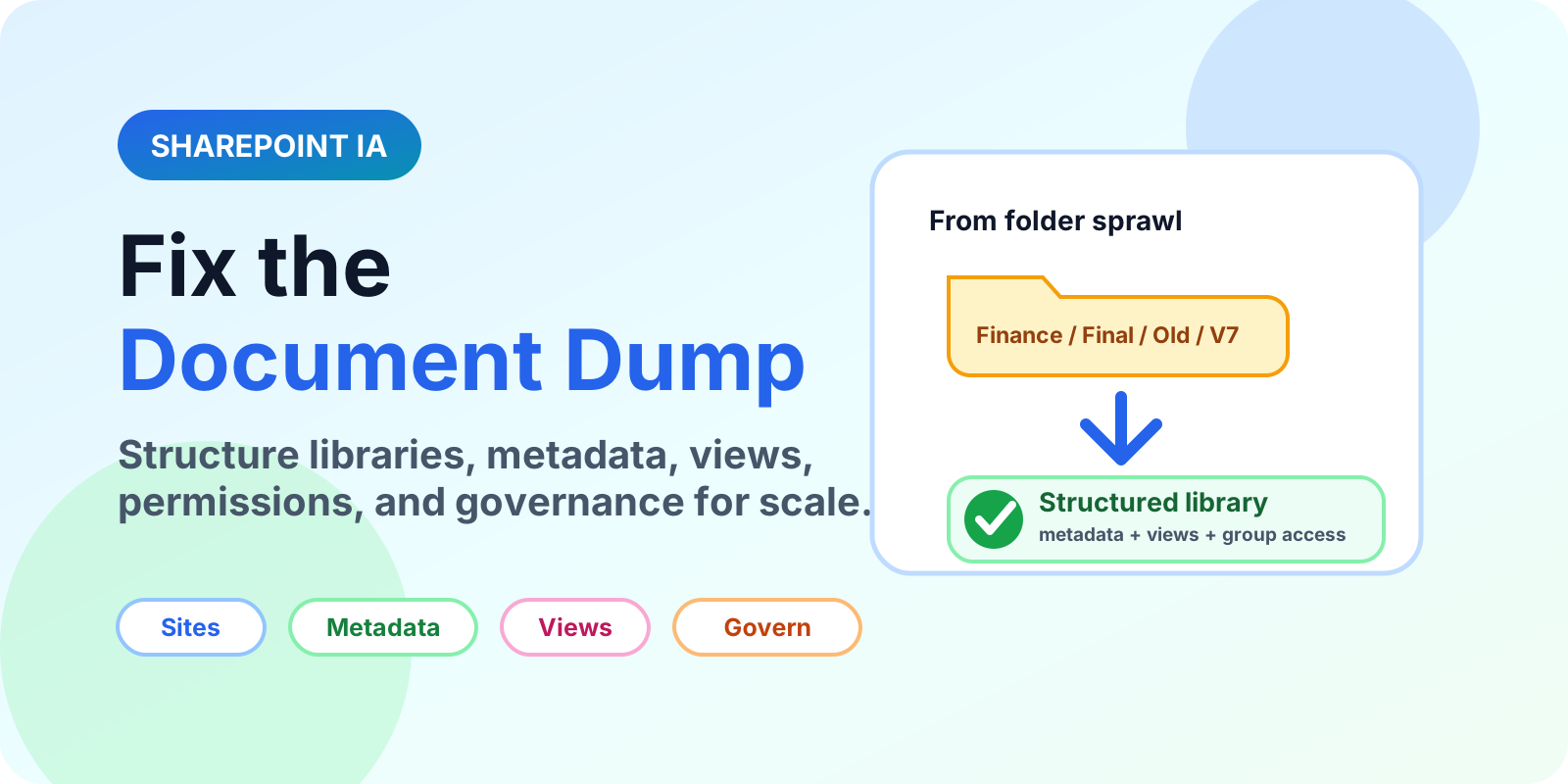
Finance / Client Contracts / Region / Client Name / 2026 / Renewals / Final / Signed / Approved / ArchiveThe new design should support search, approvals, renewals, limited access, and reporting without breaking OneDrive sync.
Step 1: Create the right site and library
Create or use a Finance SharePoint site connected to the appropriate Microsoft 365 group or security group. Inside it, create a library named Client Contracts. Keep the library name short because it becomes part of the path.
Recommended baseline:
- Site: Finance
- Library: Client Contracts
- Owners: Finance Operations Owners
- Members: Finance Members
- Visitors: Finance Read Only, if required
- External sharing: disabled by default unless vendor/client collaboration is required
Step 2: Define site columns
Create the following custom site columns so they can be reused in other finance libraries:
| Column | Type | Required | Example Values | Index? |
|---|---|---|---|---|
| Document Type | Choice | Yes | MSA, SOW, NDA, Renewal, Approval, Amendment | Yes |
| Department | Choice or Managed Metadata | Yes | Finance, Legal, Operations, Sales | Yes |
| Review Status | Choice | Yes | Draft, Under Review, Approved, Archived | Yes |
| Fiscal Year | Choice or Number | Yes | 2025, 2026, 2027 | Yes |
| Client | Lookup or Managed Metadata | Yes | Contoso, Fabrikam, Northwind | Yes |
| Expiration Date | Date | No | Contract end date | Yes |
| Business Owner | Person | Yes | Finance lead or account owner | No, unless used in major views |
Step 3: Create content types
Create content types for Client Contract, Contract Approval, and Contract Amendment. The Client Contract content type should include Client, Document Type, Department, Fiscal Year, Review Status, Expiration Date, and Business Owner. If each client contract package includes multiple related documents, consider a Document Set named Client Contract Package.
Step 4: Use short folders only where they help
Instead of a ten-level folder structure, use one of these patterns:
Client Contracts / 2026 / Contoso
Client Contracts / 2026 / Fabrikam
Client Contracts / Archived / 2024
or use Document Sets:
Client Contracts
  Contoso - 2026 Renewal
  Fabrikam - 2026 MSA
  Northwind - 2026 Amendment
The second pattern is cleaner when users think in terms of contract packages rather than folders.
Step 5: Add JSON column formatting for Review Status
Use SharePoint column formatting to make status visible without adding custom SPFx code. Paste this JSON into the Review Status column formatting editor.
{
  "$schema": "https://developer.microsoft.com/json-schemas/sp/v2/column-formatting.schema.json",
  "elmType": "div",
  "style": {
    "box-sizing": "border-box",
    "padding": "4px 10px",
    "border-radius": "999px",
    "font-weight": "600",
    "font-size": "12px",
    "line-height": "20px",
    "display": "inline-flex",
    "align-items": "center",
    "justify-content": "center",
    "min-width": "96px",
    "color": "=if(@currentField == 'Approved', '#166534', if(@currentField == 'Under Review', '#92400e', if(@currentField == 'Archived', '#475569', '#1d4ed8')))",
    "background-color": "=if(@currentField == 'Approved', '#dcfce7', if(@currentField == 'Under Review', '#fef3c7', if(@currentField == 'Archived', '#e2e8f0', '#dbeafe')))",
    "border": "=if(@currentField == 'Approved', '1px solid #86efac', if(@currentField == 'Under Review', '1px solid #fbbf24', if(@currentField == 'Archived', '1px solid #cbd5e1', '1px solid #93c5fd')))"
  },
  "txtContent": "@currentField"
}
Step 6: Create saved dynamic views
Create views that match actual work. Do not make users filter manually every time.
| View Name | Filter | Sort | Use Case |
|---|---|---|---|
| Active by Client | Review Status is not Archived | Client ascending, Expiration Date ascending | Daily contract operations and client lookup |
| My Pending Reviews | Review Status equals Under Review and Business Owner equals [Me] | Modified descending | Manager and owner review queue |
| Expiring This Quarter | Expiration Date is greater than or equal to today and less than or equal to end of quarter | Expiration Date ascending | Renewal planning and risk management |
| Approved 2026 Contracts | Fiscal Year equals 2026 and Review Status equals Approved | Client ascending | Audit-ready approved contract set |
Note: SharePoint views are part of the operating model. Name them for business outcomes, not technical filters. "Expiring This Quarter" is more useful than "Filter 1".
Permissions and Governance: Keeping It Clean Long-Term
Permissions are where many SharePoint libraries become unmanageable. The cleaner pattern is group-based access at the highest reasonable level.
Use groups, not individuals
Recommended permission model:
- Microsoft 365 Groups: best for Teams-connected collaboration sites.
- Microsoft Entra security groups: best for role-based access across multiple sites or libraries.
- SharePoint groups: useful for site-level Owners, Members, and Visitors where SharePoint admins manage membership.
- Item-level unique permissions: use only for approved exceptions with an expiration or review date.
If a library needs many unique permission zones, split the library. If a department needs separate confidentiality boundaries, split the site or create a dedicated restricted library. Do not keep layering exceptions over a messy structure.
Control storage bloat with version history and retention
SharePoint version history is valuable, but unlimited versions on large Office files can create storage pressure. Configure version limits based on business value. A contract library may need strict retention and major versions; a working draft library may not need hundreds of versions forever.
Governance checklist:
- Set version history limits appropriate to the library type.
- Use retention labels where legal, finance, HR, or regulatory rules apply.
- Use sensitivity labels for confidential, internal, and external-sharing-controlled content.
- Review external sharing policies quarterly.
- Assign at least two owners to every important site.
- Document the purpose of each library and the expected content types.
Quarterly administrator audit routine
A quarterly audit does not need to be complicated. It needs to be consistent. Run a scheduled review that answers these questions:
- Which libraries have more than 20,000 items and weak default views?
- Which libraries have many uniquely permissioned files or folders?
- Which files are externally shared?
- Which libraries have no active owner?
- Which content has not been modified in two or three years?
- Which required metadata columns have low completion rates?
- Which OneDrive sync complaints map to overly large libraries?
For larger environments, use Microsoft Graph reports, SharePoint admin center reports, Purview, and PowerShell exports to build an admin dashboard. The important part is not the tool. The important part is making library health visible before users complain.
Free IA Template
A SharePoint Information Architecture & Folder Structure Template in Excel or Notion format can structure this work. Use it to map departments, sites, libraries, content types, metadata columns, views, owners, retention rules, and permission boundaries before restructuring production content.
Use the template to document organization size, current folder pain points, library owners, and the department structure you want to fix first.
Practical Restructuring Plan for Existing Messy Libraries
If you already have a document dump, do not try to fix everything at once. Use a controlled restructuring project.
- Inventory: export folders, files, owners, permissions, size, modified dates, and path lengths.
- Classify: identify current business areas, document types, retention needs, and security boundaries.
- Design: define sites, libraries, content types, metadata, views, and permission groups.
- Pilot: restructure one department or one high-value library.
- Map redirects: communicate moved content and update key links in Teams, intranet pages, and workflows.
- Migrate or move: use controlled moves, migration tooling, or staged library changes depending on volume and risk.
- Train: show users the new views and filing rules in short role-based sessions.
- Govern: assign owners, quarterly reviews, and exception handling.
Warning: The biggest cleanup mistake is designing only for IT administration. A perfect metadata model that users refuse to maintain will fail. Keep required columns focused, automate defaults, and create views that match real work.
Final Architecture Rules of Thumb
- Use hub sites to connect related department and project sites.
- Use separate sites for distinct ownership or security boundaries.
- Use separate libraries for distinct lifecycle, retention, or permission requirements.
- Keep folder depth shallow and business-readable.
- Use metadata for filtering, views, reporting, automation, and compliance.
- Index columns used in major views before the library becomes large.
- Use Document Sets when a folder represents a business object.
- Use group-based permissions and review exceptions quarterly.
- Keep default views below threshold through filters, indexes, and scope.
- Do not sync massive libraries to every user's device.
Summary
Fixing a SharePoint document dump requires more than moving files into new folders. Growing teams need modern SharePoint site structure, scalable document libraries, indexed metadata, useful views, group-based permissions, retention controls, and a governance rhythm that keeps the environment clean after launch.
The best architecture is not folder-only or metadata-only. It is a pragmatic hybrid: sites for ownership, libraries for lifecycle, shallow folders for understandable drop zones, metadata for classification, views for work, groups for access, and governance for long-term trust.
Keep learning on nextM365
Connect libraries into an intranet with the SharePoint hub sites architecture guide and deepen metadata skills in SharePoint Metadata Explained.
Tagged
Document Libraries · Lists · Permissions · Governance · Admin Center
Frequently asked questions
Should SharePoint document libraries use folders or metadata?
Use a hybrid pattern. Keep folders for simple user navigation and security boundaries, but use metadata columns, content types, document sets, and saved views for classification, filtering, search, and governance.
What is the SharePoint 5,000 item limit?
The 5,000 limit is the List View Threshold for a single query or view, not the total storage capacity of a library. SharePoint libraries can store up to 30 million items, but views must be designed with indexed columns and filters.
How do I fix a messy SharePoint folder structure?
Start by mapping ownership and permissions, splitting massive shared libraries into sites and libraries, flattening deep folder trees, adding business metadata, creating filtered views, and retiring unused or duplicate content.
When should I use Document Sets in SharePoint?
Use Document Sets when a business object contains multiple related files that share metadata, such as client onboarding packs, vendor contracts, employee cases, audits, or project portfolios.
How should growing teams manage SharePoint permissions?
Use Microsoft 365 groups, Microsoft Entra security groups, and SharePoint groups at site or library level. Avoid item-level unique permissions except for approved exceptions that are reviewed regularly.
Sources
- Microsoft Learn: Planning Hub Sites, Microsoft
- Microsoft Learn: Introduction, Microsoft
Have a Microsoft 365 topic idea?
Share article suggestions, community session ideas, corrections, or real-world scenarios for future nextM365 learning notes.
Keep learning Microsoft 365
Explore more practical guides for SharePoint, Power Platform, Copilot Studio, migration, automation, governance, and security.
Continue learning
Related tutorials
Next action