SharePoint Migration Validation Using Python Guide
Learn how to validate a SharePoint migration with Python checks for files, folders, metadata, permissions, versions, data integrity, exception reports, and business sign-off.
- Published
- Reading time
- 7 min read
Before you start
Is this guide for you?
- Best entry point
- Migration
- Time investment
- 7 min read
In this article
- What is post-migration validation?
- Why migration completed does not mean migration validated
- Why use Python for SharePoint migration validation?
- What should you validate after SharePoint migration?
- Simple Python validation pattern
On this page (19 sections)
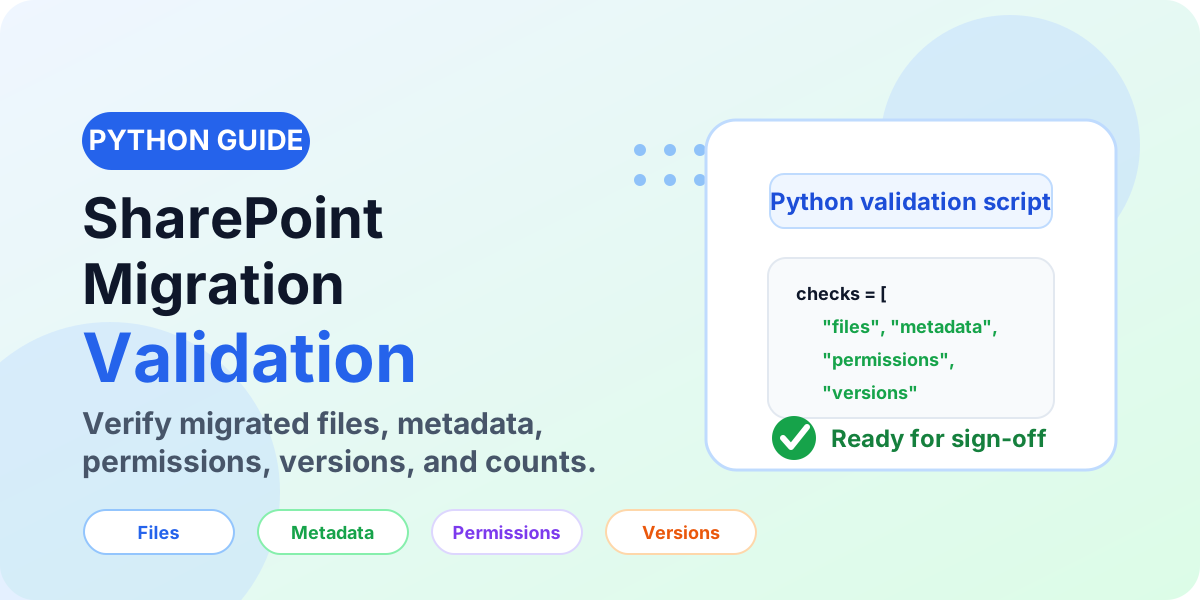
SharePoint migration validation using Python helps you prove that migrated content is complete, usable, and ready for business sign-off. A migration tool may say the job finished, but that does not always mean the migration is validated.
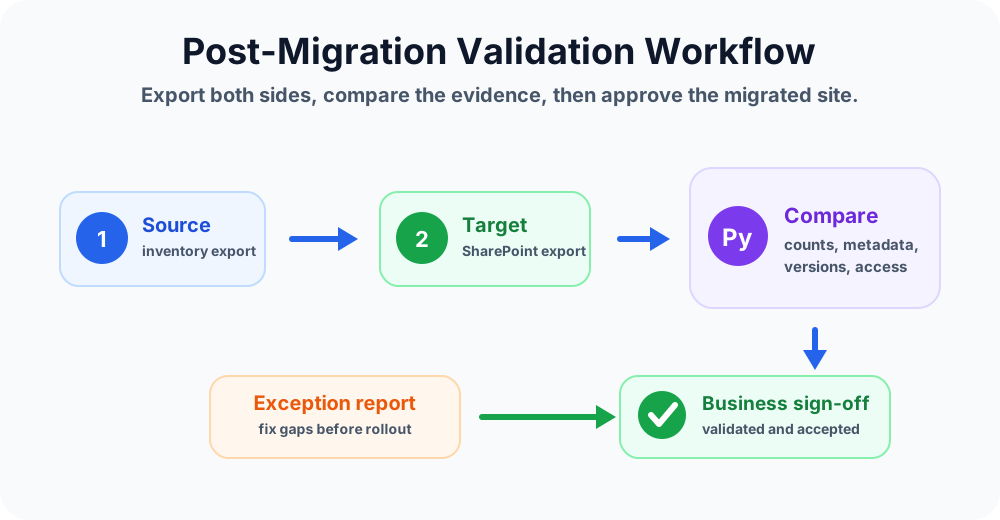
Validation is the step where you compare the source and target, identify exceptions, fix gaps, and confirm that users can trust the new SharePoint Online location. Python is useful because it makes those checks repeatable across many sites, document libraries, folders, and migration waves.
This guide is written for Microsoft 365 administrators, SharePoint migration consultants, IT teams, and project owners handling SharePoint Online migration, tenant-to-tenant migration, file share migration, or post-migration quality checks.
If you are still planning the migration, start with the SharePoint Online Migration Step-by-Step Guide and the Microsoft 365 Migration Checklist for Beginners. This article focuses on what happens after the content is moved.
What is post-migration validation?
Post-migration validation is the process of checking the migrated SharePoint Online environment against the approved source data and migration scope. It answers one simple question: can the business safely use the target site?
Good validation checks more than whether files exist. It should also review metadata, permissions, version history, file sizes, paths, links, list data, ownership, search behavior, and user access.
For SharePoint migration projects, validation usually includes three layers:
- Technical validation: compare counts, file names, paths, sizes, metadata, versions, and permissions.
- Business validation: ask site owners to confirm that important documents, libraries, pages, and workflows are usable.
- Governance validation: confirm owners, sharing rules, sensitivity, retention, and access controls are ready for production.
Why migration completed does not mean migration validated
A migration can finish with a successful status and still have problems. Some issues are small, such as a few skipped temporary files. Others can block business work, such as missing metadata, incorrect permissions, broken links, or missing document versions.
Common post-migration gaps include:
- Files skipped because of long paths, blocked characters, or unsupported file types
- Document counts that do not match between source and target
- Metadata columns that migrated as blank or wrong values
- Version history that did not migrate as expected
- Folder permissions copied incorrectly or simplified without approval
- External sharing links that no longer work
- Pages, links, or list views that need manual repair
That is why validation should be a planned migration phase, not an afterthought.
Why use Python for SharePoint migration validation?
Python is useful when validation has to be repeated across many sites or migration waves. Instead of manually opening every library, you can export source and target data, compare the records, and produce an exception report.
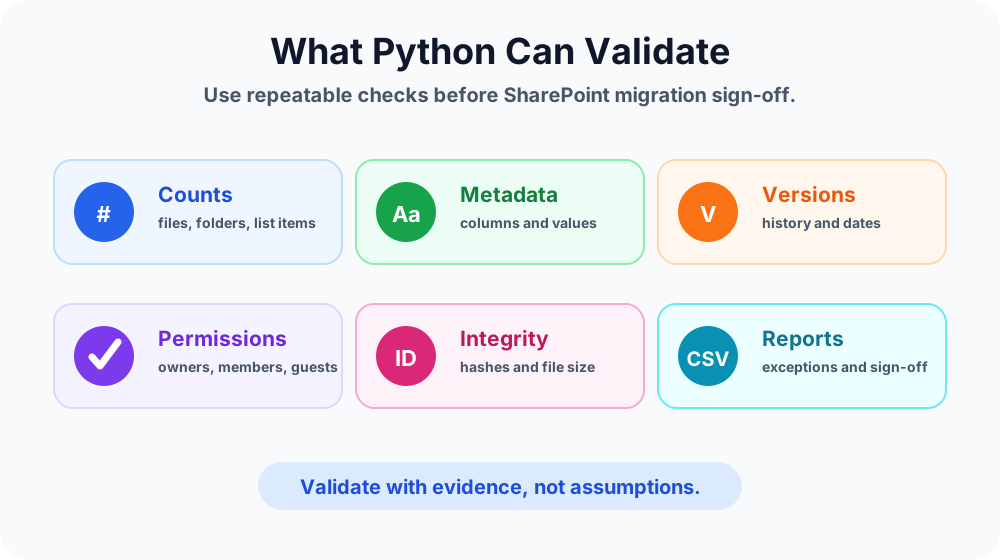
Python is especially helpful for:
- Comparing source and target file inventory exports
- Checking file count and folder count differences
- Comparing file names, paths, modified dates, and file sizes
- Finding missing metadata values or changed column values
- Reviewing permission reports for owners, members, visitors, and guests
- Generating CSV or Excel reports for migration owners
- Running the same validation rules after every migration wave
What should you validate after SharePoint migration?
1. Files and folders
Start with the basics: every expected file and folder should exist in the target location. Compare source and target inventories by relative path, file name, folder path, and item type.
Recommended checks:
- Total files per site and document library
- Total folders per library
- Missing files in the target
- Unexpected files in the target
- File size differences
- Path length or renamed file issues
2. Metadata and columns
Metadata is often more important than folder structure in SharePoint Online. If metadata is wrong, views, filters, retention, search, and business processes may fail.
Validate key columns such as department, document type, project, status, owner, retention label, content type, and custom business fields. Do not validate every low-value column with the same priority. Focus first on columns that affect business work, compliance, or navigation.
3. Version history
If version history is in scope, confirm that the expected number of versions migrated and that important version dates and authors are usable. Some migrations intentionally limit version depth, so compare against the approved migration rule, not an assumption.
4. Permissions and access
Permissions need careful review because the source may contain old, broken, or risky access. Python can compare exported permission data, but a business owner still needs to confirm whether the final access model is correct.
Check site owners, members, visitors, SharePoint groups, Microsoft 365 groups, security groups, external users, and unique permissions. For deeper planning, read Microsoft 365 Admin Roles Explained.
5. Data integrity
For high-value content, validate file size and hashes where available. Hash comparisons are stronger evidence than counts alone because they help confirm that the file content did not change during transfer.
6. Pages, links, and user experience
Automated reports are important, but they do not prove that users can work. Site owners should open key libraries, views, pages, navigation links, Teams-connected files, and common documents before sign-off.
Simple Python validation pattern
A practical Python validation process usually follows this pattern:
- Export source inventory to CSV.
- Export target SharePoint Online inventory to CSV.
- Normalize paths, names, dates, and user values.
- Compare records using a stable key such as relative path.
- Flag missing items, changed values, and permission differences.
- Write an exception report for remediation.
- Repeat after fixes and attach the final report to sign-off.
The exact extraction method depends on your source and toolset. Many teams use migration tool reports, SharePoint exports, Microsoft Graph, PnP PowerShell output, or inventory CSV files as the input for Python comparison.
Example: compare source and target file inventory
The example below shows the validation idea. It compares source and target CSV files by relative path and produces a missing-file report.
import pandas as pd

source = pd.read_csv("source_inventory.csv")
target = pd.read_csv("target_inventory.csv")

source["key"] = source["relative_path"].str.lower().str.strip()
target["key"] = target["relative_path"].str.lower().str.strip()

missing = source[~source["key"].isin(target["key"])]
missing.to_csv("missing_files_report.csv", index=False)

print(f"Source files: {len(source)}")
print(f"Target files: {len(target)}")
print(f"Missing files: {len(missing)}")
This is only a starting point. In a real project, you would also compare file size, modified date, metadata, version count, and permission mappings.
Example: compare metadata values
Metadata validation works best when you compare important business columns first. The goal is to find values that changed, disappeared, or mapped incorrectly.
columns_to_check = ["DocumentType", "Department", "ProjectCode"]

merged = source.merge(
    target,
    on="key",
    suffixes=("_source", "_target")
)

issues = []
for column in columns_to_check:
    source_col = f"{column}_source"
    target_col = f"{column}_target"
    mismatch = merged[merged[source_col].fillna("") != merged[target_col].fillna("")]
    mismatch["issue"] = f"{column} mismatch"
    issues.append(mismatch[["relative_path_source", source_col, target_col, "issue"]])

metadata_issues = pd.concat(issues)
metadata_issues.to_csv("metadata_validation_report.csv", index=False)
Keep the report simple enough for business owners to understand. A technically perfect report that nobody can review is not useful.
Example: permission validation approach
Permissions are harder to validate because source and target security models may not be identical. Instead of expecting every permission row to match, compare approved access outcomes.
- Who should own the site?
- Who should edit documents?
- Who should only read?
- Which guests or external users are approved?
- Which unique permissions are allowed?
Python can compare exported permission reports, but the report should be reviewed with the site owner before final approval.
Recommended validation report columns
A good validation report should help people fix issues quickly. Include enough detail to identify the problem without opening multiple tools.
- Migration wave
- Site URL
- Library or list name
- Source path
- Target path
- Issue type
- Source value
- Target value
- Severity
- Owner
- Status
- Resolution notes
Validation checklist before business sign-off
- File and folder counts reviewed
- Missing and failed items documented
- Critical metadata columns compared
- Version history checked where required
- Permissions and guest access reviewed
- Important pages, links, and views tested
- Teams-connected files tested if applicable
- Search and OneDrive sync behavior checked
- Exception report created and assigned
- Business owner sign-off recorded
Best practices
- Validate after every wave: do not wait until the full migration is complete.
- Use consistent exports: source and target reports should use the same path and column format where possible.
- Normalize before comparing: trim spaces, lower-case paths, and standardize date formats.
- Prioritize business-critical content: not every skipped file has the same impact.
- Separate accepted differences from real errors: some permission or version differences may be approved by design.
- Keep reports readable: validation reports should help owners make decisions.
Common mistakes to avoid
- Accepting migration tool success as final validation
- Checking counts but ignoring metadata and permissions
- Not documenting accepted exceptions
- Validating only one sample folder for a large site
- Skipping business owner review
- Not re-running validation after remediation
The bottom line
SharePoint migration validation using Python gives you a repeatable way to compare source and target content, identify exceptions, and support business sign-off with evidence. Use Python for the checks that machines do well, then involve site owners for the business validation that requires context.
Migration completed is a status. Migration validated is proof.
For the broader migration plan, continue with SharePoint Online Migration Step-by-Step Guide, What Is Microsoft 365 Migration?, and the general SharePoint Migration Validation framework this method plugs into.
NEXT STEP
Planning a SharePoint Migration?
Start by understanding your current environment, permissions, customizations, workflows, integrations, and migration risks. Use assessment findings to plan migration waves and define how the migrated environment will be validated.
30-minute technical discussion • No obligation • Practical next steps
Tagged
Governance · Security · Permissions · Document Libraries
Frequently asked questions
What is SharePoint migration validation?
SharePoint migration validation is the post-migration process of checking whether migrated sites, libraries, files, metadata, permissions, versions, and business content match the approved source and work correctly in SharePoint Online.
Why use Python for SharePoint migration validation?
Python is useful because it can compare source and target exports, find count mismatches, detect missing metadata, flag permission differences, and generate repeatable exception reports for migration waves.
Can Python validate SharePoint permissions after migration?
Yes. Python can compare exported permission reports, group membership, owners, members, visitors, and guest access. It should be used with business review because not every permission difference is automatically wrong.
What should be included in a SharePoint migration validation report?
A validation report should include migrated counts, missing files, failed items, metadata differences, version history gaps, permission differences, link or path issues, owner sign-off, and open remediation items.
When should validation happen during a migration?
Validation should happen after every pilot and production migration wave, before users are asked to rely on the target SharePoint Online site and before business sign-off is recorded.
Sources
- Microsoft Learn: Migrate To Sharepoint Online, Microsoft
- Microsoft Learn: Introduction, Microsoft
Have a Microsoft 365 topic idea?
Share article suggestions, community session ideas, corrections, or real-world scenarios for future nextM365 learning notes.
Keep learning Microsoft 365
Explore more practical guides for SharePoint, Power Platform, Copilot Studio, migration, automation, governance, and security.
Continue learning
Related tutorials
Related questions
Related comparisons
Next action