Dropbox / Google Drive to SharePoint Migration: Enterprise Checklist & Pitfalls (2026 Guide)
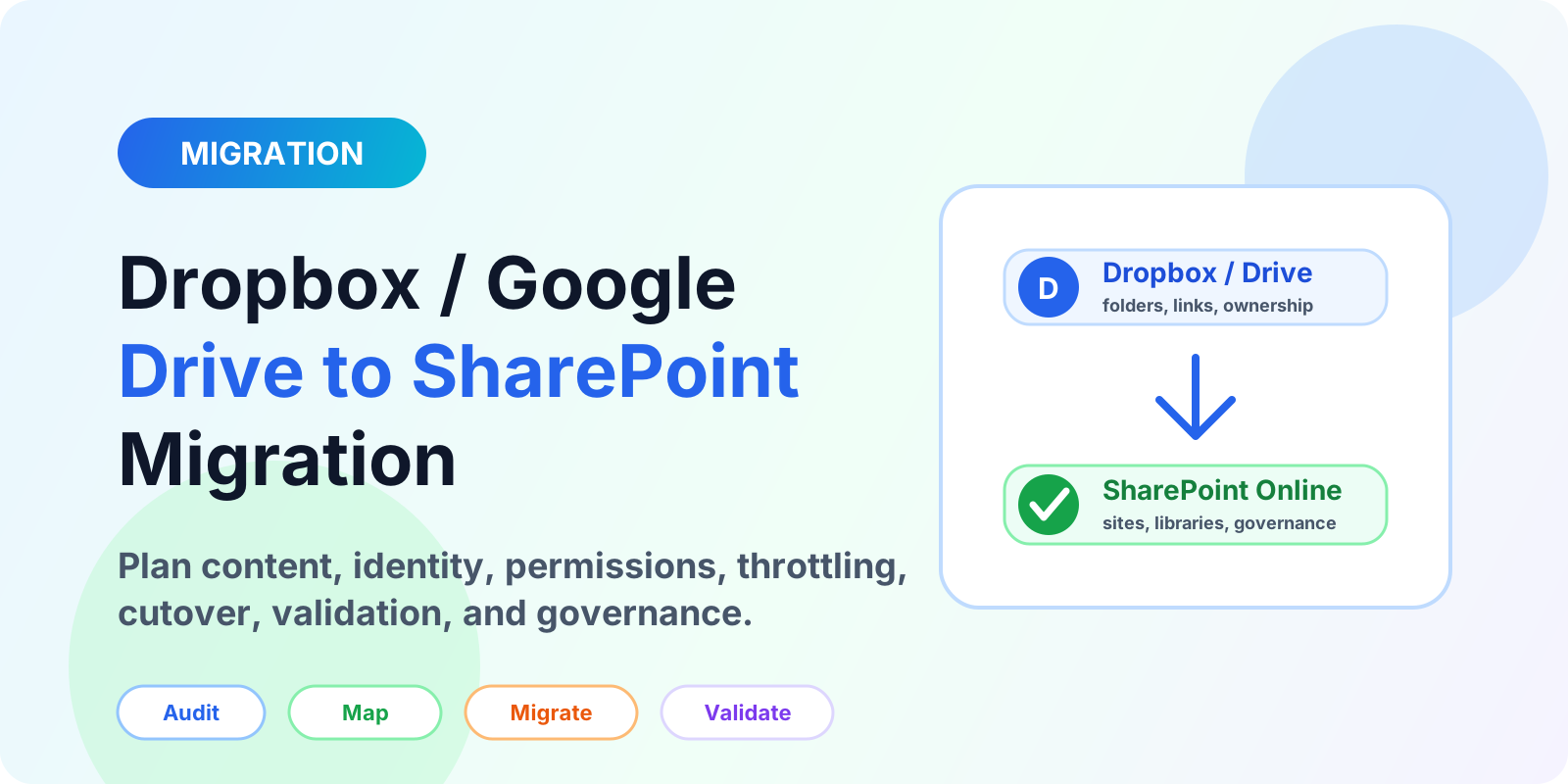
A detailed enterprise guide for Dropbox to SharePoint migration and Google Drive to SharePoint migration checklist planning, pitfalls, tooling, throttling, validation, and governance.
- Published
- Reading time
- 15 min read
Before you start
Is this guide for you?
- Best entry point
- Migration
- Time investment
- 15 min read
In this article
- Executive Summary: Migration Decision Matrix
- Phase 1: Pre-Migration Discovery and Audit
- Phase 2: Technical Pitfalls and Mitigation
- Phase 3: Migration Execution and Tooling Strategy
- Phase 4: Post-Migration Validation and Governance
On this page (26 sections)
Dropbox to SharePoint migration and Google Drive to SharePoint migration projects fail when they are treated as file copy jobs. They are not file copy jobs. They are content architecture, identity, permission, compliance, user adoption, and operational cutover projects.
Manual copy-pasting may work for a department folder with a few hundred files. It breaks down quickly once the source has more than 5,000 files, multiple owners, shared links, inherited and direct permissions, Google native formats, external users, long folder paths, and business-critical sync clients. At that point, the migration needs inventory, mapping, staged execution, throttling control, validation evidence, and governance decisions before any large transfer begins.
This 2026 guide is written for IT Directors, Cloud Architects, Operations Heads, Microsoft 365 administrators, and system administrators who need a practical enterprise checklist. The goal is simple: move content from Dropbox Business or Google Workspace Drive into SharePoint Online and OneDrive for Business with minimal downtime, no silent data loss, and a destination structure that users can actually maintain.
Executive Summary: Migration Decision Matrix
Dropbox Business and Google Drive are flexible collaboration platforms. SharePoint Online is also a collaboration platform, but its architecture is more structured. A successful migration does not dump every source folder into one huge document library. It maps business ownership into sites, document libraries, metadata, Microsoft Teams, Microsoft Entra ID groups, retention policies, and governance controls.
The most important decision is not "Which migration tool should we buy?" It is "What should the destination model become?" If you do that design work late, the migration may technically complete but leave users with broken links, confusing permissions, sync failures, and a help desk queue full of access requests.
| Area | Dropbox / Google Drive Source Model | SharePoint Online Destination Model | Migration Decision |
|---|---|---|---|
| Information architecture | Shared folders, My Drive, Google Shared Drives, Dropbox Team Folders, nested folder trees | Site collections, Teams-connected sites, communication sites, document libraries, folders, metadata | Map ownership to sites and libraries before transfer. Do not mirror every source folder blindly. |
| Permissions | Loose direct shares, inherited folders, external links, individual users, source-native groups | Microsoft Entra ID groups, Microsoft 365 groups, SharePoint groups, inherited library permissions | Normalize access into groups and reduce item-level permissions. |
| Metadata | Google labels, Dropbox metadata, folder naming conventions, implicit ownership | SharePoint columns, content types, sensitivity labels, retention labels, managed metadata | Convert business classification into metadata only where it improves findability or policy. |
| Files | Google native files, Office files, PDFs, media, app-generated files, shortcuts | Office Open XML, PDFs, supported binary files, OneDrive shortcuts, SharePoint pages | Decide how to export .gdoc, .gsheet, and .gslides before test migration. |
| Collaboration | External sharing links, shared folders, comments, app integrations | Sharing policies, guest access, Teams channels, links, compliance controls | Recreate sharing intentionally. Do not preserve every anonymous or legacy link. |
Tip: Treat the migration as an opportunity to redesign information architecture. If the source has years of unmanaged folders, copying the mess into SharePoint only moves the problem to a new platform.
Phase 1: Pre-Migration Discovery and Audit
Discovery is where most migration risk becomes visible. The checklist below should be completed before a pilot migration, not during cutover weekend.
1. Inventory the content estate
Create an export or scan that captures every source item with at least these fields:
- Full source path
- Item type: folder, file, Google native file, shortcut, shared drive, Team Folder
- Owner and last modified user
- Created and modified timestamps
- File size in bytes
- Extension and MIME type
- Path length after destination mapping
- Permission inheritance state
- External sharing state
- Migration action: migrate, archive, exclude, convert, remediate
Flag abandoned or orphaned files early. Google Drive content can be owned by disabled or deleted users. Dropbox content may be in team folders, user folders, or shared spaces with unclear business ownership. If no business owner can approve a destination, the item should not go directly into a production library.
2. Identify large files and blocked file types
Microsoft documentation currently lists 250 GB as the maximum supported individual file size for Migration Manager cloud migrations from Google, Dropbox, Box, Egnyte, and file shares to Microsoft 365. SharePoint and OneDrive also document a 250 GB file upload and download limit for individual files. That does not mean every 249 GB file is operationally safe. Very large files affect transfer windows, retry behavior, OneDrive sync, user expectations, and validation time.
During discovery, classify files by size band:
- 0 to 100 MB: normal operational files
- 100 MB to 2 GB: validate previews, sync, and user workflows
- 2 GB to 15 GB: migrate in controlled batches and test user access
- 15 GB to 250 GB: handle as high-risk migration objects
- Over 250 GB: do not expect standard Microsoft 365 migration support without redesign or split/archive decisions
3. Audit nested folder hierarchies
Folder depth is one of the most common SharePoint migration pitfalls. Users often build folder paths like:
Shared Drive / Client Projects / 2026 / Region / Country / Customer / Department / Final / Approved / Signed / ArchiveThat may work in the source system, but SharePoint and OneDrive have path and sync constraints. Before migration, calculate the destination path, not only the source path. Include the site URL, library name, folder names, encoded characters, spaces, and file name.
4. Map identities before permissions
Permissions cannot be migrated cleanly until identities are mapped. Build a user mapping table that connects Google Workspace emails or Dropbox account emails to Microsoft Entra ID user principal names. Include these fields:
- Source email
- Destination UPN
- Destination object type: user, shared mailbox owner, group, external guest, service account
- Status: active, disabled, leaver, contractor, unknown
- Action: map, replace with group, exclude, convert to owner approval
Do not assume email addresses match. Many organizations have aliases, renamed domains, mergers, contractors, and source accounts that do not exist in Microsoft Entra ID.
5. Decide how to handle Google proprietary formats
Google native documents are not normal binary files. A .gdoc, .gsheet, or .gslides item is usually a pointer to a cloud document, not the document content itself. You need an export strategy.
- Google Docs: usually export to
.docxfor Microsoft Word compatibility. - Google Sheets: usually export to
.xlsx, then validate formulas, pivots, protected ranges, and scripts. - Google Slides: usually export to
.pptx, then validate fonts, layout, and embedded media. - Google Forms, Sites, Apps Script: require separate planning because they do not become equivalent SharePoint documents.
OpenXML conversion is not perfect. Complex Google Sheets with Apps Script, connected ranges, add-ons, or unusual formulas need owner testing before business sign-off.
6. Audit links, apps, and automations
External sharing links and third-party app integrations are often invisible until after cutover. During discovery, capture:
- Anonymous links and organization-wide links
- External collaborators and domains
- Google Drive shortcuts and Dropbox shortcuts
- Embedded links in documents and spreadsheets
- Zapier, Make, custom API scripts, backup tools, eSignature tools, CRM links, and finance integrations
- Department processes that reference source folder paths
Every integration needs a decision: rebuild in Microsoft 365, replace with Power Automate, keep in source temporarily, or retire.
Phase 2: Technical Pitfalls and Mitigation
Pitfall 1: URL and Path Length Restrictions
SharePoint and OneDrive support a maximum 400-character decoded cloud path, including the file name. Microsoft also documents practical desktop constraints: Windows File Explorer and many Office desktop scenarios still run into 260-character path behavior, while OneDrive sync has its own total local path constraints. This is why a path that opens in the browser can still fail for users who sync libraries to Windows devices.
Deep nesting breaks migration in three ways:
- The migration tool skips or renames items because the destination path is too long.
- The item lands in SharePoint but fails in OneDrive sync.
- Office desktop apps cannot open or save the document reliably after sync.
Mitigation:
- Calculate destination path length before migration.
- Keep site and library names short.
- Replace deep folders with metadata where users need filtering and classification.
- Flatten archival folders before migration.
- Test synced libraries on Windows and macOS, not only in the browser.
Warning: A path that is valid in Google Drive or Dropbox is not automatically valid in SharePoint Online. Test with encoded characters, spaces, long customer names, and OneDrive sync paths before approving the destination model.
Pitfall 2: Unsupported Characters and File Names
Invalid names are a predictable migration failure category. SharePoint and OneDrive restrictions change over time as Microsoft improves support, but enterprise projects should still scan for high-risk characters and names before cutover.
Scan for leading or trailing spaces, names ending in a period, unsupported Unicode, and reserved characters such as:
~ # % & * { } \ : < > ? / | "Also exclude system and hidden files that have no business value in SharePoint:
.ds_storethumbs.db- temporary Office lock files such as
~$Budget.xlsx - application cache files
- desktop.ini and other operating system metadata files
Mitigation:
- Run a pre-scan and export every invalid path to a remediation workbook.
- Standardize rename rules before any tool auto-renames files.
- Notify business owners where renaming breaks source links or references.
- Keep a rename mapping file for validation and help desk lookup.
- Do not silently rename legal, finance, or regulated content without owner approval.
Pitfall 3: Permissions Sprawl and Broken Inheritance
Dropbox Team Folders and Google Shared Drives can contain a mixture of inherited access, direct user shares, external collaborators, link-based access, and owner-specific exceptions. If every exception becomes a unique SharePoint file or folder permission, the destination becomes slow, fragile, and hard to support.
Microsoft documents that a SharePoint document library can support up to 50,000 unique ACLs, but Microsoft recommends keeping unique permissions under 5,000 for best performance. In large libraries, inheritance design matters more than raw item count.
Mitigation:
- Translate business access into Microsoft Entra ID security groups or Microsoft 365 groups.
- Create separate sites or libraries when access boundaries are truly different.
- Avoid item-level permissions except for justified exceptions.
- Replace old individual shares with role-based groups such as Finance Members or Project ABC Visitors.
- Use sensitivity labels and sharing policies for governance instead of uncontrolled link replication.
A practical rule: if a folder has a distinct audience and business owner, it may deserve a separate library or site. If a file has a unique permission because someone shared it three years ago, it probably deserves review before migration.
Pitfall 4: API Rate Limits and Throttling
High-volume migrations produce read, write, metadata, permission, and reporting calls. Microsoft Graph, SharePoint REST, CSOM, Migration Manager, and third-party engines can all encounter throttling. Microsoft Graph returns HTTP 429 Too Many Requests with a Retry-After header when limits are exceeded. SharePoint Online can return 429 or 503 Server Too Busy for overloaded patterns.
Do not plan a migration assuming Microsoft will disable throttling. Microsoft states that throttling protects service reliability and cannot simply be turned off for normal migrations. For very large migrations, Microsoft provides separate guidance around migration planning and support engagement.
Mitigation:
- Run migrations outside peak business hours where possible.
- Use batches by site, owner, department, or data size.
- Respect
Retry-Afterheaders rather than retrying immediately. - Use delta sync instead of full rescans for later passes.
- Throttle your own custom scripts with controlled concurrency.
- Decorate API traffic with appropriate app identification where applicable.
- Keep failed item retries separate from initial bulk movement.
Phase 3: Migration Execution and Tooling Strategy
Native Microsoft tools
Microsoft provides Migration Manager in the SharePoint admin center for cloud and file share migration scenarios, including Google Workspace and Dropbox. It supports task management, scans, migration reports, agents for file shares, and centralized progress views. The SharePoint Migration Tool is commonly used for SharePoint Server and file share migrations.
Native tools are a strong first option when the source and destination are straightforward, permissions are simple, reporting needs are moderate, and the business can accept standard migration behavior.
When to use third-party enterprise migration engines
Use a third-party enterprise migration engine when you need advanced transformation, granular scheduling, link remediation, detailed permission mapping, pre-stage reporting, richer dashboards, rollback workflows, or complex Google Drive and Dropbox edge-case handling. These tools are not magic. They still need clean discovery, identity mapping, pilot validation, and governance decisions.
Typical reasons to use a third-party tool include:
- Large multi-terabyte migrations with multiple business units
- Complex Google Shared Drive ownership and permission structures
- Dropbox Team Folder redesign into many SharePoint sites
- Need for detailed stakeholder reports and reconciliation exports
- Business requirement to preserve or transform sharing links
- Heavy delta-sync and cutover scheduling requirements
When custom PowerShell or Python makes sense
Custom automation is best for discovery, reporting, validation, and remediation. It is rarely the best primary engine for large binary file transfer unless the team is prepared to manage authentication, chunked uploads, retries, throttling, logging, and reconciliation.
Use custom scripts for:
- Pre-migration inventory and path-length checks
- Invalid character detection and rename mapping
- Owner approval exports
- Permission comparison reports
- Post-migration item count, size, and hash validation samples
- Power BI dashboards over migration logs
Use a multi-pass migration strategy
A reliable enterprise migration uses multiple passes:
- Pre-scan: inventory content, paths, invalid names, permissions, and large files.
- Pilot migration: migrate representative departments and validate real workflows.
- Initial bulk migration: copy most data while users continue working in the source.
- Delta syncs: capture changed content during the transition period.
- Final freeze: set source folders read-only or communicate a strict change freeze.
- Final delta: migrate last changes and lock the cutover record.
- Validation and sign-off: prove item counts, sizes, failed items, and business readiness.
Tip: A final read-only lockdown is not a technical luxury. It is how you avoid source and destination divergence during cutover.
Phase 4: Post-Migration Validation and Governance
Validation is where you prove the migration worked. A dashboard showing 99.8 percent completion is useful, but it is not enough. Stakeholders need evidence that business-critical content arrived, can be opened, has the correct access, and can be found by users.
Data reconciliation checklist
- Compare source and destination item counts by business owner, site, and library.
- Compare total byte size by migration batch.
- Review failed, skipped, renamed, and unsupported files.
- Sample hash validation for high-value files where source exports support hashing.
- Validate Google format conversions with content owners.
- Validate permissions for owners, members, visitors, external users, and restricted content.
- Confirm OneDrive sync behavior for representative users.
- Confirm search, metadata, retention, and sensitivity label behavior.
Python validation snippet: compare inventory with SharePoint REST
The snippet below compares a CSV source inventory against files returned from a SharePoint document library REST endpoint. It is intentionally small so administrators can adapt it to their migration logs. It validates server-relative paths and sizes. For production use, add pagination handling, retries, structured logging, and secure secret handling through environment variables or managed identity.
import csv
import os
import requests

# Required environment variables:
# SPO_SITE_URL=https://contoso.sharepoint.com/sites/Finance
# SPO_LIBRARY_TITLE=Documents
# SPO_BEARER_TOKEN=<OAuth access token with SharePoint permissions>
# SOURCE_INVENTORY=source-inventory.csv

site_url = os.environ["SPO_SITE_URL"].rstrip("/")
library_title = os.environ.get("SPO_LIBRARY_TITLE", "Documents")
token = os.environ["SPO_BEARER_TOKEN"]
source_inventory = os.environ.get("SOURCE_INVENTORY", "source-inventory.csv")

headers = {
    "Authorization": f"Bearer {token}",
    "Accept": "application/json;odata=nometadata"
}

def load_source_inventory(path):
    expected = {}
    with open(path, newline="", encoding="utf-8") as handle:
        for row in csv.DictReader(handle):
            # CSV columns expected: destination_server_relative_url,size_bytes
            key = row["destination_server_relative_url"].strip().lower()
            expected[key] = int(row["size_bytes"])
    return expected

def get_sharepoint_files():
    files = {}
    endpoint = (
        f"{site_url}/_api/web/lists/getbytitle('{library_title}')/items"
        "?$select=File/ServerRelativeUrl,File/Length&$expand=File&$top=5000"
    )

    while endpoint:
        response = requests.get(endpoint, headers=headers, timeout=60)

        if response.status_code in (429, 503):
            retry_after = int(response.headers.get("Retry-After", "30"))
            raise RuntimeError(f"Throttled by SharePoint. Retry after {retry_after} seconds.")

        response.raise_for_status()
        payload = response.json()

        for item in payload.get("value", []):
            file_info = item.get("File")
            if not file_info:
                continue
            key = file_info["ServerRelativeUrl"].strip().lower()
            files[key] = int(file_info.get("Length", 0))

        endpoint = payload.get("@odata.nextLink")

    return files

source = load_source_inventory(source_inventory)
destination = get_sharepoint_files()

missing = sorted(set(source) - set(destination))
size_mismatch = sorted(
    path for path in source.keys() & destination.keys()
    if source[path] != destination[path]
)

print(f"Source files: {len(source)}")
print(f"Destination files: {len(destination)}")
print(f"Missing files: {len(missing)}")
print(f"Size mismatches: {len(size_mismatch)}")

if missing:
    print("\nFirst missing files:")
    for path in missing[:25]:
        print(path)

if size_mismatch:
    print("\nFirst size mismatches:")
    for path in size_mismatch[:25]:
        print(f"{path} source={source[path]} destination={destination[path]}")
OneDrive sync client deployment
End-user adoption often depends on the OneDrive sync client. Plan it like an endpoint deployment, not an afterthought.
- Deploy the current OneDrive sync client before cutover.
- Use Files On-Demand to avoid forcing large libraries onto local disks.
- Limit automatic sync to appropriate libraries and Teams channel folders.
- Educate users about shortcuts to OneDrive versus syncing entire libraries.
- Test long paths and large libraries on managed Windows and macOS devices.
- Prepare help desk scripts for sync errors, duplicate files, and path-too-long messages.
Governance After Cutover
A migration without governance becomes the next content sprawl project. After cutover, implement practical controls:
- Site ownership and secondary owner requirements
- External sharing review process
- Sensitivity labels for confidential content
- Retention labels where business or legal rules require them
- Library naming standards
- Guest access reviews
- Archive and deletion policy
- Periodic permission reports
For broader planning, also read the SharePoint Online Migration Step-by-Step Guide, the SharePoint Migration Validation Using Python Guide, and the Microsoft 365 Migration Checklist.
Free 30-Minute Migration Architecture Review
Free offer: nextM365.com / Suresh Girinathuni offers a Free 30-Minute Migration Architecture Review & Risk Assessment for organizations planning Dropbox Business, Google Workspace Drive, SharePoint Online, OneDrive for Business, or tenant-to-tenant file migrations.
Bring your current source size, user count, critical departments, expected cutover date, and biggest concerns. The review can help identify path-length risk, permission design issues, throttling concerns, validation gaps, and governance decisions before you commit to a migration window.
Use the Enterprise Cloud Migration Checklist & Risk Matrix in Excel or PDF format to review readiness before migration.
Final Cutover Checklist
- Source inventory completed and approved by business owners.
- Destination SharePoint sites and libraries created with short names.
- Identity mapping completed for users, groups, guests, and unknown accounts.
- Invalid characters, blocked names, hidden files, and long paths remediated.
- Google native file conversion tested.
- Permissions normalized into Microsoft Entra ID or SharePoint groups.
- Pilot migration completed with user sign-off.
- Initial bulk migration completed and report reviewed.
- Delta sync schedule approved.
- Source freeze communicated and enforced.
- Final delta completed.
- Post-migration validation exported and archived.
- OneDrive sync and user training completed.
- Governance owners assigned.
Summary
Dropbox and Google Drive migrations succeed when the team designs the SharePoint destination before moving data. The hard parts are not only transfer speed. The hard parts are ownership, identity mapping, permission cleanup, path limits, unsupported names, Google format conversion, throttling, validation, and user adoption.
If you want zero data loss and minimal downtime, run the project in phases: discover, design, pilot, bulk migrate, delta sync, freeze, validate, and govern. That discipline turns a risky file-copy exercise into a controlled Microsoft 365 migration.
NEXT STEP
Planning a SharePoint Migration?
Start by understanding your current environment, permissions, customizations, workflows, integrations, and migration risks. Use assessment findings to plan migration waves and define how the migrated environment will be validated.
30-minute technical discussion • No obligation • Practical next steps
Tagged
Governance · Security · Permissions · Document Libraries · Admin Center
Frequently asked questions
What is the biggest risk in a Dropbox to SharePoint migration?
The biggest risk is not raw transfer speed. It is usually permission sprawl, ownership mismatch, path length failures, invalid names, unconverted Google files, and weak post-migration validation.
Can Microsoft Migration Manager migrate Dropbox and Google Drive content?
Yes. Microsoft Migration Manager supports cloud migrations from Google Workspace and Dropbox to Microsoft 365, with Microsoft documenting a 250 GB maximum supported file size for those scenarios.
What SharePoint path length should I design for?
SharePoint and OneDrive support up to 400 characters for the decoded cloud path, including the file name. Desktop sync and Office apps can hit lower practical limits, so enterprise migrations should flatten deeply nested folders before cutover.
How should I validate a SharePoint migration?
Validate item counts, file sizes, folder paths, timestamps, permissions, failed/skipped items, sample file hashes where feasible, business-owner sign-off, and post-cutover OneDrive sync behavior.
Should I preserve every Dropbox or Google Drive permission exactly?
Usually no. Migrations are a chance to normalize permissions into Microsoft Entra ID groups, SharePoint groups, Teams-connected sites, and document libraries that inherit permissions cleanly.
Sources
Have a Microsoft 365 topic idea?
Share article suggestions, community session ideas, corrections, or real-world scenarios for future nextM365 learning notes.
Keep learning Microsoft 365
Explore more practical guides for SharePoint, Power Platform, Copilot Studio, migration, automation, governance, and security.
Continue learning
Related tutorials
Related questions
Related comparisons
Next action