Debugging Conversations | Copilot Studio Day 42
Learn how to debug Copilot Studio conversations by reproducing issues, checking topic triggering, tracing conversation flow, inspecting variables, testing actions, and fixing fallback loops.
- Published
- Reading time
- 7 min read
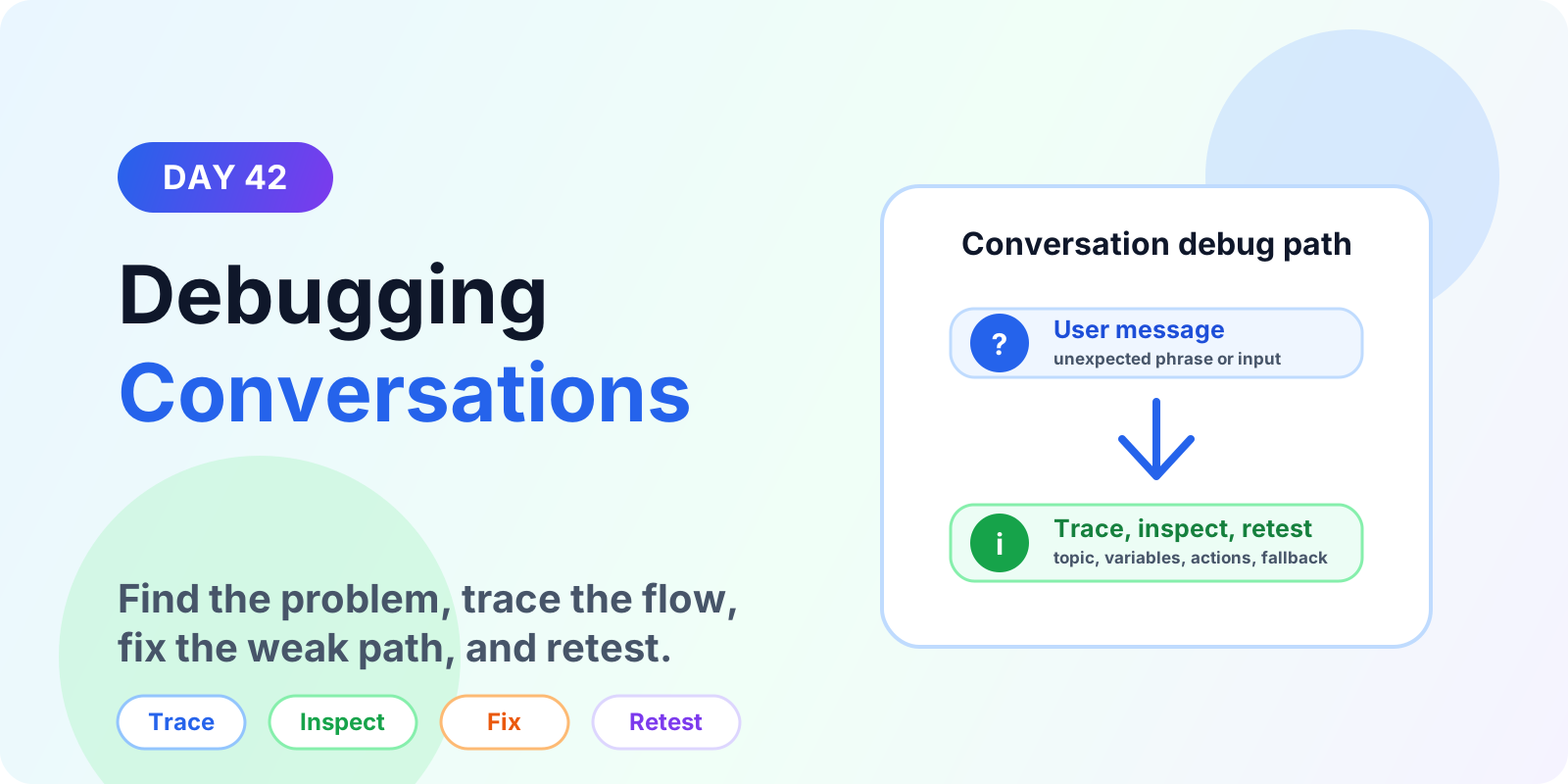
Week 6 · Day 42 of 365 in 365 Days of Copilot Studio — view the full series
Before you start
Is this guide for you?
- Best entry point
- 365 Days of Copilot Studio
- Time investment
- 7 min read
In this article
- What is conversation debugging?
- Testing vs debugging
- Start with the failed conversation
- Check topic triggering
- Trace the conversation flow
On this page (15 sections)
Day 42 of 365 Days of Copilot Studio explains how to debug Microsoft Copilot Studio conversations when the agent does not behave the way you expected.
Debugging is different from normal testing. In Day 41, the goal was to validate the full copilot before publishing. In this lesson, the goal is narrower: find the exact point where a conversation breaks, understand why it breaks, fix the cause, and retest the same scenario.
A broken conversation can look like many different things. The wrong topic starts. A good topic never starts. A question stores the wrong value. A condition sends the user down the wrong branch. A Power Automate action fails. A generative answer is incomplete. A fallback topic repeats too many times. Good debugging gives you a repeatable way to isolate the issue instead of guessing.
What is conversation debugging?
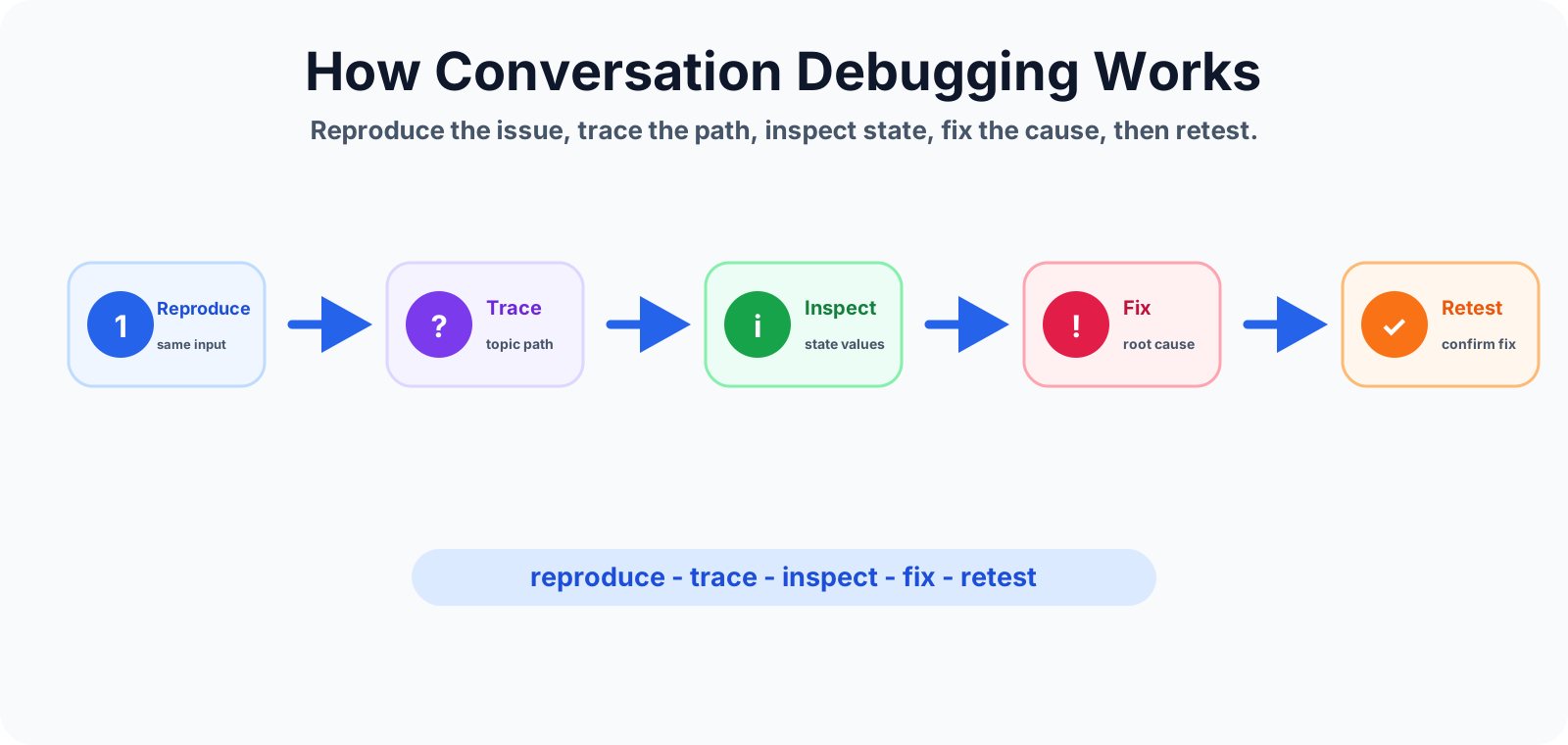
Conversation debugging means tracing how a user message moves through the copilot. You start with the real input, follow the topic selection, inspect variables and branches, review actions and answers, and confirm the final response.
The practical debugging pattern is simple: reproduce, trace, inspect, fix, and retest.
Testing vs debugging
Testing asks, "Does this work?" Debugging asks, "Why did this fail?" Both are required, but they are not the same activity.
- Testing validates expected behavior across topics, trigger phrases, questions, variables, actions, fallback, and edge cases.
- Debugging investigates a known problem and follows the evidence until the root cause is clear.
If the copilot gives a weak answer, do not only rewrite the response. First confirm whether the right topic triggered, whether the correct knowledge source was used, whether required variables were available, and whether the user reached the intended branch.
Start with the failed conversation
The first debugging step is to reproduce the exact user journey. Avoid paraphrasing the issue too early. A small wording difference can trigger a different topic and hide the real problem.
- Capture the exact message the user typed.
- Replay the same message in the test panel.
- Follow the same steps the user followed.
- Identify the first point where the behavior becomes wrong.
When possible, keep the failed conversation transcript or notes. You need the input, expected result, actual result, topic name, action names, and any error message shown to the user.
Check topic triggering
Topic triggering is one of the most common places where conversations fail. A user may ask a valid question, but the copilot starts the wrong topic or drops into fallback.
Check whether the topic has enough realistic trigger phrases. Also check whether another topic has overlapping phrases that are more likely to match the user message. Similar topics such as password reset, account unlock, IT help, and access request can easily compete with each other.
- Test short phrases, full questions, misspellings, and alternate wording.
- Confirm the most specific topic starts before a generic support topic.
- Remove or rewrite overlapping trigger phrases where topics compete.
- Use a clear greeting or routing topic when users need to choose a path.
Trace the conversation flow
After the right topic starts, trace the conversation step by step. A small mistake in the flow can produce a confusing user experience. Follow the path from trigger to question, from question to condition, from condition to action, and from action to response.
Look for disconnected branches, redirects to the wrong topic, missing ending messages, and repeated questions. If a user says "yes" but reaches a "no" path, the issue is usually in variable handling or condition logic.
Inspect variables
Variables are a frequent source of hidden bugs. The conversation may look correct on the surface, but the stored value may be empty, old, overwritten, or scoped differently than expected.
When debugging variables, check for these issues:
- Empty values: the user skipped a question or the value was never captured.
- Wrong type: a date, number, email, or choice value was not interpreted correctly.
- Old values: a variable reused a previous value after the user changed direction.
- Wrong scope: the variable exists in one topic but is not available where you expect it.
Variable debugging matters because conditions, actions, and responses often depend on those values.
Debug conditions
Condition mistakes are small but high impact. A condition can send a user to the wrong branch even when the user answered correctly.
Verify every condition with real sample values. Test both true and false paths. If a condition checks status, approval level, region, department, ticket type, or request priority, test each expected value and at least one unexpected value.
Debug actions and integrations
If the copilot calls Power Automate, SharePoint, Dataverse, Graph, a connector, or an external API, debug both the conversation and the integration. The topic may be correct while the connected action is failing.
- Confirm the action receives the expected parameters.
- Check whether required variables are populated before the action runs.
- Review the action run history or connector response.
- Test success, failure, timeout, missing data, and permission errors.
- Return a clear user-facing message when the action cannot continue.
Do not hide integration errors behind a generic response. A user should know whether the request was completed, queued, failed, or needs human help.
Debug generative answers
Generative answers need a different debugging mindset. If the answer is vague, wrong, or incomplete, check the source content first. The issue may be missing grounding, outdated content, weak instructions, ambiguous user input, or content the user does not have permission to access.
- Ask the same question in several ways.
- Compare the response with the trusted source.
- Check whether the answer is relevant to the user's role and context.
- Validate that sensitive information is not exposed.
- Refine prompts, instructions, topic routing, or knowledge sources when needed.
Check fallback behavior
Fallback behavior is where many real conversations reveal weakness. A good fallback does not simply say "I did not understand." It helps the user recover.
Test unclear questions, unsupported requests, partial input, and repeated fallback. If the same fallback message appears again and again, the user is trapped. Offer choices, route to likely topics, ask a better follow-up question, or escalate when automation cannot continue safely.
Watch for conversation loops
Conversation loops happen when the copilot keeps asking the same question, repeats the same fallback, redirects between topics, or returns to the same failed action. Loops frustrate users because there is no clear exit.
When debugging a loop, identify the repeated step and the condition that sends the user back there. Add a clear exit path, limit repeated attempts, or route to human help when the user cannot recover.
Real-world debugging example
Imagine an IT help desk copilot where the user types, "I cannot access my laptop." The expected result is an access support path. Instead, the copilot starts a generic hardware issue topic.
A disciplined debugging approach would check the following:
- Replay the exact phrase in the test panel.
- Confirm which topic starts.
- Compare trigger phrases between hardware, access, password, and IT help topics.
- Inspect any variables captured during routing.
- Check conditions that decide whether the issue is access, hardware, or account-related.
- Update trigger phrases or routing questions.
- Retest with similar phrases such as "cannot sign in," "locked out," and "device not working."
The key is not only fixing one sentence. You improve the pattern so similar user messages work next time.
Common debugging mistakes
- Changing random nodes: fix only after you know where the failure starts.
- Ignoring variables: many broken paths come from missing or stale values.
- Testing only the happy path: users will hit missing data, unclear wording, and failed actions.
- Skipping action history: integration failures often sit outside the visible conversation.
- Forgetting fallback loops: recovery paths need the same attention as successful paths.
Conversation debugging checklist
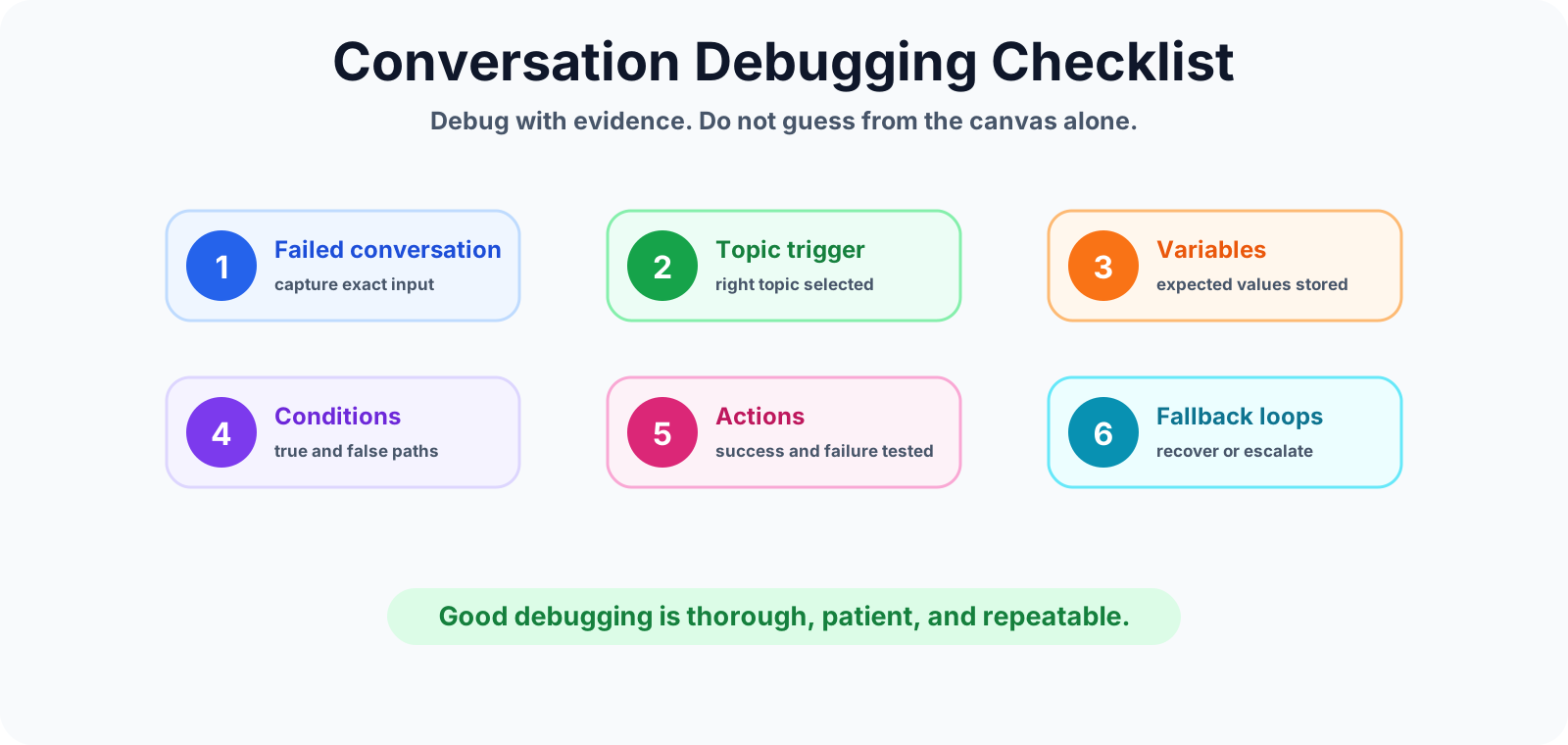
- Capture the exact failed user input.
- Reproduce the same journey in the test panel.
- Check whether the correct topic started.
- Trace every question, condition, branch, redirect, and ending.
- Inspect variables for empty, wrong, old, or out-of-scope values.
- Review actions, parameters, responses, and failure paths.
- Validate generative answers against trusted sources.
- Test fallback, repeated fallback, and recovery paths.
- Retest the original failed input after every fix.
Summary
Debugging Copilot Studio conversations is about evidence. Reproduce the issue, trace the flow, inspect variables, check conditions, review actions, validate generative answers, and test fallback behavior. Do not guess from the canvas alone.
Good debugging helps you fix the real cause, not just the visible symptom. Next, review testing your copilot, error handling, and fallback topics so your copilot is easier to test, debug, and support.
Tagged
Conversation Design · Topics · Variables · Actions · AI Agents
Frequently asked questions
What is conversation debugging in Copilot Studio?
Conversation debugging means finding why a Copilot Studio agent gave the wrong answer, triggered the wrong topic, stored the wrong variable value, followed the wrong branch, failed an action, or entered a fallback loop.
How do I start debugging a Copilot Studio conversation?
Start by reproducing the exact user message and path. Then check topic triggering, conversation flow, variables, conditions, actions, generative answers, fallback behavior, and the final response.
Why does my Copilot Studio topic not trigger?
A topic may not trigger because trigger phrases are too narrow, another topic has overlapping intent, the user phrase is vague, or a fallback or greeting topic routes the user elsewhere.
What should I inspect when variables look wrong?
Check whether the user provided a blank, invalid, or unexpected value; whether the right question captured the input; whether a condition changed the value; and whether the variable scope is correct.
How do I fix fallback loops in Copilot Studio?
Test repeated unclear inputs, improve fallback wording, offer clear choices, route to a better topic when intent is likely, and escalate or end cleanly when the user cannot recover.
Sources
- Microsoft Learn: Authoring Test Bot, Microsoft
- Microsoft Learn: Microsoft Copilot Studio, Microsoft
Have a Microsoft 365 topic idea?
Share article suggestions, community session ideas, corrections, or real-world scenarios for future nextM365 learning notes.
Keep learning Microsoft 365
Explore more practical guides for SharePoint, Power Platform, Copilot Studio, migration, automation, governance, and security.
Continue learning
Related tutorials
Related questions
Related comparisons
Next action