Suggested Actions | Copilot Studio Day 34
Learn what Suggested Actions are in Microsoft Copilot Studio, when to use them, how they guide users to next steps, and best practices for better agent UX.
- Published
- Reading time
- 6 min read
Week 5 · Day 34 of 365 in 365 Days of Copilot Studio — view the full series
Before you start
Is this guide for you?
- Best entry point
- 365 Days of Copilot Studio
- Time investment
- 6 min read
In this article
- What are Suggested Actions in Copilot Studio?
- Why Suggested Actions matter
- Suggested Actions vs Quick Replies vs Adaptive Cards
- How Suggested Actions work
- Common Suggested Action use cases
On this page (15 sections)
Copilot Studio Suggested Actions help users continue a conversation after the agent gives a response. Instead of leaving users to type a new sentence, the topic can show clear next-step choices such as Open a ticket, Ask another question, Check status, or Start over.
Suggested Actions are especially useful in Microsoft 365 support agents because users often need guidance after the first answer. A leave bot, IT help desk agent, finance assistant, SharePoint support agent, or employee service agent can use Suggested Actions to make the next move obvious.
This is Day 34 in the 365 Days of Copilot Studio series. It builds on Day 33: Quick Replies, Day 32: Adaptive Cards, and Day 24: Branching Conversations.
What are Suggested Actions in Copilot Studio?
Suggested Actions are clickable choices that appear after a response or at a useful decision point in the conversation. They are designed to answer the user's silent question: What can I do next?
A Suggested Action can help the user continue to a related topic, open a business process, ask another question, provide feedback, or end the chat cleanly. The value is not only visual. Suggested Actions reduce uncertainty and guide users toward supported paths in the agent.
Why Suggested Actions matter
Many chatbot conversations fail after the first answer. The agent gives a message, but the user does not know whether to ask another question, start a ticket, choose a service, or close the conversation. Suggested Actions solve that gap by giving clear options at the exact moment the user needs them.
- They reduce typing. Users can click a clear next step instead of writing another message.
- They improve routing. The agent can guide users toward known topics, actions, or support paths.
- They make the experience easier on mobile. Short choices are faster than free-text input.
- They support global users. Clear options reduce confusion for users in different regions, roles, and language backgrounds.
- They make support bots feel more complete. The user sees what the agent can do next instead of guessing.
Suggested Actions vs Quick Replies vs Adaptive Cards
Suggested Actions, Quick Replies, and Adaptive Cards can look similar, but they solve different design problems.
- Quick Replies: best when the agent needs to collect one small answer from a limited set of choices.
- Suggested Actions: best when the agent has responded and wants to offer the next useful step.
- Adaptive Cards: best when the response needs structured data, multiple fields, buttons, or a richer confirmation layout.
For example, use Quick Replies to ask Which department do you need?. Use an Adaptive Card to show a leave request summary. Use Suggested Actions after the answer to offer Apply for leave, Check balance, or Ask policy question.
How Suggested Actions work
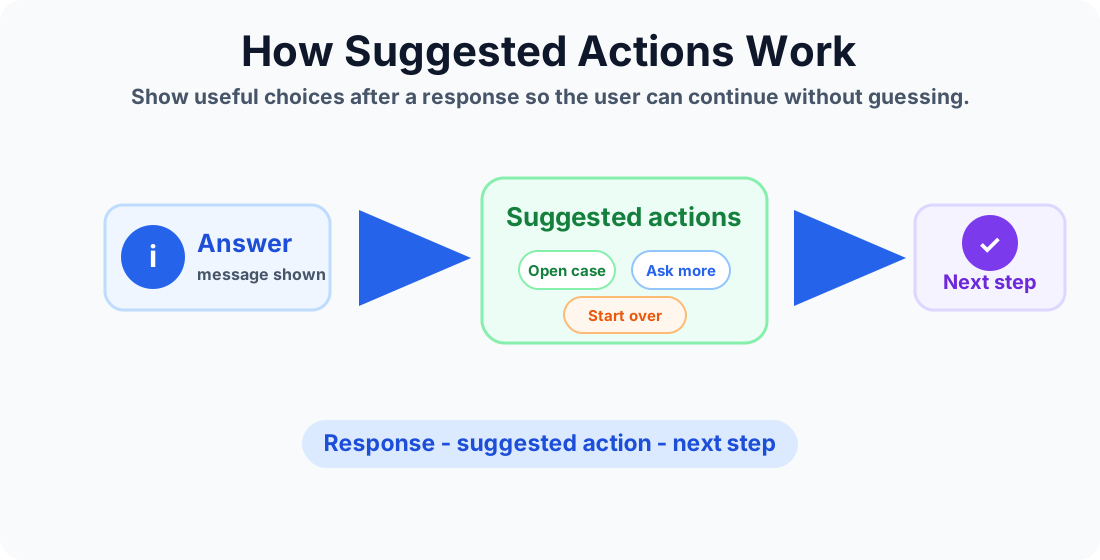
A common Suggested Actions pattern has four parts:
- Response. The agent answers the current question or confirms the current result.
- Action choices. The agent shows a small set of useful next steps.
- User selection. The user chooses the option that matches their next intent.
- Next step. The topic continues, redirects, calls an action, asks another question, or ends the session.
The best Suggested Actions are specific. Open IT ticket is clearer than Continue. Check leave balance is clearer than More.
Common Suggested Action use cases
Follow-up questions
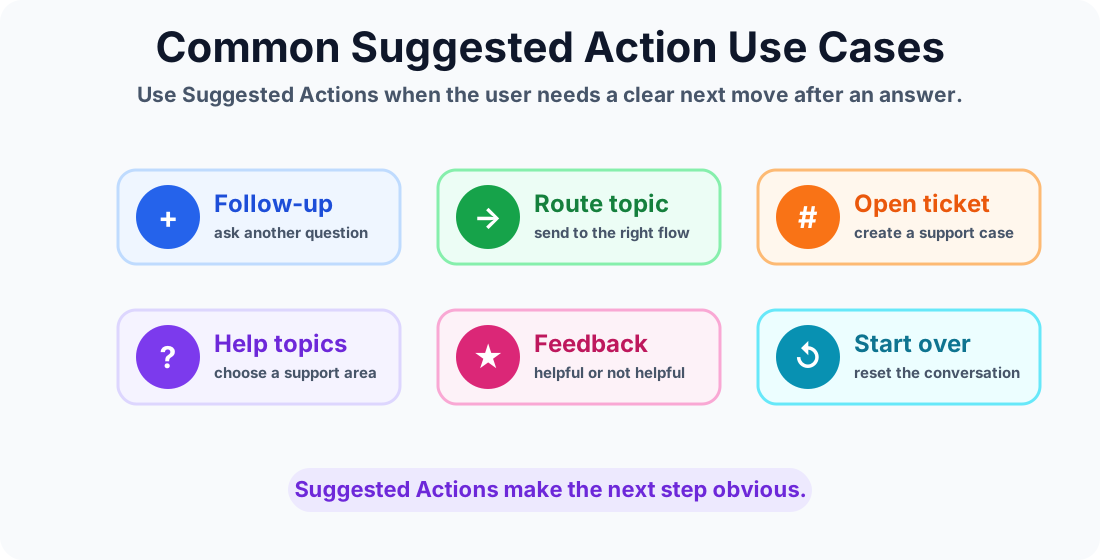
After answering a policy or help question, the agent can show Suggested Actions such as Ask another question, Show related topics, or Start over. This keeps the user inside a guided experience instead of making them guess the next wording.
Route to another topic
Suggested Actions can move users to related topics. A Microsoft Teams support answer might offer Meeting issue, Channel access, or Notification settings. A SharePoint answer might offer Permission issue, File restore, or Site request.
Open a ticket or request
When the answer is not enough, a Suggested Action can start a request process. For example, the agent might show Create IT ticket, Submit access request, or Send to support. That next step can connect to a Call an Action node.
Feedback after an answer
Suggested Actions can ask whether the answer helped. Keep feedback simple: Helpful, Not helpful, Still need help, or Contact support. Feedback choices are useful for improving content and topic coverage.
Example: HR support agent
Imagine an HR Copilot Studio agent answers a leave policy question. After the response, it can show Suggested Actions:
- Check leave balance
- Apply for leave
- Ask another policy question
- Open HR ticket
Each option gives the user a practical next move. The agent can ask a follow-up question, reuse a topic variable, redirect to another topic, or call a backend workflow.
Example: IT help desk agent
For IT support, Suggested Actions help users after a troubleshooting step. After explaining how to reset a password, the bot can offer:
- Open password reset page
- Create support ticket
- Ask about MFA
- Start over
This works well for Microsoft 365 service desks supporting users in the USA, Canada, Australia, the UK, India, and other locations because the next steps are visible and consistent.
Best practices for Suggested Actions
- Keep choices short. Use action labels users can scan quickly.
- Limit the number of options. Three to five actions is usually enough.
- Use verbs. Labels like Open ticket, Check status, and Ask again are clearer than generic labels.
- Match the current answer. Do not show unrelated actions after a response.
- Support fallback paths. Include a way to start over, ask another question, or contact support when needed.
- Use consistent labels. If one topic says Open ticket, avoid using Create case for the same action elsewhere unless there is a real difference.
Mistakes to avoid
- Too many options. A long list feels like a menu, not a helpful next step.
- Vague wording. Labels like More or Continue do not explain what will happen.
- Dead-end actions. Every Suggested Action should lead somewhere useful.
- Duplicating Quick Replies everywhere. Use Quick Replies for collecting input and Suggested Actions for next-step guidance.
- Ignoring mobile users. Long labels can wrap badly and make the conversation feel messy.
Testing checklist
Before publishing a topic that uses Suggested Actions, test the full conversation path:
- Does each action label clearly describe the result?
- Does every action continue to the correct topic, message, question, or flow?
- Do the actions still make sense after different user inputs?
- Are the options short enough on mobile screens?
- Is there a fallback if the user still types a free-text response?
- Can the user start over, ask another question, or finish the conversation?
Summary
Suggested Actions make Copilot Studio conversations easier to continue. They are best used after an answer, confirmation, or result when the user needs a clear next step. Use them to route users, open tickets, gather feedback, start over, or guide users to related help.
Use Suggested Actions when the next step should be obvious, clickable, and easy to complete.
Tagged
Conversation Design · Topics · AI Agents · Actions · Variables
Frequently asked questions
What are Suggested Actions in Microsoft Copilot Studio?
Suggested Actions are short next-step choices that help users continue after a bot response, such as opening a ticket, asking another question, starting over, or moving to another topic.
When should I use Suggested Actions in Copilot Studio?
Use Suggested Actions when the bot has answered the current request and the user may need a clear next step, follow-up topic, action, feedback option, or support path.
Are Suggested Actions the same as Quick Replies?
No. Quick Replies are usually used to collect a user choice as input. Suggested Actions are used to guide the user to a next step after a response or at a decision point.
Can Suggested Actions improve Copilot Studio routing?
Yes. They can reduce vague free-text follow-ups by offering clear paths such as create ticket, check status, ask another question, or contact support.
How many Suggested Actions should I show?
Keep the list short. Three to five clear options are usually easier to scan than a long menu. Use another question or an Adaptive Card if the user needs many choices.
Are Suggested Actions useful for global Microsoft 365 support agents?
Yes. Clear Suggested Actions help users in different regions and roles continue conversations with less typing and fewer misunderstandings.
Sources
- Microsoft Learn: Authoring Create Edit Topics, Microsoft
- Microsoft Learn: Microsoft Copilot Studio, Microsoft
Have a Microsoft 365 topic idea?
Share article suggestions, community session ideas, corrections, or real-world scenarios for future nextM365 learning notes.
Keep learning Microsoft 365
Explore more practical guides for SharePoint, Power Platform, Copilot Studio, migration, automation, governance, and security.
Continue learning
Related tutorials
Related questions
Related comparisons
Next action