Day 19: Microsoft Copilot Studio Call an Action Node Explained
Week 3 · Day 19 of 365 in 365 Days of Copilot Studio — view the full series
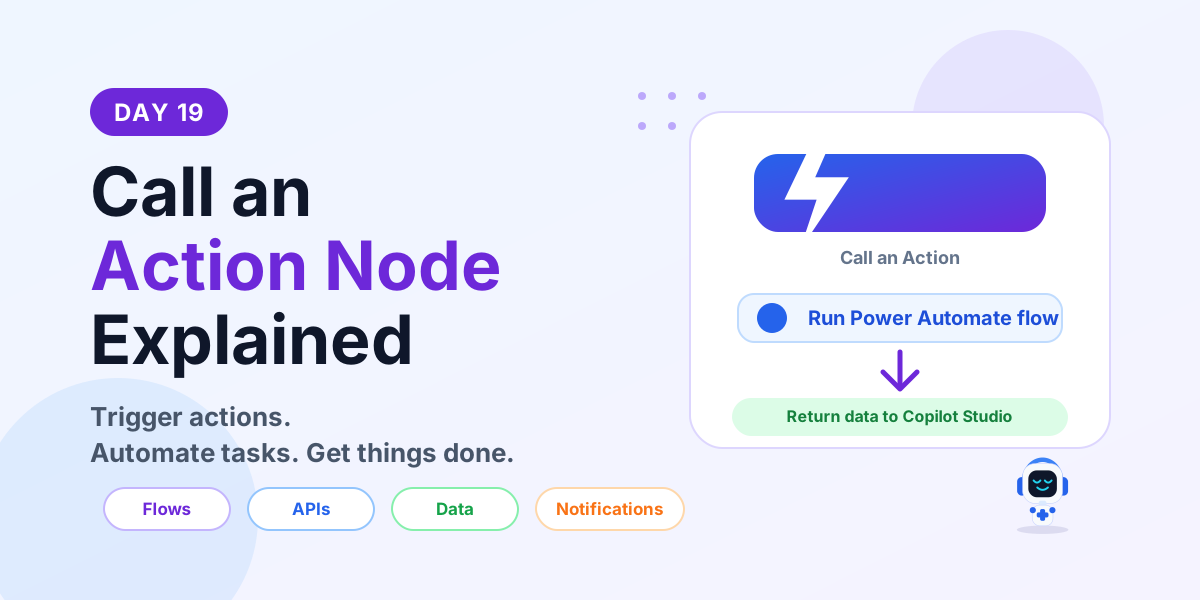
Learn what a Call an Action node is in Microsoft Copilot Studio, how it connects to Power Automate flows and APIs, and how to use actions in real business conversations.
A Call an Action node in Microsoft Copilot Studio lets your agent do real work outside the conversation. It can run a Power Automate flow, call an API, retrieve data, update a system, create records, send notifications, or trigger another business process.
Day 19 of the 365 Days of Microsoft Copilot Studio series explains Call an Action nodes in beginner-friendly language: what they are, why they matter, how they work, common use cases, best practices, and how they are different from Message nodes.
What is a Call an Action node?
A Call an Action node is a topic step that connects Copilot Studio to external systems and services. Instead of only replying with text, the agent can trigger work and use the result in the conversation.
For example, a user can ask How many leave days do I have left? The topic can call a Power Automate flow, pass the employee ID, check the HR system, return the leave balance, and show the answer to the user.
In simple words: Call an Action node = make the Copilot do something.
Why use Call an Action nodes?
Call an Action nodes help your Copilot do more than answer questions. They connect the conversation to real business processes, live data, and automation.
- Automate processes: run Power Automate flows and actions automatically from the conversation.
- Connect systems: integrate with APIs, connectors, Microsoft 365 services, Dataverse, SharePoint, Teams, Outlook, and other apps.
- Get and save data: retrieve information, create records, update records, or check request status in real time.
- Reduce manual work: remove repetitive steps and speed up common business tasks.
- Deliver more value: provide real solutions, not only static responses.
What can a Call an Action node do?
Call an Action nodes can support many practical actions, depending on the systems and flows you connect.
- Run Power Automate flows: trigger workflows and automate business processes.
- Call APIs: connect to external services and retrieve or send data.
- Create records: add rows, tickets, requests, tasks, or approvals in business systems.
- Update records: modify existing information, such as status, priority, owner, or comments.
- Retrieve data: fetch balances, order details, policy data, user profile data, or request status.
- Send notifications: send emails, Teams messages, alerts, reminders, or escalation notices.
How it works
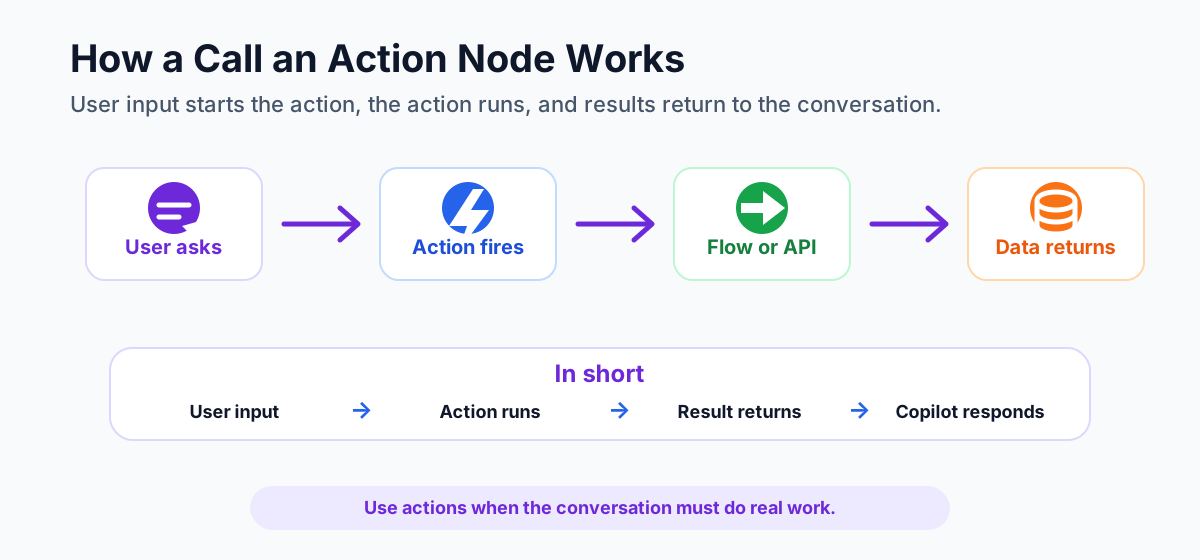
The flow is simple. The user provides input, the action runs, the result comes back, and the Copilot responds.
- User asks. The user asks a question or provides information.
- Call an Action node is triggered. The topic reaches the action step.
- Action executes. A Power Automate flow, API, connector, or service runs.
- Process gets results. The action processes the request and returns data or status.
- Results return to Copilot. Output values come back into the topic.
- Copilot responds. The agent shows a useful response to the user.
In short: user input → action runs → results returned → Copilot responds.
Real example: leave balance assistant
Imagine an HR assistant built in Copilot Studio. An employee asks for their leave balance. The agent needs to check live HR data before answering.
- User request: the employee asks How many leave days do I have left?
- Call an Action: the topic calls a Power Automate flow.
- Flow validates: the flow checks the employee record in the HR system.
- Result returned: the flow returns the leave balance to Copilot Studio.
- Copilot responds: the agent says something like You have 12 leave days remaining.
This pattern is useful because the answer is based on live data, not a static FAQ response.
Inputs and outputs
Most useful actions need input values. These values usually come from Question nodes, Variable nodes, authentication context, or previous action outputs.
- Inputs: employee ID, email address, request type, leave days, order number, ticket ID, department, or selected option.
- Outputs: approval status, leave balance, ticket number, order status, error message, record ID, confirmation message, or next-step data.
Design actions carefully so they receive only the data they need and return only the data the conversation needs.
Call an Action node vs Message node
Call an Action nodes and Message nodes are both important, but they do different jobs.
- Call an Action node: performs an action or gets data. It can trigger flows, call APIs, create records, update data, run processes, and return data or status to Copilot.
- Message node: sends text or rich messages to the user. It displays information, asks users to read something, shows options, or gives confirmation text.
Use Call an Action when you need the Copilot to do things. Use Message when you need the Copilot to talk with users.
Common use cases
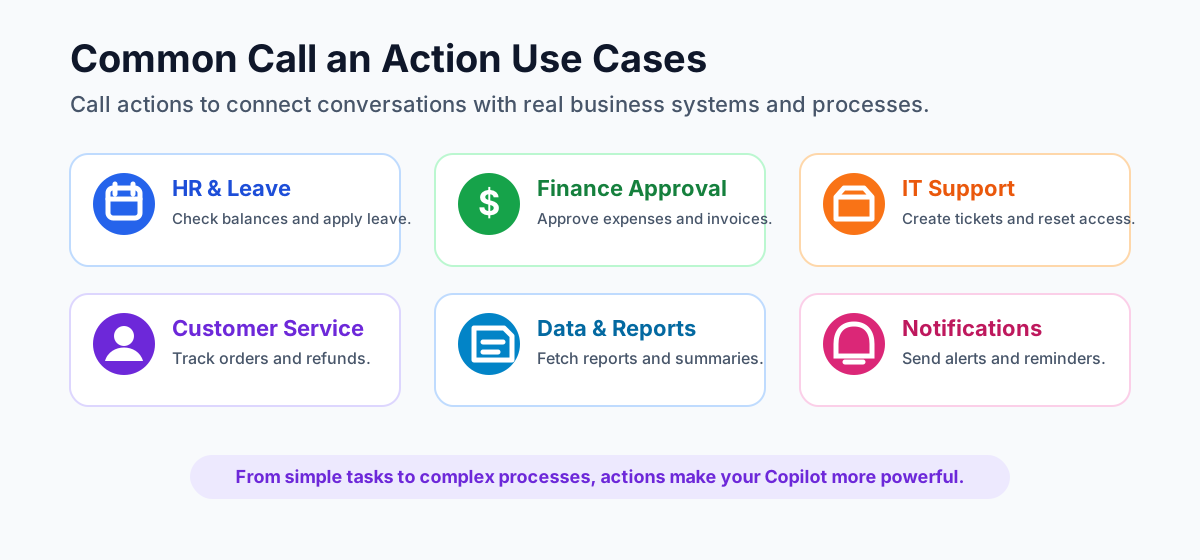
Call an Action nodes are useful anywhere the agent needs to connect to a system, run a workflow, or return real data.
- HR and leave management: check leave balance, apply for leave, get policy details, or route approvals.
- Finance and approvals: submit expenses, check approval status, get budget details, or send approval updates.
- IT support automation: create tickets, check request status, reset access, or assign incidents.
- Customer service: track orders, update customer details, process refunds, or create support cases.
- Data and reports: fetch reports, look up data, generate summaries, or retrieve dashboard values.
- Notifications and alerts: send emails, Teams messages, reminders, or escalations automatically.
Best practices for Call an Action nodes
- Keep actions focused. One action should have one clear purpose.
- Pass only what you need. Send only required inputs to the flow, API, or connector.
- Validate important values. Confirm that required variables are present before the action runs.
- Handle errors gracefully. Plan for service failures, missing records, permission problems, and timeout scenarios.
- Return meaningful responses. The user should receive a clear result, not a technical error or vague status.
- Test every action. Test success paths, failure paths, missing inputs, and realistic user scenarios before publishing.
Common mistakes to avoid
- Do not use one large action to do too many unrelated tasks.
- Do not pass sensitive or unnecessary data into flows or APIs.
- Do not assume the external system will always return a successful response.
- Do not show raw technical errors to users.
- Do not skip testing with invalid, missing, and edge-case values.
- Do not use an action when a simple Message node is enough.
Beginner checklist
- Identify what task the Copilot needs to perform.
- Choose the right action type: Power Automate flow, connector, API, or other service.
- Decide which variables must be passed into the action.
- Define what output values should return to Copilot Studio.
- Add friendly success and failure messages.
- Test the topic end to end before publishing.
SEO keywords for this topic
If you are searching or documenting this feature, common terms include Copilot Studio Call an Action node, Microsoft Copilot Studio actions, Copilot Studio Power Automate flow, Copilot Studio API action, Copilot Studio connector actions, and Copilot Studio action node examples.
Key takeaways
- Call an Action nodes connect Copilot Studio to real work. They can run flows, APIs, connectors, and business processes.
- Actions get things done. They help your Copilot fetch accurate data, update systems, and trigger automation.
- Use actions with purpose. Choose Call an Action when you need a result, and use Message nodes when you only need to reply.
- Good action design improves user experience. Focused inputs, clear outputs, graceful errors, and testing make the Copilot more reliable.
Call an Action nodes make your Copilot more powerful, productive, and connected to real-world business solutions.
Next in the series: Day 20.
Related resources
Topics covered
Topics · Conversation Design · Actions · Workflow Automation · AI Agents
Frequently asked questions
What is a Call an Action node in Copilot Studio?
A Call an Action node lets a Copilot Studio topic run a task outside the conversation, such as a Power Automate flow, API, connector action, or backend process.
When should I use a Call an Action node?
Use it when the agent must do real work, such as retrieving data, creating records, updating systems, sending notifications, submitting requests, or checking status.
Can a Call an Action node use Power Automate?
Yes. A common pattern is to pass variables from Copilot Studio into a Power Automate flow, run the flow, and return output values back to the conversation.
How is Call an Action different from a Message node?
A Message node communicates information to the user. A Call an Action node performs work, connects systems, gets or updates data, and returns a result.
What inputs can I pass into an action?
You can pass values collected in the topic, such as user name, employee ID, leave days, ticket number, email address, department, or selected option.
What are best practices for Call an Action nodes?
Keep each action focused, pass only required inputs, validate variables, handle errors gracefully, return clear outputs, and test every action before publishing.
Learn Microsoft 365 with new tutorials every week
Subscribe on YouTube and follow on LinkedIn for hands-on Power Platform, SharePoint, Copilot Studio, and Microsoft 365 guides.
Related articles
- Day 14: Microsoft Copilot Studio Conversation Flow ExplainedLearn how Copilot Studio conversation flows guide users from question to action to response, including common flow steps, conversation nodes, best practices, mistakes to avoid, testing, and a real IT help desk example.
- Day 18: Microsoft Copilot Studio Variable Node ExplainedLearn what a Variable node is in Microsoft Copilot Studio, how variables store and reuse data, supported types, best practices, and a leave request example.
- Day 17: Microsoft Copilot Studio Condition Node ExplainedLearn what a Condition node is in Microsoft Copilot Studio, how TRUE and FALSE paths work, supported conditions, best practices, and a leave approval example.
- Day 16: Microsoft Copilot Studio Question Node ExplainedLearn what a Question node is in Microsoft Copilot Studio, supported response types, validation, variables, best practices, and a leave request example.
- Day 15: Microsoft Copilot Studio Message Node ExplainedLearn what a Message node is in Microsoft Copilot Studio, what it can display, when to use it, best practices, mistakes to avoid, and a simple leave request example.
- Day 10: Understanding Topics in Microsoft Copilot StudioDay 10 of the 365 Days of Microsoft Copilot Studio series explains what topics are, why they matter, how they process a conversation, system and custom topics, common node types, best practices, and mistakes to avoid.