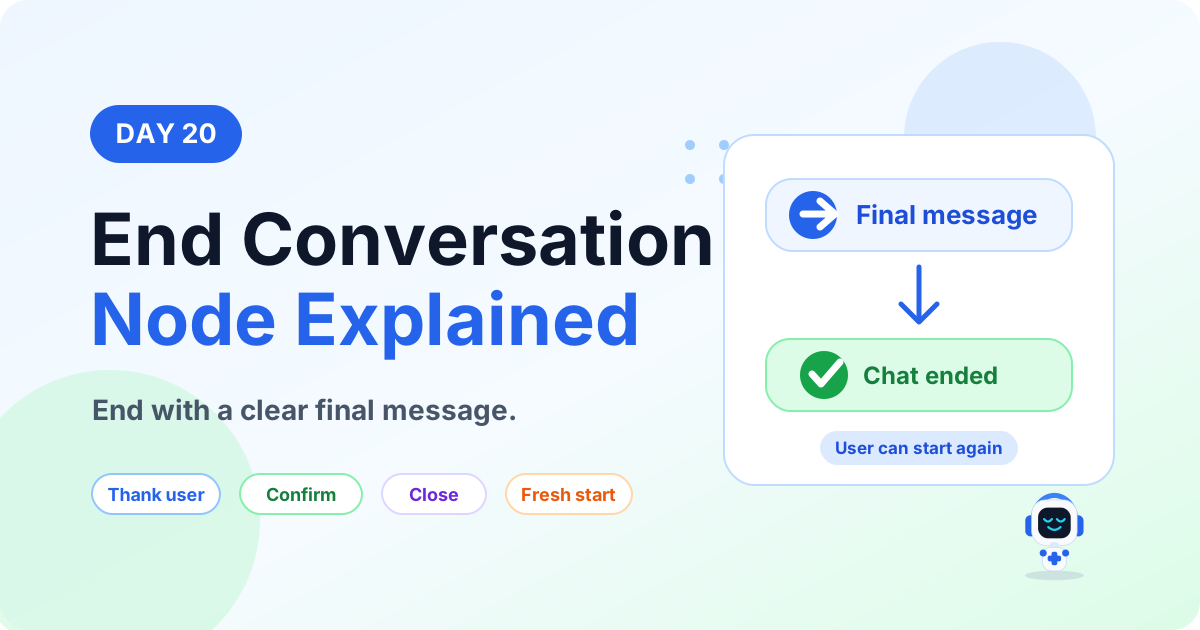
End Conversation Node Explained | Copilot Studio Day 20
Learn what an End Conversation node is in Microsoft Copilot Studio, when to use it, how it closes a topic, and how to write better final messages.
- Published
- Reading time
- 8 min read
Week 3 · Day 20 of 365 in 365 Days of Copilot Studio — view the full series
What you’ll learn
- What is an End Conversation node?
- Why use an End Conversation node?
- How it works
- Where should you place it in a topic?
- Real example: leave request completed
On this page (16 sections)
An End Conversation node in Microsoft Copilot Studio closes the conversation after the user's request is complete. It gives the user a clear final message, ends the session, and leaves the conversation in a professional state.
Day 20 of the 365 Days of Microsoft Copilot Studio series explains what the End Conversation node is, why it matters, how it works, where to use it, how it differs from a Message node, and how to write better closing messages.
What is an End Conversation node?
An End Conversation node is a conversation node that closes the current chat after the topic has finished its job. It is normally used after the agent has answered the question, completed a task, submitted a request, confirmed an action, or explained the next step.
For example, if a user submits a leave request, the Copilot can confirm that the request was submitted successfully and then end the conversation.
In simple words: End Conversation node = close the chat the right way.
Why use an End Conversation node?
A clear ending improves the user experience. Users should not be left wondering whether the task is finished, whether the agent is still waiting, or whether they need to do something else.
- Better user experience: users know their request is completed.
- Clear conversation flow: topics stay structured and easy to follow.
- Professional interaction: the agent closes politely and confidently.
- Less confusion: users understand the result and next step.
- Fresh start: users can begin a new chat anytime if they need more help.
How it works
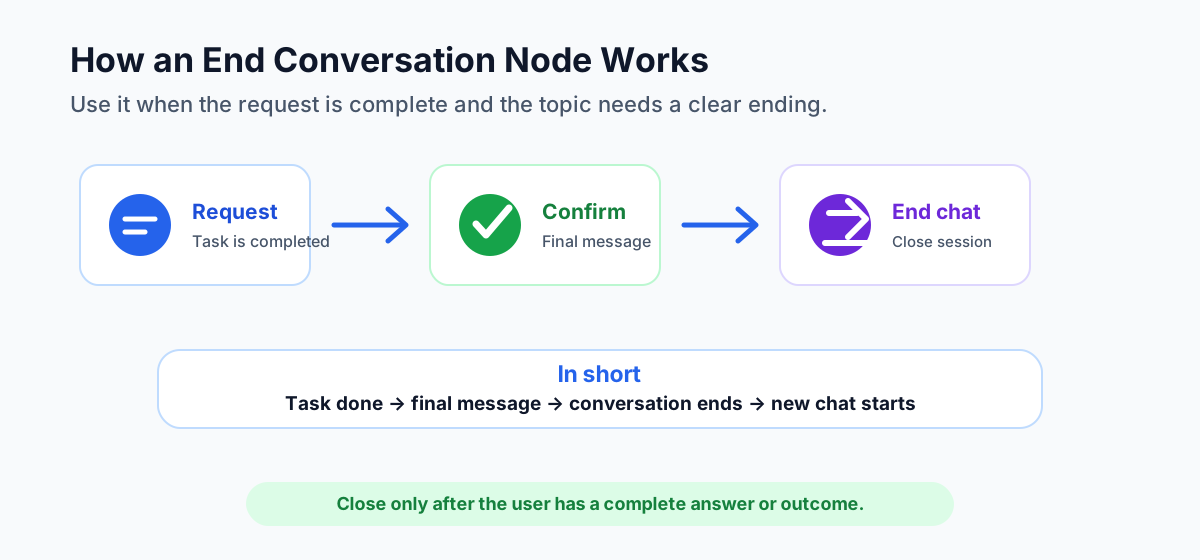
The End Conversation node is usually placed near the end of a topic, after the main task or answer is complete.
- User request is completed. The topic has answered the question, submitted the form, returned data, or finished the process.
- Copilot sends a final message. The agent confirms what happened in clear language.
- Conversation ends. The topic stops and does not continue to another node.
- New chat can start anytime. The user can return later with a new question or request.
In short: task done → final message → conversation ends → new chat can start.
Where should you place it in a topic?
Place the End Conversation node after the topic has reached a real stopping point. That usually means the user has received an answer, a confirmation, a ticket number, an approval result, or a clear next step.
A common beginner pattern is:
- Trigger: the user starts the topic with a question or request.
- Question nodes: the agent collects required details.
- Condition nodes: the topic checks values and chooses the right path.
- Action node: the topic submits, retrieves, updates, or validates data if needed.
- Message node: the agent explains the final outcome.
- End Conversation node: the chat closes cleanly.
Do not place it too early. If a user still needs to choose an option, confirm information, or see an action result, the conversation is not ready to end.
Real example: leave request completed
Imagine an HR Copilot that helps employees submit leave requests. The topic collects the leave dates, calls an action, submits the request, and receives a success response.
- User: My leave request is submitted.
- Copilot: Your leave request has been submitted successfully.
- End Conversation node: the topic closes the conversation.
- Result: the user knows the task is complete and can start a new chat later.
This is better than leaving the topic open with no clear ending. A clear closing message plus the End Conversation node gives users confidence that the task is complete.
More beginner examples
Here are simple examples that show when the End Conversation node makes sense.
- FAQ answer: the user asks about the leave policy, the agent gives the policy summary, then ends the conversation.
- Ticket creation: the user reports a laptop issue, the agent creates a ticket, shows the ticket number, then ends the conversation.
- Approval status: the user checks an expense approval, the agent returns the current status, then ends the conversation.
- Password help: the agent shares the correct reset link and security reminder, then ends the conversation.
- Order status: the agent retrieves delivery status, shares the expected delivery date, then ends the conversation.
End Conversation options
The final message should match the situation. Do not use the same closing text for every topic.
- Thank you: thank the user for reaching out.
- Goodbye: end the chat politely.
- Request completed: confirm that the task or action is done.
- Need anything else? offer help before ending if the user may need another step.
- Contact support: guide users to human help when the issue needs more assistance.
Final message examples you can use
The final message should be short, helpful, and specific. Avoid generic endings when the user needs a clear result.
- Request completed: Your leave request has been submitted successfully. You can start a new chat anytime if you need more help.
- Ticket created: Your support ticket has been created. Ticket number: INC-10245. The IT team will follow up shortly.
- Approval result: Your expense request is approved. No further action is required from you.
- FAQ answered: I hope that answered your question. You can start a new chat if you need anything else.
- Escalation needed: I could not complete this request automatically. Please contact HR support with the details shown above.
Good closing messages usually answer three questions: what happened, what the user should do next, and whether the conversation is finished.
Common use cases
Use the End Conversation node when the user has received a complete answer, confirmation, or next step.
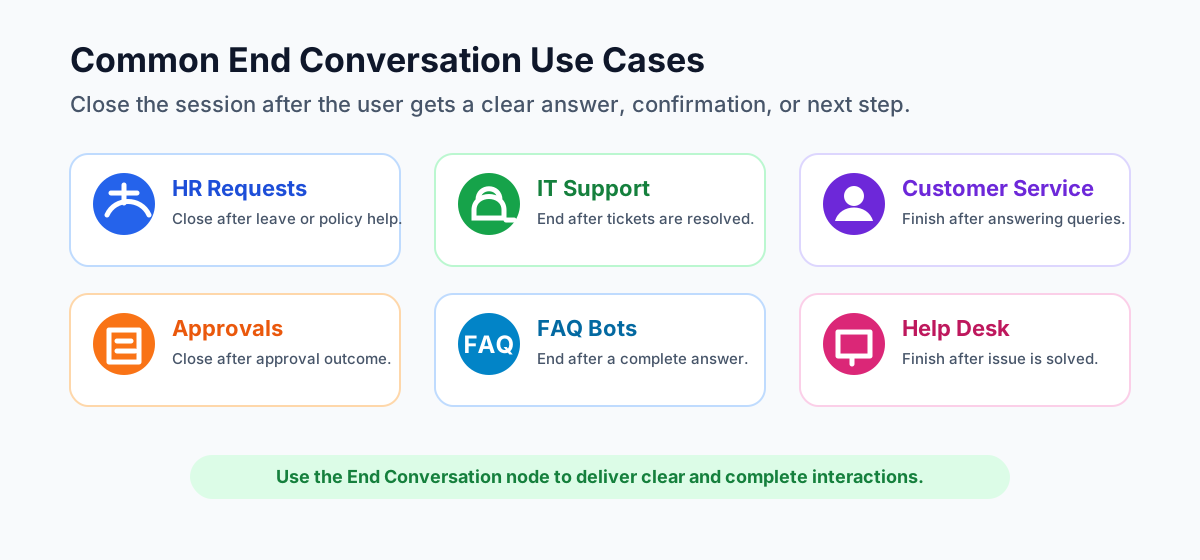
- HR requests: close after completing leave, onboarding, policy, or benefits questions.
- IT support: close after resolving a technical issue or creating a service request.
- Customer service: close after answering a query, confirming status, or resolving a concern.
- Approvals: close after an approval is completed, rejected, or submitted for review.
- FAQ bots: close after a complete answer is provided.
- Help desk: close after a ticket is solved or the user is given the next step.
End Conversation node vs Message node
Message nodes and End Conversation nodes can both show text, but they are used for different purposes.
- Message node: sends information, continues the chat, and lets the next node follow.
- End Conversation node: ends the conversation, closes the session, and finishes the topic.
Use a Message node when the conversation should continue. Use an End Conversation node when the task is complete and the topic should stop.
When not to use an End Conversation node
The End Conversation node is useful, but it is not right for every situation. If the user might still need to continue in the same topic, keep the conversation open.
- Before required information is collected: do not end if the agent still needs dates, email, employee ID, ticket number, or another required answer.
- Before an action result returns: do not close while a flow, API, or connector action is still needed.
- Before giving choices: do not end if the user needs to select an option such as approve, reject, update, cancel, or contact support.
- When escalation is needed: give the user a clear handoff path before closing.
- When the answer is uncertain: ask a clarification question instead of ending too soon.
Best practices
- End after completing the task. Do not close the conversation before the user's request is fully handled.
- Thank the user. A simple thank you creates a better final impression.
- Confirm the action. Tell the user what was done or what will happen next.
- Keep the final message short. Use clear, concise language instead of long explanations.
- Allow a fresh start. Make it clear that the user can start a new conversation anytime.
Common mistakes to avoid
- Do not end the conversation before the user gets a complete answer.
- Do not close immediately after asking a question.
- Do not use a cold or unclear closing message.
- Do not hide important next steps in the final message.
- Do not use End Conversation when the user still needs choices, clarification, or escalation.
Beginner checklist
- Check whether the topic has fully completed the user's request.
- Write a friendly final message that confirms the outcome.
- Add any next step, support instruction, ticket number, or confirmation ID.
- Use the End Conversation node only after the final message makes sense.
- Test the happy path and failure path before publishing.
Testing tips before publishing
Always test the topic from the user's point of view. The ending should feel natural, not sudden.
- Test the success path: confirm the topic ends after a completed task.
- Test missing information: make sure the topic asks for required details instead of ending.
- Test action failures: show a helpful failure message before closing or escalating.
- Test repeated questions: confirm users can start a new chat if they need another request.
- Review the final wording: check that the message is polite, specific, and easy to understand.
Key takeaways
- End Conversation nodes close the chat properly. They help users understand that the task is complete.
- Clear endings improve trust. A final message should confirm the outcome and guide the user if another step is needed.
- Use the right node for the right job. Message nodes continue the conversation; End Conversation nodes close it.
- Professional endings matter. A thoughtful close makes the whole Copilot experience feel more complete.
Use the End Conversation node when the job is done, the message is clear, and the user can leave with confidence.
Next in the series: Day 21.
Related resources
Topics covered
Topics · Conversation Design · AI Agents · Workflow Automation
Frequently asked questions
What is an End Conversation node in Copilot Studio?
An End Conversation node closes the current conversation after the user request has been completed and a final response has been shown.
When should I use an End Conversation node?
Use it when the task is fully handled, the user has a clear outcome, and the topic should not continue to another node.
How is an End Conversation node different from a Message node?
A Message node sends information and keeps the conversation going. An End Conversation node provides a clear ending and closes the session.
Should I always end a conversation after answering?
No. End only when the user has a complete answer or outcome. If the user may need another option, ask a follow-up question before ending.
What should the final message include?
A good final message should confirm what was completed, thank the user, explain any next step, and make it clear that the user can start a new chat if needed.
What are common End Conversation node use cases?
Common use cases include HR requests, IT support tickets, customer service answers, approval outcomes, FAQ bots, and help desk scenarios.
Sources
- Microsoft Learn: Authoring Create Edit Topics, Microsoft
- Microsoft Learn: Microsoft Copilot Studio, Microsoft
Have a Microsoft 365 topic idea?
Share article suggestions, community session ideas, corrections, or real-world scenarios for future nextM365 learning notes.
Keep learning Microsoft 365
Explore more practical tutorials for SharePoint, Power Platform, Copilot Studio, migration, automation, governance, and security.
Continue learning
Related tutorials
Related questions
Related comparisons