Variable Node Explained | Copilot Studio Day 18
Learn what a Variable node is in Microsoft Copilot Studio, how variables store and reuse data, supported types, best practices, and a leave request example.
- Published
- Reading time
- 5 min read
Week 3 · Day 18 of 365 in 365 Days of Copilot Studio — view the full series
What you’ll learn
- What is a Variable node?
- Why use Variable nodes?
- Common variable types
- How a Variable node works
- Real example: leave request agent
On this page (11 sections)
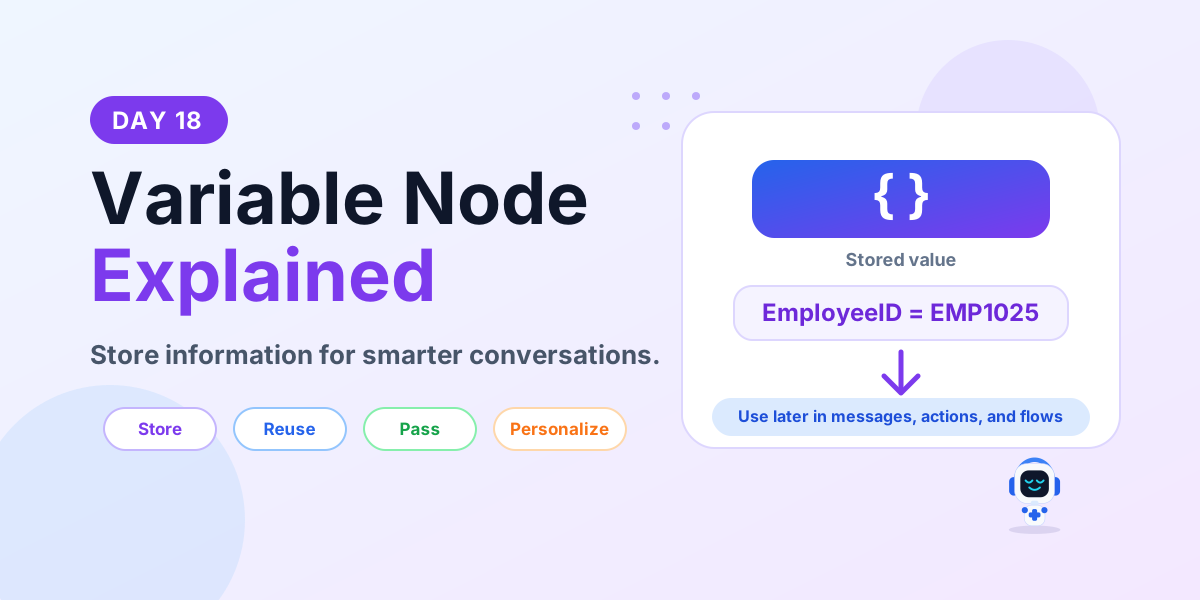
A Variable node in Microsoft Copilot Studio stores information during a conversation so the agent can remember it and use it later. Variables make your topics more dynamic because the same answer can be reused in messages, conditions, actions, and Power Automate flows.
Day 18 of the 365 Days of Microsoft Copilot Studio series explains Variable nodes in beginner-friendly language: what they are, why they matter, common variable types, how they work, and how to use them in a real leave request scenario.
What is a Variable node?
A Variable node is like memory for your Copilot Studio topic. It stores a value that the conversation can use later.
For example, if the user enters John as their name, Copilot Studio can store that value in a variable called UserName. Later, the agent can say Welcome John without asking the user for the same information again.
In simple words: Variable node = Copilot's memory.
Why use Variable nodes?
Variables help an agent move beyond fixed answers. They allow the conversation to remember details, personalize responses, and pass data between steps.
- Remember information: store names, employee IDs, request numbers, dates, choices, and other user inputs.
- Personalize conversations: reuse stored values in messages so responses feel relevant to the user.
- Reduce repeated questions: ask once, store the answer, and reuse it where needed.
- Pass data to other systems: send stored values to Power Automate flows, APIs, connectors, or backend systems.
- Improve efficiency: avoid duplicate steps and make the topic easier to maintain.
Common variable types
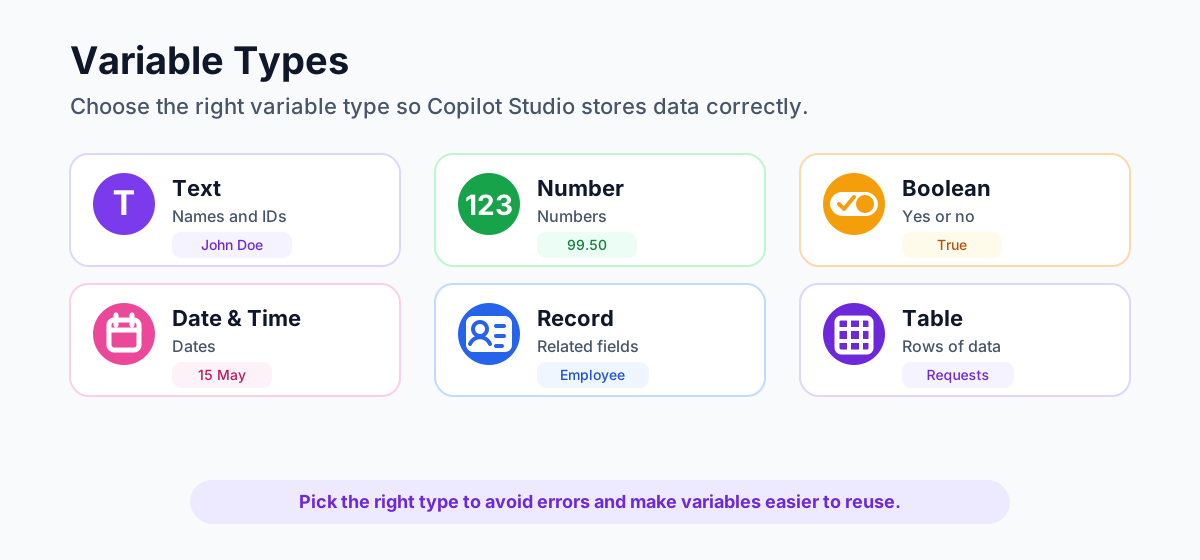
Choosing the right variable type matters because it affects validation, comparisons, and how the value can be used later.
- Text: stores words or sentences, such as John Doe or a support request description.
- Number: stores numeric values, such as 25, 99.50, quantity, score, or leave days.
- Yes/No Boolean: stores a true or false value, such as whether the user confirmed a request.
- Date & Time: stores dates and times, such as 15 May 2025 or a meeting date.
- Record: stores a group of related fields, such as employee information with name, department, and manager.
- Table: stores multiple rows, such as leave requests, ticket history, or order items.
Beginner tip: select the variable type based on how you need to use the value later. If you want to compare numbers, store the value as a number instead of plain text.
How a Variable node works
A simple variable pattern looks like this:
- Agent asks: What is your name?
- User responds: John.
- Variable stores: UserName = John.
- Use later: the agent can say Welcome John in a message, condition, action, or flow.
Store once, use many times.
Real example: leave request agent
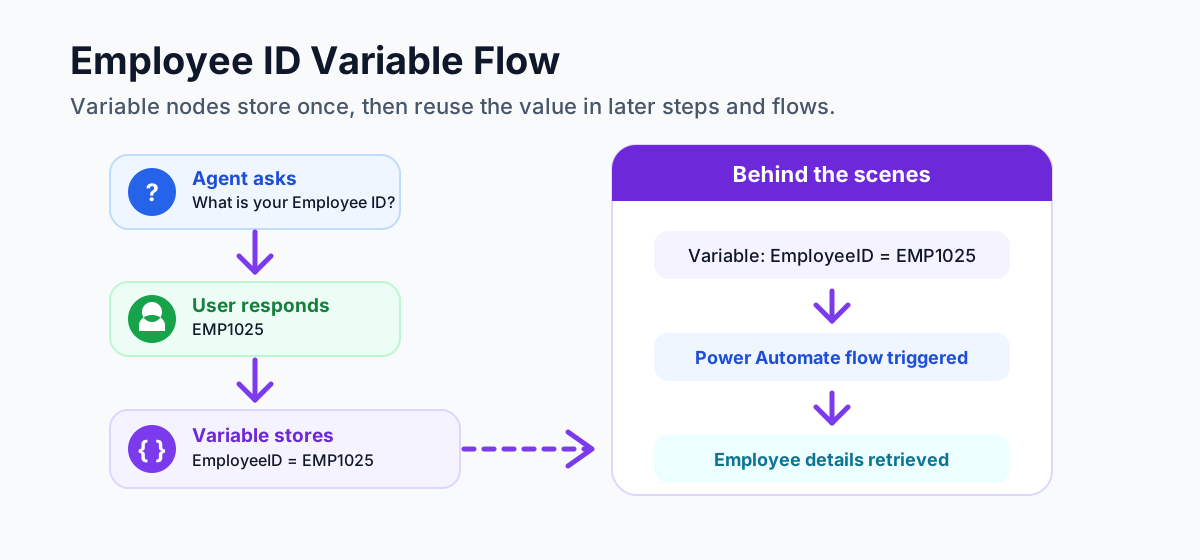
Imagine an employee uses a Copilot Studio agent to check leave details. The agent needs the employee ID so it can retrieve the correct record.
- Agent asks: What is your employee ID?
- User responds: EMP1025.
- Variable stores: EmployeeID = EMP1025.
- Power Automate flow runs: the flow receives EmployeeID as input.
- Employee details are retrieved: the flow returns leave balance, department, or manager details.
- Agent continues: the conversation uses the returned information to answer the user.
This is where variables become powerful. The agent is not only answering with static text. It is collecting data, storing it, passing it to automation, and continuing with useful context.
Variable node vs Question node
Question nodes and Variable nodes work together, but they are not the same thing.
- Question node: asks the user for information and captures the answer.
- Variable node: stores, manages, updates, clears, and reuses information in the conversation.
A beginner-friendly way to remember it: Question = ask and capture. Variable = store and use.
Common use cases
Variables are useful in almost every practical Copilot Studio topic:
- Employee details: employee ID, employee name, department, manager, and location.
- Contact details: email address, phone number, preferred channel, and user profile information.
- Dates and times: leave dates, appointment times, due dates, and service windows.
- Amounts and numbers: leave days, invoice amount, quantity, score, and priority number.
- Requests and orders: ticket ID, order number, approval status, and request category.
- Conversation state: whether the user confirmed, selected an option, or already completed a step.
Best practices for Variable nodes
- Use meaningful names. Names like EmployeeID, LeaveDays, and UserEmail are easier to understand than generic names.
- Choose the right data type. Use number for numeric comparisons, date and time for dates, and boolean for yes/no decisions.
- Initialize variables properly. Set a value before you use it so later nodes do not receive empty data.
- Update values only when needed. Avoid overwriting important information by mistake.
- Handle empty or invalid values. Add validation, fallback messages, or re-ask steps when required.
- Reuse variables across nodes. Variables are most useful when messages, conditions, and actions can all use the same value.
- Remove unused variables. Clean up old variables so your topic stays readable.
Common mistakes to avoid
- Do not create unclear variable names like var1 or temp for important business values.
- Do not store numbers as text if you need to compare them later.
- Do not use a variable before it has a value.
- Do not overwrite a value too early in the conversation.
- Do not pass unvalidated values into Power Automate flows or business systems.
Beginner checklist
- Decide what information the topic needs to remember.
- Create a clear variable name.
- Select the correct variable type.
- Store the value after the user provides it or after an action returns it.
- Use the variable in messages, conditions, actions, or Power Automate flows.
- Test the topic with valid, empty, and incorrect values.
Key takeaways
- Variables are memory. They store information that the conversation can use later.
- Variables improve flow. They help the agent personalize replies and avoid repeated questions.
- Data type matters. Correct types make comparisons, validation, and automation easier.
- Variables connect conversations to automation. Stored values can be passed into Power Automate flows and other systems.
- Good organization matters. Clear names and clean variable management make topics easier to build and maintain.
Think of variables as sticky notes inside the conversation: save the information, reuse it when needed, and build smarter Copilot Studio experiences.
Next in the series: Day 19.
Related resources
Topics covered
Topics · Conversation Design · Variables · AI Agents
Frequently asked questions
What is a Variable node in Microsoft Copilot Studio?
A Variable node stores information during a conversation so later nodes, messages, conditions, actions, and flows can reuse that value.
Why should I use Variable nodes?
Use Variable nodes to remember user input, personalize replies, reduce repeated questions, pass values to other systems, and make conversations more efficient.
What variable types are common in Copilot Studio?
Common variable types include text, number, yes or no boolean, date and time, record, and table values.
How is a Variable node different from a Question node?
A Question node asks the user and captures an answer. A Variable node stores, manages, updates, and reuses that data later in the conversation.
Can variables be used with Power Automate?
Yes. Copilot Studio can pass stored variable values, such as an employee ID or request number, into Power Automate flows and use the returned data in the conversation.
What is a best practice for Variable nodes?
Use meaningful variable names, choose the correct data type, initialize values, handle empty values, and remove variables that are no longer used.
Sources
- Microsoft Learn: Authoring Create Edit Topics, Microsoft
- Microsoft Learn: Microsoft Copilot Studio, Microsoft
Have a Microsoft 365 topic idea?
Share article suggestions, community session ideas, corrections, or real-world scenarios for future nextM365 learning notes.
Keep learning Microsoft 365
Explore more practical tutorials for SharePoint, Power Platform, Copilot Studio, migration, automation, governance, and security.
Continue learning
Related tutorials
Related questions
Related comparisons