Quick Replies | Copilot Studio Day 33
Learn what Quick Replies are in Microsoft Copilot Studio, when to use them, how they guide users with clear choices, and best practices for better agent conversations.
- Published
- Reading time
- 6 min read
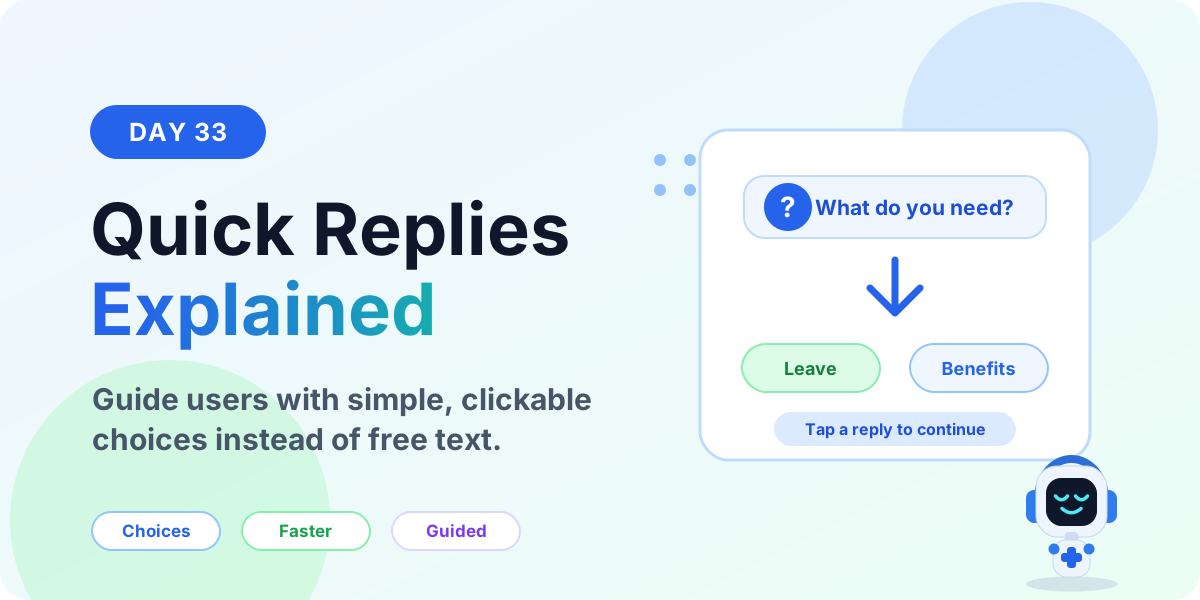
Week 5 · Day 33 of 365 in 365 Days of Copilot Studio — view the full series
Before you start
Is this guide for you?
- Best entry point
- 365 Days of Copilot Studio
- Time investment
- 6 min read
In this article
- What are Quick Replies in Copilot Studio?
- Why Quick Replies matter
- Quick Replies vs Message node vs Question node
- How Quick Replies work
- Common Quick Reply use cases
On this page (17 sections)
Copilot Studio Quick Replies help users choose from short, clear options instead of typing a full answer. They are useful when your agent already knows the likely choices and you want the conversation to move forward quickly.
In a Microsoft 365 support agent, quick replies can guide users to HR, IT, finance, access requests, leave questions, policy help, or document support. Instead of asking users to explain everything in free text, the bot can show simple choices that are easier to select and easier to process.
This is Day 33 in the 365 Days of Copilot Studio series. It builds on Day 16: Question Node Explained, Day 24: Branching Conversations Explained, and Day 32: Adaptive Cards Explained.
What are Quick Replies in Copilot Studio?
Quick Replies are short options that users can select during a conversation. They help the agent collect a known answer without relying on open-ended text. A quick reply might be a category, confirmation, service type, urgency level, or next action.
For example, instead of asking What do you need help with? and letting the user type anything, your topic can show choices such as:
- Leave request
- Password reset
- Microsoft Teams issue
- SharePoint document access
- License question
The selected option can then drive a condition, redirect, action, message, or follow-up question.
Why Quick Replies matter
Free-text input gives users flexibility, but it can also create ambiguity. One user might type I need access, another might type cannot open file, and another might type SharePoint permission issue. All three could mean different things.
Quick Replies reduce that uncertainty by giving users a small set of choices. That helps the agent:
- Collect cleaner input
- Route to the right topic faster
- Reduce typing on mobile devices
- Avoid unnecessary clarification questions
- Use selected values in variables and conditions
- Create a more predictable user experience
Quick Replies vs Message node vs Question node
Quick Replies are easiest to understand when compared with other common Copilot Studio building blocks.
- Message node: shows information to the user. It does not collect an answer by itself.
- Question node: asks the user for input and stores the answer in a variable.
- Quick Replies: give the user predefined choices, often as part of an input or decision step.
Use a Message node when you only need to inform the user. Use a Question node when you need to collect information. Use Quick Replies when the answer should come from a small, clear set of choices.
How Quick Replies work
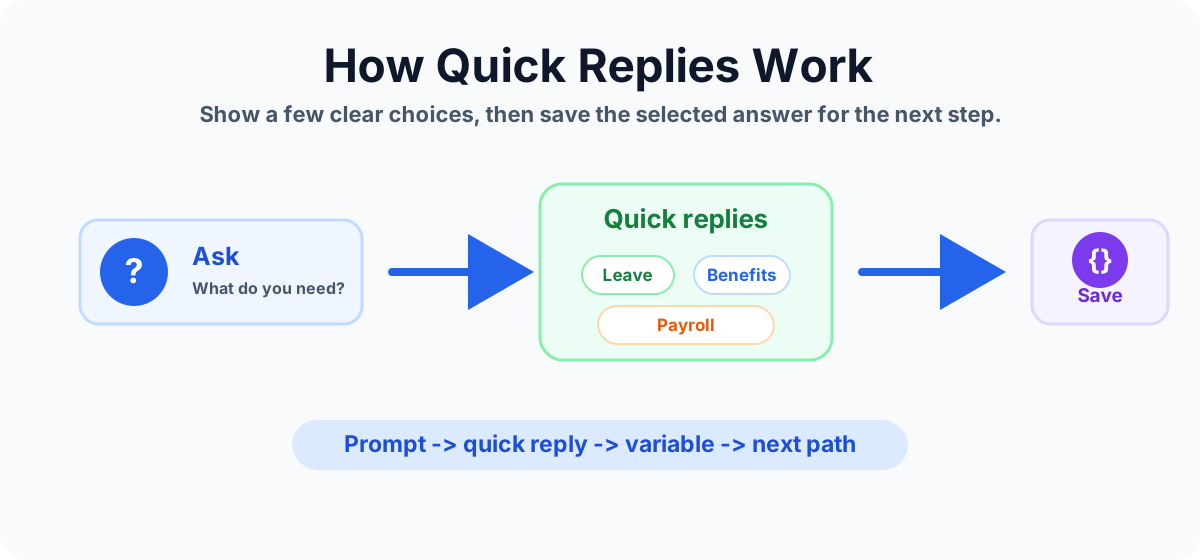
A typical Quick Reply pattern has four steps:
- Prompt: the bot asks a focused question.
- Choices: the bot displays short reply options.
- Value: the selected reply becomes the answer for the conversation step.
- Next path: the topic uses that value in a condition, redirect, action, or message.
The key is that the options should be meaningful to the user and useful to the logic behind the topic. If the choices are vague, the conversation will still feel confusing.
Common Quick Reply use cases
Support category selection
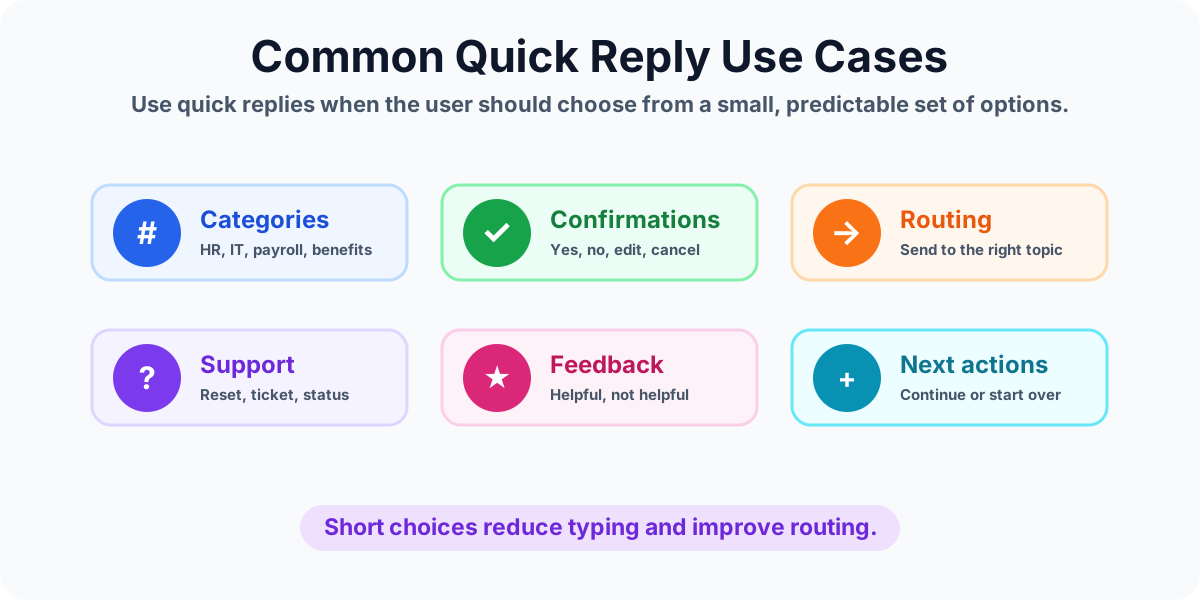
Quick Replies are useful at the start of support conversations. The bot can ask what the user needs and show options such as HR, IT, finance, procurement, SharePoint, Teams, or licensing.
Confirmations
For a simple confirmation, Quick Replies can show choices like Yes, No, Confirm, Cancel, Submit, or Edit. This is easier than asking users to type a confirmation manually.
Routing and branching
If the next step depends on the user's answer, Quick Replies can feed a condition or redirect. For example, a support bot can route Password reset to an IT topic and Leave balance to an HR topic.
Feedback collection
Quick Replies can collect simple feedback such as Helpful, Not helpful, Resolved, Still need help, or a small rating scale. Keep feedback options short so users can respond quickly.
Next-step guidance
At the end of a response, Quick Replies can guide what happens next: Start over, Ask another question, Open a ticket, Contact support, or End conversation.
Example: HR support topic
Imagine a Copilot Studio agent for HR support. The user says, I need help with leave. The topic can ask:
What do you want to do?
- Check leave balance
- Apply for leave
- Cancel leave
- Ask policy question
Each quick reply maps to a clear next step. The bot can show a message, ask a follow-up question, call an action, or redirect to a reusable topic.
Example: IT help desk routing
For IT support, Quick Replies can help users describe the issue without typing a long explanation. A first question might ask:
Which Microsoft 365 area do you need help with?
- Outlook
- Teams
- SharePoint
- OneDrive
- Sign-in
The selected option can be stored in a variable, used in a condition, or passed to a workflow. If the user selects SharePoint, the topic can ask whether the issue is about access, documents, sync, sharing, or a site.
Quick Replies for global Microsoft 365 teams
Quick Replies are especially useful for global Microsoft 365 and Copilot Studio implementations because users may be in different countries, time zones, roles, and language comfort levels. Clear choices reduce friction for teams in the USA, Canada, Australia, the UK, India, and other regions.
For international agents, keep wording simple and avoid region-specific slang. If the bot supports multiple audiences, use choices that are easy to translate and easy to map to business logic.
Best practices for Quick Replies
- Keep each option short: one to three words is usually easier to scan.
- Use user language: write choices the way users describe their needs.
- Limit the number of choices: too many options can slow users down.
- Make choices distinct: avoid options that overlap or mean almost the same thing.
- Store useful values: use the selected value in variables, conditions, redirects, and actions.
- Add an escape path: include options such as Something else or Contact support when needed.
- Test with real users: confirm that users understand the options without extra explanation.
Common mistakes to avoid
- Showing too many choices at once
- Using internal system names instead of user-friendly labels
- Creating choices that overlap
- Not handling the case where none of the choices fit
- Using Quick Replies when free text would be better
- Not testing choices on mobile or small screens
Quick Replies and variables
Quick Replies become more powerful when the selected value is reused later. The topic can store the answer in a variable and use it in messages, conditions, actions, and summaries. For example, if the user selects SharePoint, the bot can later say, I will create a SharePoint support request.
For variable design, continue with Day 28: Topic Variables Explained, Day 29: Bot Variables Explained, and Day 30: Conversation Variables Deep Dive.
Quick Replies summary
Quick Replies help Copilot Studio agents guide users with clear, selectable choices. They reduce typing, improve routing, make conversations easier to test, and help users reach the right outcome faster.
Use Quick Replies when the user needs a simple choice and the topic needs a clean value.
Next, review Day 32: Adaptive Cards Explained and the full 365 Days of Copilot Studio series.
Tagged
Conversation Design · Topics · AI Agents · Variables
Frequently asked questions
What are Quick Replies in Microsoft Copilot Studio?
Quick Replies are short selectable choices shown to the user so the conversation can move forward without asking the user to type a full free-text answer.
When should I use Quick Replies in Copilot Studio?
Use Quick Replies when the expected answers are limited, such as Yes or No, a small set of categories, a support route, a feedback score, or a next-step choice.
Are Quick Replies the same as a Question node?
No. A Question node collects input and stores it in a variable. Quick Replies are one way to make that input easier by giving the user clear choices to select.
Do Quick Replies improve Copilot Studio topic routing?
They can improve routing because users choose from known options instead of typing unclear wording. The topic can then use the selected value in conditions, redirects, messages, or actions.
How many Quick Replies should I show?
Keep Quick Replies short and focused. Three to five options is usually easier to scan than a long list. If there are many choices, group them or ask a follow-up question.
Can Quick Replies be used in global Microsoft 365 support bots?
Yes. Quick Replies are useful for Microsoft 365 support bots used by teams in the USA, Canada, Australia, the UK, India, and other regions because they reduce typing and make choices clearer.
Sources
- Microsoft Learn: Authoring Create Edit Topics, Microsoft
- Microsoft Learn: Microsoft Copilot Studio, Microsoft
Have a Microsoft 365 topic idea?
Share article suggestions, community session ideas, corrections, or real-world scenarios for future nextM365 learning notes.
Keep learning Microsoft 365
Explore more practical guides for SharePoint, Power Platform, Copilot Studio, migration, automation, governance, and security.
Continue learning
Related tutorials
Related questions
Related comparisons
Next action