Question Node Explained | Copilot Studio Day 16
Learn what a Question node is in Microsoft Copilot Studio, supported response types, validation, variables, best practices, and a leave request example.
- Published
- Reading time
- 5 min read
Week 3 · Day 16 of 365 in 365 Days of Copilot Studio — view the full series
What you’ll learn
- What is a Question node?
- Why use Question nodes?
- Supported response types
- How a Question node works
- Real example: leave request agent
On this page (10 sections)
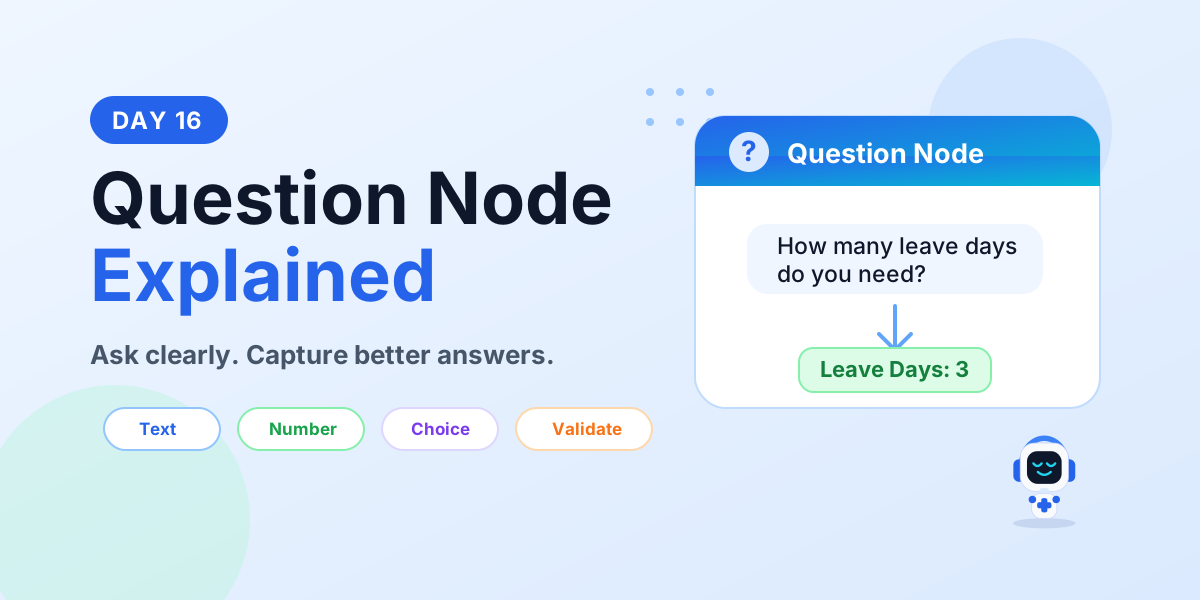
A Question node in Microsoft Copilot Studio asks the user for information during a conversation. It captures the user's response, stores that value in a variable, and lets the topic continue based on the answer.
Day 16 of the 365 Days of Microsoft Copilot Studio series focuses on Question nodes: what they do, why they matter, which response types they support, how validation works, and how to use them in real business conversations.
What is a Question node?
A Question node is a topic step that asks the user for an answer. The answer might be a name, employee ID, leave date, approval choice, phone number, email address, or any other detail the agent needs to move forward.
For example, the agent can ask What is your employee ID? If the user replies EMP1025, Copilot Studio stores that response in a variable such as EmployeeID. The next node can then use that value to search a system, route the user, or call an action.
Question nodes are the foundation of interactive Copilot Studio conversations.
Why use Question nodes?
Question nodes help your agent collect the right information at the right time. Without Question nodes, an agent can answer questions, but it cannot reliably collect, validate, and act on user input.
- Collect customer information: names, IDs, email addresses, phone numbers, locations, and contact details.
- Gather user preferences: choices that help personalize the response or choose the right path.
- Request approvals: yes/no confirmations or approval decisions before continuing.
- Capture business data: request type, amount, date, reason, priority, category, or supporting details.
- Drive conditional conversations: use the answer to decide which branch, topic, or action should run next.
- Improve user experience: relevant questions lead to clearer, faster, and more helpful interactions.
Supported response types
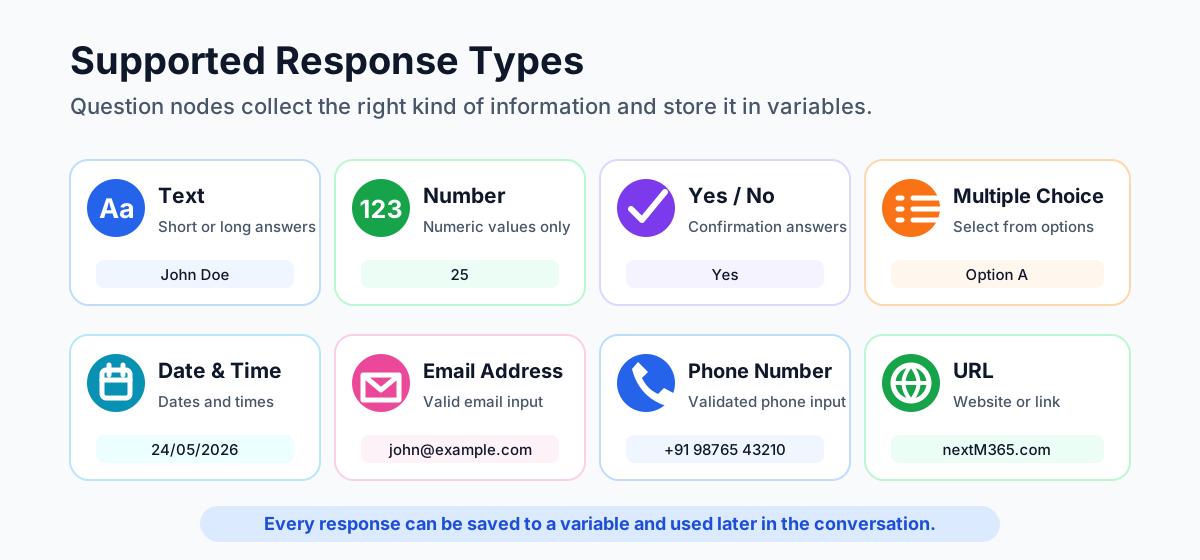
Question nodes support different response types so you can collect the right kind of answer. Choosing the correct response type makes the conversation easier for the user and cleaner for the maker.
- Text: collects short or long text answers, such as a name or reason.
- Number: collects numeric values only, such as days, quantity, or amount.
- Yes / No: collects a simple confirmation answer.
- Multiple choice: lets users choose from defined options.
- Date and time: collects date or time values in a structured format.
- Email address: captures a valid email address.
- Phone number: captures a valid phone number.
- URL: captures a website or link.
Each response is automatically stored in a variable so it can be used later in the conversation.
How a Question node works
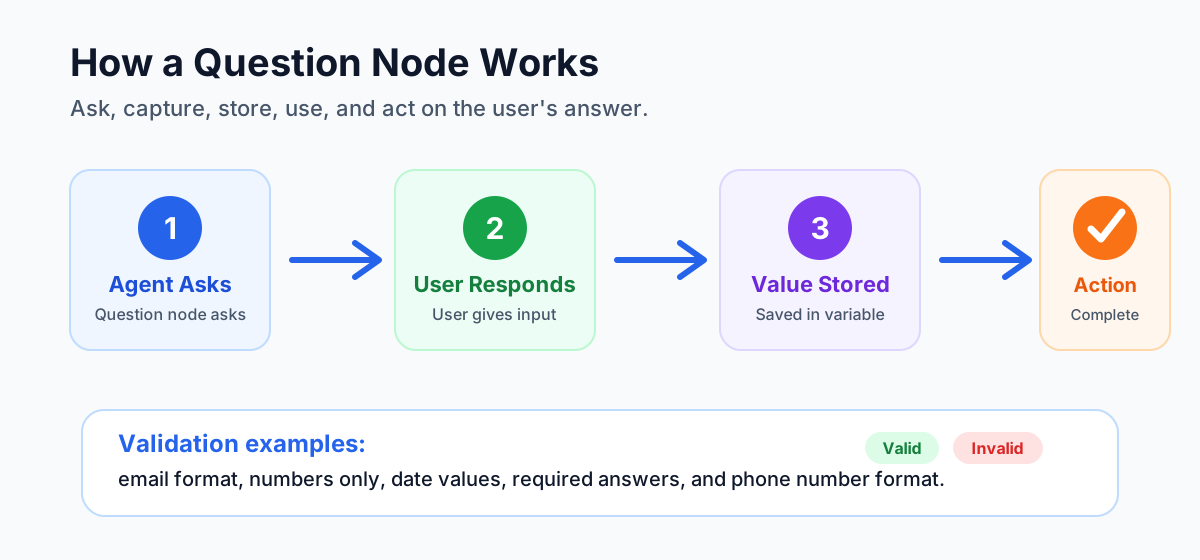
A Question node follows a simple flow:
- Agent asks. The agent uses a Question node to ask the user for information.
- User responds. The user provides the requested answer.
- Question node stores. The response is captured and stored in a variable.
- Next node uses the value. The topic uses the stored value in a condition, message, action, or flow.
- Action is performed. The agent completes the task or process using the captured input.
Real example: leave request agent
Imagine a leave request agent. The user wants to apply for leave, but the agent needs to know how many leave days to request.
- Agent asks: How many leave days do you need?
- User responds: 3.
- Value is stored: LeaveDays = 3.
- Next step: the flow uses LeaveDays to process the leave request.
- Action performed: the leave request is submitted and a confirmation is sent.
This works because the Question node collects a specific answer, saves it to a meaningful variable, and lets the next step use that value.
Validation in Question nodes
Validation helps your agent collect accurate and high-quality data. If an answer is missing or in the wrong format, validation can guide the user to provide the correct information.
Common validation examples include:
- Email format: accept john@example.com, reject incomplete addresses like john@.com.
- Numbers only: accept 25, reject values like 25abc.
- Date values: accept dates in the required format.
- Required answers: prevent important fields from being left blank.
- Phone number format: validate phone numbers before using them in later actions.
Validation prevents incorrect data, reduces rework and follow-up questions, supports smoother automation, and builds user trust.
Best practices for Question nodes
Good Question nodes make conversations easier to follow. Use these practices when designing topics:
- Ask one question at a time. This keeps the conversation simple and avoids confusing the user.
- Keep wording simple. Use clear, concise language that everyone understands.
- Use meaningful variable names. Names like EmployeeID or LeaveDays are easier to understand than generic names.
- Validate important inputs. Validate data that will be used for approvals, records, notifications, or automation.
- Guide users with examples. Provide hints or examples when the required format might not be obvious.
Common use cases
Question nodes are useful in many real-world Copilot Studio scenarios:
- HR agents: collect employee details, leave information, feedback, and policy request details.
- Sales agents: capture customer needs, product preferences, budget, and purchase details.
- IT help desk: gather issue details, device information, urgency, and user symptoms.
- Appointment booking: collect date, time, location preferences, and user contact details.
- Leave requests: get leave type, start date, end date, and reason from users.
- Expense claims: collect expense type, amount, date, and supporting details.
Beginner checklist
- Use Question nodes when the agent needs user input.
- Choose the correct response type for the answer you need.
- Store answers in clear variables.
- Validate important answers before using them in actions.
- Use the collected values in conditions, messages, actions, or Power Automate flows.
- Test wrong answers, blank answers, and unexpected answers.
Key takeaways
- Question nodes ask. They collect information from the user.
- Question nodes capture and store. Responses are saved to variables for later use.
- Validation improves data quality. Better input creates smoother automation.
- Stored answers power the flow. Later nodes can use the answer to decide, respond, or act.
- Better questions create better conversations. Great agents ask the right questions, not only give answers.
Use Question nodes to understand your users, collect the right information, and automate with confidence.
Next in the series: Day 17.
Related resources
Topics covered
Topics · Conversation Design · Variables · AI Agents
Frequently asked questions
What is a Question node in Microsoft Copilot Studio?
A Question node is a topic step that asks the user for information, captures the answer, and stores it in a variable so later nodes can use it.
Why should I use Question nodes?
Use Question nodes when the agent needs customer details, preferences, approvals, business data, or any input that affects the next step in the conversation.
What response types can a Question node collect?
Question nodes can collect response types such as text, number, yes or no, multiple choice, date and time, email address, phone number, and URL.
Can Question nodes validate user input?
Yes. Question nodes can validate important inputs such as email format, numbers only, date values, required answers, and phone number formats.
Where is the answer stored?
The answer is stored in a variable. The topic can then use that variable in conditions, messages, actions, Power Automate flows, or later conversation steps.
What is a best practice for Question nodes?
Ask one question at a time, keep wording simple, use meaningful variable names, validate important inputs, and guide users with examples.
Sources
- Microsoft Learn: Authoring Create Edit Topics, Microsoft
- Microsoft Learn: Microsoft Copilot Studio, Microsoft
Have a Microsoft 365 topic idea?
Share article suggestions, community session ideas, corrections, or real-world scenarios for future nextM365 learning notes.
Keep learning Microsoft 365
Explore more practical tutorials for SharePoint, Power Platform, Copilot Studio, migration, automation, governance, and security.
Continue learning
Related tutorials
Related questions
Related comparisons