Bot Variables Explained | Copilot Studio Day 29
Learn what bot variables are in Microsoft Copilot Studio, when to use them, how they differ from topic variables, and how they help reuse context across topics.
- Published
- Reading time
- 7 min read
Week 5 · Day 29 of 365 in 365 Days of Copilot Studio — view the full series
What you’ll learn
- What are bot variables in Copilot Studio?
- Why bot variables matter
- Bot variables vs topic variables
- How bot variables work
- Common bot variable use cases
On this page (17 sections)
Bot variables in Microsoft Copilot Studio help an agent remember values that may be needed across more than one topic. They are useful when the conversation needs shared context, personalization, cross-topic routing, or reusable inputs for actions.
Day 29 of the 365 Days of Microsoft Copilot Studio series explains what bot variables are, when to use them, how they differ from topic variables, and how to design them without making your agent confusing.
This lesson builds on Day 16: Question Node Explained, Day 18: Variable Node Explained, and Day 28: Topic Variables Explained.
What are bot variables in Copilot Studio?
A bot variable is a stored value that can be used as broader agent context. Unlike a topic variable, which is usually limited to the current topic, a bot variable is useful when another topic or later part of the conversation needs the same value.
For example, an agent may collect the user's department once. Later, an HR topic, IT support topic, or policy topic may all need that department value. Instead of asking repeatedly, the agent can reuse the stored bot variable.
Bot variables are useful when one value should travel with the conversation beyond one topic.
Why bot variables matter
Good conversations should not force users to repeat information they already gave. Bot variables help reduce repeated questions and make the agent feel more aware of context.
They are especially useful in larger Copilot Studio agents where users move between topics, actions, and follow-up flows.
- Better personalization: reuse known details like name, role, department, region, or request type.
- Cleaner topic handoff: pass important context when a topic redirects to another topic.
- Smarter conditions: choose paths based on values collected earlier.
- Reusable action inputs: send stored values to actions without asking again.
- Shorter conversations: avoid repeating questions across related topics.
Bot variables vs topic variables
The most important concept is scope. Scope means where the value is meant to be used.
Use a topic variable when the value belongs only to the current topic. Use a bot variable when the value should be available beyond one topic.
| Variable type | Best use | Example |
|---|---|---|
| Topic variable | Used only inside one topic | LeaveDays in a leave request topic |
| Bot variable | Shared across multiple topics | UserDepartment used by HR, IT, and finance topics |
| Action output | Returned from a flow, connector, or API | TicketNumber returned after creating a support ticket |
If you are not sure which one to use, start with the narrowest scope. If the value is only needed in one topic, keep it as a topic variable. Move to broader scope only when there is a clear cross-topic need.
How bot variables work
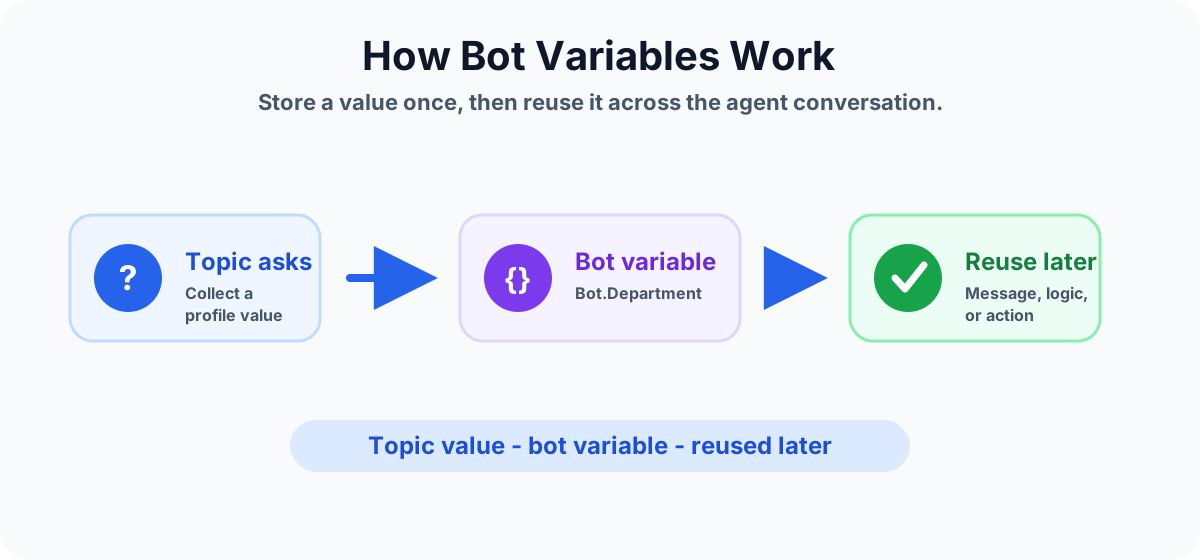
The pattern is simple:
- A topic collects or receives a value.
- The value is stored in a bot variable.
- Another topic reads that value later.
- The agent uses it in a message, condition, redirect, action, or final response.
Example flow:
- The agent asks: Which department are you from?
- The user answers: Finance.
- The agent stores the value as a bot variable.
- Later, an IT support topic uses Finance to route the request to the correct support queue.
Common bot variable use cases
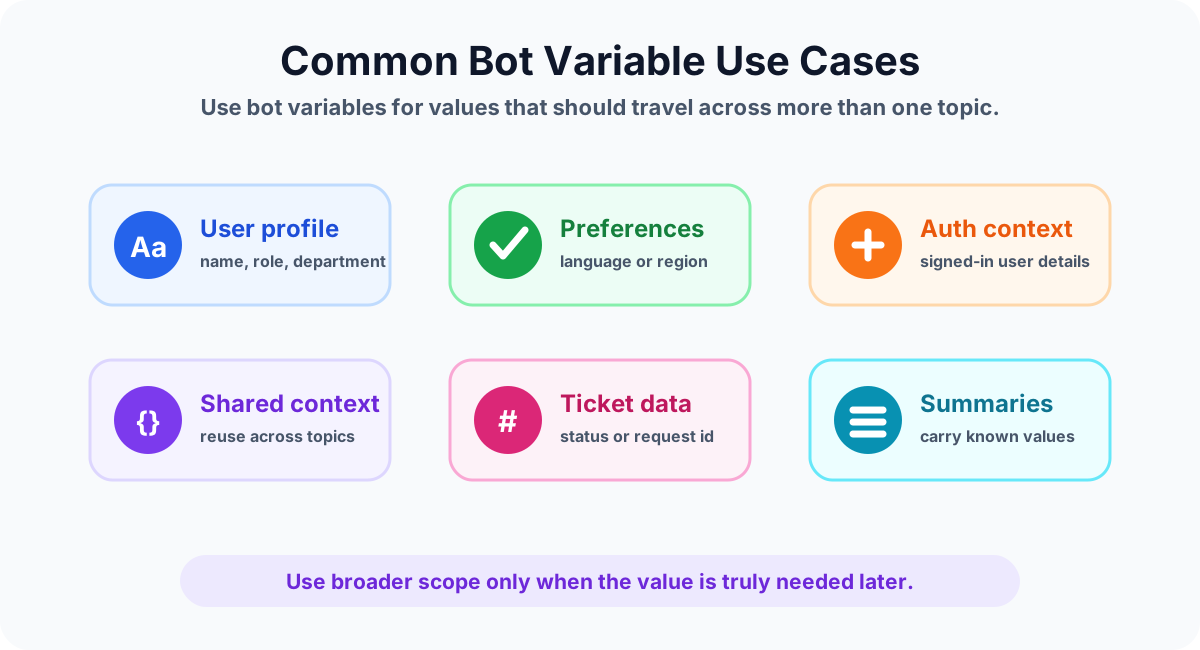
Bot variables are best for values that are useful across the wider agent experience, not just one step.
User profile values
An agent may need values such as display name, department, location, job role, or employee type. If those values are useful in several topics, a bot variable can reduce repeated collection.
Preferences
Some agents need to remember a language, region, preferred channel, or response style. A bot variable can help later topics respond in the same context.
Authentication or sign-in context
If the agent knows who the user is after sign-in, that context can support routing, personalization, and action inputs. Be careful with sensitive information and only store what the conversation truly needs.
Cross-topic routing
When a topic redirects to another topic, a bot variable can carry context. For example, an onboarding topic may collect the user's employment type and a benefits topic may reuse that value to show the right guidance.
Action inputs
Actions often need inputs. If the same input is collected earlier in the conversation, a bot variable can pass it forward instead of asking again.
Example: IT support agent
Imagine an IT support agent that helps users with passwords, device issues, software access, and ticket status. The agent may store these bot variables:
- UserDepartment: used to route tickets to the correct support queue.
- UserLocation: used to choose local support instructions.
- PreferredContactMethod: used when creating a ticket or follow-up message.
- LastTicketNumber: used when the user asks for ticket status later.
These values are useful across several topics. That makes them better candidates for bot variables than topic-only variables.
Example: HR assistant agent
An HR assistant may support leave requests, policy questions, benefits, onboarding, and employee documents. Bot variables can help maintain context across these topics.
- EmployeeType: full-time, contractor, intern, or vendor.
- EmployeeRegion: used to show region-specific HR policies.
- Department: used for approvals or policy routing.
- PreferredLanguage: used for more consistent responses.
For values collected only inside one topic, such as LeaveDays, a topic variable is usually enough. For values needed by multiple HR topics, a bot variable may be more useful.
Best practices for bot variables
- Use bot variables only for shared context. Do not make every value broad scope.
- Name variables clearly. Use names such as UserDepartment, PreferredLanguage, or LastTicketNumber.
- Keep sensitive data limited. Avoid storing unnecessary personal or confidential details.
- Confirm important values. If a value affects an action, show it back to the user before submission.
- Reset when appropriate. If a value becomes stale, update or clear it instead of reusing old context.
- Document where the value is set. Makers should know which topic creates or changes the variable.
- Test cross-topic behavior. Make sure the value is available where you expect it.
Common mistakes to avoid
- Using bot variables for one-topic values: this makes the agent harder to maintain.
- Vague names: names like value, data, or answer do not explain intent.
- Old values: a reused value may be wrong if the user's context changed.
- No fallback: a topic should handle cases where the variable is blank or unavailable.
- Over-personalization: using too much stored context can make responses feel confusing or risky.
- Missing testing: cross-topic variables need more testing than simple topic variables.
Testing checklist
Before publishing a topic that depends on bot variables, test how the value behaves across the full conversation.
- Test the topic that creates or updates the bot variable.
- Test each topic that reads the bot variable.
- Test what happens when the variable is blank.
- Test what happens when the variable has an old value.
- Confirm actions receive the correct value.
- Confirm messages display the correct value.
- Confirm redirects keep the expected context.
How bot variables improve conversation design
Bot variables help connect separate topics into one coherent agent experience. Instead of each topic acting like a separate mini-chat, the agent can reuse known context and guide the user more naturally.
The goal is not to store everything. The goal is to store the right values at the right scope. A clean bot variable design makes agents easier to test, easier to maintain, and easier for users to trust.
Key takeaways
- Bot variables store broader context. Use them when a value is needed across topics.
- Topic variables are still important. Use topic variables for values needed only inside one topic.
- Scope is the main decision. Choose the narrowest scope that works.
- Clear names matter. Good names make conversation logic easier to understand.
- Testing matters. Cross-topic variables need careful testing for blank, stale, and updated values.
Bot variables are powerful when used carefully. They help Copilot Studio agents remember useful context, reduce repeated questions, and deliver smoother multi-topic conversations.
Next in the series: Day 30.
Related resources
Topics covered
Variables · Topics · Conversation Design · AI Agents · Actions
Frequently asked questions
What are bot variables in Microsoft Copilot Studio?
Bot variables are values that can be reused beyond a single topic. They help a Copilot Studio agent remember shared context such as user profile details, preferences, previous selections, or values that another topic needs.
When should I use a bot variable?
Use a bot variable when the value is needed across more than one topic or later in the conversation. If the value is only needed inside one topic, a topic variable is usually the cleaner choice.
What is the difference between topic variables and bot variables?
Topic variables are best for values used inside one topic. Bot variables are better for shared context that multiple topics may need, such as a department, preferred language, user type, or selected request category.
Can bot variables be used in conditions?
Yes. A bot variable can be used in condition logic when the topic needs to make a decision based on a value collected or stored earlier in the conversation.
Can bot variables be passed to actions?
Yes. If an action needs a value that was stored earlier, the topic can pass that value as an input to a flow, connector, plugin, or API action.
Are bot variables always better than topic variables?
No. Broader scope can make an agent harder to maintain if overused. Use the narrowest scope that fits the requirement: topic variables for one topic, bot variables for reusable cross-topic context.
Sources
- Microsoft Learn: Authoring Create Edit Topics, Microsoft
- Microsoft Learn: Microsoft Copilot Studio, Microsoft
Have a Microsoft 365 topic idea?
Share article suggestions, community session ideas, corrections, or real-world scenarios for future nextM365 learning notes.
Keep learning Microsoft 365
Explore more practical tutorials for SharePoint, Power Platform, Copilot Studio, migration, automation, governance, and security.
Continue learning
Related tutorials
Related questions
Related comparisons