Rich Text Formatting | Copilot Studio Day 35
Learn how to use rich text formatting in Microsoft Copilot Studio messages to create clearer replies, readable steps, links, warnings, and better agent conversations.
- Published
- Reading time
- 6 min read
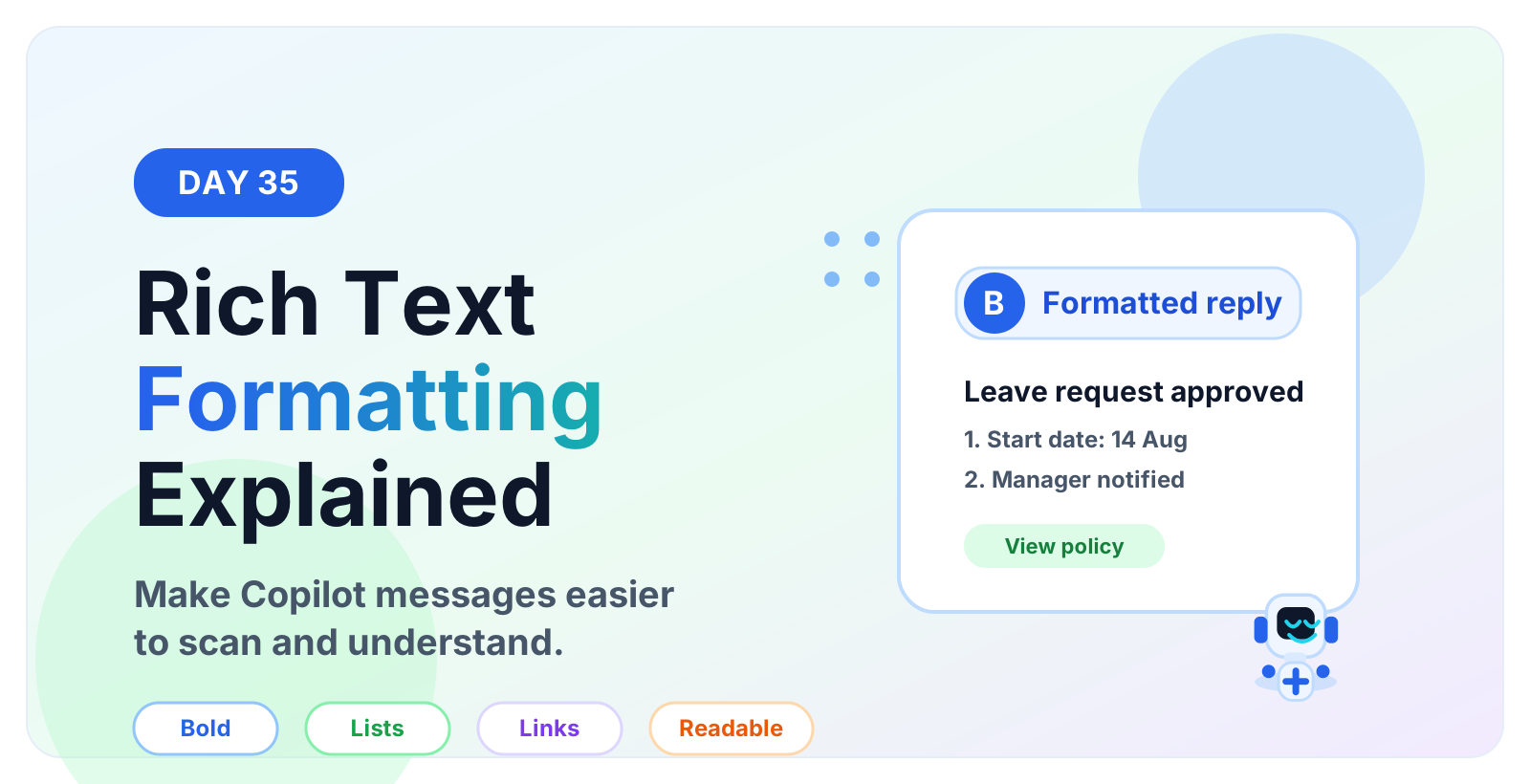
Week 5 · Day 35 of 365 in 365 Days of Copilot Studio — view the full series
Before you start
Is this guide for you?
- Best entry point
- 365 Days of Copilot Studio
- Time investment
- 6 min read
In this article
- What is rich text formatting in Copilot Studio?
- Why formatting matters in agent conversations
- What can you format in a Copilot Studio message?
- Rich text vs Message node vs Adaptive Cards vs Quick Replies
- Common rich text formatting use cases
On this page (25 sections)
Rich text formatting in Microsoft Copilot Studio helps your agent replies look clear, structured, and easy to act on. A plain paragraph can work for a short answer, but real support conversations often need steps, warnings, links, examples, and summary details.
For global Microsoft 365 support teams in the USA, Canada, Australia, the UK, India, and other regions, clear formatting matters because users may read bot replies on mobile, in Microsoft Teams, or while trying to solve a problem quickly.
This is Day 35 in the 365 Days of Copilot Studio series. It builds on Day 15: Message Node Explained, Day 32: Adaptive Cards Explained, Day 33: Quick Replies Explained, and Day 34: Suggested Actions Explained.
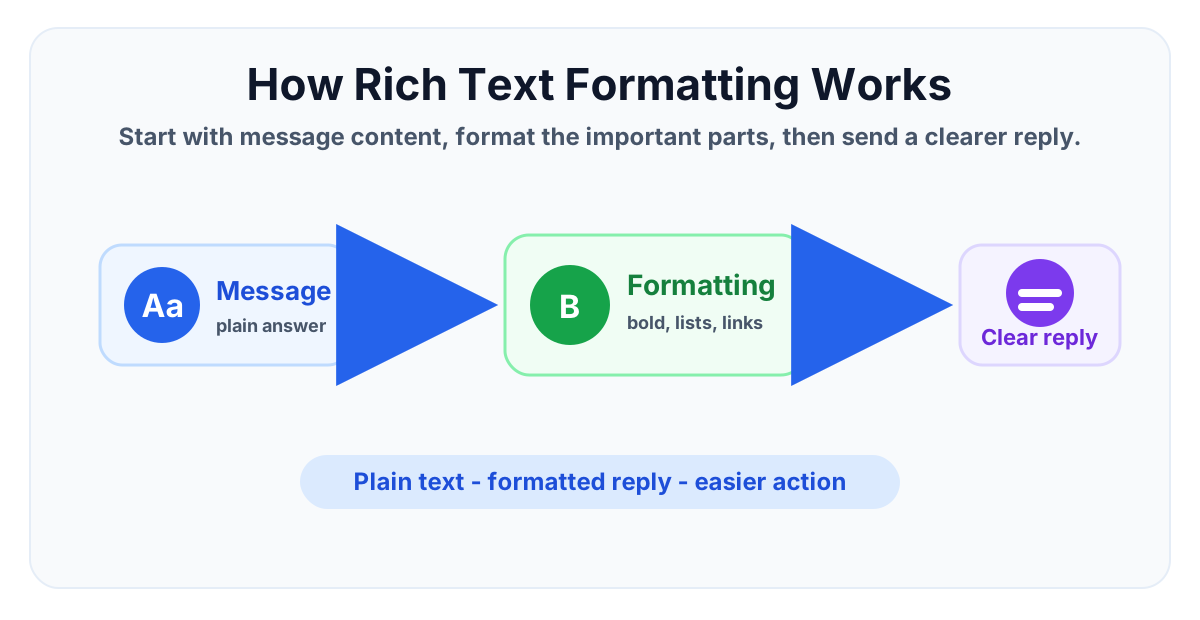
What is rich text formatting in Copilot Studio?
Rich text formatting is the way you make a bot message easier to read. Instead of sending one long block of text, you can structure the answer with short sections, emphasis, lists, links, and clear spacing.
In a Copilot Studio topic, formatting is usually applied inside a message or response step. The goal is not decoration. The goal is clarity. Users should be able to scan the reply, understand what matters, and know what to do next.
Why formatting matters in agent conversations
Users often open a Copilot Studio agent because they need a quick answer. If the reply is long, unstructured, or unclear, users may miss the action they need to take. Good formatting helps the answer feel more reliable and easier to follow.
- Short sections make long answers easier to scan.
- Bold text highlights important labels, warnings, and outcomes.
- Bullet lists help users compare options or understand requirements.
- Numbered steps work well for instructions that must be followed in order.
- Links send users to the correct policy, request form, or internal page.
What can you format in a Copilot Studio message?
Bold and emphasis
Use bold text for labels, decisions, required actions, and final outcomes. For example, Status: Approved is easier to scan than a sentence hidden inside a paragraph.
Avoid making every sentence bold. If everything is emphasized, nothing stands out.
Lists and steps
Use bullets when the order does not matter, such as requirements or options. Use numbered steps when the user must follow a sequence.
For example, an IT support answer can use numbered steps for password reset instructions and bullets for what information the user should prepare before contacting support.
Links
Use links when the next action happens outside the current message, such as reading a policy, opening a request form, viewing a SharePoint document, or checking a Microsoft 365 admin page.
Use descriptive link text. Instead of click here, write open the leave policy or view the access request form.
Line breaks and short sections
Line breaks help separate a summary from details. A useful pattern is: answer first, then steps, then next action. This keeps the message readable even when the user is in a hurry.
Rich text vs Message node vs Adaptive Cards vs Quick Replies
Rich text formatting is not a separate node. It improves the content shown by a message or response. Use it with the right Copilot Studio building block:
- Message node: use rich text to make informational replies easier to read.
- Adaptive Cards: use cards when you need structured fields, buttons, or a form-like layout.
- Quick Replies: use quick replies when the user should select from a small set of choices.
- Suggested Actions: use suggested actions when the bot should guide the user to a likely next step.
If the user only needs to read and act, formatted text may be enough. If the user needs to choose, submit, edit, or confirm structured data, use Adaptive Cards, Quick Replies, or Suggested Actions.
Common rich text formatting use cases
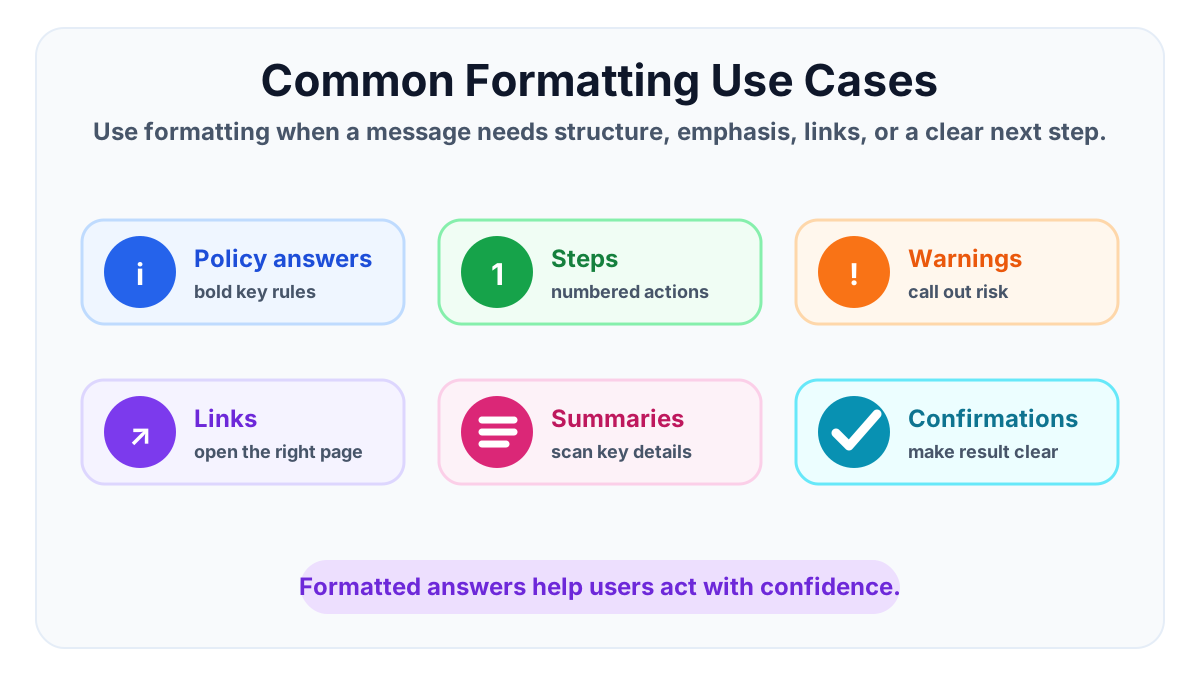
Policy answers
Policy answers often include rules, exceptions, and next steps. Use short headings, bullets, and bold labels so the user can find the exact answer faster.
Step-by-step instructions
Use numbered steps for processes such as requesting access, resetting a password, submitting a leave request, or checking a SharePoint document permission.
Warnings and limitations
If the user should not do something, make the warning visible. For example, warn users not to share credentials or not to upload sensitive files to the wrong location.
Summaries and confirmations
After collecting values with a question node, variable, action, or Adaptive Card, use formatted text to summarize the result before the conversation moves on.
Beginner examples
HR policy answer
A simple HR answer can be formatted like this:
Leave policy summary
- Submit planned leave at least 5 working days in advance.
- Your manager must approve the request.
- Emergency leave can be raised after the absence.
IT support instructions
An IT help desk message should make the steps clear:
Password reset steps
1. Open the password reset page.
2. Verify your account.
3. Create a new password.
4. Sign in again and test Outlook and Teams.
Approval status update
For approval flows, use a direct status line and a short next action:
Status: Manager approval pending
Next step: You will receive a notification after the manager responds.
Best practices for Copilot Studio rich text formatting
- Answer first: put the most important answer before the explanation.
- Use short blocks: avoid long paragraphs inside chat replies.
- Use meaningful labels: Status, Next step, Required, Owner, Due date, and Result are easy to scan.
- Keep links descriptive: link text should explain where the user is going.
- Format for mobile: keep lines short and avoid wide tables in normal messages.
- Test in the real channel: verify the reply in Teams or the target channel, not only in the authoring view.
Common mistakes to avoid
- Using one long paragraph for a complex answer
- Adding too many links in one message
- Using bold text for every sentence
- Making messages look like documentation instead of conversation
- Using formatting when an Adaptive Card would be clearer
- Not testing how the message appears on mobile or in Microsoft Teams
Testing checklist
Before publishing a formatted message, check the following:
- Does the first line answer the user's question?
- Can the user scan the message in under a few seconds?
- Are the steps in the correct order?
- Do links use clear text and open the right destination?
- Does the formatting still look good in the final channel?
- Is there a clear next action?
Frequently asked questions
Should I use rich text or an Adaptive Card?
Use rich text for readable instructions and answers. Use an Adaptive Card when the user needs structured fields, buttons, inputs, or a more visual layout.
Can rich text formatting help with support deflection?
Yes. Clear answers reduce follow-up questions because users can see the status, steps, and next action without asking the bot again.
Can I use rich text formatting in Microsoft Teams?
Yes, but always test the final message in the channel where users will see it. Formatting can feel different between authoring, web chat, and Teams.
Summary
Rich text formatting helps Copilot Studio agents deliver answers that users can scan, understand, and act on. Use it for policy answers, instructions, warnings, links, summaries, and confirmations. Keep the formatting simple, test it in the final channel, and choose Adaptive Cards or Quick Replies when users need a more structured interaction.
Use rich text formatting when the message itself must be clear enough to guide the next action.
Continue with the full 365 Days of Copilot Studio series.
Tagged
Conversation Design · Topics · AI Agents · Actions · Variables
Frequently asked questions
What is rich text formatting in Microsoft Copilot Studio?
Rich text formatting is the way you structure a Copilot Studio message with bold text, lists, links, line breaks, and other readable formatting so users can understand the reply quickly.
When should I use rich text formatting in Copilot Studio?
Use rich text formatting when a message includes instructions, policy answers, warnings, links, summaries, confirmation details, or multiple steps that need to be easy to scan.
Is rich text formatting the same as an Adaptive Card?
No. Rich text formatting improves normal message content. Adaptive Cards are better when users need a structured card layout, fields, buttons, or richer interaction.
Can rich text formatting improve Copilot Studio support bots?
Yes. Clear formatting helps users in Microsoft 365 support bots read answers faster, follow instructions correctly, and choose the right next step with less confusion.
Should every Copilot Studio message use heavy formatting?
No. Use formatting only where it helps readability. Too much bold text, too many links, or long bullet lists can make the conversation harder to scan.
Sources
- Microsoft Learn: Authoring Create Edit Topics, Microsoft
- Microsoft Learn: Microsoft Copilot Studio, Microsoft
Have a Microsoft 365 topic idea?
Share article suggestions, community session ideas, corrections, or real-world scenarios for future nextM365 learning notes.
Keep learning Microsoft 365
Explore more practical guides for SharePoint, Power Platform, Copilot Studio, migration, automation, governance, and security.
Continue learning
Related tutorials
Related questions
Related comparisons
Next action