Images and File Responses | Copilot Studio Day 36
Learn how to use images and file responses in Microsoft Copilot Studio to share screenshots, PDFs, documents, guides, and helpful support content in agent conversations.
- Published
- Reading time
- 4 min read
Week 6 · Day 36 of 365 in 365 Days of Copilot Studio — view the full series
Before you start
Is this guide for you?
- Best entry point
- 365 Days of Copilot Studio
- Time investment
- 4 min read
In this article
- What are images and file responses in Copilot Studio?
- Why visual and file responses matter
- When to use image responses
- When to use file responses
- Images vs files vs links
On this page (15 sections)
Images and file responses help Microsoft Copilot Studio agents answer with more than plain text. They are useful when the user needs a screenshot, diagram, PDF, policy, checklist, form, or downloadable guide.
This is Day 36 of the 365 Days of Copilot Studio series. In earlier lessons, we covered Message nodes, Adaptive Cards, Quick Replies, and Rich Text Formatting. Images and files build on those ideas by making the response easier to see, save, and share.
What are images and file responses in Copilot Studio?
An image response shows visual content directly in the conversation. A file response gives the user a document or downloadable resource. Both make the agent more helpful when a text answer would be incomplete.
For example, a Microsoft 365 support agent can show a screenshot of where to find a setting, then provide a PDF checklist the user can follow later.
Why visual and file responses matter
Many support conversations fail because the answer is correct but hard to follow. Images reduce confusion. Files give users something they can keep after the chat ends.
This is especially important for Microsoft 365, SharePoint, Teams, HR, onboarding, compliance, and IT help desk scenarios where users often need exact steps or approved templates.
When to use image responses
Use an image response when the user needs to recognize something visually. Screenshots, diagrams, quick examples, and visual warnings can make a conversation easier to understand.
- Show where a button, setting, menu, or permission option appears.
- Explain a process with a simple diagram.
- Show examples of a completed form, request, or approval result.
- Help users compare before and after states.
When to use file responses
Use a file response when the user needs a resource outside the chat. This can be a PDF guide, template, checklist, policy, troubleshooting file, or document pack.
- Provide an onboarding checklist for new employees.
- Share an IT troubleshooting guide.
- Attach a leave request policy or HR form.
- Give users a migration checklist or validation report template.
Images vs files vs links
Use an image when the answer should be seen immediately. Use a file when the user should keep or share the content. Use a link when the source page is likely to change or when the user should always view the latest version.
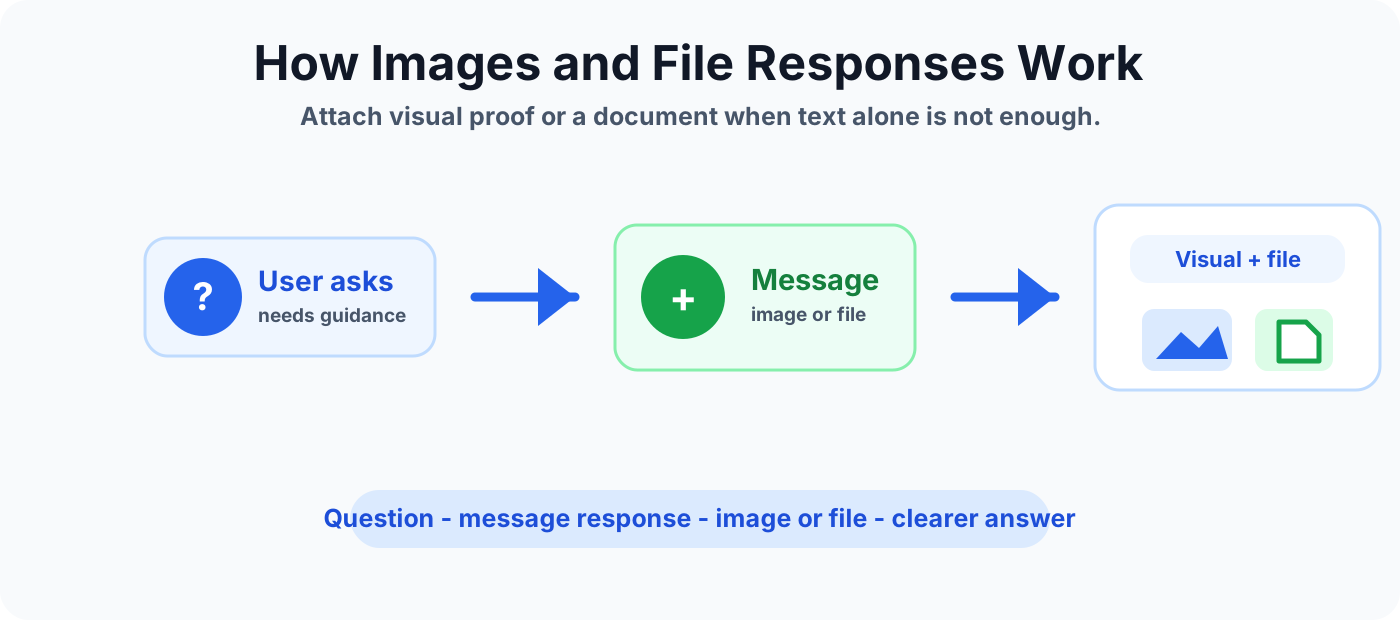
How images and file responses work
A simple response flow usually looks like this:
- User asks. The user asks for help, instructions, or a document.
- Topic matches. Copilot Studio routes the conversation to the right topic.
- Message responds. The agent explains the answer using text.
- Image or file is included. The response adds a screenshot, diagram, guide, or downloadable file.
- User continues. The user follows the visual guide, opens the file, or chooses the next action.
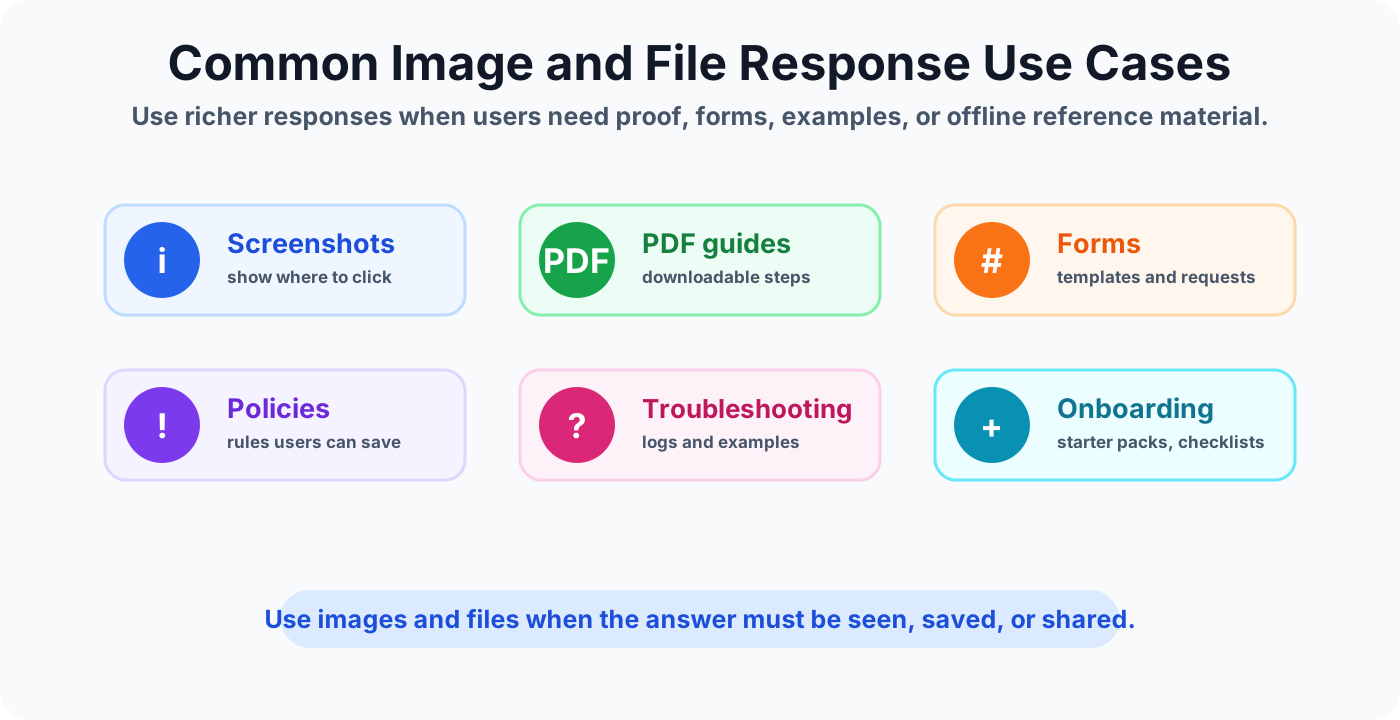
Common image and file response use cases
Images and files are most useful when the user needs proof, examples, reusable material, or a clear next step.
IT help desk
An IT support bot can show a screenshot of where to reset a password, then provide a short troubleshooting PDF for device setup.
HR and employee support
An HR bot can share a benefits guide, leave policy, or onboarding checklist when the user asks about policies or employee processes.
SharePoint and Microsoft 365 training
A training bot can show screenshots for SharePoint library settings, Teams channel setup, or Microsoft 365 admin tasks.
Approvals and forms
A process bot can provide a request form, approval checklist, or summary document after collecting user details.
Best practices
- Keep images readable. Use clear screenshots with minimal cropping and no sensitive information.
- Name files clearly. File names should describe the purpose, such as
New-Employee-Onboarding-Checklist.pdf. - Use short text around the file. Tell the user what the file contains and when to use it.
- Keep content current. Review files when policies, forms, or Microsoft 365 screens change.
- Avoid duplicate attachments. If a link is enough, do not attach the same document in multiple topics.
Mistakes to avoid
- Do not attach large files when a short answer or link is enough.
- Do not use blurry screenshots that users cannot read.
- Do not share documents that contain outdated instructions.
- Do not expose private information in screenshots or file examples.
- Do not make users download a file just to understand a simple answer.
Real-world Microsoft 365 example
Imagine a user asks, "How do I request access to a SharePoint site?" The Copilot Studio topic can answer with a short explanation, show a screenshot of the access request button, and attach a one-page access request guide.
The user gets the answer in the chat, sees exactly where to click, and can keep the PDF for future reference. That is a better experience than a long text-only response.
Summary
Images and file responses make Copilot Studio conversations more useful when users need visual guidance or reusable documents. Use images for clarity, files for downloadable material, and links when the content should stay connected to a live source.
Tagged
Conversation Design · Topics · AI Agents · Knowledge Sources · Document Libraries
Frequently asked questions
Can Microsoft Copilot Studio show images in a response?
Yes. Image responses are useful when a screenshot, diagram, or visual example explains the answer better than text alone.
When should I use a file response in Copilot Studio?
Use a file response when the user needs a document, PDF, checklist, policy, or template they can open, save, or share after the chat.
Are image and file responses useful for Microsoft 365 support bots?
Yes. They help IT, HR, onboarding, policy, and training agents provide screenshots, forms, guides, and downloadable reference material.
How are file responses different from Adaptive Cards?
File responses share content the user can open or download. Adaptive Cards present structured information and actions inside the chat.
Sources
- Microsoft Learn: Knowledge Copilot Studio, Microsoft
- Microsoft Learn: Microsoft Copilot Studio, Microsoft
Have a Microsoft 365 topic idea?
Share article suggestions, community session ideas, corrections, or real-world scenarios for future nextM365 learning notes.
Keep learning Microsoft 365
Explore more practical guides for SharePoint, Power Platform, Copilot Studio, migration, automation, governance, and security.
Continue learning
Related tutorials
Related questions
Related comparisons
Next action