Escalation Topics | Copilot Studio Day 38
Learn how escalation topics in Microsoft Copilot Studio move complex conversations to human support with context, routing, severity rules, and clean resolution.
- Published
- Reading time
- 4 min read
Week 6 · Day 38 of 365 in 365 Days of Copilot Studio — view the full series
Before you start
Is this guide for you?
- Best entry point
- 365 Days of Copilot Studio
- Time investment
- 4 min read
In this article
- What is an escalation topic in Microsoft Copilot Studio?
- Why escalation topics matter
- When should you escalate?
- What an escalation topic should collect
- Common escalation topic use cases
On this page (18 sections)
Day 38 of 365 Days of Copilot Studio explains how to design escalation topics for Microsoft Copilot Studio agents.
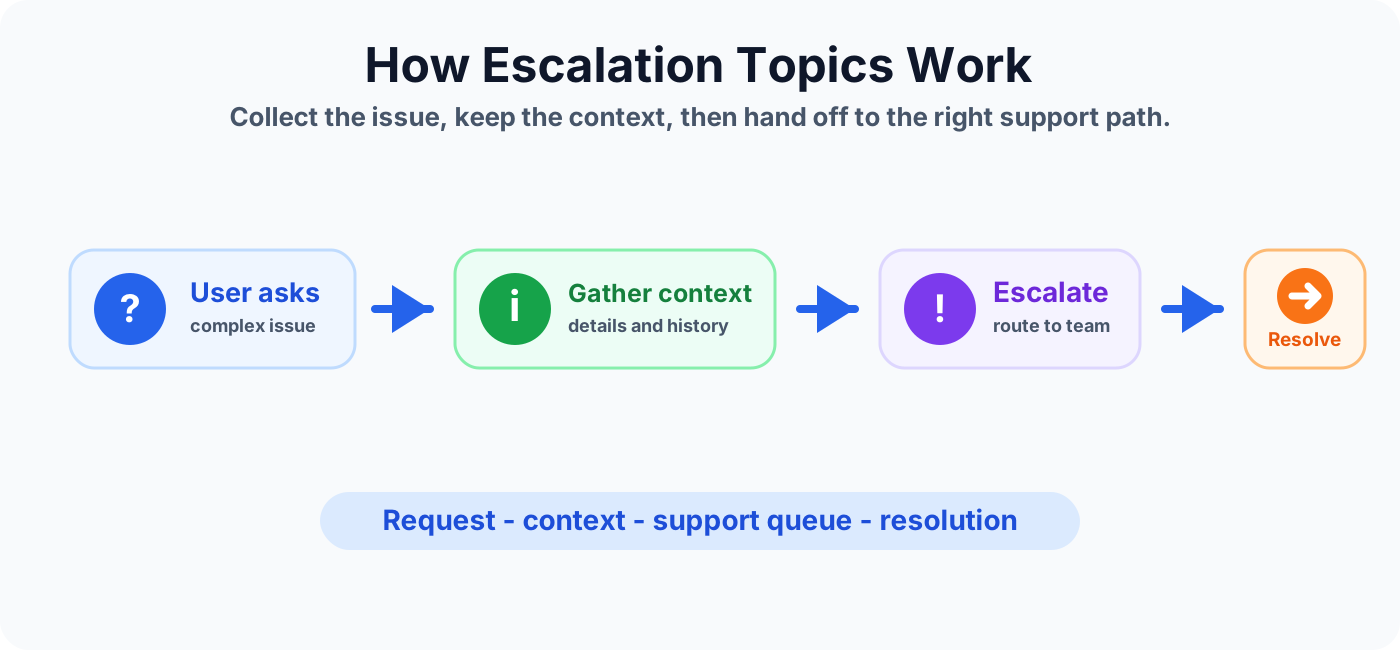
Not every conversation should stay fully automated. Some requests need human judgment, ownership, approval, security review, or a real support queue. An escalation topic gives users a clear path from self-service to the right human support option while keeping the conversation context intact.
This lesson builds on system topics, Redirect nodes, End Conversation nodes, and greeting topic design.
What is an escalation topic in Microsoft Copilot Studio?
An escalation topic is a topic that moves the user from the agent to a human support path or another support process. It is used when the agent cannot safely or completely resolve the request through automated answers, knowledge, or actions.
For example, an IT support agent may answer password reset questions directly, but escalate account lockouts, security incidents, access exceptions, or repeated failures to the help desk.
Why escalation topics matter
Escalation topics make Copilot Studio agents more trustworthy. Users should never feel trapped in automation when their issue needs a person. A clear escalation path improves support quality and prevents the agent from overpromising.
- Protects user experience. Users get a next step when automation is not enough.
- Keeps context. The support team can see what the user already explained.
- Improves routing. Requests can move to the right queue, team, or owner.
- Supports governance. Sensitive or high-risk requests can follow approved escalation rules.
When should you escalate?
Escalation should be intentional. Do not escalate every question, but do not hide escalation when the user clearly needs human help.
- The user asks for a person or support agent.
- The request is outside the agent's supported scope.
- The user has repeated failures or fallback responses.
- The issue is sensitive, urgent, regulated, or security-related.
- The next step requires approval, exception handling, or manual review.
- The agent needs to create a ticket, case, or support notification.
What an escalation topic should collect
A good escalation topic collects enough information for the support team to act without making the user repeat everything.
- Issue summary: what the user needs help with.
- Category: IT, HR, finance, access, policy, billing, or another support area.
- Priority: normal, urgent, blocker, security issue, or business impact.
- User details: name, email, department, region, or employee ID when appropriate.
- Conversation context: key answers, selected options, errors, and previous steps.
Common escalation topic use cases
Escalation topics are useful anywhere automation needs a reliable human handoff.
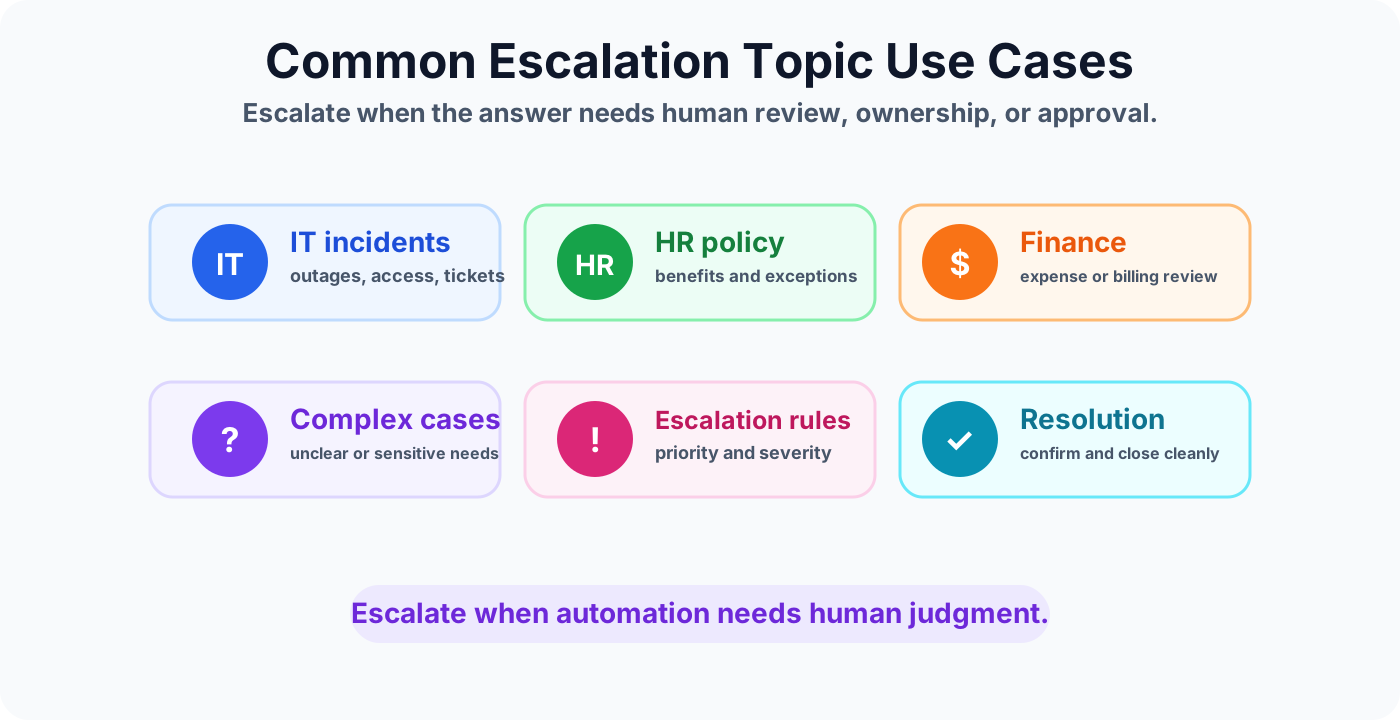
IT incidents
Escalate outages, repeated sign-in failures, access exceptions, device issues, or support requests that need a help desk ticket.
HR policy and employee support
Escalate sensitive employee questions, policy exceptions, benefits issues, or cases that require HR review.
Finance and billing review
Escalate expense exceptions, invoice questions, billing disputes, or requests that need approval before action.
Complex or sensitive cases
Escalate when the user gives unclear information, when the topic touches compliance or privacy, or when a wrong automated answer could cause risk.
Escalation design patterns
Direct human handoff
Use this pattern when the channel supports live transfer or when the user explicitly asks for a person. Make it clear whether the handoff is live or asynchronous.
Ticket creation
Use Power Automate, Dataverse, Dynamics 365, email, Teams, or another system to create a case or ticket. Show the user the ticket number or expected response time when available.
Queue routing
Route requests based on category, region, priority, product, or department. This avoids sending every issue to one generic queue.
Fallback-to-escalation
If the user repeatedly reaches fallback, offer escalation instead of repeating the same generic fallback answer.
Best practices
- Set expectations clearly. Tell users what happens after escalation and when they can expect a response.
- Preserve context. Pass the conversation summary and key variables to the support team.
- Do not promise live support unless it exists. If the process creates a ticket, say that clearly.
- Use severity rules. High-impact issues should route differently from normal requests.
- Confirm before submitting. Let the user review the issue summary before a ticket or handoff is created.
- Close the loop. Give the user a confirmation, reference number, or next step.
Mistakes to avoid
- Offering escalation without a real support owner behind it.
- Making users repeat details they already gave the agent.
- Escalating too early before the agent tries a useful self-service path.
- Escalating too late after several failed answers.
- Using the same queue for every issue regardless of category or priority.
- Ending the conversation without a confirmation or next step.
Escalation topic checklist
- The agent explains when escalation is available.
- The topic collects the issue, category, priority, and contact details.
- The conversation context is included in the handoff or ticket.
- The escalation path routes to a real team, queue, or process.
- The user receives a clear confirmation or next step.
- The escalation flow is tested with realistic support scenarios.
Summary
Escalation topics help Copilot Studio agents handle the moments where automation should stop and human support should take over. Design the flow to collect context, apply routing rules, create the right support record, and give the user a clear next step.
Next, review system topics, redirect patterns, and conversation endings so escalation fits cleanly into the full agent experience.
Tagged
Conversation Design · Topics · Actions · AI Agents · Governance
Frequently asked questions
What is an escalation topic in Copilot Studio?
An escalation topic is a conversation path that moves the user from self-service to a human support option or support process when the agent cannot resolve the request alone.
When should a Copilot Studio agent escalate?
Escalate when the issue is complex, sensitive, high priority, outside the agent scope, needs approval, or requires a human team to review and resolve it.
What information should an escalation topic collect?
Collect the user issue, category, priority, key details, contact information, and enough conversation context for the support team to continue without asking the same questions again.
Can escalation topics create tickets?
Yes. An escalation path can connect to Power Automate, Dataverse, Dynamics 365, email, Teams, or another system to create a case, ticket, or support notification.
How is escalation different from fallback?
Fallback handles unmatched or unclear user input. Escalation hands the user to a human support path or process when automation is not enough.
Sources
- Microsoft Learn: Authoring Create Edit Topics, Microsoft
- Microsoft Learn: Microsoft Copilot Studio, Microsoft
Have a Microsoft 365 topic idea?
Share article suggestions, community session ideas, corrections, or real-world scenarios for future nextM365 learning notes.
Keep learning Microsoft 365
Explore more practical guides for SharePoint, Power Platform, Copilot Studio, migration, automation, governance, and security.
Continue learning
Related tutorials
Related questions
Related comparisons
Next action