Microsoft 365 Copilot Integration with Copilot Studio | Copilot Studio Day 59
Bring Copilot Studio agents into Microsoft 365 Copilot with business knowledge, instructions, actions, identity-aware security, publishing, and team-specific agents for HR, IT, Sales, and Operations.
- Published
- Reading time
- 8 min read
Week 9 · Day 59 of 365 in 365 Days of Copilot Studio — view the full series
What you’ll learn
- What Is Microsoft 365 Copilot Integration?
- Why Integrate?
- How It Connects
- Different Roles. Better Together.
- Where Does Your Agent Fit?
On this page (16 sections)
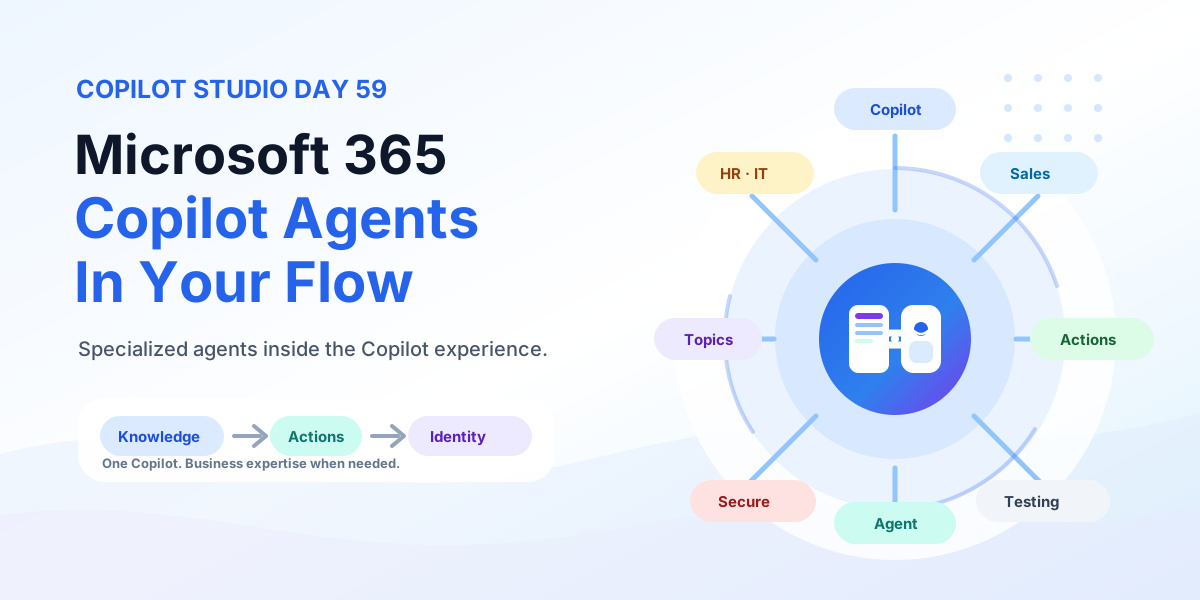
Day 59 of 365 Days of Copilot Studio explains Microsoft 365 Copilot integration with Copilot Studio: how to extend Copilot with business-specific agents so employees get organizational knowledge and real actions without leaving their flow of work.
Days 54 through 58 took one agent to many channels: custom apps, omnichannel plans, voice, Direct Line, and Azure Bot Service. This lesson arrives at the flagship destination: inside Microsoft 365 Copilot itself, where Teams, Outlook, Word, Excel, and PowerPoint users already spend their day.
This lesson builds on Day 54: Custom Apps, Day 56: Voice Channel, Day 57: Direct Line Channel, and Day 58: Azure Bot Service Integration. If those lessons were about reaching users wherever they are, Day 59 is about meeting them where they already work.
[!NOTE] Same Copilot. More possibilities. Microsoft 365 Copilot is the work companion. Your Copilot Studio agent is the business expert behind it.
What Is Microsoft 365 Copilot Integration?
Integration brings specialized agents into the Microsoft 365 Copilot experience. Your Microsoft 365 apps stay on one side, the work outcomes users expect — chat, content, meetings, email, workflows — stay on the other, and your agent supplies the missing middle: business knowledge plus business actions.
The formula is compact: Microsoft 365 Copilot understands the request, the Copilot Studio agent contributes organizational expertise, and the user never switches apps to get either.
Why Integrate?
Unlock more value with specialized agents in your Copilot experience. Four reasons carry the decision.
| Reason | What it adds |
|---|---|
| Business knowledge | Grounds Copilot with your organizational knowledge instead of generic answers. |
| Specialized agents | Brings domain-specific expertise for HR, IT, Sales, Operations, Finance, and Legal. |
| Business actions | Takes action across your systems: records, workflows, tickets, and APIs. |
| Connected experiences | Keeps one consistent AI experience across every Microsoft 365 surface. |
Extend Copilot around how your organization works, not around generic AI.
How It Connects
From people to possibilities with integrated agents. Every request follows the same path.
- Employee: asks, works, and gets answers in Microsoft 365.
- Microsoft 365 Copilot: receives the request with secure access and full organization context.
- Copilot Studio agent: contributes organization knowledge and custom actions as the business expert.
- Knowledge: SharePoint, Dataverse, and more supply the facts.
- Actions: APIs, connectors, and automations do the work.
- Business systems: line-of-business apps and data complete the outcome.
One Copilot experience. Connected business intelligence.
Different Roles. Better Together.
Copilot Studio extends the experience with purpose-built agents. The two sides have deliberately different jobs.
| Microsoft 365 Copilot: your AI work companion | Copilot Studio agent: your business expert |
|---|---|
| Work experience that helps you work smarter. | Specialized knowledge from organizational data and expertise. |
| Microsoft 365 context across files, apps, and conversations. | Business processes that automate and take action. |
| Natural, conversational user interaction. | Custom capabilities tailored to your needs. |
Do not rebuild what Copilot already does. Extend it with what only your business knows.
Where Does Your Agent Fit?
The right expertise. In the right context. For every team. One Copilot routes to many specialized agents.
- HR: people and policies — leave, benefits, onboarding.
- IT: support and troubleshooting — access, devices, tickets.
- Sales: insights and deals — customers, pipeline, follow-ups.
- Operations: processes and efficiency — supply chain, approvals, and multi-system workflows.
- Finance and Legal: procurement, policies, and compliance answers.
One Copilot. Specialized expertise when needed. Start with the team whose questions repeat most.
What Powers the Agent?
Three key capabilities. Endless possibilities. Every specialized agent is knowledge plus instructions plus actions.
| Capability | Role |
|---|---|
| Knowledge | Understands business information from documents, data, and expertise. |
| Instructions | Defines agent behavior: personality, rules, and boundaries. |
| Tools and Actions | Gets work done through connectors, flows, and APIs. |
Turn capabilities into real business value by specifying all three before publishing.
Connect Enterprise Knowledge
Bring your organizational knowledge into the Copilot experience. The agent connects downward to four source families and passes relevant knowledge upward for smarter answers and actions.
- SharePoint: documents, sites, and policies.
- Dataverse: business data and records.
- Business data: databases, APIs, and line-of-business systems.
- Enterprise knowledge: procedures, guides, and expertise.
Ground agents in the knowledge your business already uses. Stale sources produce stale answers, so assign ownership per source.
Move Beyond Answers
From conversation to real business impact. The mature pattern is Ask to Understand to Act.
- Ask: the user asks a question or makes a request.
- Understand: the agent interprets intent using your data.
- Act: the agent takes action in your systems.
Connected to your data on the left and your workflows on the right, the agent can create records, update systems, trigger processes, and call external APIs. Agents can turn conversations into business actions.
Identity Matters
The right user. The right access. The right impact. The chain runs from user identity through Copilot to the agent to authorized business data.
- User identity: Microsoft Entra ID provides secure sign-in and user context.
- Microsoft 365 Copilot: carries user context into everyday work.
- Copilot Studio agent: runs with user identity and permissions, never above them.
- Authorized business data: SharePoint sites and documents, Dataverse records, line-of-business systems, and people and Teams data the user may access.
Trusted, secure, and ready for work: secure by default, user-level permissions, data governance, and enterprise compliance on every hop.
From Build to Microsoft 365 Copilot
A simple path from creation to real impact.
- Build: create and design your agent.
- Configure: set knowledge, actions, and permissions.
- Test: validate and refine behavior with real phrasings.
- Publish: make it available in Microsoft 365 Copilot.
Publishing makes the agent ready for its intended experience: right users, right access, right impact. Secure, connected, and ready for users.
From User Intent to the Right Agent
The right request. The right agent. The right outcome. Microsoft 365 Copilot understands intent and finds the right agent among HR, IT, Sales, Finance, Operations, and Legal specialists.
Example: a manager asks to create a new employee and send onboarding details. Copilot routes to the HR agent, which executes with organizational data, permissions, and tools. The business response lands back in the flow of work: employee created and onboarding email sent.
Connect users with specialized capabilities inside their workflow instead of sending them to another portal.
Example: HR Agent
Real questions. Real answers. Real value. An employee asks inside Copilot how many vacation days remain. Copilot routes to the HR agent, which combines HR knowledge of policies and leave rules, employee data of personal records and entitlements, and actions that check balances, submit requests, and update records.
The result is a personalized answer plus the next action in one card: the remaining balance with Request Time Off and View Leave Details side by side. Connect employees with the right information and actions, instantly.
Example: IT Support Agent
Faster support. Happier employees. More productive teams. An employee reports from Teams, Outlook, or Microsoft 365 that the project workspace is inaccessible. Copilot routes to the IT support agent, which stays secure and permission-aware while working through knowledge of IT policies and troubleshooting guides, troubleshooting that checks systems and diagnoses the issue, and action that resets access, creates tickets, or notifies IT.
Connected systems behind the scenes include Microsoft Entra ID for access and identity, SharePoint for site permissions, Intune for device management, and the ITSM system for tickets and requests. The resolution arrives as one connected experience: access restored, with View Details, Open Project Workspace, ticket status, related articles, and Contact IT attached. From question to resolution without leaving the flow of work.
The Enterprise Pattern
People. Agents. Your data. Real impact. The full pattern stacks five layers: employees across Microsoft 365, Microsoft 365 Copilot orchestrating intent, Copilot Studio agents with knowledge plus actions plus integrations, Knowledge plus Actions plus Processes executing approvals and multi-system workflows, and enterprise systems and data from SharePoint, Dataverse, APIs, ERP, CRM, HR, and ITSM.
Two guardrails frame the stack: secure by design with Entra ID, permissions, governance, and compliance on one side, and built for the enterprise — scalable, extensible, secure, delivering real business value — on the other. Copilot becomes more valuable when connected to business context and capabilities.
Before You Publish
- Agent scope is narrow and named: one domain, one audience, one owner.
- Knowledge sources are current, permission-trimmed, and owned.
- Instructions define personality, rules, and escalation boundaries.
- Actions use least-privilege connections with tested failure paths.
- Identity runs as the user; no elevated or shared credentials.
- Tested phrasings cover the top ten real user requests.
- Availability targets the right users, not everyone by default.
- Analytics and feedback loops are assigned an owner and a rhythm.
Validate the complete experience before inviting real users.
Key Takeaway
Extend Copilot instead of competing with it. Microsoft 365 Copilot owns the work companion experience across Teams, Outlook, and Office apps. Your Copilot Studio agent owns business expertise: knowledge your organization already keeps, instructions that encode how it should behave, and actions that change real systems.
When knowledge, instructions, actions, identity, publishing, and team-specific agents work together, one Copilot serves every team in its flow of work: extend Copilot, connect business knowledge, take action. Next: Day 60.
Related resources
Topics covered
AI Agents · Integrations · Knowledge Sources · Security · Governance
Frequently asked questions
What is Microsoft 365 Copilot integration with Copilot Studio?
It brings specialized Copilot Studio agents into the Microsoft 365 Copilot experience. Users stay in Teams, Outlook, Word, or Copilot chat while business-specific agents answer with organizational knowledge and take action in business systems.
What is the difference between Microsoft 365 Copilot and a Copilot Studio agent?
Microsoft 365 Copilot is the everyday AI work companion with context across files, apps, and conversations. A Copilot Studio agent is the business expert with specialized knowledge, instructions, and actions for one domain such as HR, IT, Sales, or Operations.
How does Copilot know which agent should handle a request?
Microsoft 365 Copilot understands the intent behind the request and routes it to the relevant agent. The agent then executes with organizational data, user permissions, and connected tools before returning a business response or action.
Do agents in Microsoft 365 Copilot respect user permissions?
Yes. The agent runs with the signed-in user identity from Microsoft Entra ID, so answers come only from SharePoint, Dataverse, and business systems the user is authorized to see. Secure by default, user-level permissions, and data governance apply end to end.
What does it take to publish an agent to Microsoft 365 Copilot?
Build the agent, configure knowledge, actions, and permissions, test and refine the behavior, then publish it to Microsoft 365 Copilot for the right users with the right access. Publishing makes the agent ready for its intended experience.
Sources
Have a Microsoft 365 topic idea?
Share article suggestions, community session ideas, corrections, or real-world scenarios for future nextM365 learning notes.
Keep learning Microsoft 365
Explore more practical tutorials for SharePoint, Power Platform, Copilot Studio, migration, automation, governance, and security.
Continue learning
Related tutorials
Related questions
Related comparisons