Voice Channel in Copilot Studio | Copilot Studio Day 56
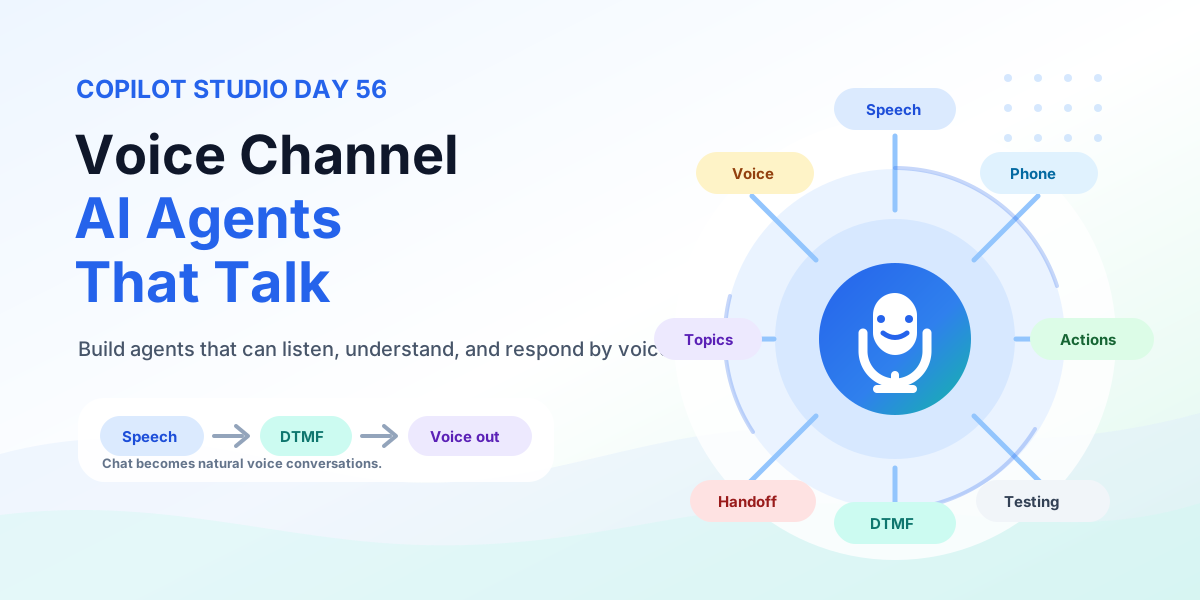
Build Copilot Studio voice agents that listen, understand, and respond by voice with Basic and Real-time Voice, DTMF keypad, telephony, silence handling, barge-in, business actions, testing, and production rollout.
- Published
- Reading time
- 10 min read
Week 8 · Day 56 of 365 in 365 Days of Copilot Studio — view the full series
What you’ll learn
- Why Voice Channel?
- What Are We Building?
- How Voice Works
- Same Agent. Different Experience.
- Choose the Right Voice Experience
On this page (29 sections)
Day 56 of 365 Days of Copilot Studio explains the Voice Channel in Copilot Studio: how to build AI agents that can listen, understand, and respond by voice so callers can talk instead of type.
Chat moved support into text. Voice moves it back into conversation. A voice-enabled Copilot Studio agent answers calls, understands natural speech, accepts phone keypad input, retrieves business data, completes tasks, and hands off to a human when needed.
This lesson builds on Day 54: Custom Apps and Day 55: Omnichannel Deployment. Voice is one of the most powerful channels in that omnichannel plan.
[!NOTE] Voice is the conversation. Telephony is the connection. You need both for a complete voice experience.
Why Voice Channel?
Many users still prefer to call. They want to explain a problem, check an order, book an appointment, reset access, or reach support without navigating menus or typing long messages.
| Reason | What it enables | Example |
|---|---|---|
| Talk instead of type | Callers speak naturally and hear a spoken answer. | Where is my order? |
| Faster resolution | The agent retrieves data and acts during the call. | Order 12345 was delivered on July 28, 2024. |
| Flexible input | Speech plus phone keypad covers every caller. | Say Support or press 2. |
| Connected support | AI handles routine calls, humans handle exceptions. | Escalate with full conversation context. |
What Are We Building?
The target is a voice-enabled Copilot Studio agent: a caller dials in, the agent greets them, understands speech or keypad input, uses topics, knowledge, and actions, and responds by voice.
- Build the agent: topics, knowledge, and actions for the top call reasons.
- Enable voice: turn on the voice channel and choose Basic or Real-time Voice.
- Configure voice: set voice, language, greetings, DTMF, silence, and interruption behavior.
- Configure telephony: connect phone numbers through PSTN or Teams telephony.
- Test with real calls: validate speech, keypad, silence, branches, and handoff.
- Publish and operate: release the voice workstream and monitor calls.
How Voice Works
Every voice conversation follows the same loop: voice in, intelligence, voice out.
- User speaks: Whats my order status?
- Agent understands: converts speech to intent.
- Topic, Knowledge, Action: matches a topic, reads approved content, calls an action or API.
- Agent responds: Your order is on the way! spoken naturally.
Same Agent. Different Experience.
The same Copilot Studio agent can serve chat and voice. The knowledge, actions, and integrations stay shared. Only the experience changes.
| Area | Chat | Voice |
|---|---|---|
| User input | User types: Create a support ticket for me. | User speaks: Create a support ticket for me. |
| Agent output | Sure! I will create a ticket for you. | Speaks: Sure! I will create a ticket for you. |
| Strength | Rich text, cards, links. | Hands-free, natural, accessible. |
One agent. Multiple conversation experiences.
Choose the Right Voice Experience
Copilot Studio offers two voice modes. Choose for the scenario, not by habit.
| Mode | Orchestration | Conversation style | Best for |
|---|---|---|---|
| Basic Voice | Classic orchestration | Structured conversations | IVR and predefined flows like Press 1 for Sales, Press 2 for Support. |
| Real-time Voice | Generative orchestration | Natural conversations | Open, low-latency dialogue like I need help with my order. |
Structured or conversational - choose for the scenario.
Basic Voice: Structured and Predictable
Basic Voice is ideal for predictable call flows: defined flows, IVR menus, controlled responses, and topic-driven branches.
- Defined flows: Welcome! Press a number or speak your option.
- IVR menus: 1 Sales, 2 Support, 3 Billing.
- Controlled responses: the agent stays inside approved prompts.
- Topic-driven: each key maps to a tested topic.
Best for structured conversations.
Real-time Voice: More Natural Conversations
Real-time Voice is designed for natural, low-latency conversations with generative orchestration.
- Speak naturally: callers use everyday language.
- Fluid conversation: real-time, low-latency responses keep the dialogue moving.
- Generative orchestration: dynamic, intelligent turn-taking.
- Natural two-way conversation: I need to check my order status becomes Sure! Your order is on the way and will arrive tomorrow.
Let Users Simply Talk
Instead of navigating menus - 1. Track Order, 2. Account Info, 3. Billing, 4. Speak to Agent - the caller just asks: Where is my order?
- Customer speaks: uses natural language.
- AI understands: identifies intent.
- Order request identified: check order status, retrieve order details, prepare response.
Turn everyday questions into real results.
What Is DTMF?
DTMF (Dual-Tone Multi-Frequency) lets callers interact using the phone keypad - press 1, 2, 3, and so on. Sometimes pressing a number is faster than speaking.
| Key | Destination |
|---|---|
| 1 | Sales |
| 2 | Support |
| 3 | Billing |
Give Callers a Choice
Combine speech and keypad so callers can use whichever is easier in the moment.
- Say Support: use natural language.
- Press 2: use the phone keypad.
- Same destination: same intelligent agent, great user experience.
Speech plus keypad equals flexible voice experiences.
From Traditional IVR to Conversational AI
| Traditional IVR | Copilot Voice |
|---|---|
| Call, Listen, Press Number. Press 1 for Sales, Press 2 for Support, Press 3 for Billing, Press 0 for Operator. | Call, Speak Naturally, Get Help. I need help with my order becomes Sure! I can help with that. |
Move beyond rigid phone menus.
Enable Voice in Copilot Studio
- Agent: select your agent.
- Settings: go to settings.
- Voice: choose voice.
- Enable Voice: turn it on, then pick Basic Voice or Real-time Voice.
- Basic Voice: classic orchestration, structured conversations, ideal for predictable scenarios.
- Real-time Voice: generative orchestration, natural conversations, ideal for dynamic open-ended scenarios.
Choose the voice experience your agent needs.
Voice Is Not Telephony
| Capability | What you configure | Includes |
|---|---|---|
| Enable Voice | Voice authoring capabilities | Create voice topics, design conversations, use natural language. |
| Configure Telephony | Phone connectivity | Connect phone numbers, set up calling provider, configure inbound and outbound. |
| Fully Voice-Enabled Experience | Both together | People can call, have natural conversations, and create real business impact. |
Handle Voice-Specific Situations
Voice calls need graceful recovery. Do not let the conversation reach a dead end.
| Situation | Caller behavior | Agent response |
|---|---|---|
| Silence detected | Caller is quiet or no input is detected. | Are you still there? How can I help you? |
| Speech not recognized | Speech is unclear or not understood. | Sorry, I did not catch that. Could you please repeat it? |
| Unknown keypad input | Caller presses an invalid or unexpected key. | That number is not valid. Please try again or say what you need. |
- Understand the situation.
- Respond helpfully.
- Keep the conversation going: I can help! Lets try that again.
What If the Caller Says Nothing?
- Caller silent: no speech or input is detected.
- No input detected: the system detects silence after a few seconds.
- Agent prompts again: Are you still there? with a follow-up prompt.
- Keep the conversation going.
- Be helpful and patient.
- Provide clear next steps.
Design graceful recovery for silence.
Let Users Interrupt Naturally
Real conversations include interruptions. Support barge-in so callers do not have to wait.
- Agent speaking: Let me help you with that.
- Caller starts talking: Actually, I have a different question.
- Agent stops and listens: pauses output and captures the new intent.
- Conversation continues: Great! Lets get that sorted out.
More natural. Less robotic.
Shape the Voice Experience
| Area | What to design | Options |
|---|---|---|
| Voice output | Choose the voice, tone and language your agent uses. | Select voice and language, set tone and style, customize greetings. |
| Conversation behavior | Control how your agent talks and responds. | Set response style, manage interruptions (barge-in), define turn-taking. |
| DTMF | Define how the agent handles keypad input. | Set up keypad options, map actions to numbers, provide clear prompts. |
| Silence handling | Manage what happens when the caller says nothing. | Set silence timeout, define retry prompts, choose escalation path. |
Design how your agent sounds and behaves.
Speak to More Customers
One voice agent can serve multiple languages: English (Hello!), Spanish (Hola!), French (Bonjour!), and many more supported languages.
One agent. Multiple languages.
Voice Can Do More Than Talk
A voice agent is not just a responder. Connected to business systems, it takes action during the call.
Caller: Whats my order status? Voice agent: Let me check that for you. The agent connects to knowledge (SharePoint, Docs), actions (Power Automate), data (Dataverse, CRM), and APIs (external systems), retrieves Order 12345 - Delivered Jul 28, 2024, then speaks: Your order 12345 was delivered on July 28, 2024.
Powered by your business data. Turn conversations into business actions.
AI When Possible. Human When Needed.
- Caller: I need help with my order. Calls and speaks naturally.
- Copilot agent: Let me check that for you. Understands, helps and takes action.
- Escalation: Let me connect you to a specialist. Transfers with full conversation context.
- Human agent: Hi! I can see your order details here. Continues the conversation seamlessly.
Conversation context travels along: caller intent, key details such as order number and issue, previous steps, and full conversation history. No need to repeat yourself.
Escalate without starting the conversation over.
Voice Agent in Action
- Customer calls: I need help with my order.
- Check my order status: customer asks for their order status.
- Agent retrieves order: checks CRM or ERP data. Let me check that for you.
- Provides status: Order 12345 - Processed, Shipped, Arriving tomorrow.
- Issue resolved: Great! Thank you!
Automate routine customer calls.
Voice for IT Support
Employee calls: My account is locked. The Copilot agent understands and helps.
- Understand request: identify the issue using natural language.
- Collect information: ask for employee ID and verification.
- Trigger action: reset password or unlock account through a secure connector.
- Resolve or escalate: confirm resolution or hand over to a human agent.
Turn repetitive IT calls into automated workflows. Faster help. Happier employees. More productive teams.
Great Voice Agent Scenarios
- Customer service: answer common questions by phone.
- Order status: look up shipments and deliveries.
- Appointments: book, reschedule, or confirm times.
- Billing: explain charges and payment status.
- IT help desk: unlock accounts and guide fixes.
- Contact center: triage calls and route to specialists.
Start with high-volume, repeatable conversations.
Voice Needs Voice Testing
Test how people actually speak - not just ideal scenarios.
- Speech paths: test common and varied phrasings.
- DTMF inputs: test key presses such as 1, 2, 3.
- Silence: test no input and pauses.
- Unrecognized speech: test unclear or out-of-scope input.
- Conversation branches: test different user journeys.
- Escalation: test handoff to a human agent.
Real conversations. Real confidence.
From Build to Production
- Build agent: create and configure your agent.
- Enable voice: turn on the voice channel in Copilot Studio.
- Configure voice: set voice, language and conversation behavior.
- Configure telephony: connect your telephony provider.
- Test: try real calls and validate scenarios.
- Publish: publish your voice agent.
- Voice workstream: monitor, improve and scale.
Configure. Test. Then go live. Build today for real impact tomorrow.
How Everything Connects
- Caller: customer or employee.
- Voice and telephony: PSTN or Teams telephony.
- Copilot Studio agent: voice-enabled agent.
- Topics, Knowledge, Actions: conversation logic, your content, take action.
- Business systems: CRM, ERP, ITSM, databases, APIs.
Voice connects conversation to business systems.
Design for Voice, Not Chat
Different channel. Different experience. People speak differently than they type.
Chat (text-heavy): To check your order status, please provide your order number, the email address associated with the order, and the date of purchase. You can also choose from the following options: 1. Track order, 2. Cancel order, 3. Return item, 4. Speak to an agent.
Voice (simple and natural): Whats the status of my order?
- Short: keep it concise.
- Clear: use simple language.
- Conversational: natural and human-like.
- Easy to answer: ask one thing at a time.
Avoid long prompts and complex menus. People do not want to listen to a wall of text. Voice UX needs its own design.
Production Checklist
- Voice scenario, owner, audience, and success metrics are documented.
- Basic Voice or Real-time Voice is selected for the right use case.
- Agent, topics, knowledge, and actions are tested for voice phrasings.
- Voice output, language, tone, greetings, and prompts are configured.
- DTMF keypad options are mapped and tested (1 Sales, 2 Support, 3 Billing).
- Silence timeout, retry prompts, and escalation paths are configured.
- Barge-in and turn-taking behavior is validated.
- Telephony provider, phone numbers, and inbound/outbound calling are connected.
- Business data access, actions, and permission checks are secured.
- Speech paths, branches, unrecognized input, and handoff are tested with real calls.
- Monitoring covers call volume, fallback, action health, escalation, and satisfaction.
- Release notes, support ownership, and improvement rhythm are assigned.
Key Takeaway
Move beyond chat. Build agents that can talk. A voice-enabled Copilot Studio agent understands speech, accepts keypad input, responds naturally, completes tasks, and escalates when needed.
When voice, telephony, topics, knowledge, actions, business systems, testing, and human handoff work together, phone calls become real business outcomes. Next: Day 57: Direct Line Channel Explained for Custom Copilot Apps.
Related resources
Topics covered
AI Agents · Integrations · Security · Conversation Design · Governance
Frequently asked questions
What is the Voice Channel in Copilot Studio?
The Voice Channel lets a Copilot Studio agent hold spoken conversations: callers talk naturally or press phone keys, the agent understands intent through topics, knowledge, and actions, then responds by voice.
What is the difference between Basic Voice and Real-time Voice?
Basic Voice uses classic orchestration for structured, predictable flows such as IVR menus. Real-time Voice uses generative orchestration for natural, low-latency, open-ended conversations.
What is DTMF in a Copilot Studio voice agent?
DTMF (Dual-Tone Multi-Frequency) lets callers use the phone keypad during a call, for example press 1 for Sales, 2 for Support, or 3 for Billing. It works alongside speech for flexible voice experiences.
Is enabling voice the same as configuring telephony?
No. Enabling voice turns on voice authoring capabilities such as voice topics and conversation design. Configuring telephony connects phone numbers through a calling provider. You need both for a fully voice-enabled experience.
What should be tested before a voice agent goes live?
Test with real calls: speech phrasings, DTMF inputs, silence and pauses, unrecognized speech, conversation branches, barge-in interruptions, business actions, escalation to humans, and monitoring.
Sources
- Microsoft Learn: Voice Overview, Microsoft
- Microsoft Learn: Microsoft Copilot Studio, Microsoft
Have a Microsoft 365 topic idea?
Share article suggestions, community session ideas, corrections, or real-world scenarios for future nextM365 learning notes.
Keep learning Microsoft 365
Explore more practical tutorials for SharePoint, Power Platform, Copilot Studio, migration, automation, governance, and security.
Continue learning
Related tutorials
Related questions
Related comparisons