Microsoft Teams AI Agent Integration with Copilot Studio | Day 60
Bring Copilot Studio agents into Microsoft Teams with business knowledge, secure identity, discoverability, actions, workflows, and employee-ready examples for IT support and employee services.
- Published
- Reading time
- 9 min read
Week 9 · Day 60 of 365 in 365 Days of Copilot Studio — view the full series
Before you start
Use this guide with the right context
- Best entry point
- 365 Days of Copilot Studio
- Time investment
- 9 min read
What you’ll learn
- What Is Teams Agent Integration?
- Why Bring Agents Into Teams?
- Different Roles, One Experience
- AI Inside the Flow of Work
- From Conversation to Outcome
On this page (15 sections)
Day 60 of 365 Days of Copilot Studio explains Microsoft Teams AI agent integration: how to bring specialized Copilot Studio agents into the place where employees already chat, collaborate, meet, share files, and get work done.
Day 59 focused on integrating Copilot Studio agents with Microsoft 365 Copilot. Day 60 zooms into Microsoft Teams as the collaboration entry point. Teams provides the experience. Copilot Studio provides the specialized agent. Your knowledge, actions, workflows, and systems provide the business outcome.
This lesson builds on Day 59: Microsoft 365 Copilot Integration, Day 51: Publish Copilot to Microsoft Teams, Day 55: Omnichannel Deployment, and Day 58: Azure Bot Service Integration.
Note: Teams is the entry point. The agent connects the work. The business systems complete the outcome.
What Is Teams Agent Integration?
Teams agent integration brings a specialized Copilot Studio agent into the Microsoft Teams collaboration experience. Employees can ask questions in natural language, receive grounded answers, and take action without leaving Teams.
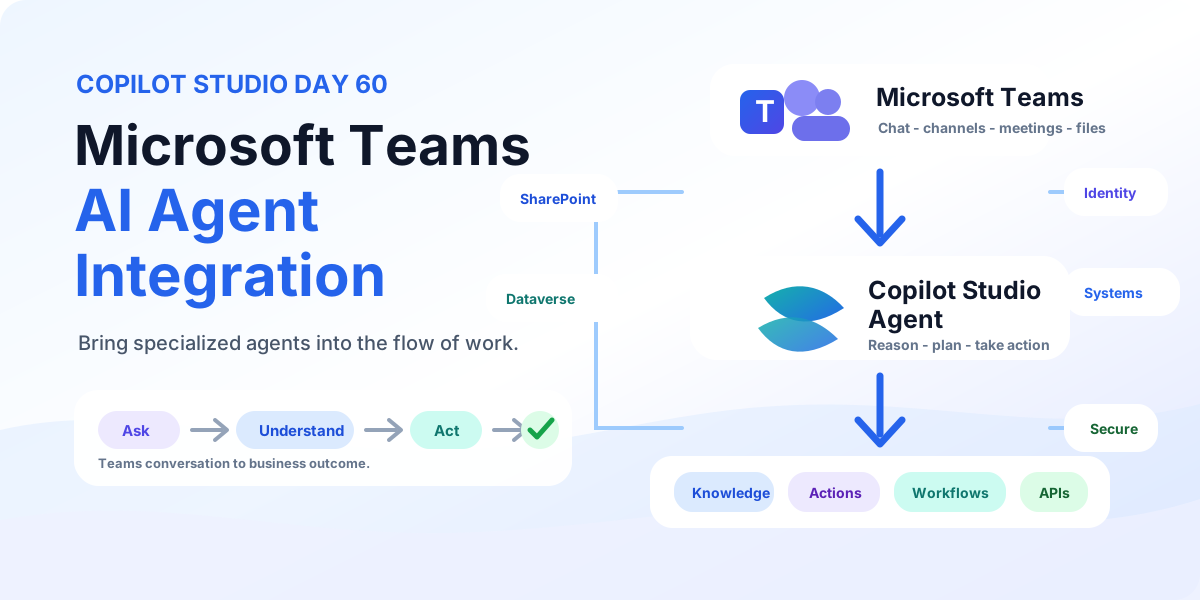
The pattern is simple: Employee -> Microsoft Teams -> Copilot Studio agent -> knowledge, actions, workflows, and business systems. The employee sees a familiar chat experience. Behind the scenes, the agent reasons over business context and calls approved tools.
| Layer | Role | Examples |
|---|---|---|
| Employee | Asks, collaborates, and gets work done. | Questions, requests, ideas, follow-up actions. |
| Microsoft Teams | Provides the collaboration surface. | Chat, channels, meetings, files, apps, team context. |
| Copilot Studio agent | Understands, reasons, plans, and takes action. | Topics, instructions, generative answers, actions, workflows. |
| Business systems | Provide data and execute real work. | SharePoint, Dataverse, Dynamics 365, APIs, HR, ITSM, CRM, ERP. |
Why Bring Agents Into Teams?
Teams is already where many employees start their workday. That makes it a strong place to surface specialized AI assistance for HR, IT, Sales, Operations, Finance, Legal, and support scenarios.
- Easy access: employees do not need to learn another portal to ask for help.
- Business knowledge: answers can be grounded in SharePoint, Dataverse, business data, and enterprise knowledge sources.
- Business actions: the agent can move from conversation to execution through actions and workflows.
- Connected work: people, AI, files, meetings, channels, and business processes stay together.
The goal is not to add another chatbot. The goal is to put specialized AI capabilities closer to everyday work.
Different Roles, One Experience
Microsoft Teams and Copilot Studio have different jobs. When they are designed together, users get one experience instead of disconnected tools.
| Microsoft Teams | Copilot Studio agent |
|---|---|
| People, chat, channels, meetings, files, and collaboration. | AI, knowledge, business logic, actions, and automation. |
| Familiar conversation and team context. | Specialized knowledge connected to organizational data. |
| Easy user experience and discovery. | Rules, reasoning, workflows, APIs, and business systems. |
Teams provides the experience. The agent provides specialized capability.
AI Inside the Flow of Work
A good Teams agent should feel like help inside the workflow, not a separate destination. The employee can ask a question in Teams, get a useful response, review supporting information, and choose the next action.
Example: an employee asks for the latest project status and next steps. The agent can summarize key milestones, upcoming tasks, relevant documents, and suggested next actions, then offer buttons such as View Details, Create Task, or Summarize.
This is where Teams becomes more than a chat window. It becomes the place where questions, context, documents, actions, and decisions meet.
From Conversation to Outcome
The operating flow is: Ask -> Understand -> Act -> Outcome.
- Ask: the user asks a question or makes a request in Teams.
- Understand: the agent interprets intent, context, permissions, and business meaning.
- Act: the agent uses knowledge, tools, actions, connectors, APIs, and workflows.
- Outcome: the task is completed, the result is delivered, or the next step is clearly offered.
A Teams conversation can become a business process. For example, a user can ask the agent to create a project record for a request. The agent collects required context, creates the record in Dataverse or another system, and notifies the team in Teams.
Bring Business Knowledge Into Teams
Teams integration becomes powerful when the agent is grounded in the knowledge your organization already uses. The slide deck highlights four common knowledge families:
- SharePoint: documents, sites, policies, procedures, and team knowledge.
- Dataverse: business data, tables, records, app data, and operational insights.
- Business data: databases, line-of-business systems, CRM, ERP, HR, finance, and ITSM data.
- Enterprise knowledge: guides, SOPs, FAQs, best practices, and organizational standards.
Ground agent responses in the information employees already trust. Then use Teams as the conversational path to that knowledge.
Do Not Stop at Answers
A Teams agent should not only answer questions when the business process needs action. It should be able to create, update, approve, notify, retrieve, and integrate safely.
| Action type | What it enables | Example |
|---|---|---|
| Create record | Add data to Dataverse or another system. | Create a project request, HR case, support ticket, or sales note. |
| Start approval | Initiate and route approvals. | Submit leave, purchase, access, or document approval. |
| Update system | Modify existing records or workflow status. | Update a task, account, request, or project status. |
| Call API | Connect to external systems. | Check order status, reset access, retrieve contract data, or trigger provisioning. |
Turn Teams conversations into work that gets done.
Secure Access Matters
Teams agents sit close to employees, data, and business actions. That makes secure access a first-class design requirement.
The access chain should be deliberate: employee identity -> Microsoft Teams -> Copilot Studio agent -> authorized resources. Use Microsoft Entra ID for identity, Teams policies for app availability, role-based access for business systems, and least privilege for actions.
- Authenticate: verify who the user is.
- Authorize: apply the right permissions before data or actions are exposed.
- Access: connect only to allowed resources.
- Protect: use DLP, tenant controls, audit logs, and monitoring.
- Review: validate data protection, compliance, and responsible AI expectations.
Security rule: The agent should not reveal or change anything the user is not allowed to see or do through normal business access.
From Build to Teams
Taking a Copilot Studio agent from development to Microsoft Teams requires more than enabling a channel. Treat it as a release path.
- Build: create and design the agent, topics, instructions, knowledge, and actions.
- Configure: set up capabilities, knowledge sources, connectors, actions, permissions, and environment values.
- Test: validate the agent with real Teams-style language, real roles, real data boundaries, and realistic failure paths.
- Publish: deploy the approved version to Microsoft Teams for the intended users.
Before broad rollout, confirm the agent has the right knowledge, actions, connectors, people access, chat and channel behavior, and secure access controls.
Make the Right Agent Easy to Find
Agent value starts when employees can find and use it. If the agent is buried, poorly named, or unclear, adoption will stall even if the logic is excellent.
- Discover: make the agent visible through the expected Teams discovery path.
- Access: let approved users open and start using the agent without confusion.
- Ask: provide clear conversation starters in natural language.
- Get work done: connect answers to relevant next actions.
Use business-readable agent names such as HR Agent, IT Support Agent, Sales Agent, or Operations Agent. Pair each name with a short description that explains what employees can ask and what actions the agent can help with.
Example: IT Support Agent
An employee types: I cannot access the project workspace. Teams passes the request to an IT Support Agent. The agent diagnoses the issue using IT knowledge, troubleshooting rules, and connected actions, then restores access or creates a support case.
| Connected system | Role in the scenario |
|---|---|
| Microsoft Entra ID | Identity, access, and permission checks. |
| SharePoint | Workspace permissions and site access. |
| Intune | Device and compliance context where relevant. |
| ServiceNow or ITSM | Tickets, incidents, escalation, and audit trail. |
| IT knowledge base | Articles, troubleshooting guides, and policy content. |
The experience should end with a clear resolution: access restored, workspace link available, ticket status visible, or a human handoff when automation cannot complete the request.
Example: Employee Service Agent
An employee asks: What is our parental leave policy? The Employee Service Agent responds with a grounded answer, checks eligibility where allowed, and offers relevant next actions.
The agent can combine HR knowledge, employee data, and actions:
- Policies: company policies, guidelines, and approved HR content.
- Benefits: health, wellness, retirement, and employee programs.
- Leave: parental, sick, vacation, and regional policy details.
- Employee services: HR requests, certificates, forms, and support processes.
- Actions: submit requests, update records, route approvals, or open a case.
The result is one conversational path to information and action: answer the policy question, offer View Policy, and when appropriate provide Apply for Parental Leave.
The Enterprise Pattern
At enterprise scale, Teams connects employees to specialized agents and enterprise capabilities. The pattern has five connected layers:
- Employees: across departments, roles, and locations.
- Microsoft Teams: the collaboration experience for agents across chat, channels, meetings, files, apps, and more.
- Copilot Studio agents: specialized agents for HR, IT, Sales, Operations, Finance, Legal, and other business functions.
- Knowledge, actions, and workflows: policies, documents, FAQs, databases, create, update, approve, retrieve, execute, and orchestration.
- Enterprise systems: SharePoint, Dataverse, APIs, business systems, SaaS apps, ERP, CRM, HR, finance, and ITSM.
Identity and access sit on one side: Entra ID, SSO, conditional access, role-based access, audit, and compliance. Security and governance sit on the other: data protection, tenant controls, DLP, monitoring, responsible AI, and compliance requirements.
Teams Agent Readiness Checklist
- Agent purpose, audience, owner, and support path are documented.
- Teams channel availability is configured for the intended users.
- Agent name, icon, description, and conversation starters are clear.
- Knowledge sources are current, owned, and permission-trimmed.
- Actions and workflows are tested with realistic inputs and failure paths.
- Microsoft Entra ID, SSO, Teams policies, and role-based access are validated.
- SharePoint, Dataverse, APIs, and business systems expose only authorized data.
- Discovery, install, chat, channel, desktop, and mobile experiences are tested.
- Monitoring, audit logs, issue triage, and improvement rhythm are assigned.
- Pilot feedback is reviewed before broad rollout.
Key Takeaway
Bring agents to Teams. Connect business knowledge. Get work done. Microsoft Teams gives employees the familiar collaboration experience. Copilot Studio gives them specialized agents that understand business context, use trusted knowledge, and take action securely across systems.
When chat, collaboration, meetings, files, communities, apps, company knowledge, employee data, APIs, connectors, actions, and workflows come together, Teams becomes the front door for secure AI-assisted work. Next: Day 61: Copilot Studio Authentication Explained.
Related resources
Topics covered
Teams · AI Agents · Integrations · Security · Automation
Frequently asked questions
What is Microsoft Teams AI agent integration?
It means bringing a specialized Copilot Studio agent into Microsoft Teams so employees can ask questions, get grounded answers, and trigger business actions inside the collaboration experience they already use.
What role does Microsoft Teams play in an agent integration?
Teams provides the familiar user experience: chat, channels, meetings, files, apps, and collaboration context. The Copilot Studio agent provides specialized knowledge, reasoning, actions, and workflows behind that experience.
Can a Teams agent take business action?
Yes. A Teams agent can use Copilot Studio actions, Power Automate flows, connectors, APIs, Dataverse, SharePoint, and other systems to create records, start approvals, update systems, notify teams, or complete supported work.
How do permissions work for Teams AI agents?
The integration should use Microsoft Entra ID, Teams policies, role-based access, least privilege, and permission-trimmed data sources so users only access the data and actions they are allowed to use.
What should I test before rolling out a Teams agent?
Test discovery, installation, chat experience, channel behavior, authentication, data permissions, knowledge quality, actions, error handling, mobile layout, audit logs, monitoring, and real user feedback before broad availability.
Sources
Have a Microsoft 365 topic idea?
Share article suggestions, community session ideas, corrections, or real-world scenarios for future nextM365 learning notes.
Keep learning Microsoft 365
Explore more practical tutorials for SharePoint, Power Platform, Copilot Studio, migration, automation, governance, and security.
Continue learning
Related tutorials
Related questions
Related comparisons
Next action