How to Publish Your Copilot to Microsoft Teams | Copilot Studio Day 51
Learn how to publish Copilot to Microsoft Teams from Copilot Studio with publishing steps, Teams channel configuration, user access, SSO, permissions, pilot rollout, testing, monitoring, and production checks.
- Published
- Reading time
- 12 min read
Week 8 · Day 51 of 365 in 365 Days of Copilot Studio — view the full series
What you’ll learn
- What Publishing Means in Copilot Studio
- Publishing vs Teams Deployment
- Pre-Publish Checklist
- How to Publish the Copilot
- Configure Channels and Microsoft Teams
On this page (19 sections)
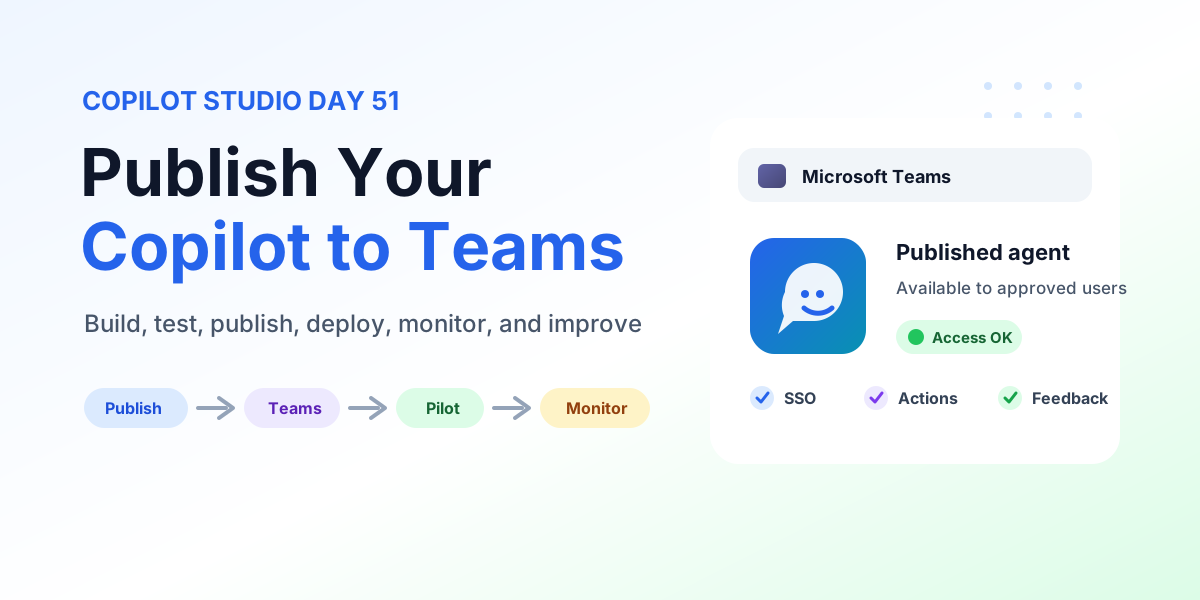
Day 51 of 365 Days of Copilot Studio explains how to publish Copilot to Microsoft Teams after the agent has been built, tested, and reviewed.
Building the agent is only one part of the lifecycle. Real value appears when users can access the right published version in the place they already work. For many Microsoft 365 organizations, that place is Teams.
The practical lifecycle is: Build -> Test -> Publish -> Deploy -> Monitor -> Improve. This lesson builds on Day 50: Copilot Studio Best Practices Checklist, Day 44: Publishing Your Copilot, Day 41: Testing Your Copilot, and Day 49: ALM for Microsoft Copilot Studio.
[!NOTE] Publishing and Teams deployment are separate steps. Publishing makes the latest version available. Teams deployment makes that published version accessible to users inside Microsoft Teams.
What Publishing Means in Copilot Studio
Publishing is the release boundary between maker work and user experience. In Copilot Studio, makers can edit a draft, test changes, refine topics, connect actions, adjust knowledge, and update instructions without immediately changing what users see.
When you publish, Copilot Studio makes the latest approved version available for configured channels. That published version is the one users interact with in Teams, websites, or other supported channels. This separation helps teams continue improving the draft while keeping the live experience stable.
| Lifecycle step | Meaning | Primary owner |
|---|---|---|
| Build | Create topics, knowledge, actions, instructions, and configuration. | Makers and developers |
| Test | Validate conversations, actions, permissions, fallback behavior, and edge cases. | Makers, testers, and business users |
| Publish | Make the tested version available as the live version. | Copilot owner or release owner |
| Deploy | Make the published agent reachable through Teams or another channel. | Copilot owner and Microsoft 365 admin |
| Monitor | Review analytics, feedback, failures, permissions, and adoption. | Operations and support owners |
Publishing vs Teams Deployment
The most important concept in this lesson is the difference between publishing and Microsoft Teams deployment. The PDF makes this distinction explicit because many production issues start when teams assume clicking Publish is enough.
| Area | Publishing | Microsoft Teams deployment |
|---|---|---|
| Purpose | Makes the latest Copilot Studio version available. | Makes the published copilot accessible in Microsoft Teams. |
| What changes | The live version users can receive through channels. | The Teams app/channel availability, discovery path, and access scope. |
| Who is affected | Users of configured channels after the published version is active. | Teams users included in the configured audience or policy. |
| When required | After meaningful updates to topics, instructions, knowledge, actions, or settings. | When you want users to find and use the agent from Teams. |
Think of publishing as version release and Teams deployment as user reach. You need both for a reliable Teams launch.
Pre-Publish Checklist
Before you publish Copilot to Microsoft Teams, run a production-readiness check. A Teams launch puts the agent in front of users who may ask unpredictable questions, use different permissions, and expect the assistant to behave like a trusted work tool.
- Test conversations: run the top user scenarios with realistic phrases, short messages, and follow-up questions.
- Verify topics: confirm the right topic triggers and overlapping topics do not compete.
- Check actions: test every action, flow, connector, and API dependency with realistic data.
- Validate authentication: confirm sign-in, identity, SSO behavior, and token prompts in the live channel.
- Review permissions: verify Teams access, knowledge access, connector permissions, and downstream data permissions.
- Validate knowledge sources: use approved, current, business-owned content only.
- Confirm expected responses: check accuracy, tone, formatting, citations where applicable, and safe boundaries.
- Test error scenarios: try missing data, blocked access, failed actions, out-of-scope requests, and fallback paths.
[!WARNING] Do not treat administrator-only testing as production validation. Admin accounts often have broader permissions than normal users, so they can hide access problems that real users will hit immediately.
How to Publish the Copilot
The basic Copilot Studio publishing flow is straightforward, but it should still be treated as a release step.
- Open the copilot: go to Copilot Studio and open the agent you want to release.
- Select Publish: use the Publish option after your draft changes are complete and tested.
- Confirm publishing: review the prompt and confirm that you want the latest version to become available.
- Wait for publishing to complete: do not start channel validation until the publish process finishes.
After publishing, the latest stable version becomes available to connected channels. Future edits in the draft do not automatically become the user experience. When you change topics, instructions, knowledge sources, actions, or security-relevant settings, plan another publish and validation cycle.
Configure Channels and Microsoft Teams
Channels define where users can interact with your copilot. In Copilot Studio, open the agent and go to Channels. For a Teams rollout, select the Teams and Microsoft 365 Copilot channel.
Teams is useful because employees already work there, identity is tied to Microsoft 365, and the agent can become part of the collaboration flow instead of a separate portal users must remember. A Teams deployment can support HR help, IT support, onboarding, policy guidance, project assistance, and department-specific self-service.
When configuring Teams availability, review these areas:
- Who can use the copilot: decide whether access is organization-wide, limited to a group, or limited to a smaller pilot audience.
- Where it is available: decide whether users can access it as a personal app, through Teams discovery, or through a controlled deployment path.
- Security and permissions: confirm the agent, channel, actions, and knowledge sources align with organizational policy.
- Personal app availability: confirm users can add and start the copilot where the Teams app model allows it.
Broad access can be appropriate for a general employee assistant, but restricted access is safer for finance, legal, HR operations, management reporting, and process-specific agents. Start with the smallest audience that can validate real value.
Teams Availability and User Access
Teams availability is not only a visibility setting. It is part of your security, governance, and adoption plan. If users cannot find the copilot, deployment fails quietly. If the wrong users can find it, deployment becomes a risk.
| Access decision | Recommended approach | Risk to avoid |
|---|---|---|
| General employee support | Use broad availability only after pilot validation. | Launching an untested agent to the whole tenant. |
| Department-specific assistant | Restrict to the department, role, or approved security group. | Users outside the process seeing irrelevant or sensitive actions. |
| Action-heavy copilot | Validate connector permissions and write operations before rollout. | Actions running under the wrong connection or permission model. |
| Knowledge-heavy copilot | Confirm source permissions and content ownership. | Incorrect, stale, or overexposed knowledge answers. |
Add and Test the Copilot in Teams
After Teams availability is configured, add the copilot in Microsoft Teams and test it from the actual user experience. Testing only in Copilot Studio is not enough because the Teams channel can introduce real authentication prompts, app discovery behavior, mobile layout differences, tenant policies, and user permission boundaries.
Run this Teams smoke test:
- Open Microsoft Teams with a test user account.
- Find and add the copilot using the expected discovery path.
- Start a new conversation and test the greeting or first interaction.
- Ask the top business questions using natural user wording.
- Verify topic routing, answer quality, formatting, and suggested next steps.
- Run action-based scenarios end to end.
- Confirm fallback, error, and escalation behavior.
- Repeat on desktop and mobile if mobile usage is expected.
Make the copilot easy to discover. Use a clear name, helpful description, recognizable icon, suggested prompts, internal launch message, and where appropriate a pinned or recommended Teams app experience. Users adopt faster when they understand what the copilot is for and what good questions look like.
Test With Real Users
Real user testing exposes issues that makers and administrators miss. Users ask differently, skip context, misunderstand labels, and have different data access. That is exactly why a pilot group matters.
Include users from different roles and permission levels. For example, test an HR assistant with a normal employee, an HR operations user, a manager, and a pilot user outside the build team. For each user, check access validation, scenario completion, response quality, action behavior, and feedback.
Ask practical feedback questions:
- Did the copilot answer the question?
- Was the answer useful and easy to understand?
- What information was missing?
- Which tasks should the copilot support next?
- Where did the conversation feel confusing or blocked?
Authentication and SSO
Authentication must be validated after the Teams deployment, not only in the authoring environment. Confirm that users can sign in with Microsoft 365 identity, SSO works where configured, and permission prompts behave as expected.
Successful sign-in does not prove every downstream dependency is correct. A user may authenticate successfully in Teams but still be blocked from a SharePoint site, Dataverse table, OneDrive file, Outlook mailbox, or connector-backed action. Treat authentication and resource authorization as related but separate checks.
Validate Connected Actions
Connected actions often create the most visible production failures. If the copilot retrieves a SharePoint file, uploads to OneDrive, sends an Outlook email, creates a Dataverse record, starts a flow, or calls a connector, test that action with realistic inputs and realistic user permissions.
| Action area | What to validate | Failure signal |
|---|---|---|
| SharePoint file retrieval | User can access only approved sites, libraries, and files. | Missing files, access denied, or unexpected sensitive results. |
| OneDrive uploads | Upload target, file naming, ownership, and permissions are correct. | Files land in the wrong place or cannot be opened by the user. |
| Outlook email | Sender identity, recipient rules, consent, and message content are approved. | Email sends from the wrong account or contains incomplete context. |
| Dataverse record creation | Table permissions, required fields, business rules, and audit needs are met. | Records fail validation or are created under the wrong owner. |
If your actions rely on Power Platform connection references, review the patterns from Day 48: Connection References. If they use environment-specific URLs, list names, queue IDs, or feature flags, review Day 47: Environment Variables.
Review SharePoint Dataverse OneDrive and Connector Permissions
Permissions are a production control, not a cleanup item. Review the exact resources the copilot can access through knowledge, actions, and connectors.
- SharePoint: confirm site, library, folder, file, and group permissions match the intended audience.
- Dataverse: review environment roles, table privileges, row ownership, business units, and field-level needs.
- OneDrive: avoid personal storage dependencies for production workflows unless ownership and lifecycle are deliberate.
- Connectors: validate connection owner, account type, consent, license, DLP policy, and expiration handling.
- Teams: confirm tenant policies and app availability let the intended users add or access the copilot.
Security rule: A copilot should only expose information the requesting user is authorized to access. Test that rule with normal users, not only with admins.
Pilot-Group Rollout
A small pilot group gives you evidence before a broad launch. Choose users who represent real scenarios, different permissions, and different levels of comfort with Teams and AI assistants.
Use this rollout sequence:
- Pilot group: select a focused audience and explain the purpose of the pilot.
- Test: validate top scenarios in Teams with real accounts.
- Collect feedback: capture user comments, support issues, and usage patterns.
- Improve: refine topics, knowledge, actions, prompts, and permissions.
- Republish: release the improved version and validate again.
- Broader rollout: expand when quality, access, support, and monitoring are ready.
This lowers risk, increases confidence, and helps the business see that rollout is based on real usage rather than assumptions.
User Feedback and Continuous Improvement
Deployment is not the finish line. After users start using the copilot in Teams, review feedback and analytics to identify what needs improvement.
Useful feedback sources include short surveys, Teams conversations, support tickets, user interviews, pilot reviews, usage analytics, fallback reports, and action failure logs. Look for repeated missed intents, unclear responses, stale content, slow actions, permission issues, and tasks users expected the copilot to support.
Republish After Changes
When you improve the agent, repeat the release loop. Update the draft, test the changed behavior, publish the new version, and validate it in Teams. If the change affects actions, permissions, authentication, or knowledge, run regression tests against the scenarios that already worked before.
Keep lightweight release notes for meaningful changes. Note what changed, why it changed, which scenarios were tested, who approved the update, and what users need to know.
Monitor After Deployment
Monitoring turns a Teams deployment into an operated service. Review usage and engagement, topic performance, fallback rates, unresolved questions, action failures, authentication issues, response quality, and user feedback. Day 43 explains this broader analytics discipline in Conversation Analytics in Microsoft Copilot Studio.
During the first rollout window, review signals frequently. After the copilot stabilizes, move to a weekly or sprint-based review rhythm where feedback becomes backlog work.
Common Deployment Mistakes
The carousel highlights several mistakes that appear often in real deployments. Most are preventable with a simple release checklist.
| Mistake | Why it hurts | Better practice |
|---|---|---|
| Poor or missing knowledge content | The copilot returns weak, outdated, or incorrect answers. | Use clear, approved, current content with an owner. |
| No clear scope or goal | Users ask anything, topics sprawl, and success is hard to measure. | Define the audience, use cases, boundaries, and success metrics. |
| Ignoring permissions and data access | The agent may expose the wrong information or fail for normal users. | Review access before launch and test with realistic roles. |
| Skipping Teams testing | The agent works in Copilot Studio but fails in the real channel. | Validate desktop, mobile, SSO, app discovery, and live actions in Teams. |
| No feedback or monitoring loop | The team misses adoption gaps and recurring failures. | Review analytics, user feedback, support issues, and action logs. |
Recommended Deployment Flow
Use this flow when you are preparing to deploy Copilot to Microsoft Teams:
- Plan and define: document the goal, target users, key scenarios, success metrics, and support owner.
- Pilot with a small group: use real users and real permissions before broad access.
- Improve and optimize: refine topics, knowledge, actions, instructions, and permissions from evidence.
- Republish and roll out: publish the improved version and expand availability in controlled stages.
- Monitor and continuously improve: track usage, quality, issues, and adoption after release.
Production Checklist
Before broad Teams availability, confirm these items are complete:
- Security and permissions reviewed across Teams, SharePoint, Dataverse, OneDrive, connectors, and actions.
- Knowledge content is relevant, current, approved, and owned by the business.
- Authentication, SSO, consent prompts, and real-user access have been validated.
- All connected actions have been tested for success, failure, permissions, and returned data.
- Teams discovery, app availability, naming, icon, and description are clear.
- Pilot users completed realistic scenarios and feedback was reviewed.
- Known issues, release notes, rollback plan, and support ownership are documented.
- Monitoring and analytics review rhythm is assigned.
Key Takeaway
A successful Copilot Studio Teams deployment is a continuous journey. Plan well, test thoroughly, publish the right version, deploy to the right audience, validate authentication and permissions, monitor real usage, and keep improving from feedback.
The goal is not only to make the copilot visible in Teams. The goal is to deliver a secure, useful, discoverable assistant that people trust enough to use every day.
Related resources
Topics covered
Teams · Solutions · Security · Governance · AI Agents
Frequently asked questions
What does publishing mean in Copilot Studio?
Publishing makes the latest tested version of your Copilot Studio agent available. Users receive the published version through configured channels, while makers can continue editing the draft separately.
Is publishing the same as deploying a Copilot to Microsoft Teams?
No. Publishing makes the version live in Copilot Studio. Teams deployment controls whether that published agent is available inside Microsoft Teams and which users can find and use it.
What should I check before I publish Copilot to Microsoft Teams?
Check topics, test conversations, knowledge sources, actions, authentication, SSO, SharePoint, Dataverse, OneDrive, connector permissions, fallback paths, and support ownership before broad rollout.
Should I deploy a Copilot Studio agent to everyone at once?
Usually no. Start with a small pilot group, test real scenarios, collect feedback, fix issues, republish, and then expand availability when the Teams experience is stable.
Do Copilot Studio changes appear in Teams automatically?
Draft changes normally require another publish cycle before users receive the updated experience in Teams. After republishing, validate the Teams channel again with realistic user accounts.
Sources
Have a Microsoft 365 topic idea?
Share article suggestions, community session ideas, corrections, or real-world scenarios for future nextM365 learning notes.
Keep learning Microsoft 365
Explore more practical tutorials for SharePoint, Power Platform, Copilot Studio, migration, automation, governance, and security.
Continue learning
Related tutorials
Related questions
Related comparisons