Publishing Your Copilot | Copilot Studio Day 44
Pre-publish checks for a Copilot Studio agent: draft versus published versions, channels, Teams access, validation, monitoring, and common mistakes.
- Published
- Reading time
- 6 min read
Week 7 · Day 44 of 365 in 365 Days of Copilot Studio — view the full series
Before you start
Is this guide for you?
- Best entry point
- 365 Days of Copilot Studio
- Time investment
- 6 min read
In this article
- What Does Publishing Mean?
- Before You Publish
- Draft Version vs Published Version
- Choose the Right Channel
- Publish to Microsoft Teams
On this page (13 sections)
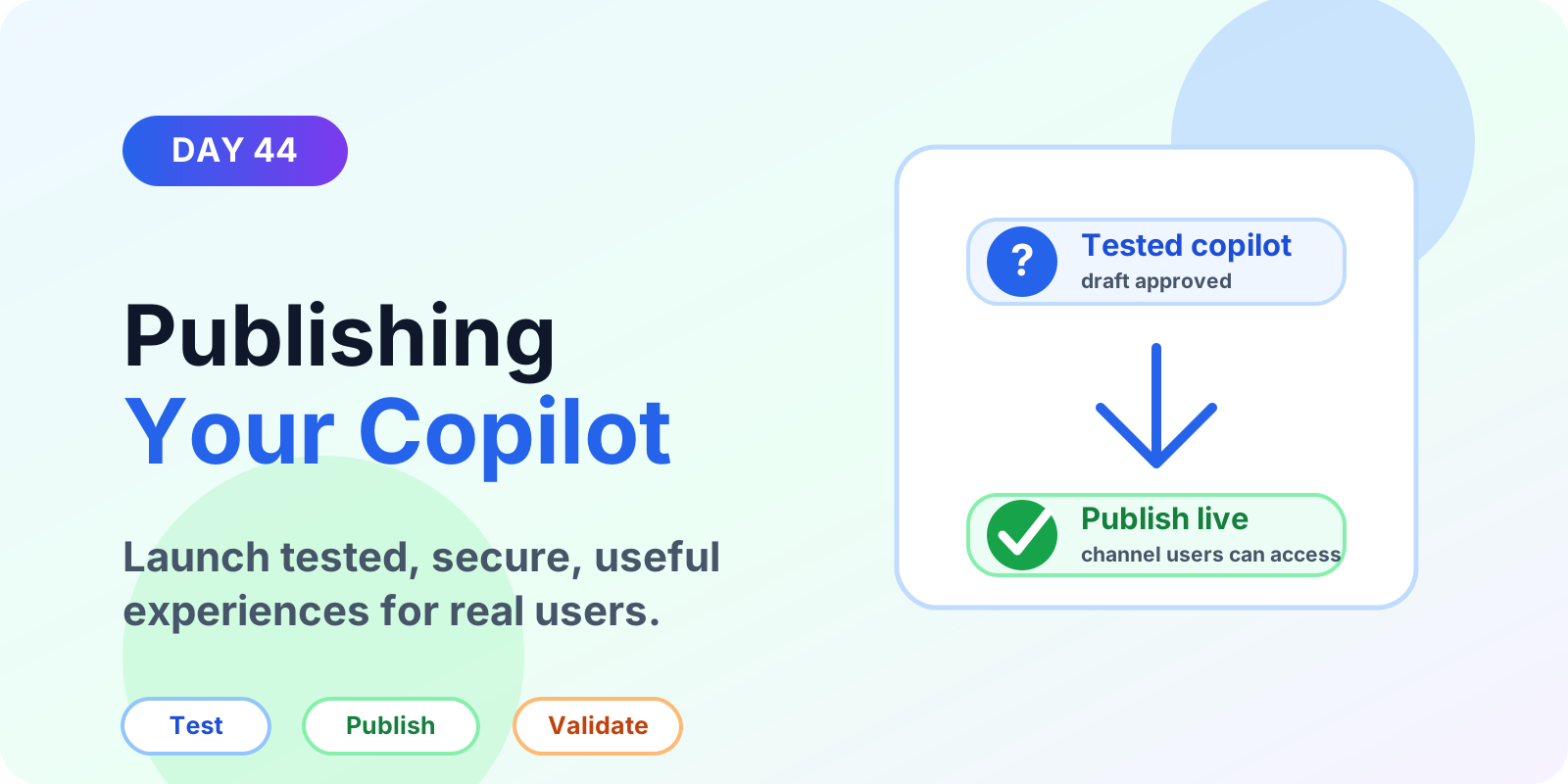
Day 44 of 365 Days of Copilot Studio focuses on publishing your copilot. Publishing is the point where your tested draft becomes a live experience for users through selected channels such as Microsoft Teams, a website, or a custom channel.
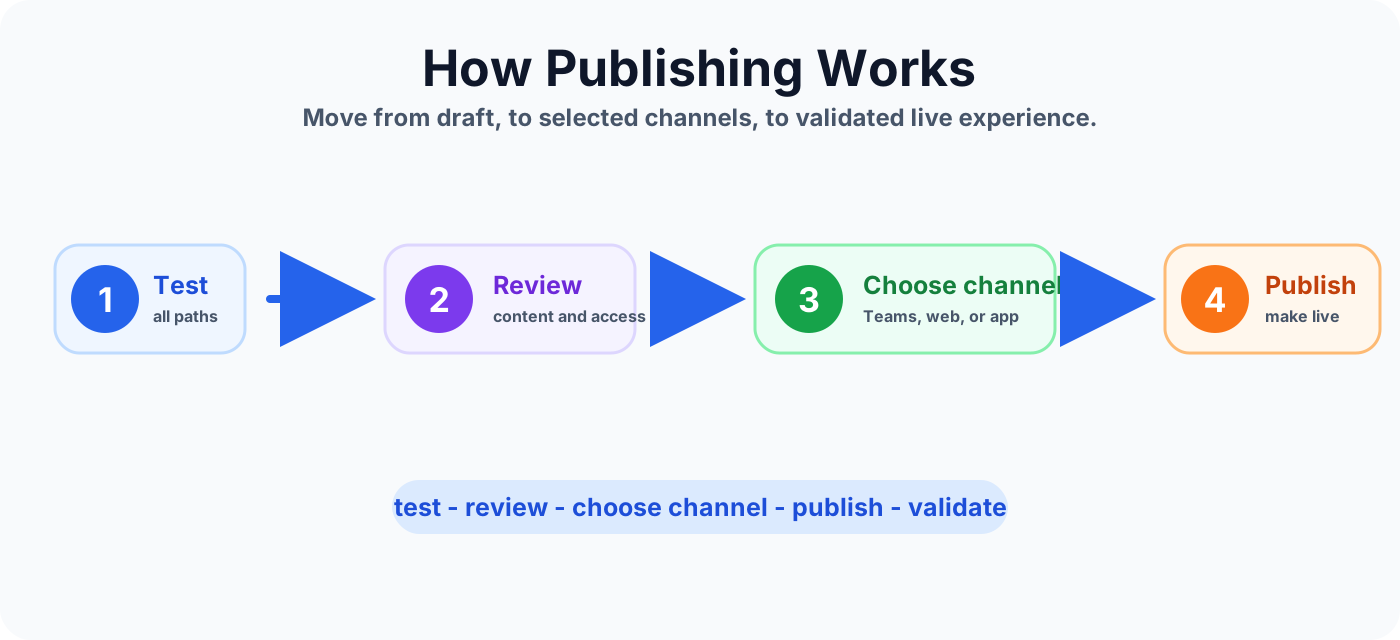
A good publishing process is not just clicking the Publish button. It is a small release process: test the experience, review the latest changes, confirm access, choose the right channel, publish, validate as a real user, and monitor what happens after launch.
This lesson builds on Day 41: Testing Your Copilot, Day 42: Debugging Conversations, and Day 43: Conversation Analytics. Those steps help you prove the copilot is ready before users depend on it.
What Does Publishing Mean?
Publishing makes your latest Copilot Studio version live and available to users on selected channels. Users do not automatically see every edit you make in the authoring canvas. Your draft is where you build, test, and improve. The published version is the stable release users interact with.
That separation is important. It lets makers continue improving the copilot without exposing every unfinished experiment to real users. It also gives administrators a cleaner release boundary for testing, access review, stakeholder approval, and support readiness.
Before You Publish
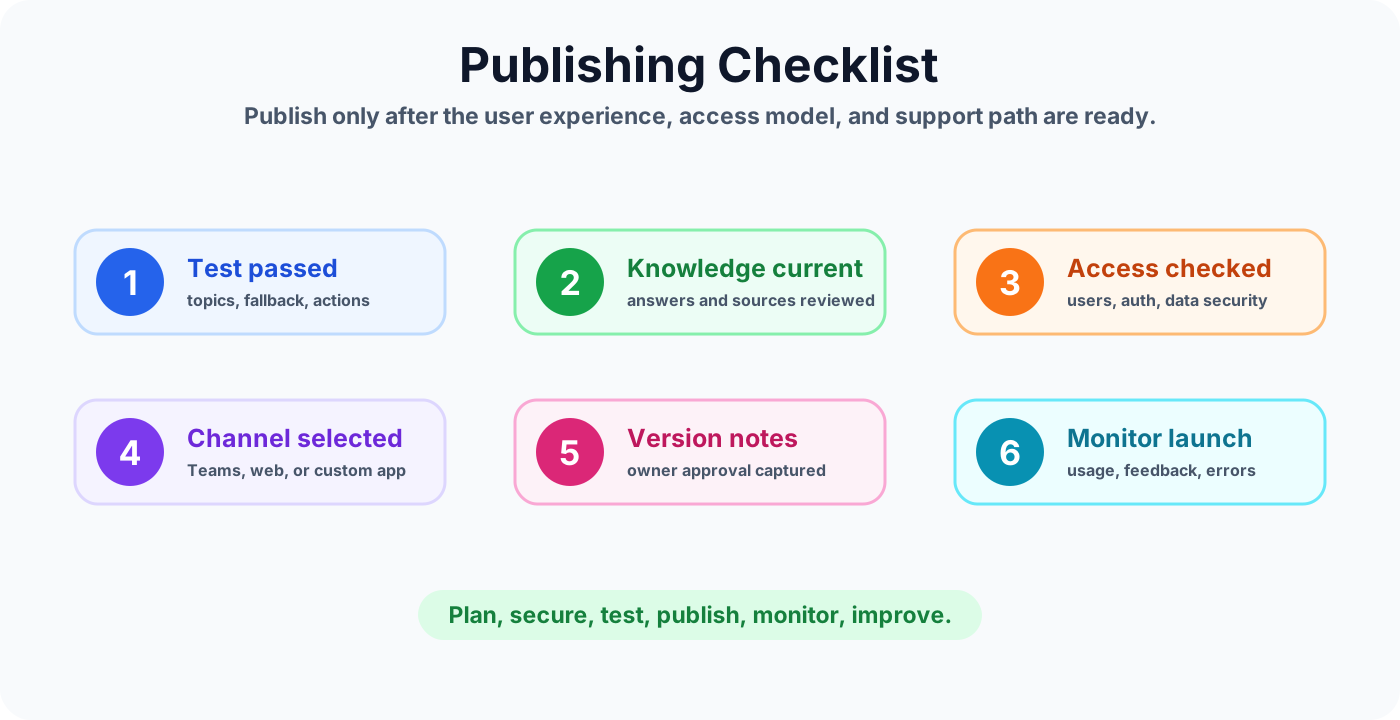
Before publishing, run a quick operational review. The goal is to avoid releasing a copilot that has weak instructions, stale knowledge, broken actions, wrong permissions, or no support path.
- Test thoroughly: confirm the main topics, trigger phrases, fallback handling, escalation paths, and actions work as expected.
- Review content: make sure answers, knowledge sources, topic messages, and business wording are accurate and current.
- Check permissions: verify who can use the copilot and what data the copilot can reach through connected services.
- Save changes: confirm the latest updates are complete before publishing the version users will see.
- Confirm ownership: know who approves the release, who monitors feedback, and who fixes issues after launch.
Draft Version vs Published Version
The draft version is for editing and testing. It is where you add topics, adjust trigger phrases, update instructions, connect actions, change messages, and test edge cases. The draft version may be incomplete and should not be treated as production.
The published version is live for users in connected channels. It should represent a stable, tested state. When users open the copilot in Teams or another channel, they expect a reliable experience, not an experimental build.
Rule of thumb: build in draft, test in draft, publish when ready, then validate the published channel with a real user account.
Choose the Right Channel
Publishing is only useful when the copilot is available where users already work. For internal employee support, Microsoft Teams is often the strongest channel because users can ask questions without leaving the flow of work. For public support or website visitors, a website channel may be more appropriate. For advanced scenarios, custom channels and APIs can connect the copilot into business applications.
Common channel choices
- Microsoft Teams: best for internal teams, employee self-service, HR support, IT help, and department assistants.
- Website: useful for customer-facing pages, service portals, knowledge portals, or lightweight external help.
- Custom channels: useful when the copilot must appear inside a custom app, intranet workflow, or specialist business interface.
Do not choose a channel only because it is available. Choose it because it matches the audience, authentication model, support process, and adoption plan.
Publish to Microsoft Teams
For many Microsoft 365 organizations, Teams is the most practical publishing target. A Teams-based copilot can support employees in the same place they already chat, meet, and collaborate.
A simple Teams publishing process looks like this:
- Open your copilot in Copilot Studio.
- Go to the channel configuration area.
- Select Microsoft Teams as the channel.
- Choose where the copilot should be available, such as a team, chat, or app entry point.
- Publish the copilot.
- Test the published Teams experience with a pilot user account.
For enterprise rollouts, start with a pilot group. Validate the user experience, permissions, action behavior, escalation paths, and analytics before broad availability.
Share With the Right Audience
Publishing and sharing are different. Publishing makes a version live. Sharing makes sure the right people can find and use it.
Define the audience before the launch announcement. A finance copilot may only belong to finance and operations users. An HR policy copilot may be company-wide but still use role-based content access. An IT support copilot may start with a pilot group before expanding to all employees.
When sharing the copilot, include the purpose, examples of what users can ask, where to find it, and how to report problems. Users adopt faster when they know the copilot has a clear job.
Check Authentication and Access
Access review is one of the most important publishing steps. A copilot can provide a polished experience and still be unsafe if the wrong people can use it or if connected actions expose sensitive data.
Before publishing, confirm:
- Who can use the copilot.
- Whether sign-in is required.
- Which connectors, actions, knowledge sources, and APIs the copilot can access.
- Whether permissions follow least privilege.
- Whether sensitive topics route to the right human support path.
- Whether the experience follows organizational security and compliance policy.
Test After Publishing
Testing in the authoring canvas is necessary, but it is not enough. After publishing, test the actual channel. The channel can introduce real-world differences: authentication prompts, Teams app behavior, user permissions, mobile layout, browser restrictions, connector access, or tenant policy behavior.
Run a short post-publish smoke test:
- Open the copilot from the published channel.
- Ask the top user questions using realistic wording.
- Confirm the right topics trigger.
- Complete action-based flows end to end.
- Test fallback and escalation.
- Validate permissions using a standard user account.
- Record issues and fix them in the next draft before republishing.
Monitor the Published Copilot
Publishing creates a live service. Monitoring tells you whether it is helping users. Review usage, user feedback, completion outcomes, fallback trends, escalation patterns, errors, and action failures after launch.
For the first few days after publishing, review analytics frequently. Look for failed conversations, repeated fallback phrases, topic confusion, broken actions, unexpected access issues, and user complaints. After the experience stabilizes, move into a regular weekly improvement rhythm.
Common Publishing Mistakes
- Wrong access settings: the copilot is available to the wrong audience or blocked for the right users.
- Poor instructions: unclear system behavior leads to inconsistent or unhelpful responses.
- Skipping tests: topics, actions, and fallback paths fail only after users find them.
- No monitoring: the team misses early issues, adoption gaps, and improvement opportunities.
- No update process: stale content and outdated knowledge slowly reduce trust.
Publishing Best Practices
- Know your audience before choosing the channel.
- Use pilot users before broad rollout.
- Review authentication, permissions, and data access before publishing.
- Test the live channel, not only the authoring canvas.
- Keep release notes for meaningful changes.
- Monitor analytics and feedback after launch.
- Use a regular improvement cycle instead of one-time publishing.
Key Takeaway
Publishing is more than making a copilot visible. It is the handoff from build mode to user mode. Plan the launch, secure access, test thoroughly, publish to the right channel, monitor performance, and improve continuously.
Great publishing leads to great Copilot experiences because users receive a stable, useful, and trusted assistant instead of an unfinished draft.
Tagged
Conversation Design · Actions · Teams · Governance · AI Agents
Frequently asked questions
What does publishing mean in Microsoft Copilot Studio?
Publishing makes the latest tested version of your Copilot Studio agent live and available to users through the channels you configure.
Should I publish a Copilot Studio agent before testing?
No. Test topics, trigger phrases, fallback paths, actions, permissions, authentication, and key user journeys before publishing to real users.
What is the difference between draft and published versions?
The draft version is where makers edit and test changes. The published version is the stable version users access through connected channels.
Which channel should I use for a Copilot Studio agent?
Use the channel where users already work. Microsoft Teams is often best for internal employees, while website or custom channels can support external or embedded experiences.
What should I check after publishing?
Validate the live channel, test key scenarios as a real user, confirm permissions, verify actions, review analytics, monitor errors, and collect early feedback.
Sources
Have a Microsoft 365 topic idea?
Share article suggestions, community session ideas, corrections, or real-world scenarios for future nextM365 learning notes.
Keep learning Microsoft 365
Explore more practical guides for SharePoint, Power Platform, Copilot Studio, migration, automation, governance, and security.
Continue learning
Related tutorials
Related questions
Related comparisons
Next action