SharePoint Copilot Apps: SPFx Meets Microsoft 365 Copilot
Learn how SharePoint Copilot Apps combine SPFx, React, SharePoint data, declarative agents, and Microsoft 365 Copilot to create interactive work experiences.
- Published
- Reading time
- 7 min read
Before you start
Is this guide for you?
- Best entry point
- SharePoint
- Time investment
- 7 min read
In this article
- What are SharePoint Copilot Apps?
- Why this matters
- Think beyond traditional SPFx
- Core building blocks
- Reuse your SPFx skills
On this page (17 sections)
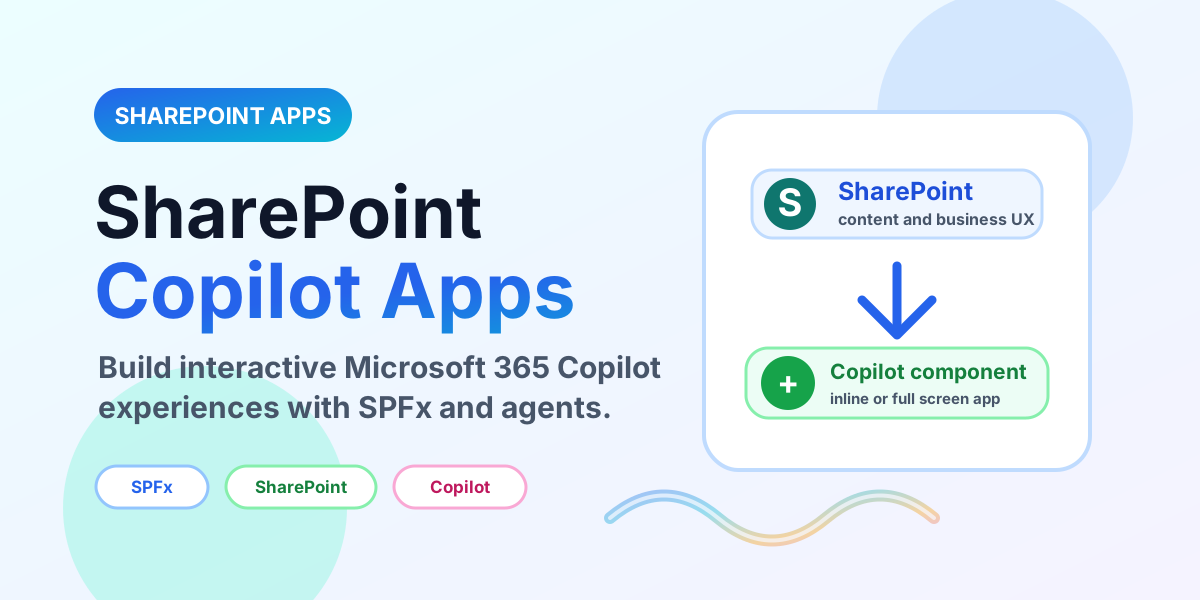
SharePoint Copilot Apps bring SharePoint development and Microsoft 365 Copilot extensibility closer together. Instead of treating SharePoint pages, SPFx web parts, and Copilot agents as separate experiences, the goal is to build interactive Microsoft 365 work apps that combine content, UI, conversation, and actions.
The PDF deck for this blog is image-based, so this article converts the visual lesson into a web-friendly guide. The main message is simple: if you already understand SharePoint Framework, React, tenant deployment, and Microsoft 365 permissions, you already have many of the skills needed for Copilot app development.
What are SharePoint Copilot Apps?
A SharePoint Copilot App is an app-style experience that uses SharePoint as a work surface and Microsoft 365 Copilot as the intelligent interaction layer. It can include SPFx components, declarative agents, SharePoint pages, Microsoft Graph, tools, APIs, and governed deployment.
Think of it as a bridge between the structured UI of SharePoint and the conversational help of Copilot. Users can ask questions, open context-aware components, review SharePoint content, trigger actions, and complete work without jumping between disconnected pages.
Why this matters
Traditional SPFx development usually starts from the page: build a web part, add it to SharePoint, and let users interact with it. Copilot app design starts from the task: what is the user trying to understand or complete, and where should conversation, UI, data, and automation help?
- Users stay in context. Copilot can guide the user while the SharePoint app shows the right UI.
- SPFx skills remain valuable. React, TypeScript, Graph, packaging, and tenant deployment still matter.
- Agents add intent. Declarative agents can provide instructions, grounding, and task-specific behavior.
- SharePoint stays governed. Permissions, app catalog deployment, versioning, and tenant controls still apply.
Think beyond traditional SPFx
SPFx is still a strong way to build custom SharePoint UI. The shift is that the UI no longer has to be isolated from Copilot. A Copilot app can use a component as part of a broader assistant experience.
For example, a project status app can show milestones, risks, owners, and documents in a SharePoint component while Copilot helps the user summarize blockers, open a filtered view, or ask what changed since last week.
Core building blocks
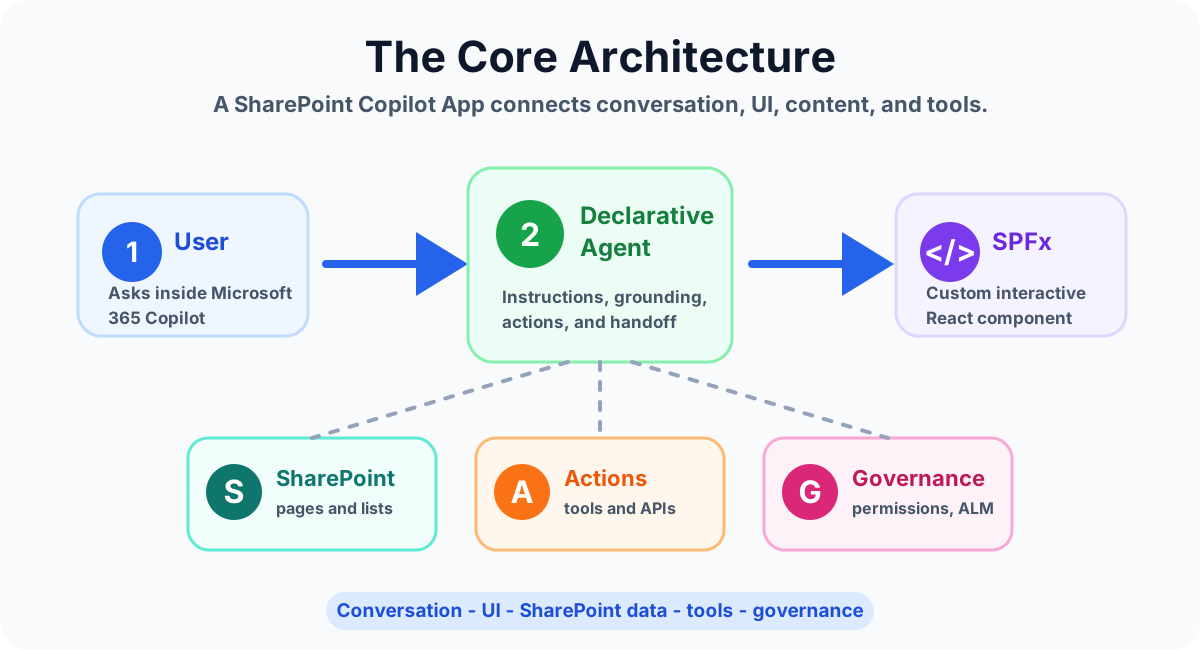
A practical SharePoint Copilot App usually includes several layers. Keep the layers clear so the solution remains maintainable.
- SharePoint content: pages, lists, libraries, documents, metadata, permissions, and site structure.
- SPFx component: React UI, context handling, component layout, and SharePoint integration.
- Declarative agent: instructions, conversation behavior, grounding, and the user-facing Copilot experience.
- Tools and actions: API calls, Graph operations, Power Automate, or other supported action patterns.
- Governance: tenant app catalog, approval, versioning, security review, and monitoring.
Reuse your SPFx skills
The deck emphasizes an important point: you do not need to throw away SPFx knowledge. Many existing skills transfer directly into Copilot-ready work.
- React and TypeScript help you build maintainable interactive components.
- SharePoint context helps you understand site, user, list, library, and permission boundaries.
- Microsoft Graph helps you connect user, file, site, and organizational data when appropriate.
- Tenant deployment helps you package and release the app in a controlled way.
- ALM habits help you version, test, document, and support the solution after launch.
Inline mode and full-screen mode
Copilot app experiences can feel different depending on where the component appears. An inline component should be compact, contextual, and quick to scan. A full-screen experience can support deeper review, dashboards, multi-step workflows, or richer interaction.
Design both modes intentionally. Do not squeeze a dashboard into an inline card, and do not waste a full-screen canvas on a tiny confirmation message.
Tools can accept parameters
Good Copilot apps become more useful when tools and components accept precise parameters. Instead of opening a generic project page, the user can ask for a specific project, document type, customer, region, or date range.
- Use clear parameter names that match the business language.
- Validate required values before running an action.
- Return plain-language results that Copilot and the UI can present clearly.
- Do not expose data unless the current user has permission to see it.
What is inside the project?
A SharePoint Copilot App project should be treated like a real application project, not a one-off page customization. Typical project concerns include source files, manifest details, package solution files, localization, assets, configuration, and deployment documentation.
Keep the project structure predictable. Future developers should be able to find the component, service calls, agent-related files, configuration, and deployment notes without reverse engineering the whole solution.
Choose a starter template
Start with the smallest template that fits the use case. A dashboard, list helper, chat-assisted component, or action launcher can each be valid, but they solve different problems.
- Dashboard: best for summarized status, KPIs, and operational views.
- List helper: best for structured records, filters, and common actions.
- Chat-assisted component: best when users need help interpreting content or deciding the next step.
- Action launcher: best for guided workflows such as approvals, requests, or updates.
Test with Copilot Workbench
Testing should cover both the component behavior and the Copilot interaction. It is not enough to confirm that the React component renders. Test whether the user can ask realistic questions, whether the right context is passed, whether parameters are handled correctly, and whether the response is useful.
- Test direct requests and vague user prompts.
- Test users with different permission levels.
- Test empty states, missing records, and invalid parameters.
- Test inline and full-screen layouts on realistic screens.
- Test deployment packaging before production release.
Deployment flow
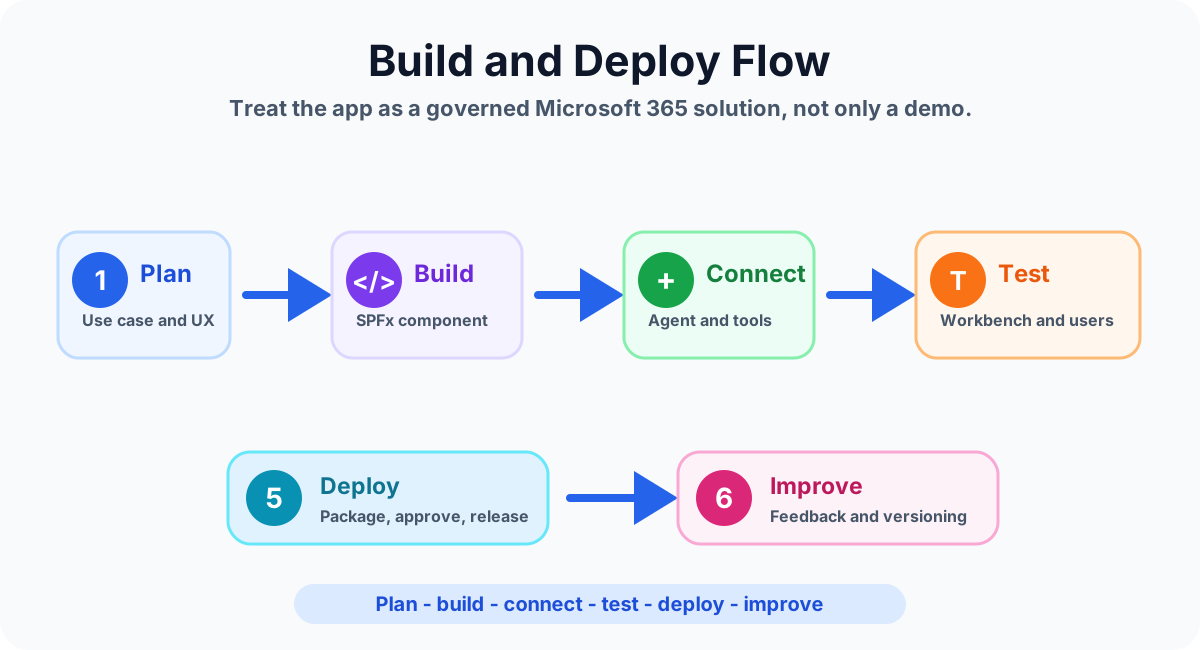
A SharePoint Copilot App should follow a controlled deployment path. Build the SPFx solution, package it, deploy through the tenant app catalog or approved process, connect the agent experience, test with a pilot group, and then release broadly.
Keep deployment notes simple and specific: package version, target tenant, target sites, required permissions, owner, rollback plan, and known limitations.
Assets can stay in the tenant
Where possible, keep client-side assets inside Microsoft 365 and approved tenant locations. That supports governance, security review, performance, and change control. Avoid scattering app assets across personal storage or unmanaged external hosts.
Do not forget versioning
Versioning matters because Copilot-connected apps may include UI, prompts, manifests, tools, permissions, and deployment packages. Track changes before they reach users.
- Use clear version numbers for SPFx packages.
- Document agent instruction changes.
- Track tool and parameter changes.
- Keep release notes for pilot and production deployments.
- Have a rollback path when a change affects users.
Real-world use cases
SharePoint Copilot Apps make sense when users need both information and action in one place.
- HR Copilot app: policy Q&A, onboarding documents, benefit links, and request actions.
- Project Copilot app: project status, risks, documents, tasks, and meeting preparation.
- IT helpdesk app: troubleshooting guides, ticket context, known issues, and escalation actions.
- Finance review app: expense policies, request forms, approval status, and document review.
- Learning portal app: training content, progress summaries, recommended next steps, and feedback.
Current preview limitations
The deck also calls out an important caution: this area is still evolving. Treat preview features carefully. Capabilities, licensing, deployment paths, supported modes, and admin controls can change over time.
Before using SharePoint Copilot Apps in production, confirm the current Microsoft documentation, tenant availability, licensing, security requirements, and support boundaries.
Official reference: Overview of SharePoint Copilot Apps on Microsoft Learn.
Key takeaways
- SharePoint Copilot Apps connect SharePoint UI with Microsoft 365 Copilot experiences.
- SPFx developers can reuse React, TypeScript, Graph, deployment, and governance skills.
- Design for tasks, not only pages.
- Test conversation, permissions, component behavior, and deployment together.
- Use versioning and tenant governance from the beginning.
Summary
SharePoint Copilot Apps are a practical path for teams that already build with SharePoint Framework and want to move toward Microsoft 365 Copilot extensibility. The best solutions combine clear business use cases, reusable SPFx skills, governed SharePoint data, focused agents, reliable tools, and disciplined deployment.
Next, review Microsoft 365 Copilot Agents vs Copilot Studio Agents, SharePoint Online Document Library Explained, and Power Apps Code Apps with Dataverse for related Microsoft 365 extensibility patterns.
NEXT STEP
Design the Copilot Surface Deliberately
Review the app pattern, skill reuse, and platform risk before committing build effort.
30-minute technical discussion • No obligation • Practical next steps
Tagged
Microsoft 365 Copilot · React · Project Structure · Permissions · ALM
Frequently asked questions
What are SharePoint Copilot Apps?
SharePoint Copilot Apps are interactive Microsoft 365 experiences that combine SharePoint, SPFx user interfaces, declarative agents, and Microsoft 365 Copilot so users can work with content, context, and actions in one place.
How is a SharePoint Copilot App different from a traditional SPFx web part?
A traditional SPFx web part mainly renders a custom SharePoint user interface. A SharePoint Copilot App can reuse SPFx skills while adding Copilot context, agent instructions, conversational entry points, tools, and Microsoft 365 grounding.
Do SharePoint Copilot Apps replace Copilot Studio?
No. They are part of the broader Microsoft 365 extensibility picture. Use SPFx for custom SharePoint and React UI, declarative agents for Microsoft 365 Copilot experiences, and Copilot Studio when you need richer workflow and channel control.
Can SPFx skills be reused for Copilot app development?
Yes. React, TypeScript, Graph calls, SharePoint permissions, packaging, tenant deployment, and ALM knowledge from SPFx projects are directly useful when building Copilot-ready SharePoint experiences.
What should teams validate before deployment?
Validate permissions, data access, agent instructions, parameters, user context, versioning, tenant app catalog deployment, and whether the experience works clearly in inline and full-screen modes.
Sources
- Microsoft Learn: Sharepoint Framework Overview, Microsoft
- Microsoft Learn: Dev, Microsoft
Have a Microsoft 365 topic idea?
Share article suggestions, community session ideas, corrections, or real-world scenarios for future nextM365 learning notes.
Keep learning Microsoft 365
Explore more practical guides for SharePoint, Power Platform, Copilot Studio, migration, automation, governance, and security.
Continue learning
Related tutorials
Related comparisons
Next action