Build Your First SharePoint Copilot App: Approval Panel Walkthrough
Hands-on walkthrough: plan, build, wire, deploy, and test your first SharePoint Copilot App approval panel with SPFx and a declarative agent.
- Published
- Reading time
- 3 min read
Before you start
Is this guide for you?
- Best entry point
- SharePoint
- Time investment
- 3 min read
In this article
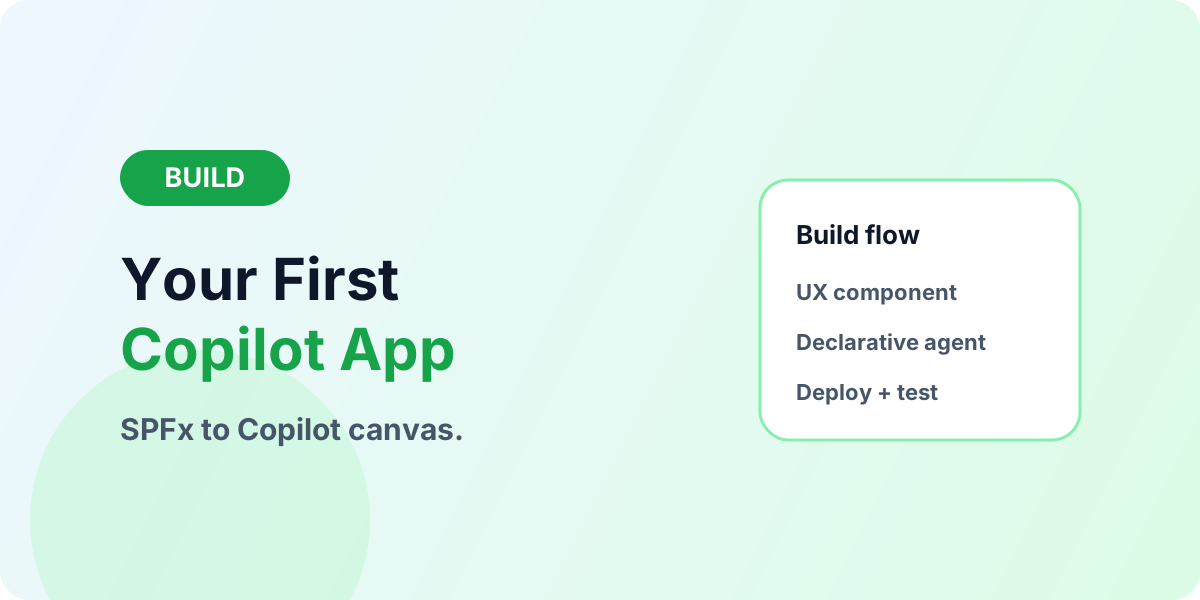
- 1. Scope one scenario: the approval panel
- 2. Design the UX component first
- 3. Wire the declarative agent
- 4. Deploy through the catalog
- 5. Test both surfaces with real permissions
On this page (11 sections)
Direct answer: Pick one narrow approval scenario, build the UX component with your existing SPFx and React skills, wire it to a declarative agent, deploy through the tenant app catalog, and test inline and full-screen surfaces with real permissions. Prerequisite reading: SharePoint Copilot Apps: SPFx Meets Microsoft 365 Copilot.
Preview note (October 2026): SharePoint Copilot Apps shipped as public preview with SPFx 1.24 preview, with general availability rolling out later in autumn 2026. Names, APIs, and licensing may change — verify against current Microsoft 365 developer documentation before committing a roadmap.
1. Scope one scenario: the approval panel
Choose a flow with visible data, a decision, and one trusted action — approving an expense, a leave request, or an onboarding checklist item. Write down the inputs (who, what, amount, dates), the data shown before deciding, the validation rules, and the exact action on approve or reject. If you cannot fit the scenario on one page, narrow it further; breadth is the enemy of a first build.
2. Design the UX component first
Sketch the panel as data, choices, constraints, and consequences: which fields the approver sees, which choices are allowed, what blocks submission, and what happens after the action. Reuse your SPFx patterns — React components, Fluent styling, Graph-backed data — because the component model is the standard web stack your team already knows. Keep the component focused on one job; the agent handles conversation, the component handles the outcome.
3. Wire the declarative agent
Connect the component to a declarative agent that describes when the panel appears and which tools it may call. Give the agent precise instructions (when to surface, what context to pass, what to do on success and failure) and ground it in the same SharePoint data the component shows, so conversation and UI never disagree. Test the routing in the Copilot Workbench as you go.
4. Deploy through the catalog
Package with the proven SPFx model and deploy via the tenant app catalog — the same ALM discipline as web parts: versioned packages, least-privilege API permission requests approved by a tenant admin, and a test-then-production rollout. See the SPFx Complete Guide and SPFx and React for packaging depth.
5. Test both surfaces with real permissions
Validate inline and full-screen rendering, test as a non-admin user to prove permission behavior, submit invalid input to prove validation, and confirm the action writes exactly what it should — nothing more. Then run the troubleshooting pass from SPFx Troubleshooting before inviting business users.
Testing matrix before business users arrive
Run every build through the same six checks: inline surface renders, full-screen surface renders, non-admin permissions behave, invalid input is rejected with a clear message, the action writes exactly the intended change, and failure paths (denied permission, missing data, timeout) recover with guidance instead of a blank panel. Log results per check with the tester, role, and outcome — this matrix becomes the regression set for every later release.
Common first-build mistakes
Building five scenarios at once
Ship one approval panel end-to-end. The second scenario reuses everything the first one taught you.
Skipping the non-admin test
Admin-tested apps fail on first contact with real permissions. Always validate as the actual audience.
Treating the preview as final
Pin your tooling versions, note API assumptions, and re-verify at general availability before promising dates.
Building Copilot extensibility
If your team is scoping SPFx, Copilot Apps, or SharePoint modernization work, share the scenario and timeline: Book a Modernization Consultation.
Continue with SharePoint Copilot Apps Overview, SPFx Complete Guide, and Explore SPFx.
Tagged
React · Project Structure · Permissions · ALM
Frequently asked questions
What do I need before building a SharePoint Copilot App?
SPFx 1.24 preview tooling, a Microsoft 365 tenant for testing, a narrowly scoped scenario, and the companion overview of what Copilot Apps are.
What should my first scenario be?
A single approval or review flow with clear inputs, visible data, and one trusted action — for example an expense or leave approval panel.
How do I test the app?
Use the Copilot Workbench during development, then validate both inline and full-screen surfaces, permissions, and validation behavior before catalog deployment.
Do I need a Microsoft 365 Copilot license to build?
During public preview, developers can build and test without a Copilot license; confirm current licensing before planning general availability.
Where does governance fit?
Treat the app like production software from day one: least-privilege data access, validated inputs, tenant catalog deployment, versioning, and an owner for ongoing support.
Sources
- Microsoft Learn: Sharepoint Framework Overview, Microsoft
- Microsoft Learn: Dev, Microsoft
Have a Microsoft 365 topic idea?
Share article suggestions, community session ideas, corrections, or real-world scenarios for future nextM365 learning notes.
Keep learning Microsoft 365
Explore more practical guides for SharePoint, Power Platform, Copilot Studio, migration, automation, governance, and security.
Continue learning
Related tutorials
Next action