Copilot in SharePoint GA: Setup, Permissions, Copilot Credits & Admin Guide
An administrator guide to the GA rollout, permissions, Site AI settings, retiring preview controls, and Copilot Credits—with a practical rollout and migration-readiness plan.
- Published
- Reading time
- 14 min read
- Difficulty
- Administrator
Quick answer
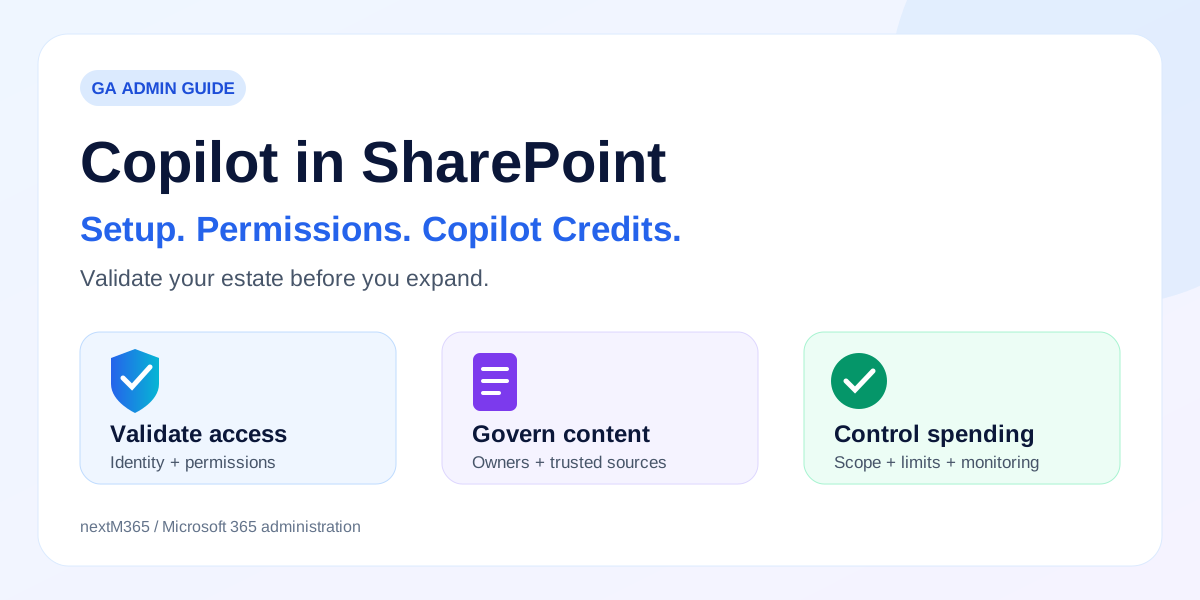
GA rollout began on 30 September 2026. Review content access, site AI availability, and spending policies separately; move away from the preview KnowledgeAgent controls before their settings stop being honored on 1 November 2026.
Before you start
Is this guide for you?
- Best entry point
- SharePoint
- Time investment
- 14 min read
- Difficulty
- Administrator
What you’ll learn
- Separate user licensing, site availability, and credit spending decisions.
- Replace preview-era availability controls with the supported Site AI and discovery model.
- Validate permissions and migrated content with representative users before expansion.
- Choose between contextual Copilot, a scoped SharePoint agent, and a custom Copilot Studio solution.
On this page (31 sections)
Copilot in SharePoint changes the administrator's job from making an AI button available to deciding where AI belongs, what it can work with, and who can spend on advanced tasks. Microsoft's October update confirms that general availability rollout began on 30 September 2026. Rollout timing is not a promise that every capability is already visible in every tenant.
Licensed everyday use and credit-funded advanced work have different prerequisites. Before expanding access, review permissions, source quality, Site AI settings, and spending policies. Start with a small business scenario whose answers and actions you can validate.
Documentation checked: 7 October 2026. Some feature articles still describe preview behavior. Where that conflicts with the GA transition guidance, use the current setup article for availability and billing, and validate the individual capability in your tenant.
What is Copilot in SharePoint?
It is a contextual assistant for working with SharePoint information and structures. For example, AI-assisted library creation turns a description into a proposed library and metadata structure; the user still needs permission to create that library. Reusable skills capture repeatable instructions for work on the site. These are capabilities to test against your process, rather than a substitute for your information architecture.
Microsoft's October announcement also distinguishes licensed content work from image creation/editing and content analytics funded by credits. Decide what the team actually needs: discovering policies, drafting content, organizing a library, or operating content at scale.
From Knowledge Agent to Copilot in SharePoint
Microsoft's March 2026 announcement explains the move from Knowledge Agent to AI in SharePoint. Current Learn articles use Copilot in SharePoint and identify AI in SharePoint as the previous name. This is the relevant evolution: Knowledge Agent → AI in SharePoint → Copilot in SharePoint.
Older terms persist in commands, bookmarked articles, training material, and tenant configuration. Record both the current feature name and the actual control in your runbook. A parameter's continued appearance in a cmdlet reference does not establish that its behavior is supported indefinitely.
What changed with general availability?
| Area | Preview | GA transition |
|---|---|---|
| Availability | Preview opt-in scope. | GA rollout is underway; confirm tenant visibility. |
| Administration | KnowledgeAgent tenant/site lists. | Site AI and Restricted Content Discovery become the availability model. |
| Licensing | Everyday capabilities through the Copilot license. | Everyday use remains licensed; distinguish advanced work. |
| Billing | The everyday preview experience. | Advanced tasks and larger-scale work introduce credit consumption. |
| Governance | Preview configuration to inventory. | Revalidate settings and owner responsibilities before expansion. |
| PowerShell | Preview availability parameters. | Existing settings honored until 1 November 2026; migrate the runbook. |
The availability, licensing, and retirement distinctions come from Microsoft's current getting-started guidance. GA does not establish production readiness for your estate; that decision needs evidence from your own sites.
Copilot in SharePoint licensing explained
The current setup guidance requires an active Microsoft 365 Copilot license for Copilot in SharePoint. Copilot Credits fund advanced work through usage-based billing; they are not a replacement for that prerequisite.
| Decision | Everyday licensed use | Advanced work |
|---|---|---|
| Typical work | Questions, drafts, ordinary content organization. | Large-scale processing and complex automation. |
| Admin preparation | Confirm user license and permissions. | Also review spending-policy eligibility and billing. |
| Pilot measurement | Answer quality and useful output. | Also measure credits and operating cost. |
Do not transfer another product's licensing rule to this experience. For example, SharePoint agents can support unlicensed users through configured pay-as-you-go billing. That is a separate access route for agents, not evidence that credits alone unlock Copilot in SharePoint.
Copilot Credits and usage-based billing
Copilot Credits are a shared consumption unit for eligible Microsoft usage-based services. They measure work, rather than seats. Large content review, site/solution creation, and advanced automation are examples in the SharePoint setup guidance; image generation and analytics are also credit scenarios in the October update.
For metadata processing, Advanced Autofill has an additional site-level setting. A site admin can share credits from their own account with the site. This deserves an explicit owner and finance review because it affects processing beyond that person's individual prompts.
Set policy and per-user limits, alert recipients, and the billing method. Microsoft describes spending policies as limits, not reserved credit allocations; overlapping policies and group membership need review. The selected subscription can continue on pay-as-you-go after credits are exhausted, so a prepaid balance alone is not your spending boundary.
Use Overview and Consumption in Cost Management to review usage by service, policy, user, and group. Schedule a pilot review with finance, record what each approved task achieved, and compare cost with useful output. Investigate repeated expensive runs before raising limits.
No fixed price-per-task belongs in an admin runbook without the current rate guide and workload assumptions. Content volume and task complexity vary. Establish an observed baseline using representative files and approved trial tasks.
How permissions work
Microsoft's SharePoint agent access guidance separates permission to use an agent from permission to its sources. An agent file does not grant access to the referenced site or library. Copilot in SharePoint skills cannot perform actions beyond the user's existing permissions.
- STEP 1User
- STEP 2Identity
- STEP 3SharePoint permissions
- STEP 4Authorized content
- STEP 5Copilot
- STEP 6Grounded response
This is a conceptual control flow, not a network trace. Review site membership, library inheritance, unique file permissions, and sharing links. Permission-respecting AI can still expose information that was shared too widely: the problem is the underlying grant.
Test with a visitor, a contributor, and a user outside the intended group. Check permitted answers and denied access, including citation links. Test write actions separately; reading a document and changing a library are different authorization decisions. Use the SharePoint permissions guide to review the underlying model.
Restricted Content Discovery (RCD) reduces broad discovery and removes AI entry points on selected sites. It does not revoke permissions or stop authorized direct access. Treat it as a temporary review control, with an owner and an exit criterion.
Admin setup: three control surfaces
Use the following sequence as a deployment runbook. Capture the actual tenant settings and approval record before making changes.
1. Confirm prerequisites and owners
Choose a pilot site and representative licensed users. Confirm content owners, required access, and the tasks they are allowed to perform. Check the supported environment in the setup documentation; do not assume a commercial-cloud rollout applies to every sovereign deployment.
2. Review Site AI settings
Open Settings → Site AI. Site owners can choose the main agent, hide the Copilot page button for visitors, and manage advanced document processing. Hiding a visitor button is a presentation choice, not a complete access revocation. Microsoft Support explains main-agent selection.
3. Review discovery controls in the admin center
For a site needing review, open SharePoint admin center → Sites → Active sites → selected site → Settings, enable Restrict content from Microsoft Copilot, and save. Check the RCD prerequisites, roles, and propagation behavior. Recheck the result after propagation; saving the setting is not proof that all discovery experiences changed immediately.
4. Configure advanced-work spending
In Microsoft 365 admin center → Copilot → Cost management, add a spending policy, select a pilot security group, include Advanced work in SharePoint, then set limits, alerts, and billing. Check existing policies for automatic inclusion of newly available services. The SharePoint setup article documents the workload selection; the billing setup guide defines roles and configuration.
In that guide, Global or Billing administrators handle billing setup; AI and License administrators can edit policies but cannot create them. Coordinate with the appropriate role holder instead of treating SharePoint administrator access as billing authority.
5. Validate the complete experience
Record the user, site, license, spending-policy scope, question or action, expected result, actual result, and source citation. A missing button, denied write, incomplete answer, and blocked advanced task require different diagnosis. Verify each layer before changing more than one setting.
PowerShell: current controls and transitional inventory
LEGACY / TRANSITIONAL: KnowledgeAgentScope, KnowledgeAgentSelectedSitesList, and KnowledgeAgentSelectedSitesListOperation remain visible in Set-SPOTenant. Inventory the existing configuration; do not build a new long-term rollout around those parameters.
Existing preview settings are honored until 1 November 2026. After that transition, the supported availability approach is Site AI settings and RCD. Set an earlier internal deadline for replacing scripts, reviewing excluded sites, and assigning owners.
# Read existing preview configuration; this does not change availability.
Connect-SPOService -Url "https://contoso-admin.sharepoint.com"
Get-SPOTenant | Select-Object KnowledgeAgentScope, KnowledgeAgentSelectedSitesList
CURRENT RECOMMENDED APPROACH: use Site AI for site experience choices and RCD for sites needing discovery restrictions. For an approved RCD change, the current Set-SPOSite reference supports this Boolean parameter:
# Replace contoso and the site path with your approved tenant and site.
Connect-SPOService -Url "https://contoso-admin.sharepoint.com"
$siteUrl = "https://contoso.sharepoint.com/sites/FinanceReview"

# Inspect the existing setting before a change.
Get-SPOSite -Identity $siteUrl | Select-Object Url, RestrictContentOrgWideSearch

# Apply only to a site approved for restricted discovery.
Set-SPOSite -Identity $siteUrl -RestrictContentOrgWideSearch $true

# Verify the setting; allow time for discovery propagation.
Get-SPOSite -Identity $siteUrl | Select-Object Url, RestrictContentOrgWideSearch

# After review and approval, remove the restriction:
# Set-SPOSite -Identity $siteUrl -RestrictContentOrgWideSearch $false
Run from a supported SharePoint Online Management Shell with the required SharePoint administrator role. Connect-SPOService documents the connection and authentication options. These examples are documentation-verified; they have not been executed against a customer tenant.
Site scoping and controlled rollout
- STEP 1Discover
- STEP 2Assess
- STEP 3Pilot
- STEP 4Validate
- STEP 5Govern
- STEP 6Expand
Discover: inventory sites, owners, sharing, legacy preview scope, and content types. Assess: classify sensitive sites and identify permission or quality work. Pilot: choose a maintained site with a business owner and a bounded task.
Validate: test positive and negative access, citations, write permissions, and any credit-consuming operation. Govern: agree ownership, review cadence, cost alerts, and incident handling. Expand: add another group only after the same checks pass.
For business-critical or sensitive sites, require owner sign-off on content and access. Give stale or heavily shared sites a remediation queue rather than an automatic rollout date. RCD and spending-policy groups address different concerns; neither is a substitute for cleaning permissions.
Use case: after a SharePoint migration
Consider an illustrative project team that has migrated project documents, policies, SOPs, issue logs, lists, and knowledge pages. The first pilot question might be: "Which approved SOP explains how we close a project issue?" A useful answer should point to the current approved procedure and make its scope clear.
Before testing, confirm the intended identity can read that procedure, obsolete copies are identifiable, metadata survived, and links resolve to the destination. Run the same question as someone outside the project team. A plausible answer is insufficient if its source is stale or access is broader than intended.
- STEP 1Migration
- STEP 2Permission validation
- STEP 3Content quality
- STEP 4Copilot readiness
- STEP 5AI adoption
Use the migration validation guide to record evidence, then build the AI pilot from those results. Successful file transfer is one milestone; validated access and usable content establish the next.
SharePoint Lists and an agent use case
Microsoft now documents creating an agent from a list: open the list and choose Copilot → Create an agent. Its initial scope is the supported content in that list. This supports a practical pilot around a maintained project issue register.
Ask the agent to explain the context of an issue and identify its supporting procedure. Compare its response with the visible row and document. Check item-level access and agent sharing before inviting the full team.
Microsoft's current agent FAQ includes lists as source items. That does not establish SQL-style aggregation accuracy, unrestricted access to every column type, or automatic transactional writes. Use list views and tested automation for deterministic reporting or updates. Review the SharePoint Lists data model before choosing an agent scenario.
Copilot in SharePoint vs SharePoint agents vs Copilot Studio
| Dimension | Copilot in SharePoint | SharePoint agents | Copilot Studio |
|---|---|---|---|
| Purpose | Contextual content and site work. | Purpose-specific SharePoint assistance. | Custom agents and workflows across systems. |
| Typical user | Content author or site manager. | Team members and site editors. | Business makers and development teams. |
| Knowledge | Content relevant to the task. | Selected SharePoint sources. | Configured knowledge and connected systems. |
| Customization | Prompts and reusable skills. | Agent purpose and source scope. | Instructions, tools, logic, and channels. |
| Automation | Supported content tasks; advanced work can spend credits. | Validate supported tasks for the chosen experience. | Designed business workflows and integrations. |
| Governance | Site settings, access, spending. | Agent-file and source permissions; access/billing. | Solution administration, tools, access, and cost. |
| Best fit | Organizing an approved library. | Project knowledge assistant. | Agent connecting SharePoint with business operations. |
This is an implementation comparison based on Microsoft's skills guidance, agent access model, and Copilot Studio overview. Choose Copilot Studio when the requirement includes custom cross-system behavior, and review its separate licensing and governance model.
Security and governance checklist
- Access: review group membership, library inheritance, unique permissions, and oversharing; test an unauthorized user.
- Sharing: review external guests and link scope against the collaboration purpose.
- Sensitivity: identify protected content and record which controls apply to each pilot.
- Discovery: use RCD selectively, with a review owner and removal criterion.
- Ownership: assign site, content, automation, and cost owners.
- Quality: resolve stale policies, duplicate procedures, and ambiguous metadata.
- Licensing: confirm entitlement for the exact product experience.
- Credits: review spending scope, monthly limits, alerts, and billing behavior.
- Operations: review usage, test changes, and document the expansion decision.
Copilot-ready SharePoint implementation checklist
- □ Review permissions and identify oversharing.
- □ Remove stale content and resolve duplicates.
- □ Validate site ownership and review sensitive sites.
- □ Confirm licensing and configure billing controls.
- □ Select pilot sites and test Copilot responses.
- □ Monitor usage and expand gradually.
Migration + Copilot readiness
After migration from SharePoint Server, older SharePoint Online sites, file shares, or another document platform, examine the destination as users experience it. Identity mappings, inherited access, metadata, information architecture, duplicate content, external sharing, and discoverability deserve validation.
A migrated folder tree can preserve documents while leaving the approved version hard to identify. A flattened permission mapping can preserve access for too many people. An obsolete policy can remain searchable. Each case needs a content or governance decision before it becomes a trusted AI source.
nextM365 can connect SharePoint migration and modernization work with a documented readiness review. The useful output is a prioritized remediation plan: who owns the decision, what must change, and how the result will be verified.
That work also connects with Microsoft 365 administration, Power Platform governance and integrations, and the Copilot Studio and SharePoint security model when requirements go beyond contextual content assistance.
Frequently asked questions
Is Copilot in SharePoint generally available?
The GA rollout started on 30 September 2026. Confirm availability for your tenant and individual capability; see the linked Microsoft October update.
Do I need a Microsoft 365 Copilot license?
Yes for the experience covered here. See the licensing comparison above; SharePoint agents have a separate documented pay-as-you-go route.
What are Copilot Credits?
Consumption units for supported usage-based AI work. Set spending controls separately from assigning user licenses.
Does Copilot respect SharePoint permissions?
The user-context access model applies. Review existing grants and test read and write scenarios with representative identities.
Can Copilot access documents users cannot access?
Microsoft's agent guidance says inaccessible source content is excluded. Sharing an agent does not grant access to its sources.
Can administrators disable Copilot in SharePoint?
Use the supported controls described above for the intended scope. RCD removes site AI entry points; hiding a visitor button is narrower. Preview tenant opt-out settings are transitional.
What happened to Knowledge Agent and AI in SharePoint?
They are earlier names in the evolution covered above. The remaining KnowledgeAgent parameter names are not the current long-term availability strategy.
Can Copilot work with SharePoint Lists?
Current Microsoft Support documents list-scoped agent creation and lists as source items. Validate supported content and results; do not assume database-style behavior.
How should enterprises prepare?
Complete the permission and content review, agree cost ownership, pilot a bounded scenario, and require evidence before each rollout wave.
Final takeaway
Copilot readiness depends on identity + permissions + content + governance + cost control. Put those decisions in the deployment record, replace transitional controls, and validate the user experience before expansion. The result should be an environment whose access, information, and operating cost you can explain.
Tagged
Microsoft 365 Copilot · Permissions · Governance · Licensing · Admin Center · AI Agents
Sources
- Microsoft: October 2026 Copilot in SharePoint updates, Microsoft
- Microsoft Learn: Get started with Copilot in SharePoint, Microsoft
- Microsoft Learn: Copilot Credits cost management, Microsoft
- Microsoft Learn: Restricted Content Discovery, Microsoft
- Microsoft Support: Create an agent in SharePoint, Microsoft
Have a Microsoft 365 topic idea?
Share article suggestions, community session ideas, corrections, or real-world scenarios for future nextM365 learning notes.
Keep learning Microsoft 365
Explore more practical guides for SharePoint, Power Platform, Copilot Studio, migration, automation, governance, and security.
Continue learning
Related tutorials
Related comparisons
Next action