Adaptive Cards | Copilot Studio Day 32
Learn what Adaptive Cards are in Microsoft Copilot Studio, when to use them, how they improve bot responses, and best practices for card design.
- Published
- Reading time
- 6 min read
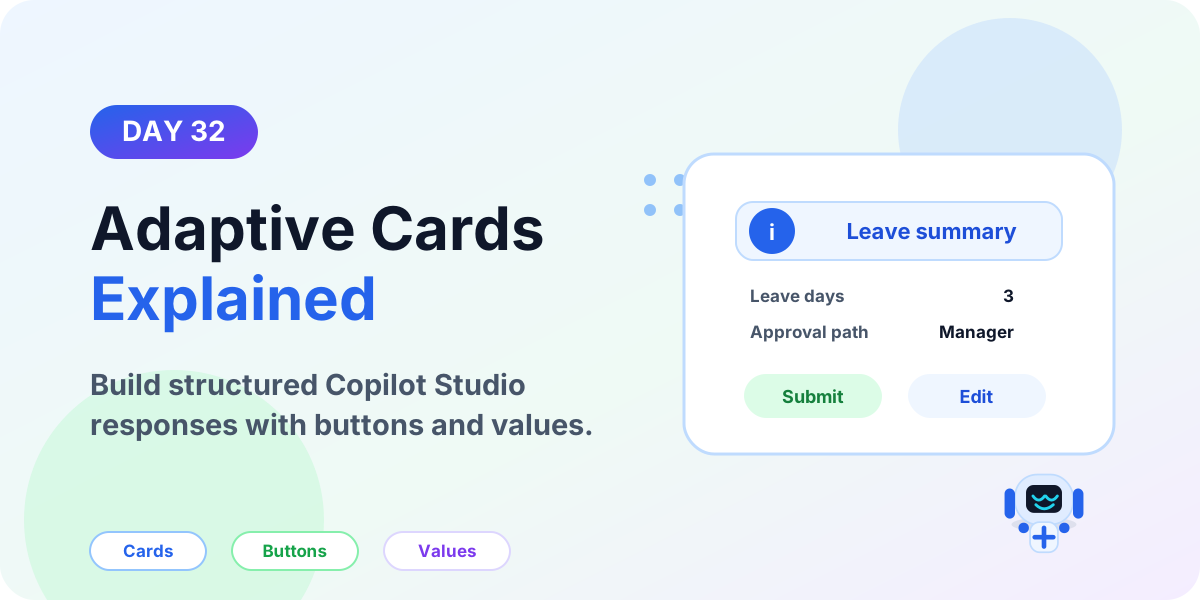
Week 5 · Day 32 of 365 in 365 Days of Copilot Studio — view the full series
Before you start
Is this guide for you?
- Best entry point
- 365 Days of Copilot Studio
- Time investment
- 6 min read
In this article
- What are Adaptive Cards in Copilot Studio?
- Adaptive Cards vs plain messages
- How Adaptive Cards work
- Common Adaptive Card use cases
- What can an Adaptive Card include?
On this page (18 sections)
Adaptive Cards help Microsoft Copilot Studio agents show information in a richer, more structured way than plain text. Instead of sending a long paragraph, the agent can show a card with headings, facts, buttons, inputs, links, and a clear next action.
Day 32 of the 365 Days of Microsoft Copilot Studio series explains what Adaptive Cards are, when to use them, how they fit into conversation design, and how to keep them simple enough for users to understand quickly.
This lesson builds on Day 15: Message Node Explained, Day 16: Question Node Explained, Day 18: Variable Node Explained, and Day 31: Variables vs Entities.
What are Adaptive Cards in Copilot Studio?
An Adaptive Card is a structured card layout that can display conversation information in a clear visual format. A card can include text, sections, labels, dynamic values, buttons, and simple input elements.
In Copilot Studio, Adaptive Cards are useful when the agent needs to present information that is easier to scan as a card than as plain text. They are especially helpful for summaries, confirmations, approvals, status checks, and guided choices.
Simple rule: use an Adaptive Card when the response needs structure, not just text.
Adaptive Cards vs plain messages
A plain message is best when the agent only needs to say something short. An Adaptive Card is better when the agent needs to organize information or show a clear action.
| Response type | Best for | Example |
|---|---|---|
| Plain message | Short text updates | Your ticket was created. |
| Adaptive Card | Structured details and actions | Ticket summary with priority, owner, status, and buttons. |
How Adaptive Cards work
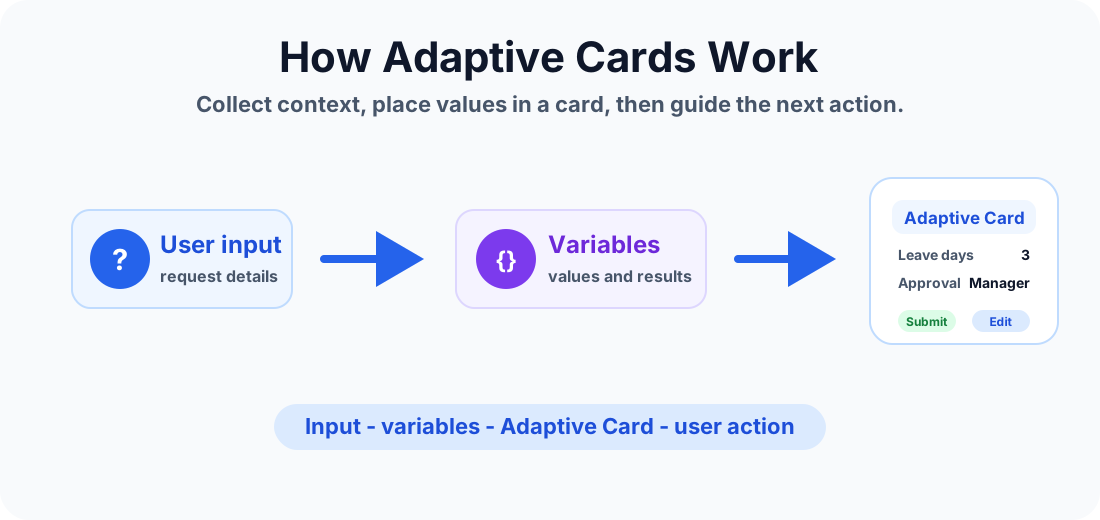
A common Adaptive Card flow looks like this:
- The user asks a question or starts a request.
- The topic collects values using questions, variables, entities, or actions.
- The agent prepares a card layout.
- The card displays the important details in a structured way.
- The user chooses an action, confirms details, or continues the conversation.
Adaptive Cards do not replace good conversation design. They support it by making important information easier to understand.
Common Adaptive Card use cases
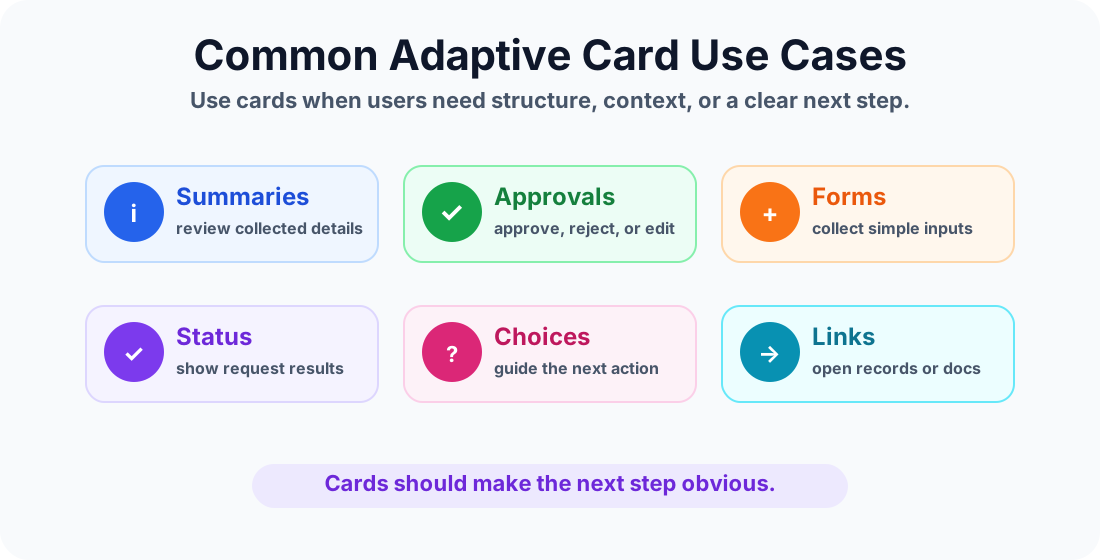
Adaptive Cards are most useful when the user needs to review information or choose what to do next.
Request summaries
Show collected values before an action runs. For example, an HR request card can show leave type, start date, end date, number of days, and manager approval path.
Ticket confirmations
After creating an IT ticket, the agent can show ticket ID, priority, category, expected response time, and a button to view the ticket.
Approvals and decisions
Adaptive Cards can present approval context clearly: requester, amount, reason, due date, and available choices.
Knowledge answers
For help topics, a card can show a short answer, next steps, related links, and follow-up buttons.
Guided choices
Cards can make options easier to scan when users need to choose a service, category, location, priority, or next step.
What can an Adaptive Card include?
The exact behavior can depend on the channel, but card-style responses commonly include:
- Title text for the main purpose of the card
- Body text for explanation or instructions
- Fact sets for label-and-value information
- Images or icons when they support clarity
- Buttons for actions, links, or submit choices
- Inputs for short form-style responses, where supported
- Dynamic values from variables or action outputs
Example: leave request confirmation card
Suppose a user asks for leave. The agent collects the leave type, start date, number of days, and reason. Before submitting the request, the agent can show a confirmation card.
| Card field | Example value | Source |
|---|---|---|
| Request type | Annual leave | Question answer |
| Start date | 12 August 2026 | Date input or entity |
| Leave days | 3 | Variable |
| Approval path | Manager approval | Condition result |
The card can then show buttons such as Submit request, Edit details, or Cancel.
Using variables in Adaptive Cards
Adaptive Cards become more useful when they include values collected earlier in the conversation. For example, a card can display Topic.LeaveDays, Conversation.UserEmail, Bot.Department, or an action output such as TicketId.
Use variables carefully. If a value is important, confirm it before using it in an action or showing it as final information.
Adaptive Cards and actions
Adaptive Cards often sit near action-heavy parts of a topic. A card can summarize what will be sent to a Power Automate flow or API action. After the action runs, another card can show the result.
For example:
- Before action: show the user what will be submitted.
- Action runs: create ticket, submit request, check status, or fetch data.
- After action: show the result in a card with ID, status, and next steps.
For action design, continue with Day 19: Call an Action Node Explained.
Best practices for Adaptive Cards
- Keep the card focused. One card should support one clear task or decision.
- Use short labels. Long field names make cards harder to scan.
- Show the most important information first. Put status, action, or decision details near the top.
- Use buttons intentionally. Too many buttons create confusion.
- Do not overload cards with paragraphs. Move long explanations into normal messages or knowledge content.
- Test in the target channel. Cards can render differently across channels and screen sizes.
- Use accessible wording. Button labels should explain the action clearly.
Common mistakes to avoid
- Using Adaptive Cards for every response, even when plain text is enough
- Putting too much text inside one card
- Using vague button labels such as Click here
- Showing variables without checking whether the values are correct
- Designing a card that works on desktop but feels crowded on mobile
- Forgetting to handle cancel, edit, or no-response paths
- Not testing the card in Teams or the channel where users will actually use it
Testing checklist
- Check whether the card layout is readable on desktop and mobile.
- Confirm dynamic values appear in the right fields.
- Test each button or action path.
- Test missing or empty variable values.
- Test long names, long ticket titles, and long comments.
- Verify the fallback path if the card action fails.
- Confirm the next message after the card is clear.
When not to use Adaptive Cards
Do not use an Adaptive Card just because it looks better. If the response is a simple acknowledgement or one sentence, a plain message is usually clearer and faster.
Avoid cards when:
- The answer is short and direct.
- The user does not need to review details.
- There is no action or decision to make.
- The card would repeat the same text already shown in the conversation.
Key takeaways
- Adaptive Cards make responses easier to scan.
- Use cards for structured information, confirmations, choices, and action results.
- Plain messages are still best for simple text.
- Variables and action outputs make cards dynamic.
- Good cards are short, clear, tested, and focused on one user task.
Adaptive Cards are a practical way to make Copilot Studio conversations feel more organized and easier to use. Start simple: one clear card, one purpose, one next step.
Next in the series: Day 33.
Tagged
Conversation Design · Actions · Variables · Topics · AI Agents
Frequently asked questions
What are Adaptive Cards in Copilot Studio?
Adaptive Cards are structured card-style responses that can display formatted content, data, buttons, and inputs inside a Copilot Studio conversation.
When should I use an Adaptive Card?
Use an Adaptive Card when a plain message is not enough and the user needs a clearer layout, a summary, a set of actions, or structured information.
Are Adaptive Cards the same as Message nodes?
No. A Message node sends information to the user. An Adaptive Card is a rich format that can be used inside a message-style response to present that information more clearly.
Can Adaptive Cards include buttons?
Yes. Adaptive Cards can include actions such as submit, open URL, or selectable options, depending on the channel and card design.
Can Adaptive Cards use variables?
Yes. Adaptive Cards are often more useful when they show dynamic values collected earlier in the conversation, such as request type, status, dates, or user details.
Should every response be an Adaptive Card?
No. Use plain messages for simple text. Use Adaptive Cards when layout, actions, or structured data make the response easier to understand.
Sources
- Microsoft Learn: Authoring Create Edit Topics, Microsoft
- Microsoft Learn: Microsoft Copilot Studio, Microsoft
Have a Microsoft 365 topic idea?
Share article suggestions, community session ideas, corrections, or real-world scenarios for future nextM365 learning notes.
Keep learning Microsoft 365
Explore more practical guides for SharePoint, Power Platform, Copilot Studio, migration, automation, governance, and security.
Continue learning
Related tutorials
Related questions
Related comparisons
Next action