Topic Variables Explained | Copilot Studio Day 28
Learn what topic variables are in Microsoft Copilot Studio, how they store user answers, how to reuse values inside a topic, and how to avoid common variable mistakes.
- Published
- Reading time
- 7 min read
Week 4 · Day 28 of 365 in 365 Days of Copilot Studio — view the full series
What you’ll learn
- What are topic variables in Copilot Studio?
- Why topic variables matter
- How topic variables work
- Topic variables and question nodes
- Common topic variable use cases
On this page (18 sections)
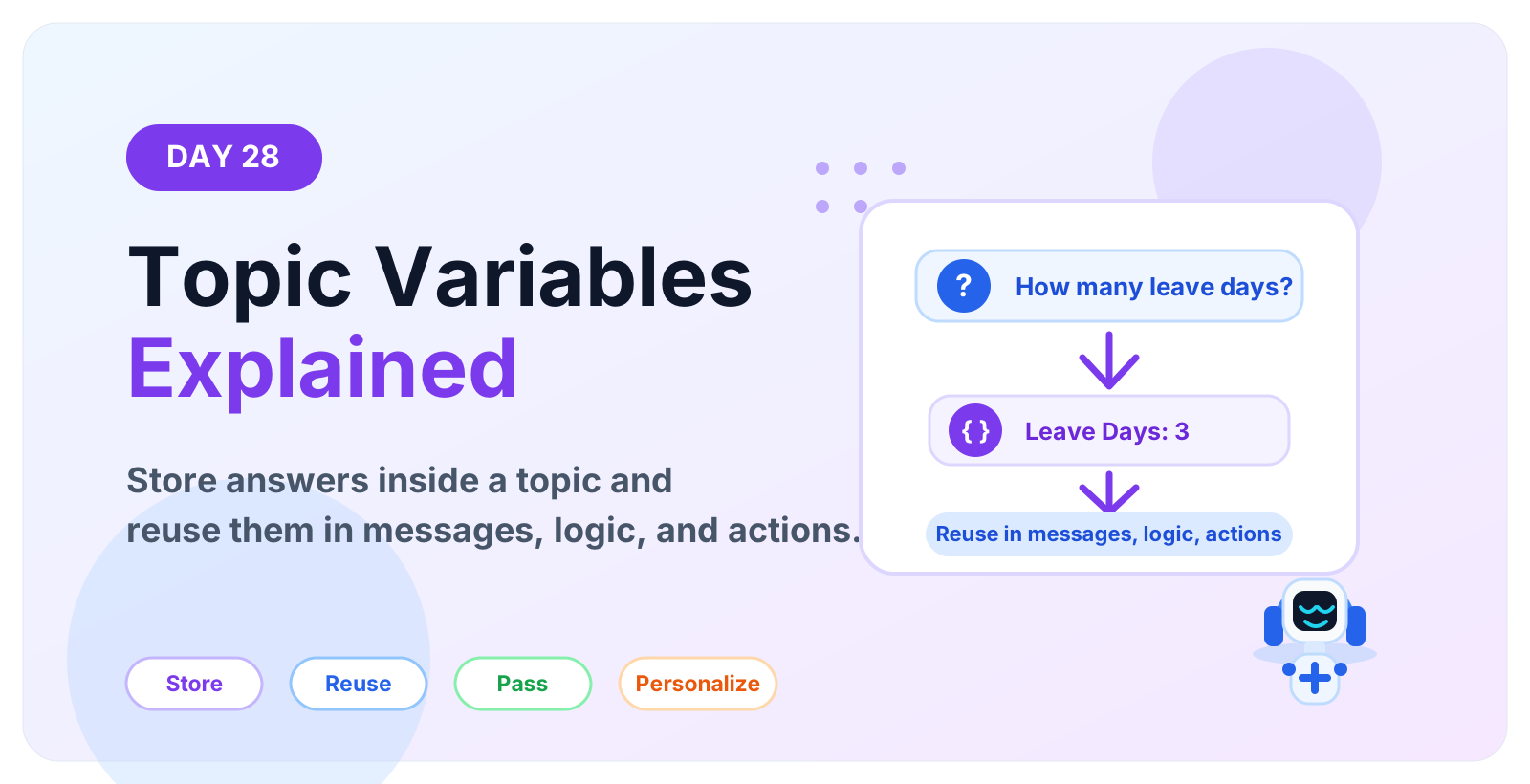
Topic variables in Microsoft Copilot Studio store information collected during a topic so the agent can reuse it later in the same conversation path.
Day 28 of the 365 Days of Microsoft Copilot Studio series explains what topic variables are, how they work, where they are useful, and how to design them clearly for real business conversations.
This lesson builds on Day 16: Question Node Explained, Day 18: Variable Node Explained, Day 17: Condition Node Explained, and Day 19: Call an Action Node Explained.
What are topic variables in Copilot Studio?
A topic variable is a named value used inside a topic. It can store something the user says, selects, confirms, or provides during the conversation.
For example, an HR topic might ask: How many leave days do you need? If the user answers 3, the topic can store that answer as a variable such as Topic.LeaveDays.
Later in the same topic, the agent can use that variable to:
- show a confirmation message,
- choose a condition path,
- pass the value to an action or Power Automate flow,
- personalize the response,
- summarize the request before submitting it.
Topic variables help a topic remember what the user already provided.
Why topic variables matter
Without variables, the agent would need to ask the same question again or lose important context. Topic variables make the conversation feel smarter because the agent can carry values from one node to another.
They are especially important for guided topics such as leave requests, IT tickets, approvals, onboarding, expense checks, account access, and service requests.
- Less repeated questioning: collect a value once and reuse it.
- Clearer conditions: route the user based on the value they entered.
- Better actions: send the right inputs to flows, connectors, or APIs.
- Personalized messages: include names, dates, request types, or status values in replies.
- Cleaner topic design: each variable has a clear purpose and reduces hidden logic.
How topic variables work
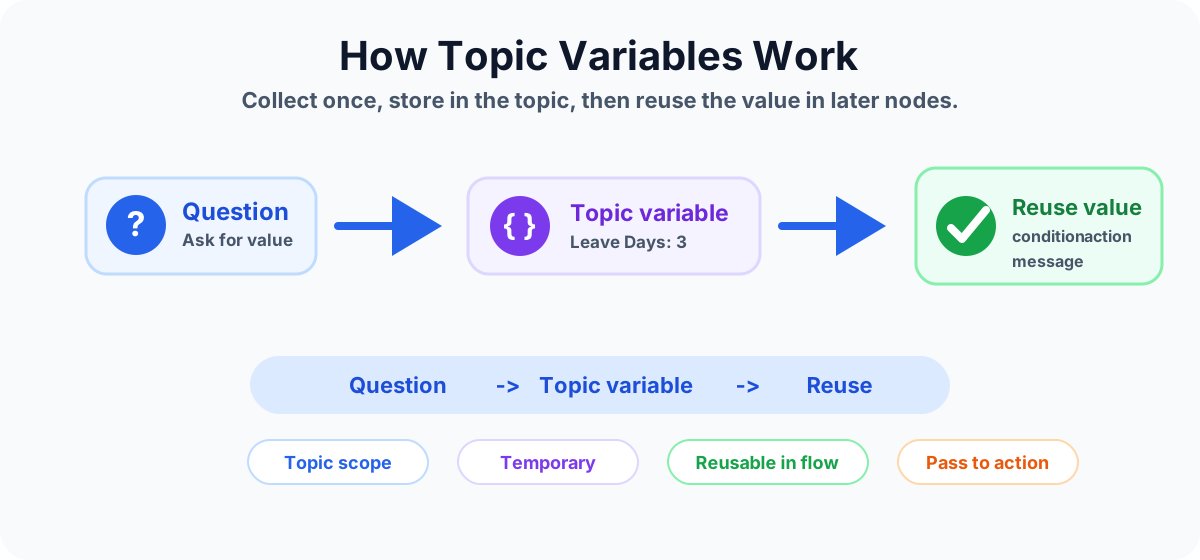
The most common pattern is simple:
- The topic asks a question.
- The user provides an answer.
- Copilot Studio stores the answer in a topic variable.
- Later nodes read the variable.
- The topic uses the value in a condition, message, action, or final summary.
Example:
- Question: How many leave days do you need?
- User answer: 3
- Topic variable: LeaveDays = 3
- Condition: If LeaveDays is greater than 2, send to manager approval.
- Message: Your request for 3 leave days has been submitted.
Topic variables and question nodes
The Ask a Question node is one of the most common places where topic variables begin. When the user answers a question, the response can be saved and reused later.
Choose the response type carefully. A date should be stored as a date-like value, a number should be stored as a number, and a choice should be stored as a predictable option. This makes later logic easier to test.
Good question design creates better variables. If the question is vague, the stored value can be hard to use. If the question is clear, the variable becomes useful immediately.
Common topic variable use cases
Topic variables are useful whenever one answer affects later conversation behavior.
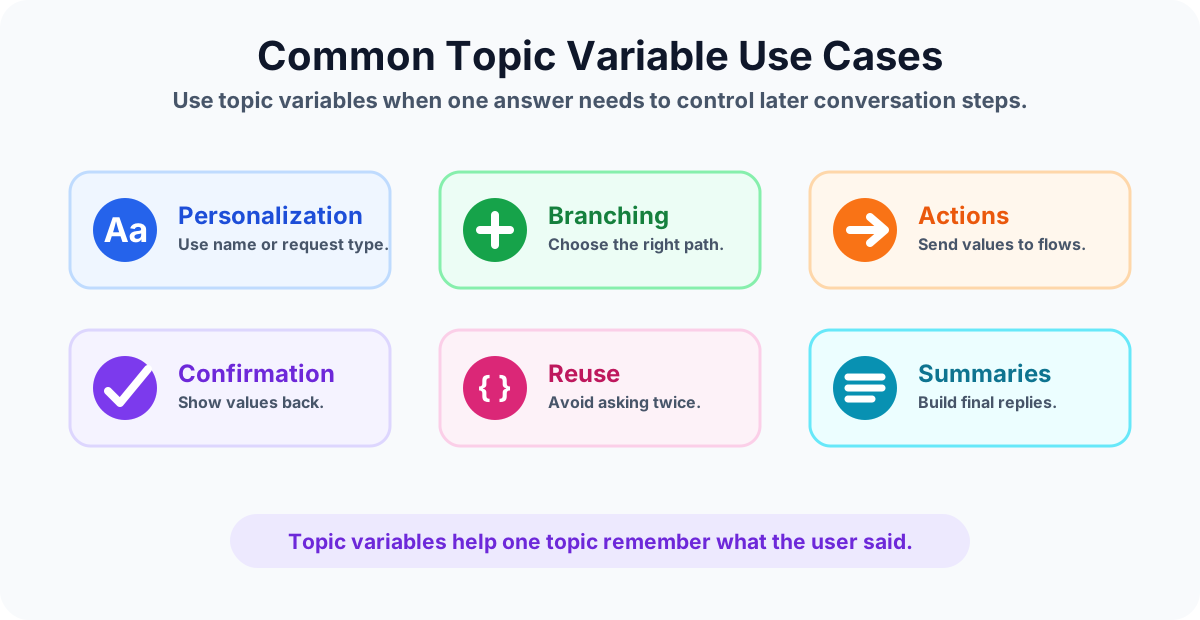
Personalizing messages
If the topic collects the user's name, location, product, department, or request type, later messages can refer to that value. This makes responses more specific without asking again.
Example: Thanks, Alex. I will submit the laptop access request for the Finance team.
Branching with conditions
Topic variables work naturally with condition nodes. The topic can compare a stored value and choose the correct path.
Example: If LeaveDays is more than 2, send the request for manager approval. If not, continue with auto approval.
Passing values to actions
When a topic calls an action, collected values can be passed as inputs. This is how a conversation becomes useful work.
Example: An IT help topic collects issue type, device name, and priority. Then it passes those values to an action that creates a support ticket.
Confirming details before submit
Before the topic runs an action, it can show the collected variables back to the user. This reduces mistakes.
Example: Please confirm: Leave type = Sick leave, Days = 3, Start date = 15 May.
Building final summaries
Topic variables can help build a clean final response after a task is complete. The user should know what was submitted, what value was used, and what happens next.
Topic variables vs broader variables
A topic variable should usually be used when the value belongs to the current topic only. For example, LeaveDays belongs inside a leave request topic. It may not need to be available to every other topic.
If a value needs to be reused across multiple topics or across a larger conversation design, consider whether a broader variable pattern is more appropriate. Keep scope as narrow as possible so the agent remains easier to understand and test.
| Variable pattern | Best use | Example |
|---|---|---|
| Topic variable | Value needed inside one topic | LeaveDays, RequestType, TicketPriority |
| Broader conversation value | Value reused across topics | User location, preferred language, employee profile value |
| Action output | Value returned from a flow or API | Ticket number, approval status, account balance |
Good naming practices
Variable names should be clear enough that another maker can understand the topic later. Avoid vague names such as value1, answer, or data.
Better examples:
- LeaveDays instead of number
- LeaveStartDate instead of date
- TicketPriority instead of choice
- EmployeeId instead of input1
- ApprovalReason instead of text
Good names make testing, troubleshooting, and handover much easier.
Example: leave request topic variables
Imagine a leave request topic. The topic may collect these values:
- LeaveType: annual, sick, casual, or unpaid leave.
- LeaveStartDate: when the leave starts.
- LeaveDays: how many days the user needs.
- LeaveReason: optional reason or note.
- NeedsManagerApproval: true or false based on business rules.
Those values can then drive the rest of the topic. The topic can show a confirmation, run a leave request action, route to manager approval, and send a final message.
Best practices for topic variables
- Collect only what you need. Extra variables make topics harder to maintain.
- Use clear names. A variable name should explain the business value.
- Pick the right response type. Store numbers as numbers, choices as choices, and dates as dates where possible.
- Confirm important values. Show critical values before running an action.
- Keep scope narrow. Use topic variables for values needed inside the topic.
- Handle missing values. Plan what happens if the user skips, changes, or enters unclear information.
- Test every branch. Variables often control conditions, so test each possible path.
Common mistakes to avoid
- Using vague variable names: names such as answer1 or temp make topics harder to read.
- Using text for everything: numbers, dates, and choices are easier to validate when stored properly.
- Forgetting confirmation: users should review important values before submission.
- Reusing the wrong variable: a topic can behave incorrectly if similar variable names are mixed up.
- Not testing empty values: plan what happens when a user does not provide a useful answer.
- Making every value global: broad scope can create confusion and unexpected behavior.
Testing checklist
Before publishing a topic that uses variables, test the main path and edge cases.
- Confirm each question stores the expected value.
- Check variable names in later messages and conditions.
- Test each condition branch that uses a variable.
- Run actions with realistic input values.
- Test invalid, blank, or unexpected user answers.
- Confirm final messages show the correct stored values.
- Review analytics after publishing to find confusing questions.
How topic variables improve conversation design
Topic variables connect the user's answer to the rest of the topic. They help the agent move from simple question-and-answer behavior to guided task completion.
A good topic variable design makes the topic easier to read, easier to test, and easier to improve. Every variable should have a purpose: collect, decide, pass, confirm, or summarize.
Key takeaways
- Topic variables store values inside a topic. They help the agent remember user answers during that topic flow.
- Question nodes often create variables. User responses can be saved and reused later.
- Variables support conditions and actions. Stored values can route users or become action inputs.
- Scope matters. Keep variables as narrow as practical so topics remain predictable.
- Testing matters. Test every branch and every important variable before publishing.
Topic variables are small, but they are one of the most important building blocks in Copilot Studio topic design. When you name them clearly and use them carefully, your agent can create more useful, personalized, and reliable conversations.
Next in the series: Day 29: Bot Variables Explained.
Related resources
Topics covered
Variables · Topics · Conversation Design · Conditions · Actions
Frequently asked questions
What are topic variables in Microsoft Copilot Studio?
Topic variables are values stored during a topic conversation. They can hold answers such as a name, leave days, request type, ticket number, or approval choice so later nodes in the same topic can reuse them.
How are topic variables created in Copilot Studio?
A common way to create a topic variable is with an Ask a Question node. The user response is stored in a variable, and later steps can use that value in messages, conditions, or actions.
When should I use a topic variable?
Use a topic variable when a value is needed only inside the current topic, such as a selected option, user response, request amount, date, department, or confirmation answer.
Can topic variables be used in conditions?
Yes. Topic variables are often used in condition nodes to choose a path. For example, a leave request topic can check whether LeaveDays is greater than a threshold and route to manager approval.
Can topic variables be passed to Power Automate?
Yes. When a topic calls an action or Power Automate flow, collected values can be passed as inputs so the flow can create tickets, look up data, submit requests, or return results.
What is the difference between topic variables and global variables?
Topic variables are intended for the current topic flow. Broader variables are used when a value needs to be available outside one topic or across a wider conversation design.
Sources
- Microsoft Learn: Authoring Create Edit Topics, Microsoft
- Microsoft Learn: Microsoft Copilot Studio, Microsoft
Have a Microsoft 365 topic idea?
Share article suggestions, community session ideas, corrections, or real-world scenarios for future nextM365 learning notes.
Keep learning Microsoft 365
Explore more practical tutorials for SharePoint, Power Platform, Copilot Studio, migration, automation, governance, and security.
Continue learning
Related tutorials
Related questions
Related comparisons