Copilot Studio User Authentication Methods | Day 62
Choose the right Copilot Studio user authentication method: anonymous access, Microsoft identity, or manual authentication for websites, Teams, custom apps, tools, and secure actions.
- Published
- Reading time
- 11 min read
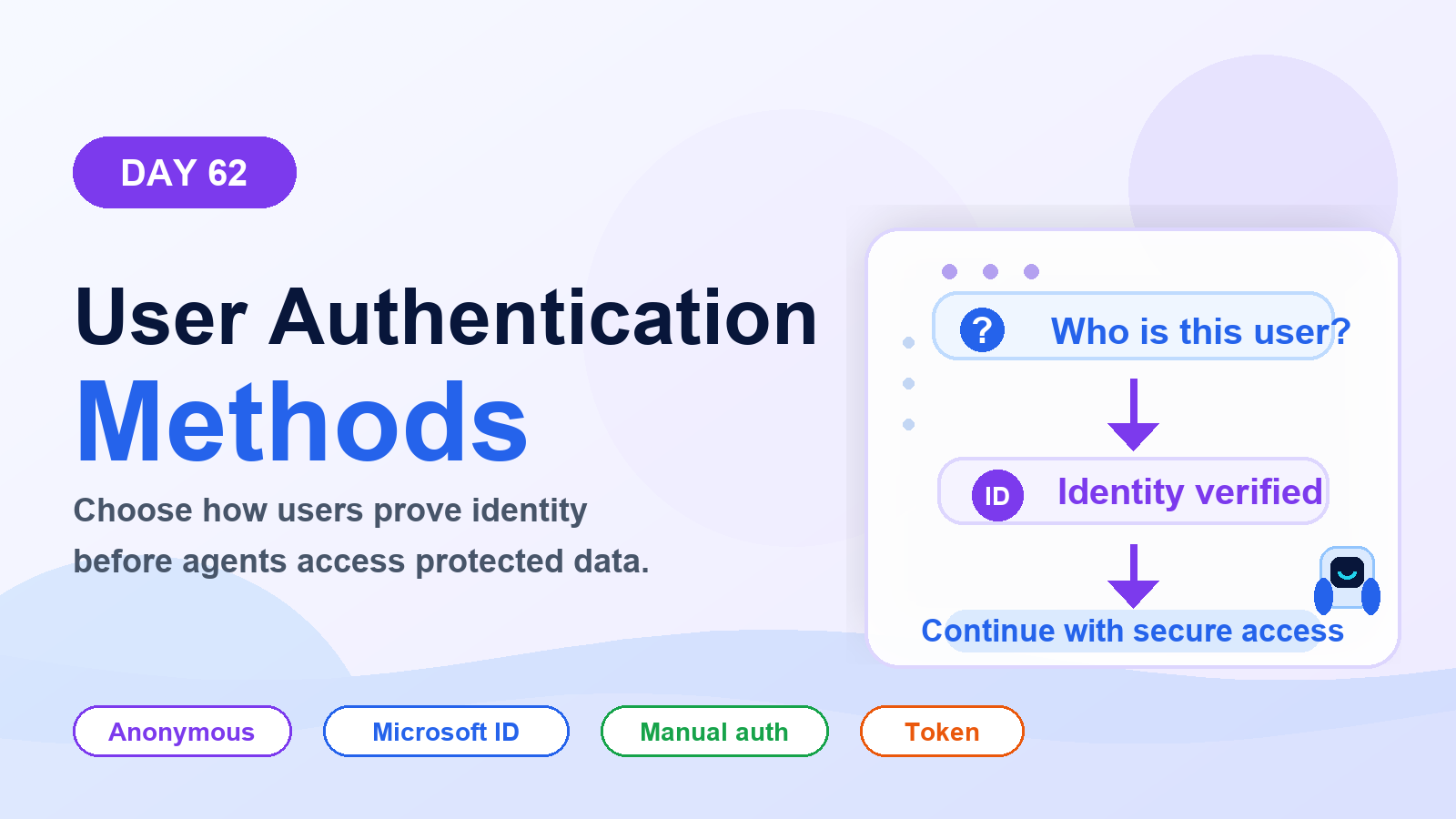
Week 9 · Day 62 of 365 in 365 Days of Copilot Studio — view the full series
Before you start
Use this guide with the right context
- Best entry point
- 365 Days of Copilot Studio
- Time investment
- 11 min read
What you’ll learn
- Why Authenticate Users?
- Authentication Is Not Authorization
- The Three Authentication Choices
- When Identity Is Not Required
- Use Microsoft Identity for Microsoft-Based Experiences
On this page (21 sections)
Day 62 of 365 Days of Copilot Studio explains Copilot Studio user authentication methods: how to choose between anonymous access, Microsoft identity, and manual authentication so your agent knows who is talking before it exposes protected data or takes action.
Day 61 explained the foundation of authentication: identify users, protect data, and keep agent experiences secure. Day 62 moves from concept to design choice. The question is no longer only should this agent authenticate users? The question is which authentication method fits this channel, audience, and risk level?
This lesson builds on Day 61: Copilot Studio Authentication Explained, Day 60: Microsoft Teams AI Agent Integration, and Day 55: Omnichannel Deployment.
Note: The goal is not to force sign-in everywhere. The goal is to use the right identity method at the right moment for the right user experience.
Why Authenticate Users?
Authentication establishes who is interacting with your agent. Once identity is known, the agent can provide a more secure, personalized, and trusted experience.
Authentication helps an agent:
- Know the user: understand who is interacting with the agent.
- Protect data: ensure sensitive data is accessed only by authorized users.
- Personalize access: deliver relevant experiences based on identity, role, or context.
- Support trusted actions: run workflows and tools with clearer accountability.
An anonymous user can ask general questions. An authenticated user can receive identity-aware help. That difference matters when the agent works with HR data, support tickets, records, approvals, or internal knowledge.
Authentication Is Not Authorization
Authentication and authorization are related, but they solve different problems.
| Concept | Question answered | Example |
|---|---|---|
| Authentication | Who are you? | The user signs in and identity is verified. |
| Authorization | What can you access? | The system checks whether the user can see a record, run an action, or open protected content. |
A signed-in user should not automatically see everything. Authentication proves identity. Authorization controls access. Secure Copilot Studio design needs both.
The Three Authentication Choices
Most Copilot Studio authentication decisions fit into three broad choices: no authentication, Microsoft identity, or manual authentication.
| Method | Best for | Use when |
|---|---|---|
| No authentication | Anonymous access | The agent only serves public, non-personal information. |
| Authenticate with Microsoft | Microsoft identity | The users are employees or Microsoft 365 users, usually backed by Microsoft Entra ID. |
| Manual authentication | Custom identity configuration | The agent needs external providers, OAuth 2.0, custom apps, or advanced channel control. |
The right method depends on the users, the channel, the protected resources, and the actions the agent can perform.
When Identity Is Not Required
Not every agent needs to know who the user is. Anonymous access is appropriate when the conversation is public, low risk, and does not require personalization.
Use anonymous access for scenarios such as:
- Public product FAQs.
- General website navigation.
- Marketing or event information.
- Open knowledge that does not reveal personal, internal, or restricted data.
With anonymous access, the user starts a conversation, the agent responds without user authentication, and the experience is open to everyone. The tradeoff is simple: the agent should not rely on user identity, user-specific memory, protected knowledge, or secure actions.
Rule of thumb: Use anonymous access only when user identity is not required.
Use Microsoft Identity for Microsoft-Based Experiences
For Microsoft 365 and enterprise scenarios, Microsoft identity is usually the cleanest path. A user signs in with a Microsoft account or organizational account, Microsoft identity verifies the user, and Copilot Studio receives authenticated context for the agent experience.
This pattern fits:
- Internal employee agents.
- Microsoft Teams agents.
- Microsoft 365 user experiences.
- Agents that depend on Microsoft Entra ID users, groups, or tenant policies.
- Agents that need secure access to Microsoft 365 knowledge and workflows.
Microsoft Entra ID provides the enterprise identity foundation behind many of these experiences. It helps manage users, validate sign-in, apply access policies, and connect agent experiences to the same identity model the organization already uses.
Manual Authentication for Advanced Scenarios
Manual authentication gives more control when the agent must work beyond standard Microsoft identity scenarios. This can include external users, partners, customers, custom applications, third-party channels, or identity providers such as OAuth 2.0-based systems.
Manual authentication may be useful when:
- The audience includes customers, partners, or external users.
- The channel is a custom app, custom website, or external chat experience.
- The organization already uses a non-Microsoft identity provider for the audience.
- The agent needs custom token handling, claims, or sign-in behavior.
- The experience must integrate with an external system that has its own identity model.
The deck frames this as more control for more advanced identity scenarios. That control is useful, but it also requires stronger design discipline: clear token handling, secure provider configuration, tested failure paths, and careful access mapping.
What Happens When a User Signs In?
A sign-in flow turns an anonymous conversation into an authenticated experience. The flow is usually simple at the user level, but important at the architecture level.
- User starts the conversation: the user interacts with the agent anonymously or as a known channel user.
- Agent requests sign-in: the agent redirects or prompts the user to authenticate when needed.
- Identity provider verifies the user: Microsoft Entra ID or another provider validates the sign-in.
- Identity context is returned: the verified user context or token is passed back to the agent experience.
- Agent continues securely: the agent uses authenticated context to answer, personalize, or take permitted action.
The important design point is continuity. Authentication should not feel like a broken conversation. The user should sign in, return to the agent, and continue the task they started.
Identity Travels Through a Token
After authentication, identity context often travels through a token. The token is a secure bridge between identity and protected resources.
A token may represent:
- The authenticated user.
- The identity provider that issued the token.
- The scoped claims or permissions for the session.
- The temporary lifetime of the authenticated session.
- The protected resource the user is trying to access.
The agent should treat token handling as a security boundary. Tokens are not decorative metadata. They represent access. Keep scopes narrow, lifetimes appropriate, and resource access aligned with the user's real permissions.
Bring Identity Into the Conversation
Authentication gives the conversation identity context. Depending on configuration and channel capability, the agent may use identity signals such as user ID, display name, login status, or access token context.
| Identity signal | How it helps |
|---|---|
| User ID | Provides a stable identifier for the signed-in user. |
| Display name | Supports a more natural personalized experience. |
| Login status | Lets the agent check whether the user is authenticated before protected steps. |
| Access token or claims | Can support calls to APIs or secured systems when available and properly scoped. |
Use this context carefully. Personalization is useful, but security and privacy still matter. Do not expose claims, tokens, or internal details to the user.
Check Whether the User Is Signed In
Before a protected interaction, the agent should check whether the user is authenticated. If the user is already signed in, continue. If not, request sign-in and then resume the conversation.
This pattern prevents two common problems:
- Asking every user to sign in before the agent knows whether identity is needed.
- Trying to access protected data before identity has been verified.
A clean agent design checks authentication status before protected data access, personalized answers, secured tool calls, or actions that affect business systems.
Authenticate Only When Needed
Authentication should happen at the right time. A user asking a public question should not always be forced through sign-in. A user asking for payroll data, support tickets, private records, or a protected workflow should be authenticated before the agent continues.
A practical flow looks like this:
- User asks a normal question.
- Agent answers if the content is public.
- User asks for protected data or a protected action.
- Agent requests sign-in.
- User authenticates.
- Agent resumes the original request securely.
This keeps conversations natural while still protecting sensitive experiences.
Make Sign-In Part of the Conversation
Sign-in should be handled as part of the conversation design, not as a confusing detour. The agent should explain why authentication is required, start the sign-in step, confirm success, and return to the original task.
Good sign-in behavior includes:
- Clear language: "To access your order information, please sign in."
- Safe continuation after sign-in.
- Helpful messages when the user cancels or authentication fails.
- No exposure of raw technical error details.
- A fallback path when sign-in is not possible.
The user should feel guided, not interrupted.
Identity Inside Microsoft Teams
Microsoft Teams can provide a strong identity context for internal experiences because users are already working inside a signed-in Microsoft 365 environment. This can support smoother single sign-on patterns, more relevant responses, and secure employee experiences.
Teams identity is useful when the agent needs to serve employees in the flow of work. It can help the agent understand the Microsoft identity context, personalize responses, and connect secure actions to the right user journey.
Still, Teams identity does not remove the need for authorization. If the agent accesses SharePoint, Dataverse, Power Automate, Graph, or another protected system, that system still needs appropriate permission checks.
Website Users Need a Clear Authentication Plan
Website agents often support both anonymous and authenticated users. A visitor may start with public questions and later sign in to access account-specific or employee-specific information.
Plan for both paths:
- Anonymous visitors: can ask public questions and receive general information.
- Authenticated users: can access protected or personalized experiences after sign-in.
- Identity boundary: separates public content from protected content.
- Protected resources: remain behind authentication and authorization checks.
For public websites, avoid designing the entire agent as authenticated-only unless the experience truly requires it. Let the site experience remain simple, then require identity when the user asks for protected value.
Identity Beyond Standard Channels
Custom apps, web portals, and external channels need an explicit identity strategy. The channel, identity layer, and Copilot Studio agent must agree on how user identity is verified and passed safely.
For custom channels, document:
- Which identity provider verifies users.
- How identity context is passed to the agent.
- Which claims or tokens are available.
- Which protected systems the agent can access.
- How sign-in failure, session expiration, and denied access are handled.
Every channel needs a clear identity strategy. Otherwise, you risk building a great conversation experience on top of an unclear security model.
Authentication Does Not Stop at the Agent
User identity and tool access are separate security decisions. The agent may know who the user is, but each tool or business system still needs a safe way to decide what can be accessed.
| Decision | Question | Example |
|---|---|---|
| User identity | Who is talking? | A signed-in Teams user, website user, or customer. |
| Tool connection | Who accesses the resource? | The user's delegated identity or a configured connection. |
| Business system | What is protected? | Dataverse records, SharePoint files, tickets, orders, or HR data. |
This is where many designs become risky. Authenticating the user is not enough if a tool connection uses broad access that can retrieve data the user should never see.
Whose Identity Executes the Action?
When an agent calls a tool, flow, connector, API, or business system, decide whose credentials execute the action.
| Credential pattern | How it works | Risk to manage |
|---|---|---|
| User credentials | The action runs with the signed-in user's identity or delegated access. | User permissions and token availability must be handled correctly. |
| Agent or configured credentials | The action runs with a configured connection, app registration, service account, or managed identity. | The configured identity may have broader access than the user unless guarded by business rules. |
Credential choice changes who can reach the underlying resource. For sensitive processes, document the credential pattern, permissions, audit trail, and denial behavior before publishing.
What If Sign-In Fails?
A secure experience also needs a clear failure path. Sign-in can fail because a session expired, the user canceled, the identity provider rejected the user, the account is unsupported, or the channel cannot complete the flow.
Plan responses for:
- Successful authentication.
- Expired sessions.
- Canceled sign-in.
- Denied users.
- Identity provider errors.
- Mobile, browser, Teams, and embedded channel differences.
The agent should either retry authentication or explain the next step clearly. Do not leave the user stuck in a loop.
Follow Identity End to End
Identity should remain clear across the entire request path: user, channel, identity provider, authentication token, Copilot Studio agent, protected experience, and underlying resources.
For every secure scenario, ask:
- Who is the user?
- Where is the user coming from?
- Where is identity verified?
- What token or identity context is passed?
- Which agent capability uses that identity?
- Which resource is protected?
- Can this user reach that resource?
If any answer is unclear, the authentication design is not ready for production.
Before You Publish: Authentication Checklist
- Define your users: identify whether the audience is employees, partners, customers, guests, or public visitors.
- Choose the authentication method: decide between Microsoft Entra ID, OAuth, manual configuration, or no authentication.
- Configure the identity provider: set up authentication with the required permissions and redirect behavior.
- Test sign-in: verify the experience across expected channels and devices.
- Test failure paths: check expired sessions, denied access, canceled sign-in, and identity provider errors.
- Validate protected access: confirm users can reach only the knowledge, actions, records, and resources they are allowed to use.
Key Takeaway
Identity should follow the user. Choose authentication based on who is using the agent and what they need to access.
The practical rule is simple: right identity, right access, right user. Use anonymous access for public content, Microsoft identity for Microsoft-based secure experiences, and manual authentication when custom channels or external identity providers need more control.
Next: Day 63: Authorization and Access Control in Microsoft Copilot Studio.
Related resources
Topics covered
Security · Permissions · AI Agents · Governance · Integrations
Frequently asked questions
What are the main Copilot Studio user authentication methods?
The common choices are no authentication for anonymous public experiences, Microsoft identity for Microsoft 365 and Entra ID users, and manual authentication for advanced scenarios such as external identity providers or custom app channels.
When should I use anonymous access in Copilot Studio?
Use anonymous access only when the agent serves public information and does not need to know who the user is, personalize responses, access protected data, or run user-specific actions.
When should I use Microsoft identity for Copilot Studio?
Use Microsoft identity when the experience is for employees, Microsoft 365 users, Teams users, or internal audiences where Microsoft Entra ID is the trusted identity foundation.
What is manual authentication in Copilot Studio?
Manual authentication lets you configure custom authentication settings, often with OAuth 2.0 or external identity providers, for scenarios that need more control than built-in Microsoft identity.
Should Copilot Studio authenticate users at the start of every conversation?
Not always. A better experience is to allow general conversation first, then request sign-in only when the user asks for protected data, personal information, or an action that requires identity.
Sources
- Microsoft Learn: Configuration End User Authentication, Microsoft
- Microsoft Learn: Configuration Authentication Azure Ad, Microsoft
- Microsoft Learn: Identity, Microsoft
- Microsoft Learn: Wp Data Loss Prevention, Microsoft
Have a Microsoft 365 topic idea?
Share article suggestions, community session ideas, corrections, or real-world scenarios for future nextM365 learning notes.
Keep learning Microsoft 365
Explore more practical tutorials for SharePoint, Power Platform, Copilot Studio, migration, automation, governance, and security.
Continue learning
Related tutorials
Related questions
Related comparisons
Next action