Managing User Permissions in Copilot Studio | Day 65
Manage Copilot Studio user permissions with clear roles, groups, access rules, protected resources, secure actions, and least-privilege governance.
- Published
- Reading time
- 7 min read
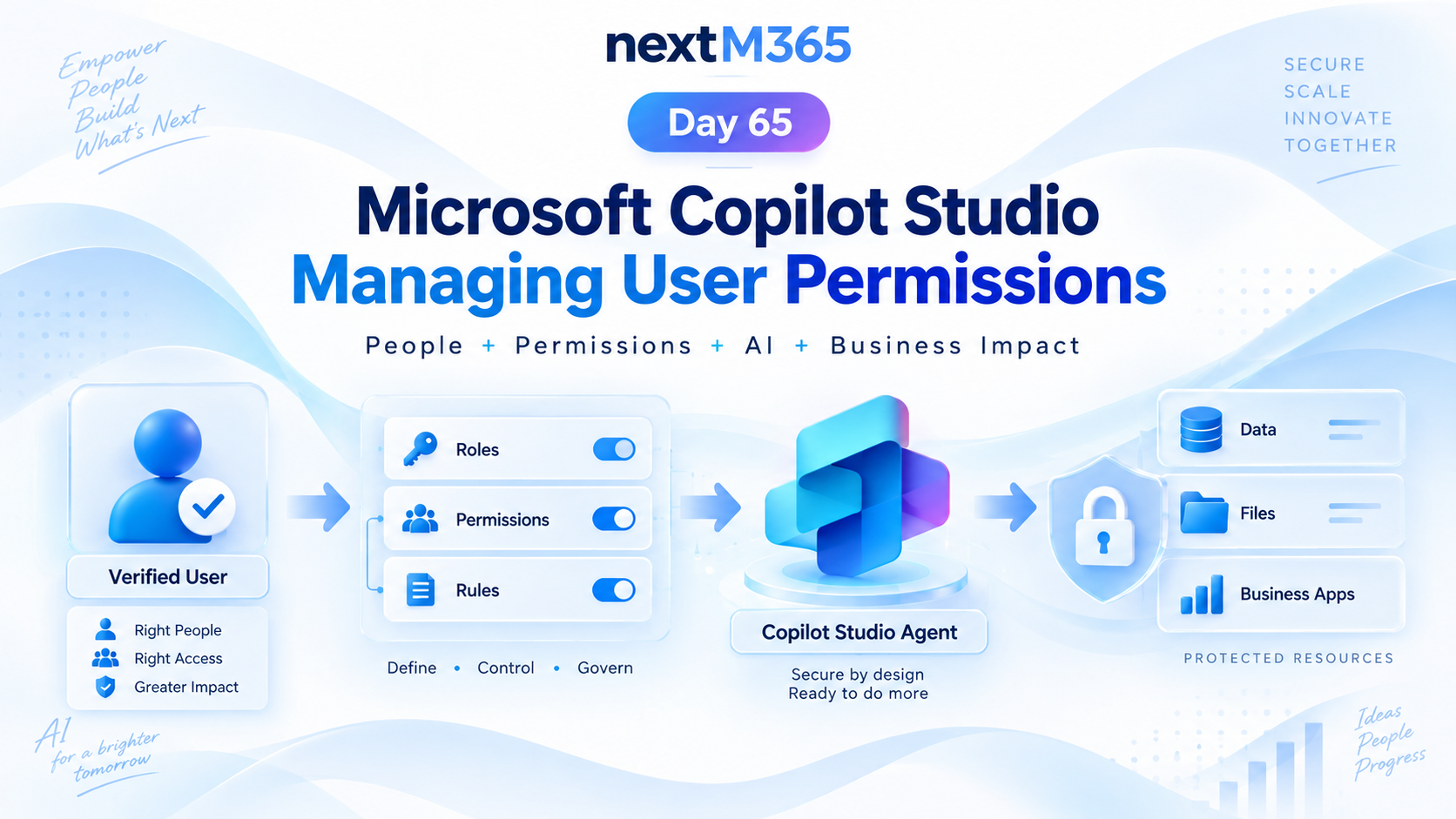
Week 10 · Day 65 of 365 in 365 Days of Copilot Studio — view the full series
Before you start
Is this guide for you?
- Best entry point
- 365 Days of Copilot Studio
- Time investment
- 7 min read
In this article
- What User Permissions Mean
- Start With Personas
- Use Groups Where Possible
- Permission Layers to Map
- Apply Least Privilege
On this page (13 sections)
Day 65 of 365 Days of Copilot Studio explains managing user permissions in Copilot Studio: how to connect people, permissions, AI, and business impact without giving an agent more access than users should have.
Day 64 explained authorization and access control. Day 65 turns that security model into a practical permission management approach: define who can use the agent, what they can access, what actions they can run, and how those permissions stay governed over time.
This lesson builds on Day 61: Authentication, Day 63: Single Sign-On, and Day 64: Authorization and Access Control.
Note: Permissions are where security becomes operational. The design must be clear enough for makers, admins, and business owners to maintain after launch.
What User Permissions Mean
User permissions define what a person can access or do through a Copilot Studio agent. That can include agent availability, knowledge access, topic entry points, tool execution, connector usage, API calls, resource retrieval, and workflow actions.
The practical flow is:
User -> permissions -> agent -> resource
If the user is not allowed to reach the resource or run the action, the agent should not bypass that boundary. A well-designed agent extends business capability while respecting existing security.
Start With Personas
Do not begin permission design by clicking through settings. Begin with personas and work backward from real work.
| Persona | Allowed access | Example permission boundary |
|---|---|---|
| Employee | General policies, self-service requests, personal support status | Cannot view another employee's private data. |
| Manager | Team requests, approvals, manager-specific guidance | Cannot approve outside their responsibility. |
| Support agent | Assigned tickets, troubleshooting tools, knowledge articles | Cannot run admin-only remediation actions. |
| Administrator | Configuration, monitoring, elevated support actions | Uses admin access only for governed tasks. |
| Guest or partner | Limited partner resources | Cannot access internal-only knowledge or tools. |
Personas make permission decisions readable. They also help business owners review access without needing to understand every technical control.
Use Groups Where Possible
Individual assignments become messy quickly. For production agents, group-based access is usually easier to review, automate, and audit.
Common group patterns include:
- Agent audience groups: who can use the agent at all.
- Capability groups: who can use specific actions or workflows.
- Resource groups: who can access protected knowledge, files, rows, or APIs.
- Owner groups: who can maintain the agent, review logs, or approve changes.
- Exception groups: temporary or special-case access with an expiry process.
Groups also make offboarding safer. When a user changes role or leaves the organization, group membership can remove agent access without hunting through individual assignments.
Permission Layers to Map
A Copilot Studio agent can touch multiple security layers. Permission management means knowing where each decision happens.
| Layer | What to decide | Owner |
|---|---|---|
| Agent access | Who can open and use the agent? | Agent owner or admin. |
| Channel access | Who can reach the agent in Teams, website, or another channel? | Channel owner or tenant admin. |
| Knowledge access | Which sources are public, internal, or restricted? | Content owner. |
| Action access | Who can run each tool, flow, or API operation? | Process owner. |
| Resource access | What can the user read, update, create, or delete? | System or data owner. |
| Governance access | Who can edit, publish, monitor, or retire the agent? | Platform owner. |
If a layer is not documented, it is easy for teams to assume someone else is protecting it.
Apply Least Privilege
Least privilege means users and connections get only the access required for the scenario. It is especially important for agents because a conversational interface can make powerful actions feel deceptively simple.
Apply least privilege by asking:
- Does this user need the agent, or only a subset of it?
- Does this action need read, create, update, delete, approve, or admin-level access?
- Can the agent rely on the user's existing resource permissions?
- Does a configured connection have broader access than the user?
- Can the action be split into a request step and an approval step?
- Can sensitive results be summarized without exposing restricted details?
Permissions should match the business task, not the easiest setup path.
User Permissions and Configured Connections
Configured connections are useful, but they can blur permission boundaries. If a Power Automate flow, connector, or API call runs with a connection that has broad access, the agent may be able to retrieve or change information the user could not access directly.
When using configured credentials, add explicit business checks:
- Validate the signed-in user.
- Check the user's group, role, department, or ownership.
- Confirm the requested resource belongs to an allowed scope.
- Require approval for sensitive operations.
- Log who requested the action, not only which connection executed it.
Warning: A broad connection can turn a helpful agent into a data exposure risk. Treat connection permissions as production security design, not plumbing.
Design Permission-Aware Conversations
The agent should guide users through secure experiences without exposing the internal access model. Good permission-aware conversations are clear, helpful, and bounded.
For example:
- If the user can access a resource, answer or act normally.
- If the user lacks access, explain that the current permissions do not allow it.
- If approval is needed, offer to create an access request.
- If the request is sensitive, confirm before taking action.
- If the user asks for something outside policy, refuse safely and suggest the right channel.
The agent should not expose raw token errors, internal group names, hidden file paths, or system details unless those details are meant for the user.
Permission Management Checklist
- Define personas: employee, manager, support, admin, guest, partner, or customer.
- Map capabilities: list what each persona can ask, view, create, update, approve, or trigger.
- Use groups: prefer Microsoft Entra ID or managed groups over individual assignments.
- Document resources: SharePoint, Dataverse, Graph, APIs, connectors, and business systems.
- Review credentials: know whether actions run as the user or with configured credentials.
- Add business checks: validate role, ownership, status, region, or approval where needed.
- Plan denied paths: give safe messages and next steps when access is blocked.
- Audit activity: log who requested sensitive actions and what happened.
- Review regularly: permissions drift as teams, roles, and agents change.
Testing User Permissions
Permission testing is not complete until you test the people who should not be allowed. Denied paths are just as important as successful paths.
Test these cases before publishing:
- User can open the agent and use allowed capabilities.
- User cannot access restricted capabilities.
- User can access one resource but not another.
- User is removed from a group and loses access as expected.
- User is added to a group and gains only intended access.
- Configured connection does not overexpose resource data.
- Denied access message is safe and understandable.
- Audit trail records the real requester.
Always test with non-admin accounts. Admin testing is useful for setup, but it does not prove production permission behavior.
Example: Support Knowledge Agent
A support knowledge agent may answer general troubleshooting questions for all employees. It may also expose advanced remediation actions to support analysts and admin-only operations to a smaller platform team.
A good permission design separates those capabilities:
- All employees can ask general questions.
- Support analysts can create or update assigned tickets.
- Managers can approve certain requests.
- Administrators can run elevated actions with extra confirmation.
- Guests can access only partner-approved content.
The same agent can serve multiple audiences, but each audience needs a clear boundary.
Governance Over Time
Permissions are not a one-time launch task. Agents change. Knowledge sources change. New actions get added. People move teams. Without review, permission models drift away from the original design.
Set a simple governance rhythm:
- Review high-risk actions before publishing.
- Review group memberships on a schedule.
- Review denied access logs for confused users or broken permissions.
- Review configured connections when owners change.
- Retire unused permissions and unused actions.
Governance keeps the agent useful without slowly turning it into an unreviewed access path.
Common Mistakes
- Giving access by convenience: broad access may make testing easy but production risky.
- Managing users one by one: individual permissions become hard to audit.
- Ignoring resource permissions: the agent still needs SharePoint, Dataverse, Graph, API, and connector security to be correct.
- Skipping denied-user tests: this misses the failures that matter most for security.
- Forgetting ownership: every permission-sensitive action needs someone responsible for review and support.
Key Takeaway
Managing user permissions in Copilot Studio is about more than letting people open an agent. It is about defining the right people, the right access, the right actions, and the right protected resources.
The practical rule is: use groups, apply least privilege, test denied users, and review permissions over time. That is how Copilot Studio agents stay secure while delivering real business impact.
Next: Day 66: Secure Actions and Tool Permissions in Microsoft Copilot Studio.
Tagged
Security · Permissions · AI Agents · Governance · Integrations
Frequently asked questions
What are user permissions in Copilot Studio?
User permissions control which people can access an agent, use protected knowledge, run actions, reach resources, or perform sensitive operations through the agent experience.
How should I manage Copilot Studio permissions?
Start with personas, map each persona to allowed knowledge and actions, use groups where possible, apply least privilege, and test with normal non-admin users.
Do Copilot Studio permissions replace SharePoint or Dataverse permissions?
No. Copilot Studio permission design should work with resource permissions in SharePoint, Dataverse, Graph, APIs, connectors, and business systems.
Should I use individuals or groups for agent access?
Groups are usually easier to govern than individual assignments. Use individuals only for exceptions, prototypes, or temporary access.
What should I test before publishing permission-sensitive agents?
Test allowed users, denied users, role changes, group membership changes, protected resources, secure actions, configured connections, and audit trails.
Sources
- Microsoft Learn: Configuration End User Authentication, Microsoft
- Microsoft Learn: Configuration Authentication Azure Ad, Microsoft
- Microsoft Learn: Overview, Microsoft
- Microsoft Learn: Wp Data Loss Prevention, Microsoft
Have a Microsoft 365 topic idea?
Share article suggestions, community session ideas, corrections, or real-world scenarios for future nextM365 learning notes.
Keep learning Microsoft 365
Explore more practical guides for SharePoint, Power Platform, Copilot Studio, migration, automation, governance, and security.
Continue learning
Related tutorials
Related questions
Related comparisons
Next action