Copilot Studio Single Sign-On (SSO) Explained | Day 63
Understand Copilot Studio single sign-on: how trusted Microsoft identity flows from user sign-in into secure agent conversations, tools, actions, and resources.
- Published
- Reading time
- 7 min read
Week 9 · Day 63 of 365 in 365 Days of Copilot Studio — view the full series
Before you start
Is this guide for you?
- Best entry point
- 365 Days of Copilot Studio
- Time investment
- 7 min read
In this article
- What Single Sign-On Means
- The Core SSO Flow
- Why SSO Matters for Agents
- SSO Is Still Not Authorization
- Where SSO Fits Best
On this page (12 sections)
Day 63 of 365 Days of Copilot Studio explains single sign-on (SSO) in Copilot Studio: how a trusted user identity can flow into an agent experience so people sign in once and access secure capabilities more smoothly.
Day 61 introduced authentication. Day 62 compared authentication methods. Day 63 focuses on the experience most business users expect: sign in once, keep working, and let the agent use the trusted identity context when secure access is required.
This lesson builds on Day 61: Copilot Studio Authentication Explained, Day 62: Copilot Studio User Authentication Methods, and Day 60: Microsoft Teams AI Agent Integration.
Note: SSO is about seamless identity. It is not a shortcut around authorization, permissions, or data protection.
What Single Sign-On Means
Single sign-on lets a user authenticate once through a trusted identity provider and then use that trusted identity across connected experiences. In Microsoft 365 scenarios, that identity foundation is commonly Microsoft Entra ID.
For Copilot Studio, SSO means the agent experience can rely on an identity context the user has already established. Instead of repeatedly asking the user to sign in for every secure step, the agent can work with a trusted sign-in context when the channel and configuration support it.
| Without SSO | With SSO |
|---|---|
| The user may be prompted to sign in again when secure access is needed. | The user's existing trusted identity can support the agent experience. |
| Conversation flow may feel interrupted by repeated authentication steps. | The conversation can continue more naturally when identity is already available. |
| Identity handling may vary by channel or app. | Identity can be more consistent across Microsoft 365 experiences. |
The Core SSO Flow
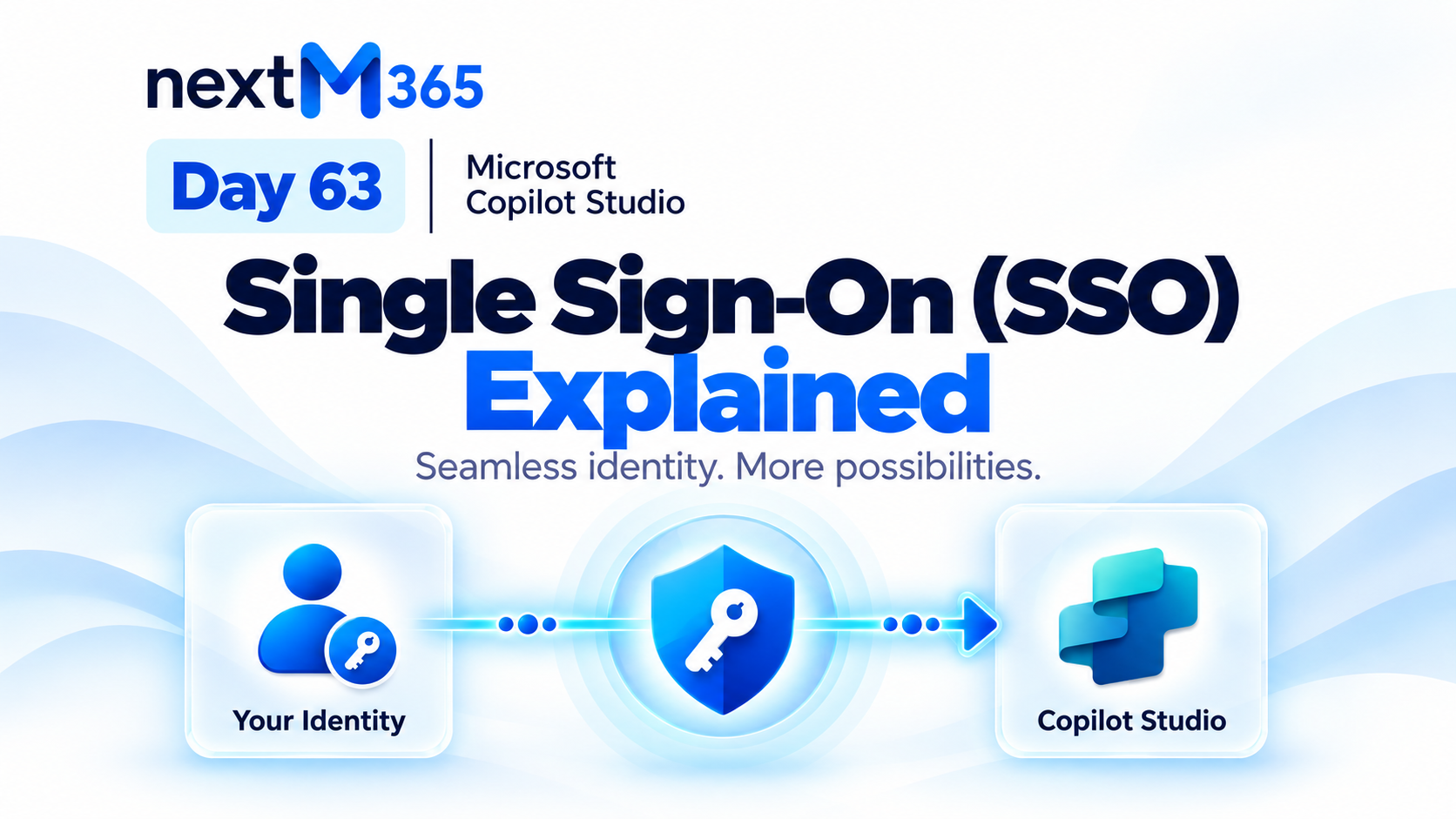
The slide deck frames SSO as a simple path: user identity -> SSO -> Copilot Studio agent. The user signs in once, identity is trusted, and the agent can use that context for secure access.
- User signs in: the user authenticates through the trusted identity provider.
- Identity is verified: Microsoft identity or another configured provider confirms who the user is.
- Identity context is available: the channel or agent experience can receive trusted context.
- Copilot Studio continues securely: the agent can use the identity-aware context for protected conversations, tools, and resources.
From the user's point of view, the value is simple: sign in once, access seamlessly. From the architect's point of view, the value is safer identity continuity.
Why SSO Matters for Agents
Agents often sit between users and business systems. If the agent cannot understand who the user is, it cannot safely personalize answers, run protected actions, or access internal information.
SSO helps because it can:
- Reduce friction: users avoid unnecessary repeated sign-in prompts.
- Improve trust: the agent uses a known identity context instead of anonymous assumptions.
- Support personalization: responses can account for the user, role, channel, or organization context.
- Enable secure actions: tools and flows can be designed around verified identity.
- Strengthen governance: identity-aware designs are easier to audit and reason about.
SSO Is Still Not Authorization
SSO answers an identity question: has this user already signed in through a trusted provider? Authorization answers a permission question: what is this user allowed to access or do?
| Layer | Question | Example |
|---|---|---|
| SSO | Can the user reuse a trusted sign-in? | A Teams user is already signed in with Microsoft 365 identity. |
| Authentication | Who is the user? | Microsoft Entra ID verifies the user account. |
| Authorization | What can the user access? | SharePoint, Dataverse, Graph, or a business API checks permissions. |
A signed-in user should not automatically receive every file, ticket, row, or workflow action. SSO improves the sign-in experience. It does not replace least privilege.
Security rule: SSO should carry identity into the agent experience, but each protected system still needs permission checks.
Where SSO Fits Best
SSO is most useful when the user already works inside a trusted identity environment and the agent needs to serve that user securely.
Common fits include:
- Microsoft Teams employee agents.
- Microsoft 365 internal support agents.
- Agents that retrieve identity-aware knowledge.
- Agents that call Power Automate flows or tools for signed-in employees.
- Agents that need user context before accessing SharePoint, Dataverse, Graph, or business systems.
For public website FAQ agents, SSO may be unnecessary at the start. A better pattern is to allow public questions first, then request identity only when the user asks for protected information or a secure action.
SSO in Microsoft Teams
Microsoft Teams is a natural place for SSO because users are already signed in with their Microsoft 365 identity. A Copilot Studio agent published into Teams can often provide a smoother experience than a public web channel because the user is already operating inside a managed identity context.
Teams SSO design should still answer these questions:
- Which users or groups can access the agent?
- What protected data can the agent reach?
- Does each tool run as the user or through configured credentials?
- What happens if token acquisition fails?
- How are denied users handled?
- What audit trail proves who requested the action?
The user experience may feel seamless, but the security architecture still needs deliberate design.
How Identity Reaches Agent Actions
SSO becomes especially important when the agent calls tools, actions, flows, connectors, or APIs. The identity context may influence what the action can retrieve or update.
| Action pattern | What to check | Risk to manage |
|---|---|---|
| User-delegated access | Can the signed-in user access the resource directly? | Missing scopes, denied users, or inconsistent permissions. |
| Configured connection | Does the connection have broader access than the user? | The agent could expose data unless business rules enforce user-level access. |
| API-backed action | How does the API validate the user and requested operation? | Weak token validation or unclear authorization logic. |
Do not assume SSO automatically makes every downstream action safe. The secure design follows identity from the user, through the channel, into the agent, into the action, and finally into the protected system.
Access Tokens and Identity Context
In many secure experiences, identity is represented through a token or trusted context. That token may carry information about the signed-in user, the issuer, the audience, the session, and the scopes or claims available to the experience.
Design token handling with care:
- Use only the scopes required for the scenario.
- Do not expose raw tokens or claims to the user.
- Handle expiration and refresh behavior clearly.
- Validate the protected resource expects the token being used.
- Keep logs useful without leaking sensitive identity data.
Tokens represent access. Treat them as a security boundary, not as ordinary conversation variables.
What the User Should Experience
Good SSO design feels almost invisible. The user should not need to understand tokens, identity providers, or authentication settings. They should simply experience a secure agent that knows when identity is available and when extra sign-in or consent is required.
A good user flow looks like this:
- The user opens the agent in a trusted channel such as Teams.
- The agent answers general questions normally.
- The user asks for protected or personalized help.
- The agent uses available identity context or requests sign-in if needed.
- The agent continues the original task securely.
- If access is denied, the agent explains the next step clearly.
The user should not feel dumped into a technical sign-in maze. The agent should guide the journey.
Failure Paths Matter
SSO does not remove error handling. It changes which errors you must plan for.
Before publishing, test:
- User is already signed in.
- User is not signed in.
- User belongs to the wrong tenant or group.
- User has identity but not resource permission.
- Token acquisition fails.
- Session expires mid-conversation.
- Mobile, browser, Teams, and embedded experiences behave differently.
A secure agent should fail clearly, not silently. If the user cannot access something, tell them what happened in business language and avoid exposing raw technical details.
SSO Architecture Checklist
- Define the audience: employees, guests, customers, partners, or public visitors.
- Choose the identity provider: Microsoft Entra ID or another configured provider.
- Choose the channel: Teams, website, custom app, or other channel.
- Map protected resources: SharePoint, Dataverse, Graph, APIs, tickets, orders, HR data, or workflows.
- Decide credential execution: user-delegated access or configured credentials.
- Validate authorization: allowed and denied users must both behave correctly.
- Test failure paths: expired sessions, missing consent, denied access, and channel limitations.
- Document support ownership: identity, channel, agent, and tool owners should all be clear.
Key Takeaway
SSO makes secure agent access feel natural. The user signs in once, identity flows into the agent experience, and the conversation can continue with less friction.
The practical rule is simple: sign in once, access seamlessly, authorize carefully. Use SSO to improve the experience, but keep authorization, tool permissions, and protected resource checks explicit.
Next: Day 64: Authorization and Access Control in Microsoft Copilot Studio.
Tagged
Security · Permissions · AI Agents · Governance · Integrations
Frequently asked questions
What is SSO in Copilot Studio?
Single sign-on lets a user authenticate once through a trusted identity provider, usually Microsoft Entra ID for Microsoft 365 scenarios, and then use that identity context inside the Copilot Studio agent experience.
Does SSO mean every user can access every tool or data source?
No. SSO verifies identity and improves sign-in experience. Authorization still decides what that signed-in user can see, retrieve, update, or trigger.
Why is SSO useful for Copilot Studio agents in Microsoft Teams?
Teams users are already working in a signed-in Microsoft 365 context, so SSO can reduce repeated prompts and let the agent use trusted identity context for secure employee experiences.
What should I validate before publishing a Copilot Studio SSO experience?
Validate sign-in, token flow, allowed users, denied users, expired sessions, role-based access, tool permissions, channel behavior, and safe fallback messages.
Can a Copilot Studio agent use SSO and still call tools with configured credentials?
Yes, but that is a separate security decision. If a tool runs with configured credentials, add business rules and permission checks so the agent does not expose data beyond the user's intended access.
Sources
Have a Microsoft 365 topic idea?
Share article suggestions, community session ideas, corrections, or real-world scenarios for future nextM365 learning notes.
Keep learning Microsoft 365
Explore more practical guides for SharePoint, Power Platform, Copilot Studio, migration, automation, governance, and security.
Continue learning
Related tutorials
Related questions
Related comparisons
Next action