How to Create a Microsoft 365 Business Account
A beginner-friendly guide to creating a Microsoft 365 business account, setting up the tenant, adding a custom domain, creating users, assigning licenses, and securing administrator access.
- Published
- Reading time
- 9 min read
What you’ll learn
- What is a Microsoft 365 business account?
- Before you start
- Step 1: Choose the right Microsoft 365 business plan
- Step 2: Create the Microsoft 365 tenant
- Step 3: Sign in to the Microsoft 365 Admin Center
On this page (18 sections)
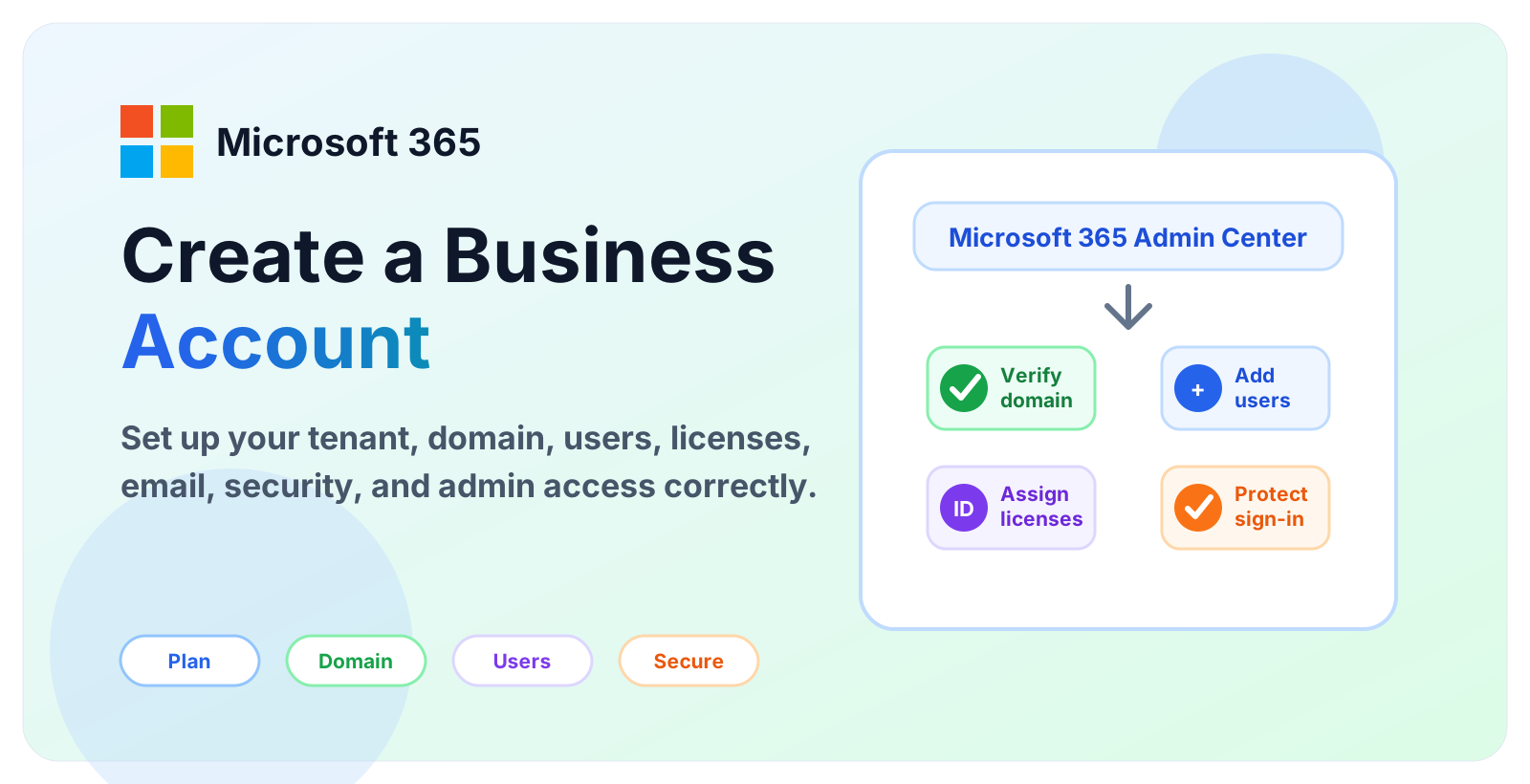
Creating a Microsoft 365 business account is the first step before your organization can use Microsoft 365 services such as business email, Teams, SharePoint, OneDrive, Microsoft 365 apps, and the Microsoft 365 Admin Center. The setup is not only about signing up. A good setup also includes the tenant name, custom domain, administrator access, users, licenses, email records, security, and support ownership.
This guide explains the process in beginner-friendly language. It is useful for small business owners, IT beginners, consultants, help desk teams, and anyone preparing a new Microsoft 365 tenant. If you are new to the platform, also read What Is Microsoft 365? and Microsoft 365 Admin Center Explained.
What is a Microsoft 365 business account?
A Microsoft 365 business account is an organization account that belongs to a Microsoft 365 tenant. Users sign in with work accounts such as user@company.com. Administrators use the tenant to manage users, licenses, groups, domains, security settings, email, SharePoint, Teams, and other Microsoft cloud services.
Do not confuse a business account with a personal Microsoft account. A personal account is usually used for consumer services. A Microsoft 365 business account is managed by the organization, controlled through admin roles, and connected to the company tenant.
Before you start
Spend a few minutes planning before you create the tenant. Early decisions can affect usernames, email addresses, DNS records, administrator recovery, and future migration work.
- Business name - decide the organization name you want shown in Microsoft 365.
- Domain name - decide whether you will use a custom domain such as
company.com. - First administrator - use a reliable person and protect the account immediately.
- Licenses - choose plans based on required services, not only price.
- User list - prepare names, email addresses, departments, and license needs.
- DNS access - make sure someone can edit records at the domain registrar or DNS host.
- Security plan - decide how admin MFA, recovery, and least privilege will be handled.
Step 1: Choose the right Microsoft 365 business plan
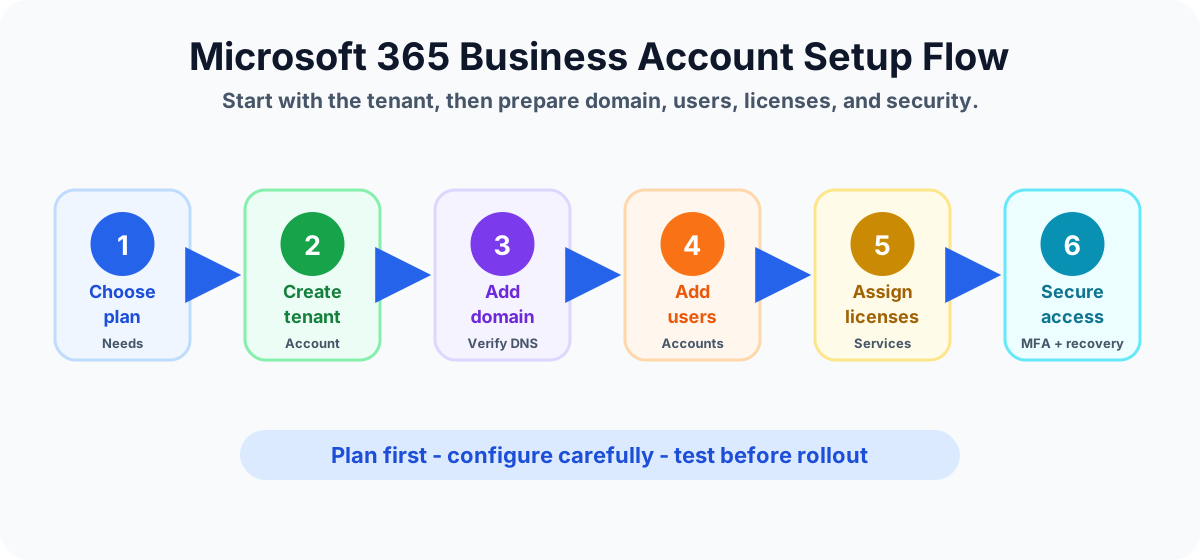
The first step is choosing a plan that matches your business needs. Different plans include different combinations of email, Office apps, Teams, SharePoint, OneDrive, security, device management, and administration features. Do not choose only by looking at the name. Compare what users actually need.
For example, a small business may need business email, Teams meetings, OneDrive storage, SharePoint document collaboration, and desktop Office apps. Another organization may also need stronger security controls, device management, or advanced compliance. Your license decision affects what administrators can configure later.
If you are planning around security, administration, or Copilot readiness, document the license assumptions clearly. Licensing changes often, so confirm current plan details from Microsoft or your licensing partner before buying.
Step 2: Create the Microsoft 365 tenant
When you sign up for Microsoft 365 business, Microsoft creates a tenant for your organization. A tenant is the cloud container for your users, services, domains, licenses, security settings, and administrative configuration.
During setup, you usually provide your organization details, choose or receive a default onmicrosoft.com domain, create the first administrator account, and complete purchase or trial steps based on the path you are using.
Write down the tenant name and administrator recovery details in your internal IT records. Do not store admin passwords in personal notes or unsecured documents.
Step 3: Sign in to the Microsoft 365 Admin Center
After setup, administrators manage the tenant from the Microsoft 365 Admin Center. The common admin URL is admin.microsoft.com. This is where you manage core tenant tasks such as users, licenses, billing, domains, service health, Message center, reports, settings, and support.
If the admin menu looks different from screenshots you see online, that can be normal. Menus can vary by license, role, tenant configuration, rollout status, and Microsoft updates. If a setting is missing, first check whether you are signed into the right tenant and whether your account has the correct admin role.
Step 4: Add and verify your business domain
A custom domain lets users sign in and receive email with your business name, such as name@company.com. You add the domain in the admin center and verify that you own it by adding DNS records at your domain registrar or DNS hosting provider.
Common DNS work can include verification records and service records for email and other Microsoft 365 services. Be careful with DNS changes. If you change mail records before mailboxes and users are ready, email delivery can be interrupted.
A safe approach is to verify the domain first, prepare users and mailboxes, then move mail flow when you are ready. If you are migrating from another email system, plan timing carefully. For broader migration planning, read What Is Microsoft 365 Migration?.
Step 5: Create users
Users are created from Users > Active users in the Microsoft 365 Admin Center. For each person, define the name, username, domain, location, contact information, license, and role if needed.
Most users should not be administrators. Give admin roles only to people who need them. For example, a help desk user may need password support permissions, while a licensing coordinator may only need license management access. For more detail, read Microsoft 365 Admin Roles Explained.
Beginner user setup checklist
- Create the user with the correct spelling and domain.
- Assign the right license for the user role.
- Add department, job title, and contact details if your organization uses them.
- Place the user in the right groups or teams.
- Confirm sign-in requirements and first login instructions.
- Test one pilot user before creating many accounts.
Step 6: Assign licenses
Licenses decide which Microsoft 365 services a user can access. A user may need Exchange Online for email, Teams for meetings and chat, SharePoint and OneDrive for files, Microsoft 365 apps for desktop productivity, or additional security and management features.
Do not assign the same license to everyone without checking job needs. Some users may need full desktop apps. Some may only need web apps and email. Some admins may need specialized licenses for security, device management, or compliance features. Review license usage regularly to avoid paying for unused accounts.
For larger tenants, document a license matrix by role: leadership, finance, frontline, contractors, help desk, admins, and guests. This makes onboarding and offboarding more consistent.
Step 7: Configure email and test mail flow
If your plan includes business email, each licensed user can receive a mailbox depending on the enabled services. After your domain and DNS records are configured, test mail flow before announcing the rollout.
- Send mail from one internal user to another.
- Send mail from an external address to the new mailbox.
- Send mail from the new mailbox to an external address.
- Confirm the sender address uses the correct custom domain.
- Check spam, junk, and delivery behavior during testing.
If you are migrating existing mailboxes, do not treat DNS switching as a casual change. Plan cutover windows, communicate with users, and validate mail delivery after the switch.
Step 8: Protect administrator access
Administrator accounts are high-value targets. Protect them before you roll out the tenant broadly. Use strong authentication, keep Global Administrator access limited, and create at least one additional protected admin account for emergency recovery.
Do not use the same account for everyday email and high-privilege administration if your organization can separate those duties. Admin accounts should be used carefully and monitored. Review admin roles regularly and remove access that is no longer needed.
Step 9: Set up Teams, SharePoint, and OneDrive basics
After users and licenses are ready, decide how collaboration should work. Teams, SharePoint, and OneDrive are connected, but they serve different collaboration needs.
- Teams - team chat, meetings, channels, and app collaboration.
- SharePoint - team sites, document libraries, intranet pages, and shared content.
- OneDrive - personal work files that can be shared when needed.
Start with a simple structure. Avoid creating too many Teams and SharePoint sites without naming rules, owners, and lifecycle guidance. For SharePoint basics, read SharePoint Online Document Library Explained.
Step 10: Review service health and Message center
New administrators should learn two important admin center areas early: Service health and Message center. Service health helps you check whether Microsoft has reported an issue affecting a service. Message center helps you track upcoming changes, retirements, and actions that may affect your tenant.
Before troubleshooting a broad Outlook, Teams, SharePoint, or OneDrive issue, check Service health. Before a change surprises users, review Message center and communicate relevant updates.
Common mistakes to avoid
- Creating the tenant with an unclear admin account owner.
- Changing email DNS records before users and mailboxes are ready.
- Giving too many people Global Administrator access.
- Skipping MFA and recovery planning for administrator accounts.
- Assigning licenses without checking user role needs.
- Creating users before deciding the final custom domain format.
- Not documenting who owns billing, support, DNS, and admin access.
Recommended setup order
- Choose the right Microsoft 365 business plan.
- Create the tenant and first administrator account.
- Protect administrator sign-in.
- Add and verify the business domain.
- Create one or two pilot users.
- Assign licenses and test sign-in.
- Configure email records and test mail flow.
- Create remaining users and groups.
- Prepare Teams, SharePoint, and OneDrive governance.
- Document support, billing, DNS, and admin ownership.
Example: Small business setup
A small company with 12 employees wants professional email, Teams meetings, shared documents, and Office apps. The owner chooses a Microsoft 365 business plan, creates the tenant, signs in to the admin center, verifies the company domain, creates two pilot users, assigns licenses, tests email, enables strong sign-in protection, then creates the remaining users.
After the first rollout, the company creates a Team for internal operations, a SharePoint document library for client templates, and a basic offboarding checklist. This keeps the tenant simple while still giving users a clean starting point.
Final checklist before rollout
- Can admins sign in securely?
- Is there more than one protected administrator?
- Is the custom domain verified?
- Are DNS records documented?
- Can pilot users send and receive email?
- Are licenses assigned correctly?
- Are groups, Teams, and SharePoint sites named clearly?
- Do users have simple first sign-in instructions?
- Does IT know how to check Service health?
- Is billing and support ownership documented?
Key takeaways
Creating a Microsoft 365 business account is easy, but setting it up well requires planning. The most important early decisions are the tenant, domain, administrator access, licenses, users, email records, and security. Start small, test with pilot users, document ownership, and use the Microsoft 365 Admin Center as your main control point.
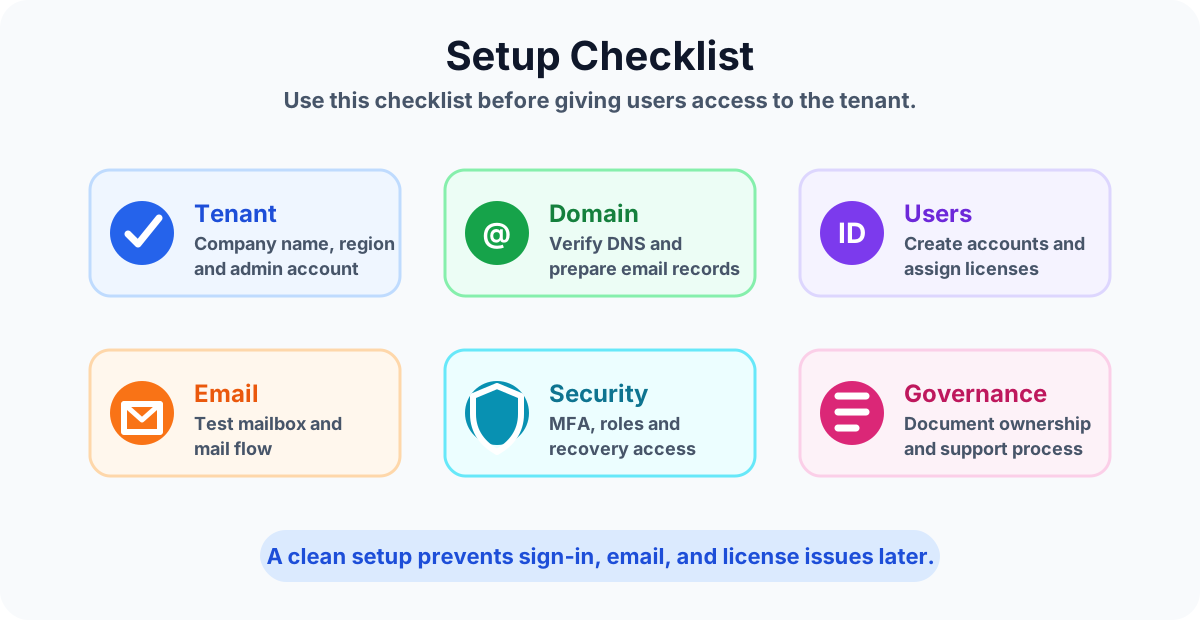
A clean Microsoft 365 business setup prevents avoidable sign-in, email, license, and security problems later.
Related resources
Topics covered
Admin Center · Licensing · Security · Governance
Frequently asked questions
What is a Microsoft 365 business account?
A Microsoft 365 business account is an organization account used to access Microsoft 365 business services such as Exchange Online, Teams, SharePoint, OneDrive, Microsoft 365 apps, and the Microsoft 365 Admin Center depending on the plan and licenses assigned.
Do I need a domain before creating a Microsoft 365 business account?
You can start with the default onmicrosoft.com domain and add a custom business domain later. For professional email, most organizations add and verify their own domain before rolling out users broadly.
Where do I manage a Microsoft 365 business account after setup?
Most everyday administration starts in the Microsoft 365 Admin Center at admin.microsoft.com, where administrators manage users, licenses, domains, service health, billing, settings, and support.
How many admin accounts should a small business have?
At minimum, keep more than one protected administrator account so the organization is not locked out if one admin is unavailable. Use least privilege roles instead of making every admin a Global Administrator.
Can I create users before adding a custom domain?
Yes. You can create users with the default tenant domain first, but many businesses wait to assign final usernames and email addresses until the custom domain is verified.
What should I do immediately after creating the tenant?
Protect administrator sign-in, verify recovery options, add your business domain, review licenses, create test users, confirm email flow, and document who owns billing, support, and administration.
Sources
- Microsoft Learn: Admin, Microsoft
- Microsoft Learn: Introduction, Microsoft
Have a Microsoft 365 topic idea?
Share article suggestions, community session ideas, corrections, or real-world scenarios for future nextM365 learning notes.
Keep learning Microsoft 365
Explore more practical tutorials for SharePoint, Power Platform, Copilot Studio, migration, automation, governance, and security.
Continue learning
Related tutorials
Related questions