SharePoint Migration Common Issues & Solutions (2026)
Diagnose missing files, permission errors, lost metadata, version gaps, broken links, failed flows, and slow SharePoint migrations with practical fixes and verification evidence.
- Published
- Reading time
- 12 min read
Quick answer
Resolve SharePoint migration issues by recording the affected source and destination items, checking item-level reports, and classifying the problem as content, identity, metadata, versions, links, automation, or performance. Apply a targeted repair, rerun the supported migration or test, and verify the result with representative users. Reconcile approved exclusions and obtain business sign-off before retiring the source.
Before you start
Is this guide for you?
- Best entry point
- Migration
- Time investment
- 12 min read
- Prerequisite knowledge
- The migration source, destination, selected tool, approved scope, identity mapping, and access to authorized migration reports and test accounts.
What you’ll learn
- A completed migration job does not establish that content and business processes are usable.
- Reconcile source and destination inventories against approved scope and transformations.
- Validate both allowed and denied access with representative user accounts.
- Treat metadata, versions, links, flows, and external integrations as separate checks.
- Close an issue with retest evidence and owner acceptance rather than a changed dashboard status.
Before you start
- Prerequisite knowledge
- The migration source, destination, selected tool, approved scope, identity mapping, and access to authorized migration reports and test accounts.
On this page (14 sections)
SharePoint migration issues often become visible after a job reports completion: a team cannot open a folder, a document has lost its classification, a familiar link fails, or an approval flow no longer runs. Treat the migration report as one part of the evidence needed to establish a usable destination.
This guide expands the NEX and PIX learning PDF into a practical troubleshooting process for migration leads, SharePoint administrators, consultants, and business owners. It covers common symptoms, likely causes, targeted repairs, and the evidence needed to close each issue.
Quick approach: identify the affected item and user, inspect the relevant reports, confirm the expected destination behavior, repair the specific cause, and retest the whole supported journey. Reconcile exceptions before business sign-off.
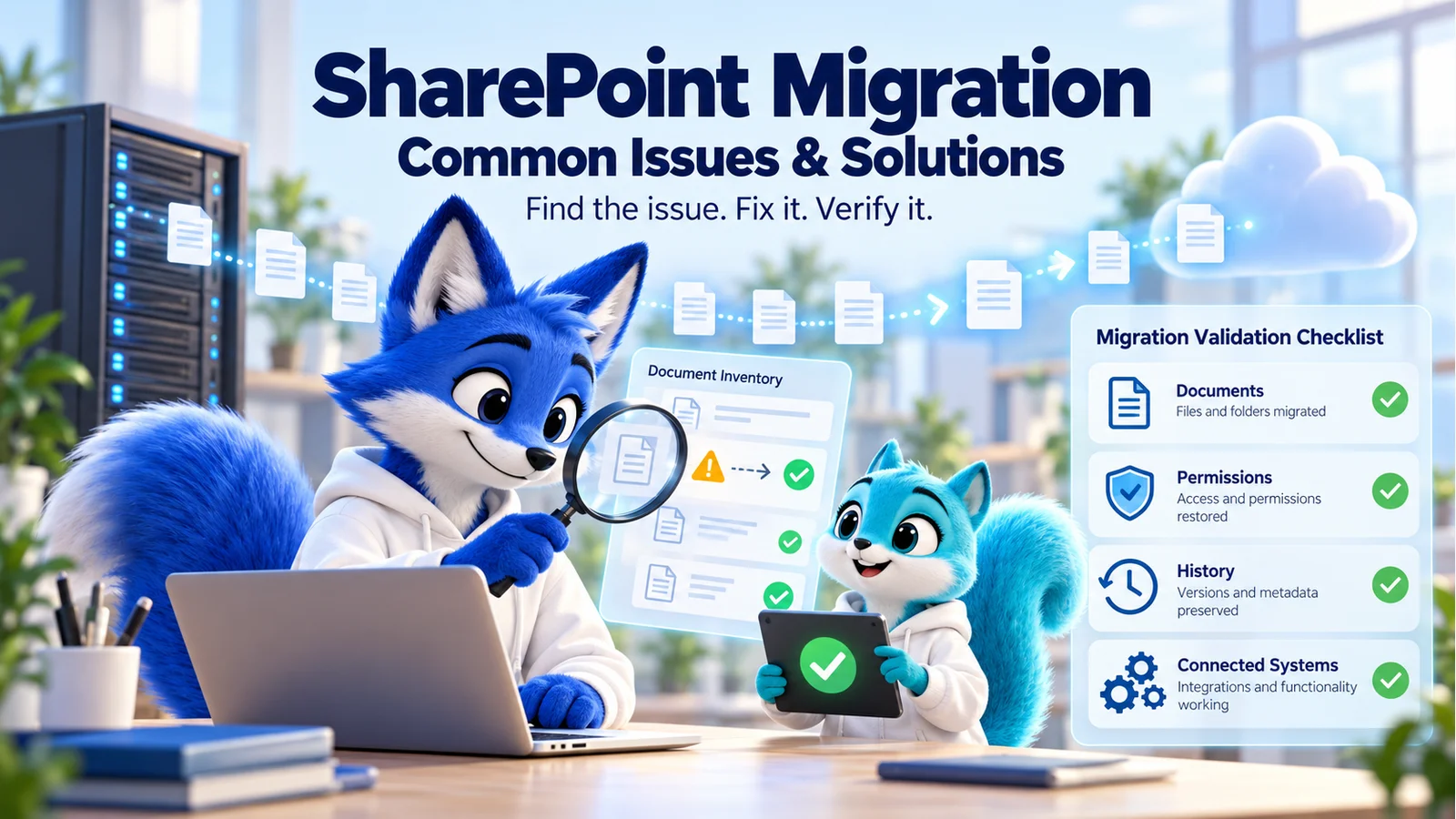
The hero is a conceptual illustration. All numerical examples below are illustrative. Technical references were checked on 17 October 2026. The SPMT guidance applies to supported SPMT scenarios; other tools and tenant-to-tenant services have their own capabilities and settings.
SharePoint Migration Issues: Quick Diagnosis Table
| Symptom | Check first | Targeted response | Proof of resolution |
|---|---|---|---|
| Missing files | Scope, scan failures, item reports, filters, and destination mapping. | Reconcile the item and correct the cause before a supported rerun. | Expected content is present or an exclusion is explicitly accepted. |
| Access denied or excessive access | Identity mapping, group membership, and inheritance. | Apply the approved destination access model. | Allowed and denied user tests pass. |
| Missing metadata | Field mappings, content types, required values, and dependencies. | Correct the schema or mapping and repair affected values. | Required values match approved expectations. |
| Missing versions | Tool support, migration settings, destination configuration, and reports. | Restore the required history through a supported approach. | Required versions and their properties are verified. |
| Broken links | Original URLs, renamed paths, embedded references, and target access. | Update approved references through a controlled mapping. | Representative users reach the intended content. |
| Failed flows or apps | Connections, ownership, site or list references, and permissions. | Repair the dependency and retest the business process. | The expected transaction completes once and correctly. |
| Invalid names or long paths | Scan report and complete destination path. | Approve a shorter path or supported rename rule. | The item migrates and works in required clients. |
| Low throughput | Source reads, agent resources, network, and throttling signals. | Address the measured bottleneck and use supported retry behavior. | A comparable pilot shows stable processing without excess errors. |
1. Start With an Evidence-Based Issue Register
Record the migration wave, tool and version, source item, destination item, affected account, error text, and observation time. Include the expected behavior, business impact, owner, proposed repair, and retest result. Preserve identifiers needed to find the corresponding tool report.
For SPMT, use Microsoft’s migration reporting guidance to distinguish job summaries from item and structural failures. A successful parent task does not explain every discrepancy in the destination.
For a reproducible tool error, consult the SPMT troubleshooting reference using the actual code and context. Do not apply a fix for a different phase merely because its message looks similar.
Example issue record
Issue: MIG-024
Wave: Finance pilot
Source and target: approved item identifiers or mapped paths
Symptom: Employee can open the library but not the contract folder
Expected: Approved finance group has the agreed read access
Evidence: Item report, mapping record, and ordinary-user test
Owner: Identity and SharePoint migration leads
Retest: Allowed user opens the contract; unrelated user is denied
Closure: Evidence reviewed and accepted by the business owner
Store reports in an access-controlled location and keep sensitive content out of general support tickets. Evidence should let the right reviewer reproduce the problem without exposing unrelated business data.
2. Why Are Files Missing After Migration?
Compare the final source inventory with the mapped destination inventory. Account for approved exclusions, renames, scope boundaries, and changes made during the migration window. A destination total alone cannot identify which source item is missing.
Investigate each discrepancy against the item reports. Typical causes to check include excluded content, an unreadable source item, a path or naming problem, incomplete processing, and an unexpected destination mapping. Confirm the source is still available before planning remediation.
Illustrative reconciliation: the source has 25,000 files, 300 are approved exclusions, and 24,500 mapped destination files are found. The expected destination population is 24,700, leaving 200 items to explain. Suppose 150 have recorded failures and 50 still lack a confirmed disposition. The raw difference of 500 is not the same as 500 confirmed lost files.
Repair the cause and use the tool’s supported rerun method. Review overwrite behavior and destination edits first. Close the issue only when every expected item is present or has an accepted disposition. Open representative business documents and perform deeper integrity checks where the risk warrants them.
See the migration validation guide and inventory comparison guide for a broader reconciliation approach.
3. How Do You Fix Permission and Identity Problems?
Separate a failed sign-in from a signed-in user lacking access. For the affected file or folder, inspect the destination identity, approved group membership, library inheritance, unique permissions, and any sharing configuration that forms part of the intended design.
Microsoft’s SPMT permission guidance explains how source location and identity mapping affect transferred permissions. Validate the resulting access model rather than assuming every source permission is reproduced identically.
When explicit mapping is required, review the user-mapping format supported by the tool. Resolve retired accounts, changed identities, and destination groups through the approved identity process.
Test with an ordinary user who should have access and another who should not. A migration administrator opening a document proves little about an employee’s access. Broadly granting permissions to remove an error can create an excessive-access incident.
For a focused access review, use the SharePoint migration permissions guide.
4. Why Is Metadata Missing or Incorrect?
Inspect the source field, destination field, mapping rule, and expected value. Pay particular attention to content types, required columns, choices, person fields, lookup relationships, managed metadata, dates, and system properties the business needs preserved.
Verify that the destination can represent the intended information. A field with the same display name can still have a different type or configuration. A lookup value may depend on another list; a person value may depend on identity mapping. Check these prerequisites before repeating the copy.
Record what should remain unchanged and what should be transformed. Then compare approved samples and machine-readable results for the required fields. Include empty values, multi-value fields where used, and representative business exceptions.
A useful closure test is concrete: the finance contract has the correct department, document type, approved status, and required dates, and the owner confirms that filtering and the dependent process work. Correct row counts do not establish correct metadata.
5. What Happened to Document Version History?
Compare the approved history requirement with what the selected tool supports and what the migration was configured to move. Review version settings, filters, destination library configuration, and the report for each affected document.
Microsoft’s SPMT settings reference documents controls that affect the migration, including version behavior and mapping options. Capture the actual settings used in the wave instead of assuming a default.
For a document with required history, verify that the expected historical versions are available and inspect the properties relevant to the requirement. Record accepted limits or exclusions. A current copy of the file is not a substitute for a history requirement.
If remediation is necessary, assess the supported rerun or recovery approach before touching destination content. Keep the source or approved recovery evidence available until the history has been accepted.
6. How Do You Repair Broken Links?
Inventory navigation, page links, document hyperlinks, bookmarks used by important teams, and embedded references in business processes. Map old locations to approved destinations, including planned renames and structural changes.
Test the exact link as an intended user. A failed link can point to the wrong path, refer to a missing item, or reach content the user cannot access. These require different repairs. A file’s presence does not establish that every reference to it works.
Update references through a controlled change process. A broad text replacement can damage an unrelated URL or alter a document unexpectedly. Retest the repaired link, the affected page or document, and a representative downstream journey.
Do not assume every old sharing link, embedded URL, or identifier will work across every migration route. Verify the capability of the chosen service and document the remediation needed for the actual source and destination.
7. Why Are Power Automate Flows and Apps Failing?
Content movement and application delivery are separate workstreams. Check the flow’s run history, failed trigger or action, connection identity, ownership, site and list references, identifiers, inputs, and permissions. For apps, inspect the corresponding data-source and connection assumptions.
Start with a controlled test transaction. Confirm the input reaches the intended destination, the correct record is created or updated, and the user receives an accurate outcome. Also test missing values, denied access, and a downstream failure.
Agree on how automation behaves during bulk copying and final delta processing. Depending on the migration route and target design, changes may interact with triggers or create duplicate processing. Use a reviewed plan for pausing, controlling, or reconciling affected processes.
Do not enable every flow simply because files are present. Validate the business journey and its support owner first. Record any rebuilt or retired automation as an explicit project decision. Our Power Automate hub provides related flow guidance.
8. Fix Invalid Names and Long Destination Paths
Use the scan results to identify specific failures. Check the complete resulting destination path, including library and folder structure, rather than only the final file name.
Microsoft documents a 400-character decoded cloud-path limit for OneDrive and SharePoint, including the file name. Desktop applications, sync clients, source platforms, and migration tools can impose other constraints. Test the clients the business actually uses.
Approve a shortening or restructuring rule, preserve the source-to-target mapping, and check for naming collisions. For invalid characters, confirm the selected tool’s supported handling and record any substitutions. Renaming content can also affect links and integrations, so retest those dependencies.
For SharePoint Server assessment, use the current SPMT scan capability. Microsoft’s SMAT lifecycle notice states that support ended on 1 October 2026 and directs users to SPMT scanning.
9. Diagnose Slow Migrations and Throttling
Measure the stage that is slow: reading the source, packaging, upload, or destination processing. Review file sizes, item counts, agent resources, network conditions, and error or retry patterns. Increasing concurrency without understanding the bottleneck can make the migration less stable.
Microsoft’s performance guidance explains that migration throughput depends on several factors and that service protection can limit background processing. It also states that throttling cannot simply be turned off through a support request.
Use the retry and backoff behavior supported by the migration tool. For custom requests, follow Microsoft’s SharePoint throttling guidance, including honoring Retry-After when supplied. Avoid aggressive retry loops.
Run comparable pilots, change one relevant factor, and keep timing and error evidence. Plan migration windows around business activity and service behavior without promising a universal transfer rate.
10. Rerun Safely and Reconcile the Final Delta
Before a rerun, confirm what the tool considers new, changed, or already migrated. Review overwrite rules, versions, destination edits, renamed paths, permissions, and automation effects. Preserve the wave configuration and reports for each round.
Agree on the source freeze or change-control point before the final delta. Record the time and scope, complete the supported final synchronization, and reconcile changes after that boundary. A destination inventory from yesterday cannot validate a source that continued changing today.
Keep a clear rule for the authoritative copy during cutover. If users can edit both sides, identify conflicts and reconcile them through a documented decision rather than silently overwriting one copy.
For planning, use the migration checklist and SharePoint Server migration guide. Confirm that the tool and method support your specific source and target.
11. Worked Example: A Finance Library Needs Remediation
A pilot wave reports completion, but a finance owner identifies missing contracts, empty classification fields, and an approval flow pointing at the previous site. A migration administrator can open the library, while an intended employee cannot open one contract folder.
Investigation: the team reconciles mapped inventories, distinguishes approved exclusions from item failures, checks required field values, and tests access with representative accounts. The flow owner reviews the failed action and confirms an old reference.
Repair: each issue receives a separate owner and a targeted change: resolve the recorded copy failure, correct the field mapping, apply the approved group access, and update the flow dependency. The team reviews rerun and trigger effects before repeating the affected operations.
Verification: the expected contracts are present, required fields match the approved values, the intended employee can use the folder, an unrelated user is denied, and the approval process completes one controlled transaction correctly. The owner reviews the evidence and accepts any remaining documented exceptions.
This is an illustrative scenario, not a claim about a particular production migration. Its value is the connection between symptom, evidence, repair, and verified outcome.
12. What Should Be Verified Before Business Sign-Off?
| Validation area | Acceptance evidence |
|---|---|
| Inventory and content | Expected items reconciled; representative files open; exceptions explained. |
| Metadata and structure | Required fields, content types, libraries, and relationships behave as agreed. |
| Identity and access | Allowed and denied tests confirm the approved boundary. |
| Versions and links | Required history and important references work for intended users. |
| Automation and integrations | Controlled transactions demonstrate the expected outcome and recovery behavior. |
| Business readiness | Owners complete representative tasks and accept documented exceptions. |
Record open issues with impact, owner, due date, and an explicit acceptance decision. Separate a known limitation from a defect and explain any workaround. Do not retire the source merely because the copy job is green.
For an assessment or validation review, use the migration hub or contact page and describe the source, target, tool, affected scope, and observed symptoms. Share detailed reports only through an appropriate channel.
13. A Repeatable Fix, Retest, and Verify Checklist
- Record the precise symptom, affected item, account, wave, and expected result.
- Classify the issue and preserve the relevant reports and configuration.
- Identify the cause and review the proposed change with its owner.
- Apply the targeted repair using a supported method.
- Retest the original failure and the related user journey.
- Check for regressions in content, access, versions, links, and automation.
- Capture evidence and reconcile outstanding discrepancies.
- Obtain owner acceptance and track any remaining exceptions.
Practical next step: take one unresolved item from your migration report and trace it from the source inventory to the destination user experience. A completed issue record should explain what failed, what changed, and how the team established that the result now works.
Tagged
Permissions · Document Libraries · Workflow Automation · Governance · Integrations
Frequently asked questions
What are the most common SharePoint migration issues?
Typical issues include missing or skipped files, incorrect permissions, incomplete metadata, missing version history, broken links, failed automation, path problems, and low throughput. Diagnose each category with item-level reports and verify it independently.
Why are files missing when the migration job says completed?
Completed describes the job state, not necessarily every intended item. Compare item reports, approved filters, scan failures, destination mappings, and the final source inventory. Reconcile each discrepancy before deciding whether it is expected or requires repair.
How do I fix access denied after migration?
Identify the affected user and item, verify the destination identity mapping, inspect group membership and inherited or unique permissions, and test with the ordinary user account. Apply the approved access model rather than granting broad access as a shortcut.
Does SharePoint migration automatically preserve all metadata?
No universal guarantee applies. Check tool support, source-to-destination field mappings, content types, required values, lookup dependencies, and identity mappings. Verify representative values and exceptions against the approved source records.
Why is document version history missing?
Review the migration tool capability, version settings and limits, destination library configuration, and item-level outcomes. Compare the required source history with the destination and remediate according to an approved retention requirement.
What is the SharePoint Online file-path limit?
Microsoft documents a 400-character limit for the entire decoded cloud file path, including the file name. Check the resulting destination path, and consider separate desktop, sync-client, and migration-tool limits. Shorten or restructure paths through an approved mapping.
Can Microsoft disable throttling for my migration?
Microsoft states that migration throttling protects service reliability and cannot simply be disabled through a support request. Review measured bottlenecks, use supported retry behavior, and plan suitable migration windows instead of aggressively increasing retries.
Do Power Automate flows work automatically after moving SharePoint content?
Do not assume they do. Review connections, owners, site and list references, identifiers, permissions, inputs, and trigger behavior. Test the real business outcome and confirm that migration activity will not create unintended duplicate processing.
Can I rerun the whole migration to fix a small number of failures?
Check the tool’s incremental and overwrite behavior first. A targeted supported rerun may be appropriate, but review destination edits, versions, duplicates, permissions, and automation effects before proceeding.
What proves a SharePoint migration is complete?
Use reconciled inventories, accepted content and metadata, verified access boundaries, required versions, working links and integrations, and business-owner test results. Record remaining exceptions and obtain explicit acceptance before decommissioning the source.
Sources
- Troubleshoot common SPMT issues and errors, Microsoft, accessed 2026-10-17
- Monitor and report SPMT migration status, Microsoft, accessed 2026-10-17
- SharePoint Migration Tool settings, Microsoft, accessed 2026-10-17
- Understand permissions when migrating with SPMT, Microsoft, accessed 2026-10-17
- Create a user-mapping file, Microsoft, accessed 2026-10-17
- File path length limits, Microsoft, accessed 2026-10-17
- Migration performance guidance, Microsoft, accessed 2026-10-17
- Avoid throttling in SharePoint Online, Microsoft, accessed 2026-10-17
- Scan and assess SharePoint Server with SPMT, Microsoft, accessed 2026-10-17
- SharePoint Migration Assessment Tool lifecycle note, Microsoft, accessed 2026-10-17
Have a Microsoft 365 topic idea?
Share article suggestions, community session ideas, corrections, or real-world scenarios for future nextM365 learning notes.
Keep learning Microsoft 365
Explore more practical guides for SharePoint, Power Platform, Copilot Studio, migration, automation, governance, and security.
Continue learning
Related tutorials
Related questions
Related comparisons
Next action