Connect Power Apps Code Apps to Azure SQL
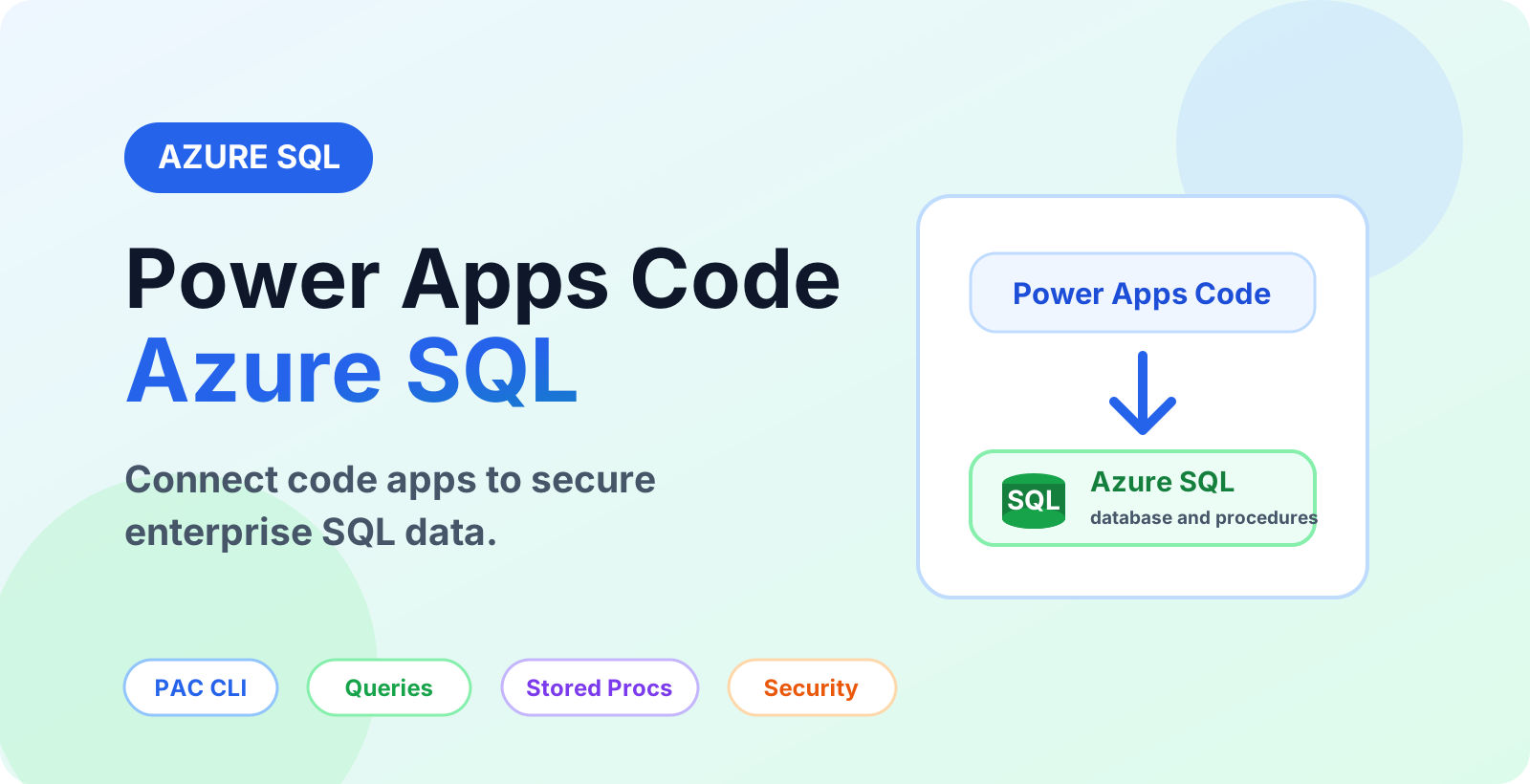
Learn how to connect Power Apps Code apps to Azure SQL Database with PAC CLI, secure authentication, queries, stored procedures, and scalable enterprise data patterns.
- Published
- Reading time
- 7 min read
Before you start
Is this guide for you?
- Best entry point
- Power Apps
- Time investment
- 7 min read
In this article
- What you are building
- When Azure SQL is the right data source
- Prerequisites
- Step 1: Prepare Azure SQL Database
- Step 2: Configure security and authentication
On this page (17 sections)
Power Apps Code apps are useful when a Power Platform solution needs a modern React user experience, source-controlled code, and secure access to business data. One common enterprise scenario is connecting the app to Azure SQL Database.
Here is how a Power Apps Code app can connect to Azure SQL, when Azure SQL is the right choice, how the connection pattern works, and what to check before rolling the app out to business users in the USA, Canada, Australia, the UK, India, or any other Microsoft 365 region.
If you are new to Power Apps Code, start with Create Your First Power Apps Code App with PAC CLI. For a wider connector overview, read Connect Power Apps Code Apps to Any Data Source.
What you are building
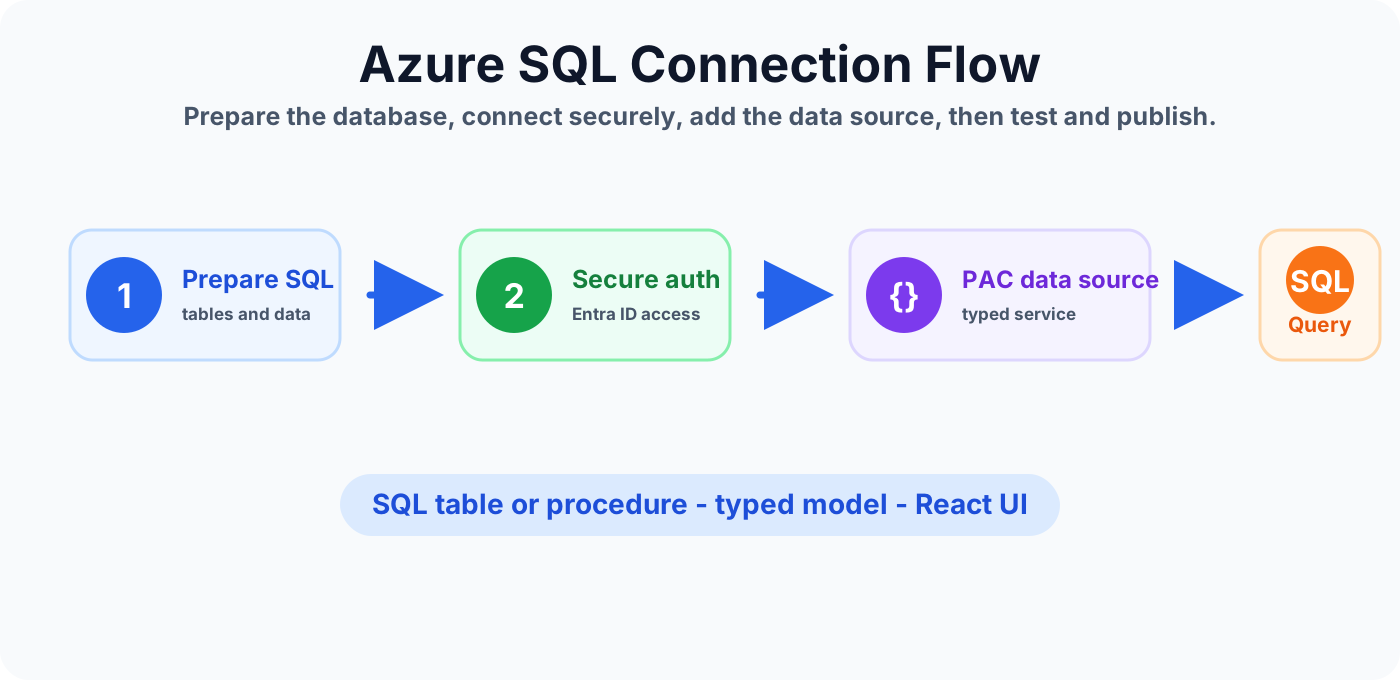
The goal is a code app that uses Azure SQL as a governed data source. The app can show records, filter data, update business information, call stored procedures, and return results to a React UI.
A typical architecture looks like this:
- Power Apps Code app provides the React UI and app logic.
- PAC CLI data source adds the SQL connection to the code app project.
- Azure SQL Database stores relational business data.
- Microsoft Entra ID and permissions control who can access the data.
- Connection references help move the app across development, test, and production environments.
When Azure SQL is the right data source
Azure SQL is a strong fit when your app needs relational tables, existing SQL investments, complex filtering, reporting data, stored procedures, or integration with operational systems. It is common in finance, operations, HR, compliance, and line-of-business applications.
Azure SQL is not always the first choice. If the app is deeply centered on Power Platform security roles, Dataverse relationships, business process flows, and native model-driven app behavior, Dataverse may be a better starting point. If the app is document or list based, SharePoint may be enough.
Prerequisites
Before connecting a Power Apps Code app to Azure SQL, prepare the platform and the database carefully. Most production issues come from permissions, environment differences, or unclear data ownership.
- A Power Platform environment for the app.
- A Power Apps Code project created with PAC CLI.
- An Azure SQL Database with the required tables, views, or stored procedures.
- A SQL connection that uses an approved authentication pattern.
- Clear access rules for development, testing, and production.
- Sample data for testing paging, filtering, empty results, and errors.
Step 1: Prepare Azure SQL Database
Start by preparing the database schema. Keep the app scenario in mind: what the user needs to see, what the user can edit, and which operations must stay server-side.
- Create tables with clear primary keys.
- Add indexes for the fields users will search or filter by.
- Use views when the app only needs read-focused shaped data.
- Use stored procedures for controlled write operations or complex business logic.
- Return only the columns the app needs instead of exposing every table field.
Step 2: Configure security and authentication
Security should be designed before the UI is built. Use least-privilege access, avoid sharing powerful accounts, and separate development permissions from production permissions.
For enterprise teams, Microsoft Entra ID based authentication is usually easier to govern than unmanaged credentials. The exact connection design depends on your tenant policies, environment strategy, network rules, and data sensitivity.
- Grant only the database access the app needs.
- Use separate connections for development, test, and production where appropriate.
- Document who owns the database, app, connection, and production support process.
- Review firewall, private networking, and compliance requirements before rollout.
Step 3: Add Azure SQL as a data source with PAC CLI
After the database and connection are ready, add the SQL data source to the Power Apps Code project. The exact parameters depend on your connection, table, dataset, and whether you are connecting to a table, view, or stored procedure.
# Example pattern only. Replace values with your environment details.
pac connection list

# Add a SQL table or view as a data source.
pac code add-data-source -a shared_sql -c <connectionId> -t "[dbo].[Requests]" -d "server.database.windows.net,database"

# Add a stored procedure when the operation should stay controlled in SQL.
pac code add-data-source -a shared_sql -c <connectionId> -d "server.database.windows.net,database" -sp "[dbo].[GetRequestById]"
After adding the data source, review the generated files in the project. Keep generated files separate from custom app logic so future updates are easier to manage.
Step 4: Query and display SQL data
Once the data source is available, use the generated service from your React components or app service layer. Keep UI code clean by separating data calls, mapping logic, validation, and rendering.
- Load only the data needed for the current view.
- Use paging for large tables.
- Show clear loading, empty, success, and error states.
- Handle null values and unexpected response shapes.
- Avoid sending raw SQL details into user-facing error messages.
Step 5: Use stored procedures for controlled operations
Stored procedures are helpful when a business action should be controlled in the database. For example, submitting an expense, approving a request, recalculating a balance, or returning a filtered report can be managed behind a procedure instead of spreading the logic across the UI.
This pattern is useful for organizations with strong data governance, regulated financial data, or established SQL development standards.
Common use cases
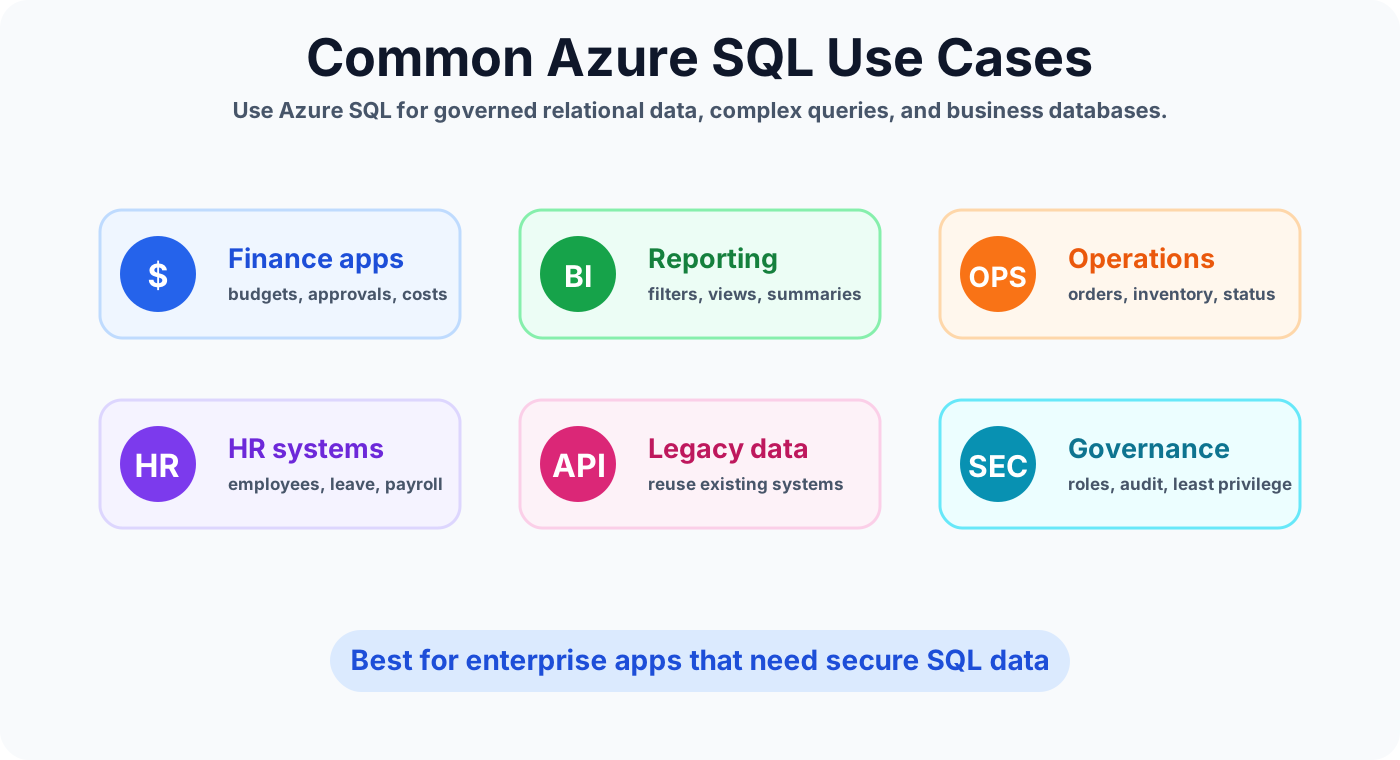
Finance and approval apps
Use Azure SQL to store budgets, request records, cost centers, approval history, and audit-friendly transaction data. The code app can provide a focused UI while SQL handles structured data and reporting needs.
Operations dashboards
Operational apps often need filtering, sorting, and summary views over large datasets. Azure SQL can support dashboards for inventory, orders, service requests, locations, and status tracking.
HR and employee systems
Azure SQL can store employee request data, reference tables, policy mappings, and workflow status. Use careful permissions and avoid exposing sensitive data unnecessarily.
Legacy system modernization
Many companies already have SQL databases behind older internal apps. A Power Apps Code app can modernize the user experience without immediately rebuilding every backend process.
Best practices for production
- Use least privilege. Do not give the app broad database access if it only needs a few operations.
- Design for ALM. Use environment-aware connection references and document deployment steps.
- Keep business logic consistent. Put complex database rules in views, stored procedures, or APIs where they can be tested and governed.
- Test with realistic data volumes. A query that works with 20 rows may fail with 200,000 rows.
- Monitor failures. Capture connection, permission, timeout, and validation issues early.
- Protect sensitive data. Review who can read, edit, export, and administer the SQL data.
Troubleshooting checklist
- If the connection fails, confirm the connection ID, API name, environment, and authentication method.
- If data does not appear, check table names, schema names, permissions, and case-sensitive values.
- If performance is slow, review indexes, paging, filters, and whether the app is loading too many records.
- If publishing fails, verify build output, generated services, solution references, and target environment configuration.
- If users in another region report issues, check network latency, data residency rules, permissions, and environment routing.
How this fits with the Power Apps Code learning path
This Azure SQL article fits after the basic app setup and before deeper enterprise deployment work. A practical sequence is:
- Install Developer Tools for Power Apps Code
- Create Your First Power Apps Code App
- Understand the React Project Structure
- Connect to Dataverse
- Connect to Azure SQL
- Explore the Power Apps Code hub
Summary
Azure SQL is a strong data source for Power Apps Code apps when you need secure relational data, existing SQL investments, stored procedures, reporting patterns, and enterprise-scale governance. The key is not just connecting the database. The real work is preparing the schema, securing access, using PAC CLI correctly, testing with realistic data, and designing the app for long-term support.
Use Azure SQL when your Power Apps Code app needs governed enterprise data, not just a simple list.
Tagged
PAC CLI · Connectors · React · ALM
Frequently asked questions
Can Power Apps Code apps connect to Azure SQL?
Yes. A Power Apps Code app can connect to Azure SQL Database through a supported SQL connection and a PAC CLI data source so the app can query tables or call stored procedures.
When should I use Azure SQL instead of Dataverse?
Use Azure SQL when the business already has relational SQL data, needs complex queries, stored procedures, reporting patterns, or a database architecture managed outside Dataverse.
Is Azure SQL a good option for enterprise Power Apps Code apps?
Yes, when the database is designed, secured, indexed, and governed correctly. It is useful for enterprise apps that need scalable relational data and controlled access.
Should a Power Apps Code app call SQL tables directly or use stored procedures?
For simple read scenarios, table or view access may be enough. For controlled writes, business rules, or complex operations, stored procedures or APIs can keep the app cleaner and safer.
What should I check before publishing an Azure SQL connected app?
Check authentication, least-privilege permissions, firewall or network rules, paging, filtering, null handling, error messages, performance, and environment-specific connection references.
Sources
- Microsoft Learn: Code Apps, Microsoft
- Microsoft Learn: Power Apps, Microsoft
Have a Microsoft 365 topic idea?
Share article suggestions, community session ideas, corrections, or real-world scenarios for future nextM365 learning notes.
Keep learning Microsoft 365
Explore more practical guides for SharePoint, Power Platform, Copilot Studio, migration, automation, governance, and security.
Continue learning
Related tutorials
Related questions
Related comparisons
Next action