ShareGate Migration Tutorial: Inventory, Pilot Waves, and Validation
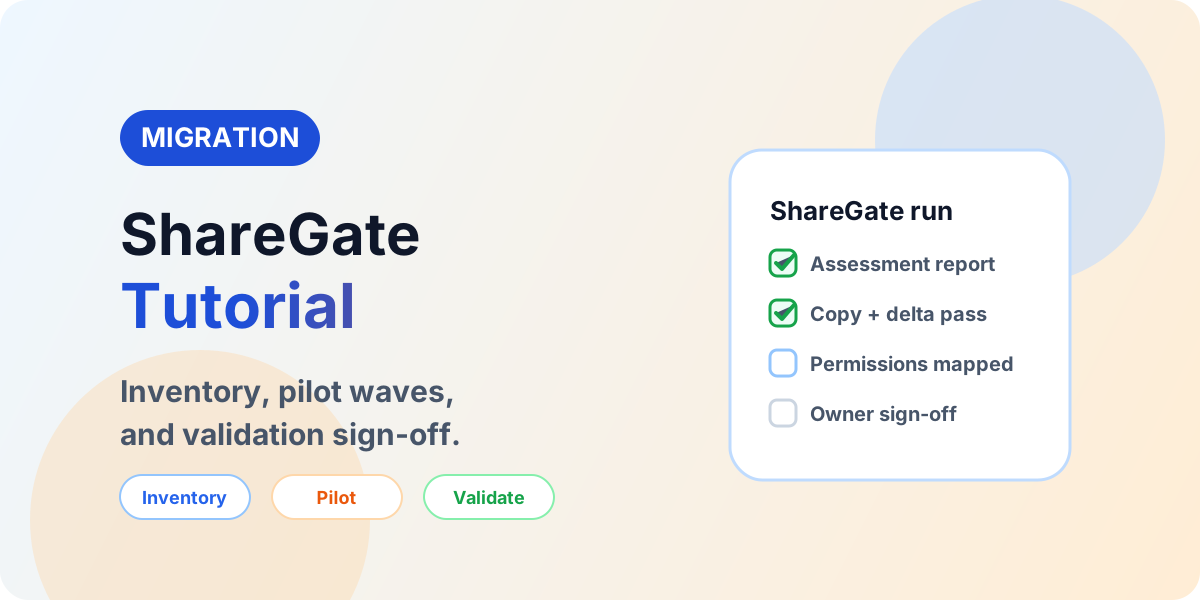
Run a ShareGate migration as a controlled program: inventory report, pilot wave, permissions mapping, copy plus delta passes, and per-wave validation sign-off.
- Published
- Reading time
- 9 min read
Before you start
Is this guide for you?
- Best entry point
- Migration
- Time investment
- 9 min read
In this article
- Date-wise runbook (typical 3-week program)
- 1. Run the inventory and assessment report first
- 2. Choose the right copy operation per workload
- 3. Map identities, permissions, and metadata
- 4. Set copy options deliberately, then prove them with a pilot
On this page (18 sections)
Direct answer: A ShareGate migration runs inventory and assessment reporting first, proves mappings with a pilot wave, then moves content in controlled copy waves with incremental or delta passes, permission and metadata validation, and owner sign-off per wave. ShareGate moves content well; planning and validation decide whether users accept the result.
Vendor note (October 2026): ShareGate editions, screens, and licensing change frequently. Treat vendor clicks as illustrative and confirm the current behavior in the official ShareGate Migrate help collection before your pilot. The workflow below is deliberately tool-version resilient.
Start from the migration hub and the assessment checklist. Background: What is ShareGate? and ShareGate vs AvePoint. Execution checklists: SharePoint Migration Checklist and Migration Validation.
Date-wise runbook (typical 3-week program)
Dates below are relative — anchor Day 0 to your first pilot and keep each wave on its own calendar date so reports, versions, and sign-offs never share a timestamp.
- Day 0 — Inventory: connect read-only, run the source analysis report, export findings, agree migrate / archive / delete / remediate per area.
- Day 1–2 — Mappings: identity, permission-level, content-type, property, and sensitivity-label mappings reviewed with owners; target architecture frozen.
- Day 3–5 — Pilot wave: one simple plus one complex library end-to-end, including pre-check, copy, incremental pass, and business-user validation.
- Week 2 — Bulk waves: one wave per scheduled day; pre-check each morning, copy during off-hours where throttling is a concern, validate and sign off before the next wave starts.
- Cutover day — Final delta: freeze source edits, run the last incremental pass, validate counts and permissions, cut over users with support on standby.
- Day +1 — Hypercare: monitor sync errors, sharing requests, search indexing, and automation breakages; close exceptions with explicit retry / archive / exclude / manual-move decisions.
1. Run the inventory and assessment report first
Run it from the Plan area's source-analysis box, choosing the SharePoint and Microsoft 365 or file-share path to match your source. Get prerequisites right first: SharePoint analysis needs site collection admin on the targets (higher admin roles alone are not enough — connect through central admin or the admin center to cover all collections), and file-share analysis needs mapped drives plus Read and Read-permissions rights. The summary screen reports counts that drive scoping — site collections, sites, unused sites, workflows, file and folder totals with sizes — plus potential migration limitations as warnings and errors with detail views; clear both before migrating. Note two quirks: the headline size total excludes subsites (export to a spreadsheet for the true total), and analysis copies nothing, so expect the migration report to surface a few new warnings once matching against the destination begins. Use the detail views inside the tool to work through each finding.
Convert the report into decisions with owners: migrate, archive, delete, remediate, or review per area. Common pre-copy fixes are shortening paths, resolving illegal characters, clearing locks and checkouts, trimming version bloat per policy, and removing stale content. Skipped assessment is the most common reason migrations technically complete but fail for users.
2. Choose the right copy operation per workload
ShareGate Migrate separates copy paths by workload, and each has its own fidelity limits — do not force every workload through one operation. As a rule of thumb: Copy structure and content for whole-site moves (choose merge vs. subsite deliberately), Copy content only for list and library moves where reusable option templates pay off, Import paths for file shares, Google Drive, and Box, and the dedicated Teams, Planner, mailbox, and OneDrive copy paths for those workloads. Confirm per-artifact coverage in the Teams, OneDrive, and mailbox fidelity guide before promising scope — Teams channels, tabs, Planner links, and mailbox extras all have documented limits.
3. Map identities, permissions, and metadata
Map every source identity to its target account before the pilot: users, groups, guests, and service accounts. Approve a simpler target permission model with owners rather than replicating every unique break — see SharePoint Migration Permissions for the mapping pattern. ShareGate documents its full mapping surface (users and groups, properties, permission levels, content types, site templates, sensitivity labels) — worked through step by step in the ShareGate mappings guide; note that sensitivity labels must already exist and be published in the destination tenant before they can be applied.
Map metadata, content types, and site columns to the target information architecture, and record what happens to workflows, forms, and customizations per item: retain, replace, rebuild, or retire. ShareGate copies content and mappings; it does not decide the target architecture for you.
4. Set copy options deliberately, then prove them with a pilot
Open the Copy options screen before the pilot and decide each setting on purpose — option-by-option guidance lives in the incremental copy and pre-check guide. Key choices: operation mode (Automatic applies your existing-item rule silently; Manual prompts per conflict and does not scale to large waves), existing-item rule (replace, skip, keep both for files, or Copy-if-newer incremental), configurations (preserve authors and timestamps, version history with a limit on latest versions, permissions, list views, link updating from source to destination domain, dependency placement), and filters (time-range and file-extension filters for scoped waves).
Pilot with representative content: one simple library and one complex one covering permissions, metadata, versions, sharing, and — where relevant — workflows. Run the full cycle: pre-check, copy, incremental pass, permission sampling, metadata spot-checks, link review, and business-user validation. Measure throughput and throttling behavior so wave scheduling is evidence-based — the appendix below covers the throttling and performance playbook.
Exit the pilot only when mappings, throughput, exception handling, rollback communication, and validation evidence are all approved. Fix findings in the plan, not during bulk waves.
5. Understand incremental copy limits before relying on it
Copy if newer (incremental) copies new items and refreshes matched items only when the source is newer — files match by name within the same library, list items by title plus created date. Plan around its documented limits: destination folder hierarchy must mirror the source or duplicates appear; it is not designed for very large libraries (prefer Copy-and-replace with a time-range filter there); versioning behavior depends on destination settings; items deleted at the source are not removed at the destination; and permission changes are not re-checked by the incremental pass. Validate permissions separately per wave.
6. Run pre-check for every wave
Run the pre-check gate before each wave — pilot included — and clear every finding before the copy starts. Pre-check catches the connectivity, permission, and configuration problems that otherwise surface mid-wave when rollback is most expensive. Treat a red pre-check as a wave gate, not a warning to scroll past.
7. Run controlled copy waves with delta passes
Schedule waves in small controlled batches with owners notified and source changes frozen where needed. Run the initial copy, then incremental or delta passes to catch changes before cutover. Track exceptions per wave — blocked files, permission mismatches, missing metadata, throttled items — with an explicit decision: retry, archive, exclude, or manual move. Use the migration report and scripted wave routine plus Tasks and Scheduled runs to keep each wave's evidence in one place, and reach for scripted waves when the program repeats enough to deserve them.
Keep users informed with cutover instructions and support channels. Freeze source edits during the final delta and cut over with communication, not hope.
8. Validate every wave before sign-off
Validate counts and samples, metadata and content types, permissions and groups, navigation, search, views, sharing, and business processes — with owner acceptance recorded per wave. Method and evidence bar: Migration Validation, scripted sampling: Validation with Python.
Copy success is not business success. Owner validation, permission testing, link remediation, and exception closure are what prove completion.
Appendix: throttling and performance playbook
Throttling is normal protection, not failure: 429 Too Many Requests or 503 responses mean the tenant is under pressure, and ShareGate retries until the server accepts the work — do not cancel the job on first sight. Schedule bulk waves overnight or on weekends, consent to the ShareGate Azure app, pause competing backup jobs, and split very large moves into smaller intervals. Treat it as significant (worth replanning) when more than roughly a third of requests are throttled for half an hour or more.
When a wave runs slow, check four layers in order: the environments (source health warnings, destination recycle-bin bloat, server CPU, cores, memory, and disk queues), the directory (slow Active Directory lookups stall on-premises user mapping), the workstation (match the performance setting to what the servers can actually absorb, and run parallel migrations from separate machines and accounts rather than one overloaded box), and the network (upstream bandwidth for cloud targets, proxy and VPN latency, packet checks between workstation and front end). High-speed import modes move fastest but carry their own limits — very large programs need tenant-side provisioning arranged with Microsoft in advance. Sources: throttling and performance.
Common mistakes
Copying before assessment
Bulk copy without an inventory report migrates blockers, stale content, and permission sprawl into the new environment. Report first, remediate, then copy.
Replicating every unique permission
Preserving every break preserves access incidents. Simplify the target model with owners and validate effective access per wave.
Skipping the delta pass
Source content changes during long waves. Without an incremental or delta pass plus a change freeze, cutover lands on stale content and user distrust.
Calling copy completion done
Close each wave with validation evidence and owner sign-off. Unvalidated waves accumulate into an unexplainable go-live.
Restructuring folders between source and destination mid-program
Incremental matching assumes the same folder hierarchy on both sides. Reorganize either before the first copy or after cutover — never between the initial copy and the delta pass, or expect duplicates.
Running incremental copy against very large libraries
Large libraries make the crawl-and-compare pass slow or throttled. Scope those waves with time-range filters and Copy-and-replace instead, and schedule them for off-hours.
Planning a ShareGate migration
If you are scoping a SharePoint, Teams, or file-share move and want help turning an inventory report into waves and validation, share the source, target, and timeline: Book a SharePoint Migration Assessment.
Continue with Explore the SharePoint Migration Hub, SharePoint Migration Checklist, SharePoint Online Migration Step-by-Step Guide, and ShareGate vs AvePoint.
NEXT STEP
From Tool Output to Sign-Off Evidence
Inventory reports, pilot results, and exception lists become sign-off material when checked against a validation baseline.
30-minute technical discussion • No obligation • Practical next steps
Tagged
Architecture · Governance · Security
Frequently asked questions
When should ShareGate be used for migration?
Shortlist ShareGate for administrator-led SharePoint, Teams, and file-share migrations where assessment reporting and straightforward copy waves matter most. Confirm current edition, licensing, and source coverage before committing.
What should be done before the first ShareGate copy?
Approve scope, run the inventory and assessment report, remediate blockers such as long paths and unsupported content, map identities and permissions, and prove the plan with a pilot wave.
How should ShareGate migration waves be structured?
Pilot with representative simple and complex content, then run controlled waves with owners notified, followed by incremental or delta passes, cutover, and per-wave validation sign-off.
What must be validated after a ShareGate migration?
Validate file counts, folder structure, metadata, permissions, version history, links, sharing, and business processes with owner acceptance recorded per wave.
Does ShareGate replace migration planning?
No. ShareGate executes the copy efficiently, but scope, information architecture, permissions decisions, wave planning, and validation sign-off still determine whether the migration succeeds for users.
How does ShareGate incremental copy (Copy if newer) work?
It copies new items and updates matched items only when the source version is newer, matching files by name within the same library and list items by title plus created date. It is not a full sync: items deleted at the source stay at the destination, permissions are not re-checked, and very large libraries should use time-range filters instead.
What is the ShareGate pre-check?
A pre-flight check ShareGate runs before the copy that flags likely blockers such as connectivity, permissions, and configuration problems. Run it for every wave, not just the pilot, and clear every finding before the copy starts.
Sources
- Microsoft Learn: Migrate To Sharepoint Online, Microsoft
- Microsoft Learn: Introducing The Sharepoint Migration Tool, Microsoft
- Microsoft Learn documentation, Microsoft
Have a Microsoft 365 topic idea?
Share article suggestions, community session ideas, corrections, or real-world scenarios for future nextM365 learning notes.
Keep learning Microsoft 365
Explore more practical guides for SharePoint, Power Platform, Copilot Studio, migration, automation, governance, and security.
Continue learning
Related tutorials
Related questions
Related comparisons
Next action