Unily + Microsoft 365 Integration Explained
Learn how Unily integrates with Microsoft 365, SharePoint, Teams, Viva, Entra ID and Microsoft Graph to connect intranet content, identity, collaboration and governance.
- Published
- Reading time
- 7 min read
Before you start
Is this guide for you?
- Best entry point
- Microsoft 365
- Time investment
- 7 min read
In this article
- What is Unily?
- What is Microsoft 365 integration?
- How Unily integrates with Microsoft 365
- Identity and SSO with Microsoft Entra ID
- SharePoint and Microsoft 365 content
On this page (20 sections)
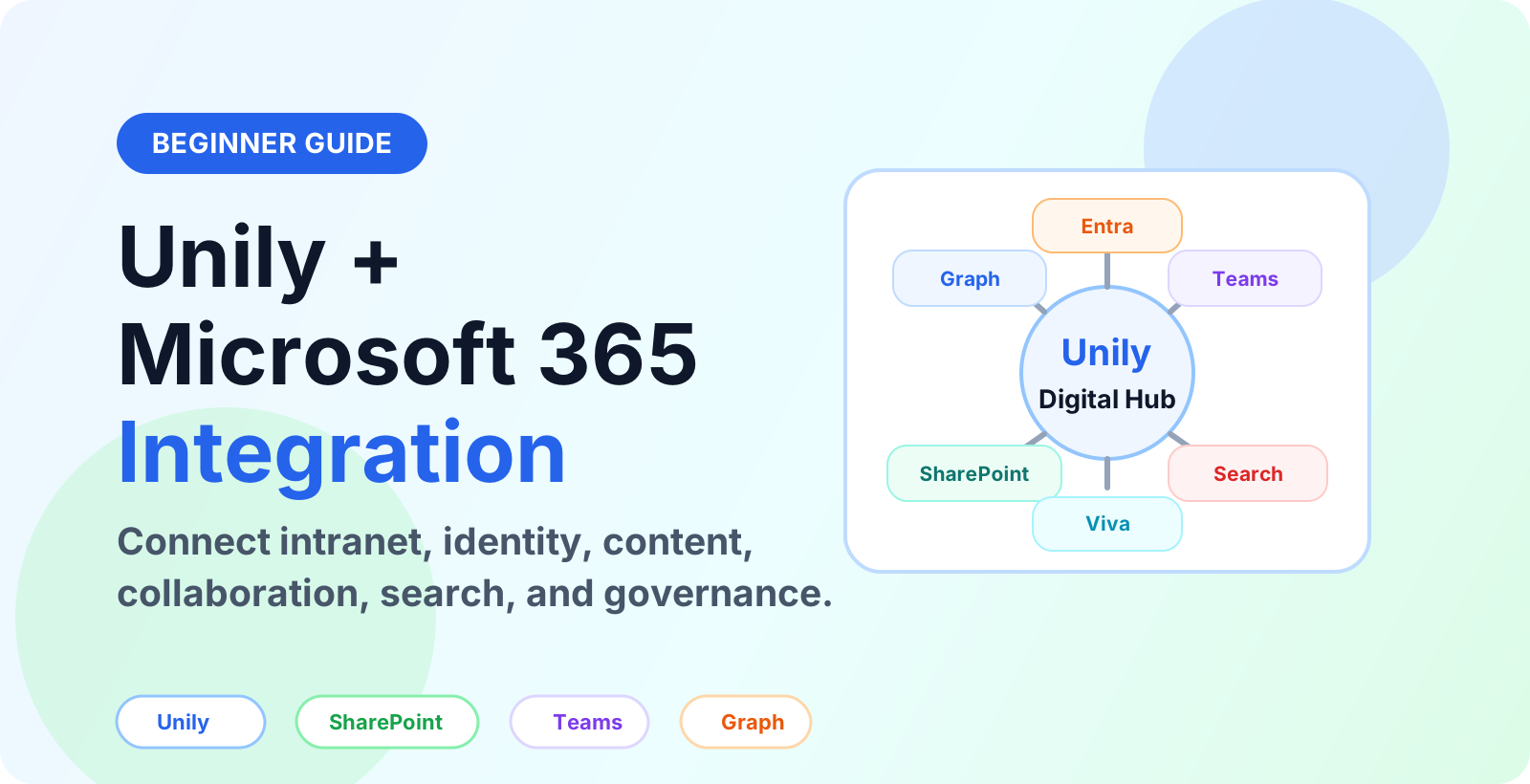
Unily Microsoft 365 integration connects a digital workplace or intranet experience with the Microsoft 365 services employees already use every day. The goal is not to replace Microsoft 365. The goal is to make Microsoft 365 content, collaboration, identity, search, and governance easier to reach from one employee-facing hub.
For many organizations, Microsoft 365 is where work happens: SharePoint stores pages and documents, Teams supports collaboration, Outlook handles communication, Viva supports employee experience, and Microsoft Entra ID controls identity. Unily can sit above those services as a structured intranet and employee experience layer.
This article explains the integration in beginner-friendly language for Microsoft 365 administrators, intranet owners, digital workplace teams, communications teams, and consultants planning an employee experience platform. If you are new to the Microsoft platform, start with What Is Microsoft 365? and Microsoft Graph API Explained for Beginners.
What is Unily?
Unily is an employee experience and intranet platform used to bring communications, knowledge, navigation, services, and workplace information into a more guided employee portal. In a Microsoft 365 environment, Unily is commonly used as the front door for employees while Microsoft 365 remains the system behind many documents, collaboration spaces, identity controls, and business services.
Think of it this way: Microsoft 365 provides many of the work systems. Unily helps organize the employee experience around those systems so people can find news, policies, resources, communities, applications, and support journeys more easily.
What is Microsoft 365 integration?
Microsoft 365 integration means connecting an application or platform to Microsoft 365 services in a controlled way. For Unily, this can include sign-in, user profile data, SharePoint content, Teams collaboration entry points, Microsoft Graph API data, search, notifications, and governance workflows.
The exact integration design depends on the tenant, licenses, security model, connectors, APIs, and implementation choices. A good design should clearly define what data is read, where content is stored, who owns permissions, and how users will get support.
How Unily integrates with Microsoft 365
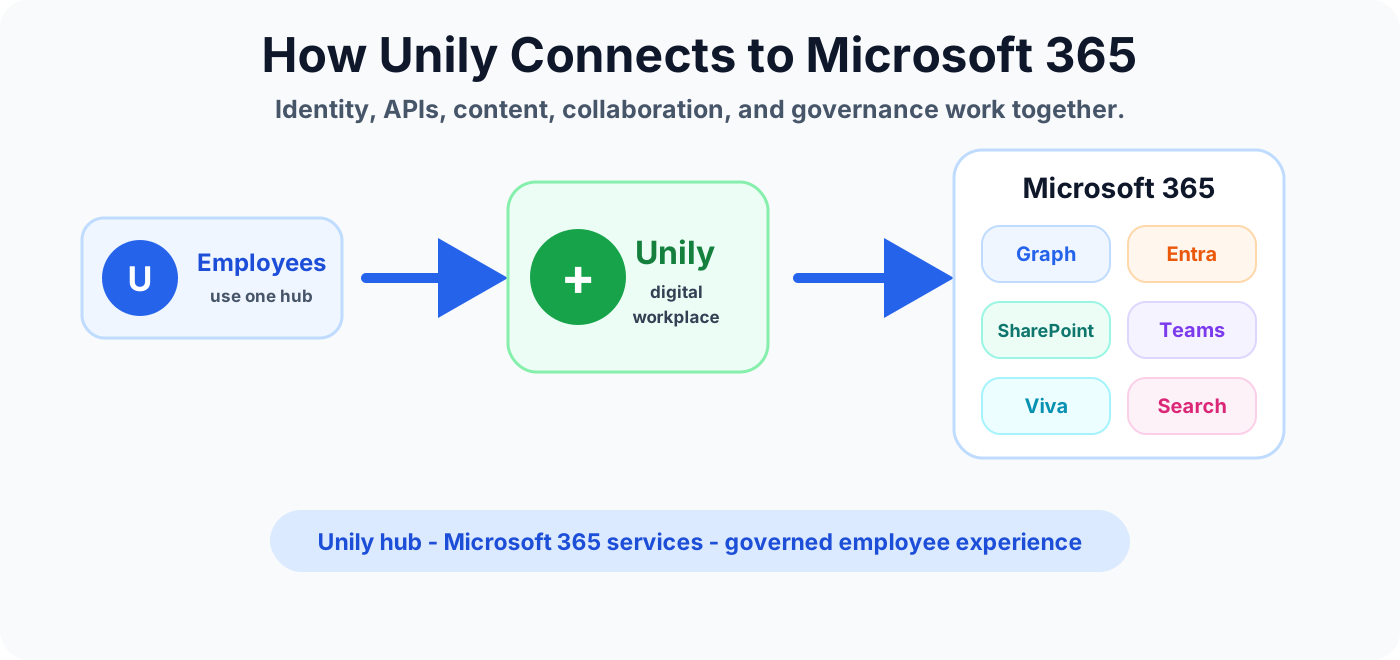
A typical Unily and Microsoft 365 integration has several layers:
- Identity layer: users sign in with Microsoft Entra ID or another approved identity provider.
- Content layer: intranet pages, documents, news, and knowledge may connect with SharePoint or Microsoft 365 content sources.
- Collaboration layer: Teams can provide conversation, communities, meetings, and workspaces connected from the employee hub.
- API layer: Microsoft Graph can provide secure access to selected Microsoft 365 data when approved permissions are granted.
- Governance layer: admins manage access, app permissions, lifecycle, compliance, and support ownership.
Identity and SSO with Microsoft Entra ID
Identity is usually the first integration decision. Employees should not need separate credentials for every workplace system. With Microsoft Entra ID, organizations can support single sign-on, conditional access, multifactor authentication, user lifecycle, and group-based access patterns.
Before rollout, confirm who owns the enterprise application setup, which groups can access Unily, how guest or external access is handled, and how access is removed when a user leaves the organization. For admin permissions planning, read Microsoft 365 Admin Roles Explained.
SharePoint and Microsoft 365 content
SharePoint is often the content backbone for Microsoft 365. It stores sites, pages, lists, document libraries, metadata, permissions, and many team files. In a Unily integration, SharePoint may be used as a content source, document repository, or connected destination depending on the implementation.
The key is to avoid messy content duplication. Decide which content belongs in Unily, which content stays in SharePoint, and which content is surfaced through links, search, or integrations. For SharePoint fundamentals, read SharePoint Online Document Library Explained.
Microsoft Teams and collaboration
Teams is where many employees collaborate day to day. A Unily portal can help users find the right Teams spaces, communities, announcements, collaboration links, or support channels. This is useful when the organization has many Teams and users do not know where to go.
Good Teams integration requires governance. Define naming rules, ownership, lifecycle, guest access, and when employees should use Teams instead of intranet comments, Yammer or Viva Engage, email, or support forms.
Viva, intranet, and employee experience
Microsoft Viva and Unily can both support employee experience scenarios. The design should make roles clear. One platform may handle communications and campaigns, another may handle learning, insights, knowledge, communities, or employee services. The right answer depends on the organization's technology stack and ownership model.
Avoid designing around tool names only. Start with employee journeys: new starter onboarding, policy lookup, HR requests, IT support, executive communication, frontline updates, and department knowledge.
Microsoft Graph and API permissions
Microsoft Graph is the API surface for Microsoft 365 data. It can expose users, groups, files, Teams, mail, calendar, sites, and other Microsoft 365 resources when an application has approved permissions.
Graph integration should be treated as a security and governance topic, not only a development task. Review app registrations, delegated permissions, application permissions, admin consent, secret or certificate handling, data minimization, and ownership. If you need the basics, use Microsoft Graph API Explained for Beginners.
Search and personalization
A digital workplace is useful only if employees can find the right information. Unily and Microsoft 365 integration can support search across people, pages, documents, services, and knowledge areas. The exact search behavior depends on configuration, content sources, permissions, metadata, and indexing.
Personalization can also improve relevance. Examples include showing content by role, department, region, location, language, audience, or access group. Keep personalization rules simple and documented so users understand why they see certain content.
Governance and security
Unily integration should follow the same governance principles as the rest of Microsoft 365: least privilege, clear ownership, lifecycle management, auditing, and documented support responsibilities.
Important questions include:
- Who owns the Unily platform?
- Who owns Microsoft 365 tenant configuration?
- Who approves Graph API permissions?
- Which SharePoint sites and Teams are connected?
- How are inactive pages, groups, apps, and integrations reviewed?
- How are incidents, outages, and access issues escalated?
For central tenant operations, read Microsoft 365 Admin Center Explained.
Common Unily and Microsoft 365 use cases
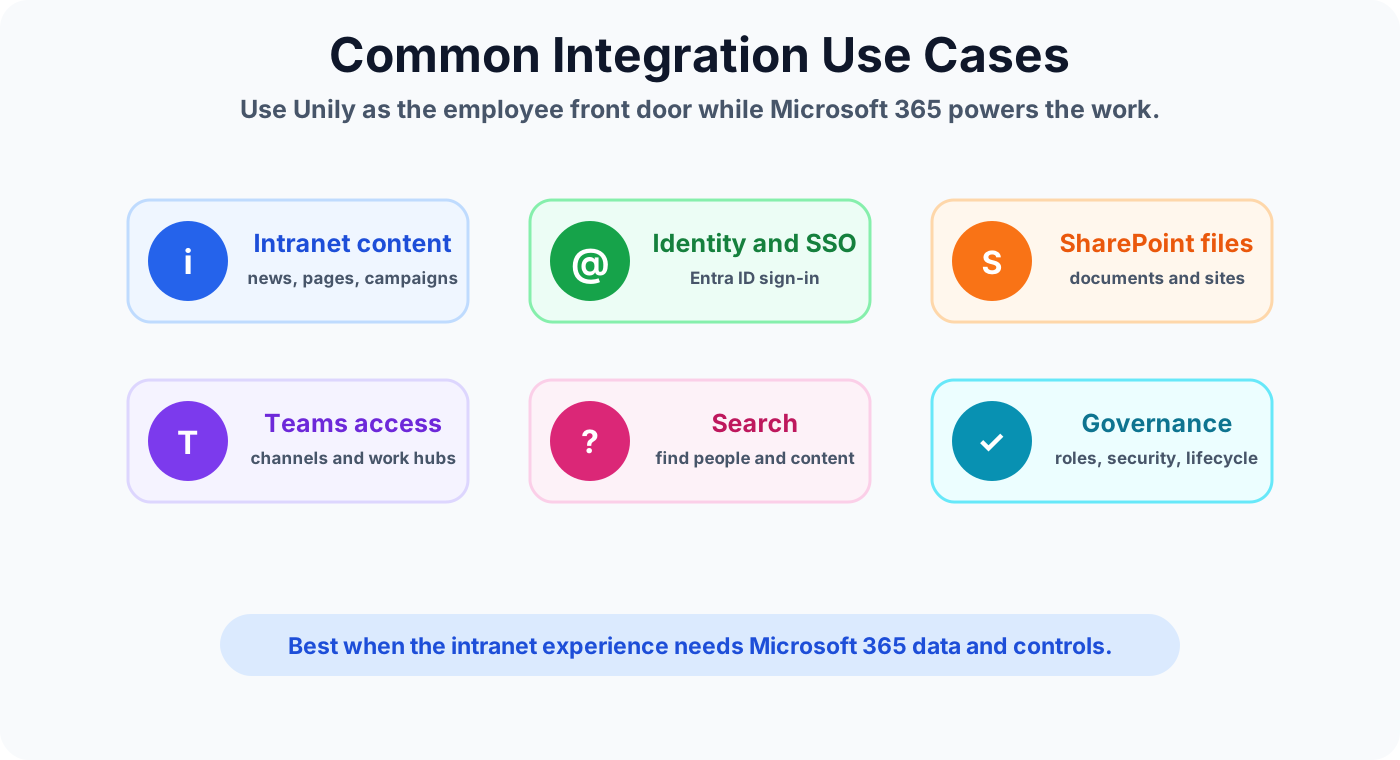
Company intranet and communications
Unily can provide a structured home for company news, campaigns, leadership updates, policies, events, and employee resources while linking to Microsoft 365 content and collaboration spaces.
SharePoint document discovery
Employees may not know which SharePoint site or library contains the right content. A Unily hub can help organize key links, guidance, navigation, and search paths so documents are easier to discover.
Teams collaboration entry points
Instead of asking users to search through many Teams, the portal can guide them to the right collaboration area for a department, project, community, or support process.
Employee onboarding
New employees need a clear path through policies, benefits, IT setup, training, people information, communities, and support channels. Microsoft 365 content and Teams spaces can be surfaced inside a more structured onboarding journey.
Support and service journeys
IT, HR, finance, facilities, and procurement processes often span multiple systems. Unily can provide the navigation and employee-facing guidance while Microsoft 365, Power Automate, forms, and connected systems handle workflow steps. For automation foundations, read Power Automate Cloud Flows Beginner Guide.
Implementation checklist
- Define the employee journeys Unily will improve.
- Confirm which Microsoft 365 services are in scope.
- Map identity and access requirements.
- Review Entra ID app registration and consent requirements.
- Document required Microsoft Graph permissions.
- Plan SharePoint content ownership and metadata.
- Define Teams governance and linking rules.
- Agree how search and personalization should work.
- Create an admin ownership and support model.
- Test with pilot users before broad rollout.
Common mistakes to avoid
- Duplicating content without ownership: copied content gets stale quickly if nobody owns updates.
- Approving broad API permissions too quickly: Microsoft Graph permissions should be reviewed carefully.
- Ignoring SharePoint information architecture: poor site and metadata design makes search and navigation weaker.
- Linking every Teams space: too many links can create noise instead of clarity.
- Skipping governance: integration needs owners, review cycles, and support paths.
- Launching without adoption planning: employees need to know when to use Unily, SharePoint, Teams, Viva, or other tools.
Best practices
- Start with user journeys, not technology features.
- Keep Microsoft 365 as the trusted system for identity, files, and collaboration where appropriate.
- Use clear ownership for pages, content sources, app permissions, and integrations.
- Apply least privilege for API access and administrator roles.
- Use SharePoint metadata and content governance to improve findability.
- Design search and navigation around employee language.
- Measure adoption and update journeys based on real user behavior.
Unily and Microsoft 365 integration summary
Unily can help organize the employee experience while Microsoft 365 provides the underlying identity, content, collaboration, APIs, and governance controls. A strong integration plan should connect the right services, limit unnecessary duplication, protect data access, and make daily employee journeys easier.
Unily works best with Microsoft 365 when it becomes a clear employee front door, not another disconnected content silo.
Next, continue with Microsoft Graph API Explained for Beginners, Microsoft 365 Admin Center Explained, and SharePoint Online Document Library Explained.
Tagged
Microsoft Graph · Permissions · Security · Connectors · Governance
Frequently asked questions
What is Unily Microsoft 365 integration?
Unily Microsoft 365 integration means connecting the Unily employee experience or intranet layer with Microsoft 365 services such as SharePoint, Teams, Viva, Microsoft Graph, and Entra ID so users can access content, collaboration, identity, and business information from one digital workplace experience.
Does Unily replace Microsoft 365?
No. Unily does not normally replace Microsoft 365. It usually sits above Microsoft 365 as an employee experience layer while Microsoft 365 continues to provide identity, files, collaboration, email, security, and administration.
Which Microsoft 365 services can Unily connect with?
Common integration areas include Microsoft Entra ID for sign-in and identity, SharePoint for content and documents, Teams for collaboration, Viva for employee experience scenarios, and Microsoft Graph for secure access to Microsoft 365 data.
Why is Microsoft Graph important for Unily integration?
Microsoft Graph provides a secure API surface for Microsoft 365 data such as users, groups, files, Teams, mail, calendar, and activity. Integration designs should review permissions, consent, ownership, and data governance carefully.
What should admins plan before integrating Unily with Microsoft 365?
Admins should plan identity, permissions, app registrations, content ownership, SharePoint information architecture, Teams governance, search behavior, data access, security review, support ownership, and rollout communications.
Sources
- Microsoft Learn: Teams Connected Sites, Microsoft
- Microsoft Learn: Introduction, Microsoft
Have a Microsoft 365 topic idea?
Share article suggestions, community session ideas, corrections, or real-world scenarios for future nextM365 learning notes.
Keep learning Microsoft 365
Explore more practical guides for SharePoint, Power Platform, Copilot Studio, migration, automation, governance, and security.
Continue learning
Related tutorials
Related questions
Next action